Foxit MCP Server: Give AI Agents Direct Access to 30+ PDF Tools via Model Context Protocol
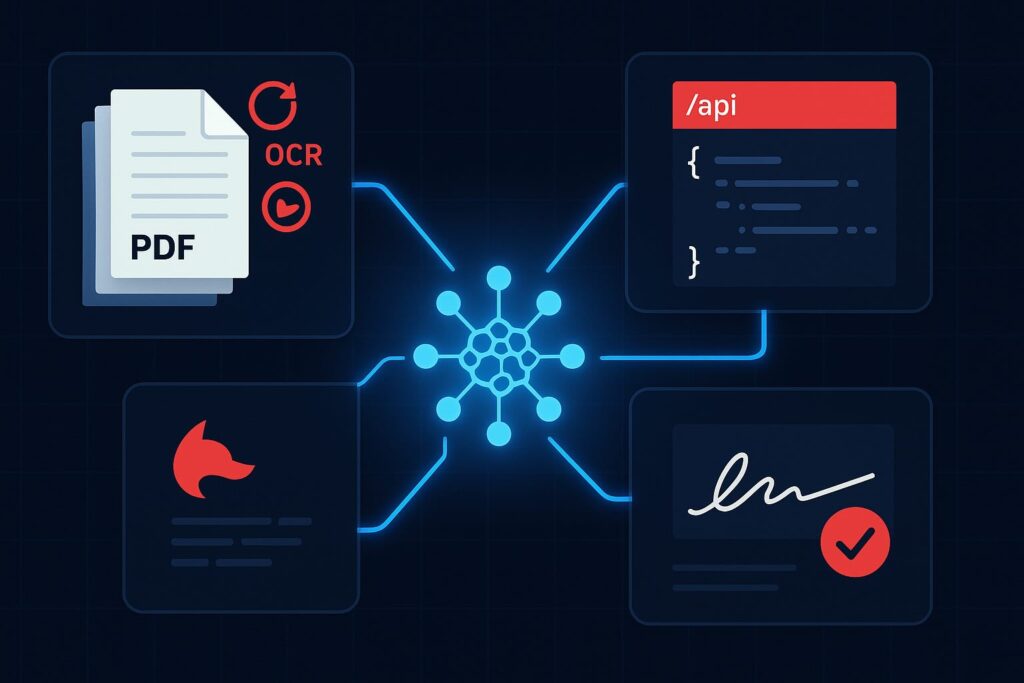
Foxit PDF API MCP Server architecture connecting AI agents to 30+ PDF tools, eSign, and DocGen workflows via Model Context Protocol.

Learn how the Foxit MCP Server lets AI agents handle PDF conversion, OCR, merge, signing, and document workflows.

Building a document automation agent with raw REST calls means writing the same boilerplate every time: upload a file, poll for task completion, download the result, handle errors, and manage auth tokens across multiple endpoints. For PDF operations, that loop repeats for every conversion, OCR call, or merge operation in your pipeline. The Foxit PDF API MCP Server collapses those loops into 30+ directly callable tools, with the MCP Server handling upstream REST complexity internally.

This guide covers how the server registers, what it exposes, how Foxit’s eSign and DocGen REST APIs extend the same agent session into signing and document generation workflows, and a concrete four-step workflow you can replicate against your own documents.

MCP Architecture in 90 Seconds

The MCP specification defines three roles. The Host is the LLM runtime (Claude Desktop, VS Code with GitHub Copilot, or Cursor) that manages the conversation and decides when to call tools. The Server is the capability provider, a process that advertises tools over the MCP protocol and executes them against some underlying service. Tools are the individual callable operations each server exposes, defined by a JSON schema the host uses to understand inputs and outputs.

Foxit occupies both sides of this architecture. Foxit PDF Editor ships as an MCP Host, the first PDF application to do so, connecting outward to external MCP servers like Gmail or Salesforce so its AI assistant can reach those services. The Foxit PDF API MCP Server works in the other direction, exposing Foxit’s cloud PDF Services API as 30+ tools for any MCP Host to call.

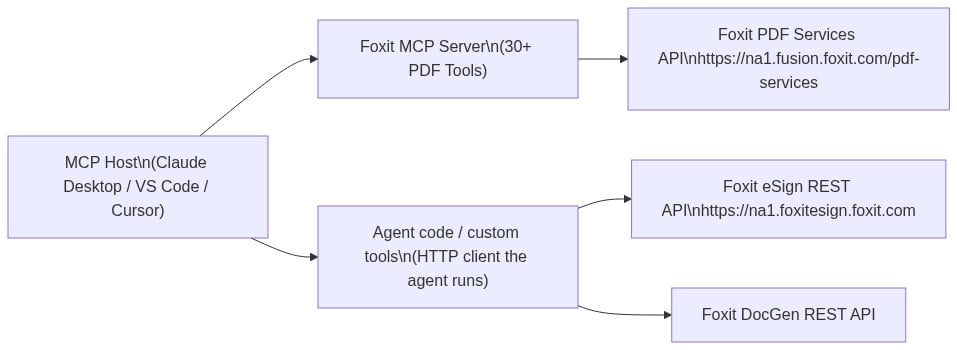
The MCP Server exposes PDF Services operations: conversion between formats, content extraction, OCR, merge, split, compress, flatten, linearize, compare, watermark, form data import/export, security, and property inspection. Foxit’s eSign API and DocGen API are separate REST services that a single agent session can also reach. The MCP tools handle PDF processing, while direct HTTP calls to eSign and DocGen handle signing and template generation.

Diagram showing an MCP host connecting to the Foxit MCP Server, Foxit PDF Services API, Foxit eSign REST API, and Foxit DocGen REST API for AI-driven document workflows. 

Prerequisites and Configuration

You need three things before registering the server:

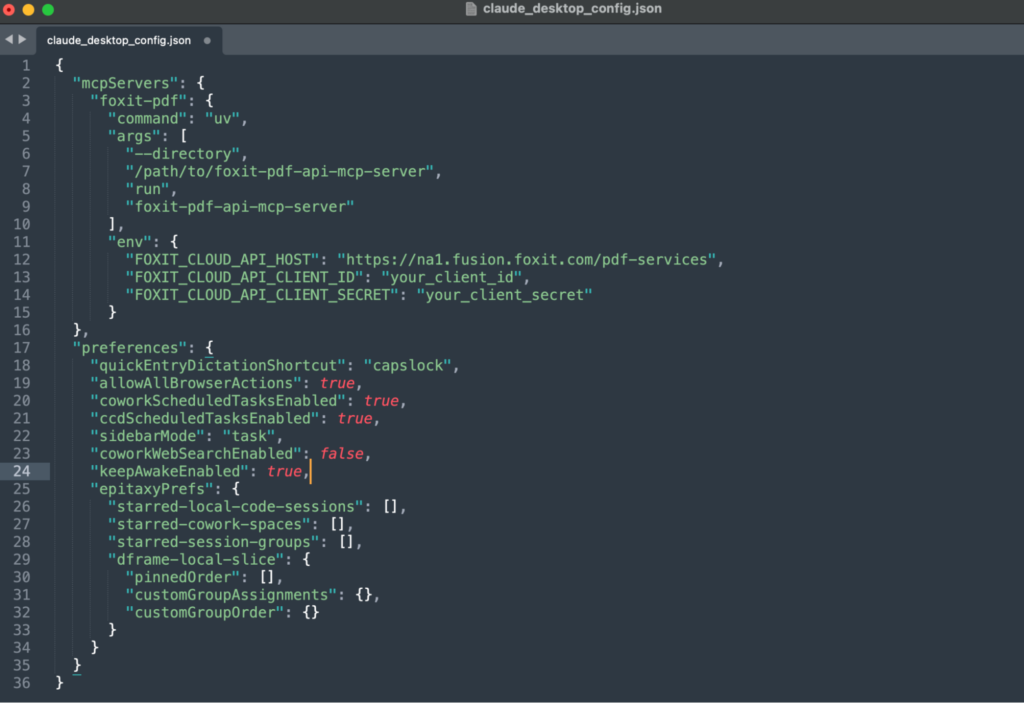
Clone the repo from github.com/foxitsoftware/foxit-pdf-api-mcp-server, then register it in your host’s MCP config. For VS Code with GitHub Copilot, add the following to .vscode/mcp.json:

{
  "servers": {
    "foxit-pdf": {
      "command": "uv",
      "args": [
        "--directory",
        "/path/to/foxit-pdf-api-mcp-server",
        "run",
        "foxit-pdf-api-mcp-server"
      ],
      "env": {
        "FOXIT_CLOUD_API_HOST": "https://na1.fusion.foxit.com/pdf-services",
        "FOXIT_CLOUD_API_CLIENT_ID": "your_client_id",
        "FOXIT_CLOUD_API_CLIENT_SECRET": "your_client_secret"
      }
    }
  }
}

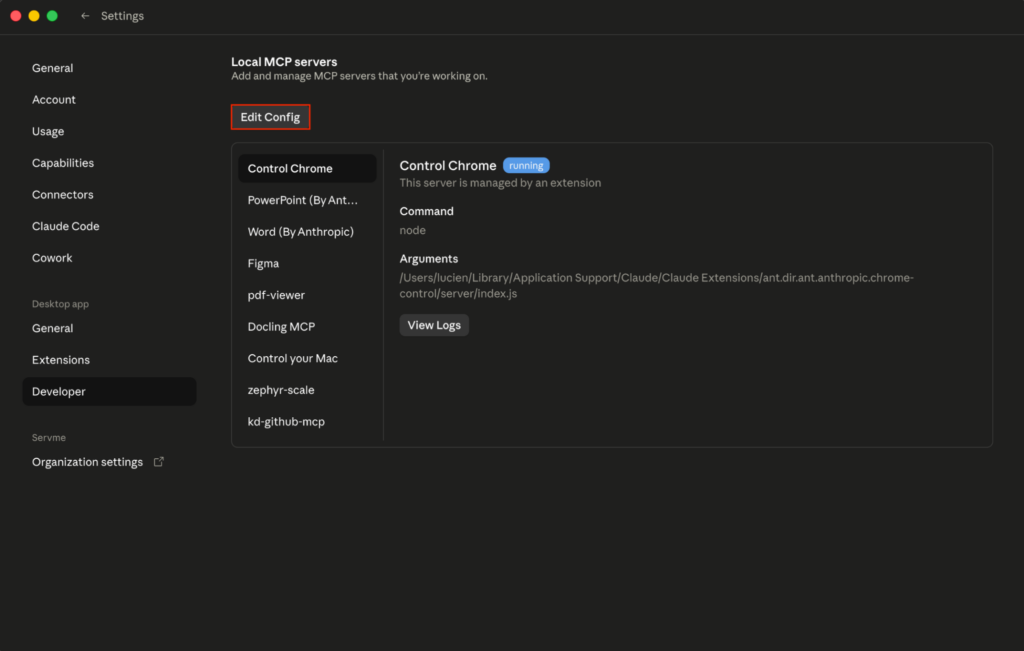
For Claude Desktop, the same three environment variables go into the env block of your claude_desktop_config.json under the mcpServers key, with command and args matching the structure above.

Set FOXIT_CLOUD_API_CLIENT_ID and FOXIT_CLOUD_API_CLIENT_SECRET as environment variables on your system before the host process launches. Passing credentials through prompt context is a security risk your production setup should address. The client_id and client_secret from your developer portal authenticate all MCP tool calls to the PDF Services API. Adding eSign to the same agent session requires its own OAuth2 token exchange (covered in the next section), keeping the two credential scopes isolated.

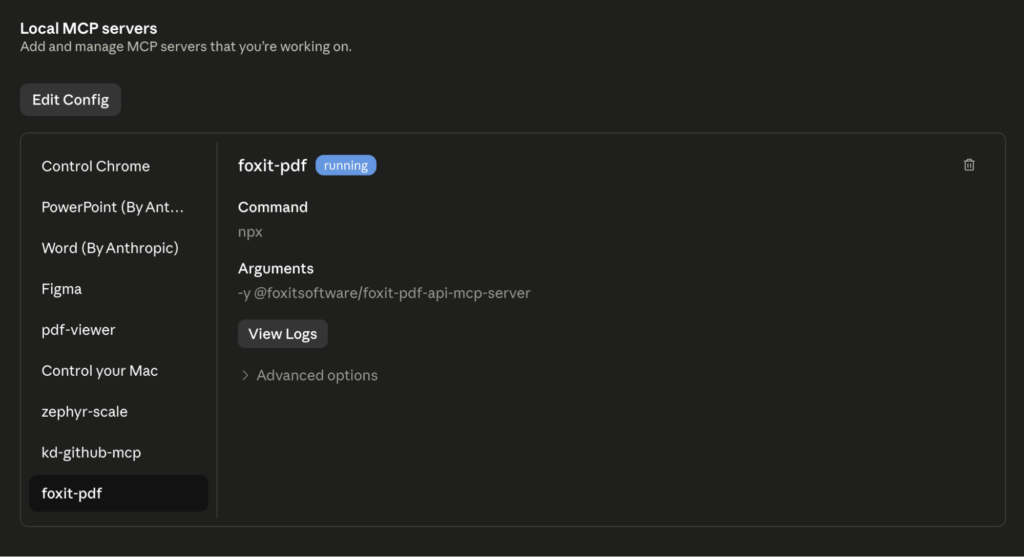
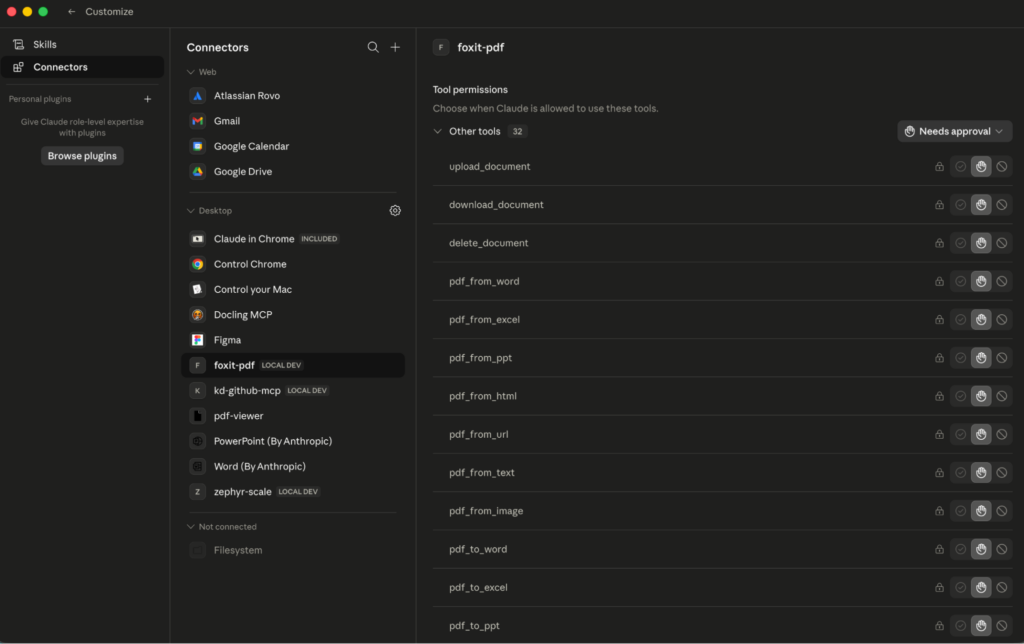
Restart your MCP host after saving the config. The server advertises all tools to the host on connection, so your agent can inspect available operations before invoking any.

PDF Services MCP Tools: Full Catalog

The 30+ tools organize into seven functional categories. Most tools expect a documentId returned by a prior upload_document call, and return a resultDocumentId you pass to download_document when you want the output locally. The exception is pdf_from_url, which accepts a URL directly.

Document Lifecycle

  • upload_document: upload a PDF, Office file, image, HTML file, or plain text file; returns a documentId for subsequent operations
  • download_document: retrieve a processed result to a local file path
  • delete_document: clean up stored files from cloud storage

PDF Creation (file to PDF)

  • pdf_from_wordpdf_from_excelpdf_from_ppt: convert Office documents to PDF
  • pdf_from_textpdf_from_imagepdf_from_html: convert plaintext, image files, or HTML to PDF
  • pdf_from_url: fetch a live URL and convert the rendered page to PDF

PDF Conversion (PDF to file)

  • pdf_to_wordpdf_to_excelpdf_to_ppt: extract editable Office formats from a PDF
  • pdf_to_textpdf_to_htmlpdf_to_image: export text, HTML, or image representations

Manipulation

  • pdf_merge: combine multiple PDFs into one
  • pdf_split: split by page ranges, page count, or every page individually
  • pdf_extract: pull a subset of pages from a PDF
  • pdf_compress: reduce file size by 30-70% depending on content type
  • pdf_flatten: convert form fields and annotations to static content (required for compliance archiving workflows)
  • pdf_linearize: optimize for Fast Web View so browsers can stream PDF pages incrementally
  • pdf_watermark: apply text or image watermarks with configurable position, opacity, and rotation
  • pdf_manipulate: rotate, delete, or reorder pages

Analysis

  • pdf_compare: diff two PDFs and return a color-coded annotation document showing changes
  • pdf_ocr: convert scanned or image-based PDFs to searchable text with multi-language support
  • pdf_structural_analysis: extract layouts, tables, images, form fields, metadata, and text as structured JSON

Security and Forms

  • pdf_protect: add password protection with 128-bit or 256-bit AES encryption and granular permission flags
  • pdf_remove_password: strip password protection from a document
  • export_pdf_form_data: extract form field values as JSON
  • import_pdf_form_data: populate form fields from a JSON payload

Properties

  • get_pdf_properties: return page count, page dimensions, PDF version, encryption status, digital signature info, embedded files, font inventory, and document metadata

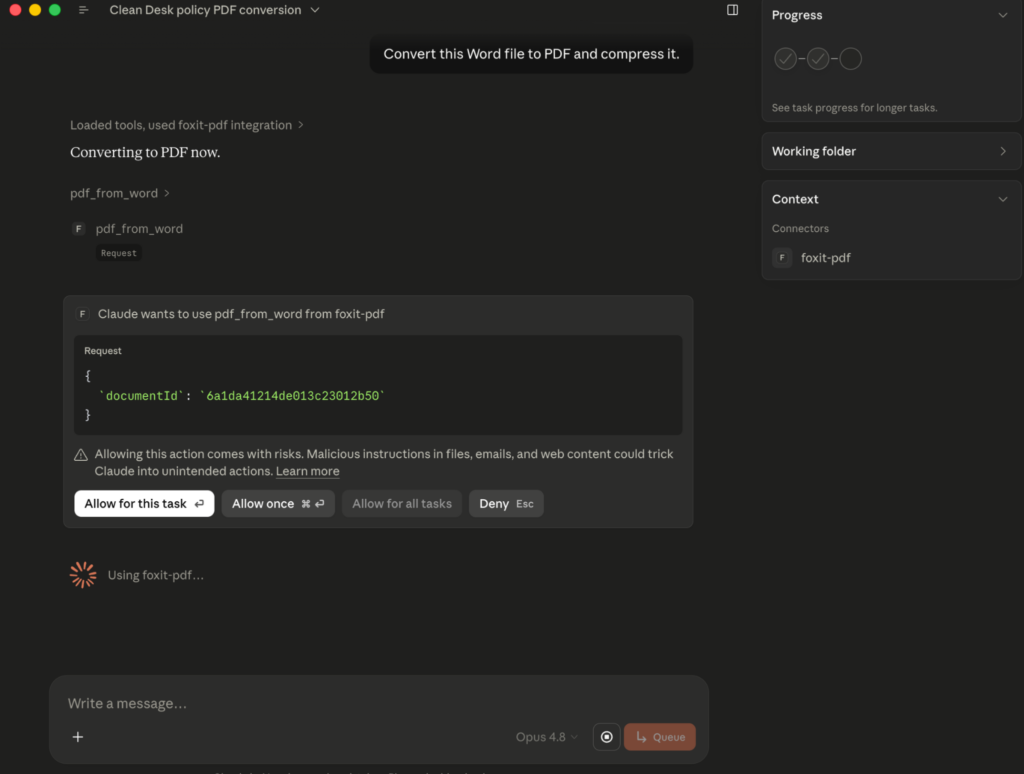
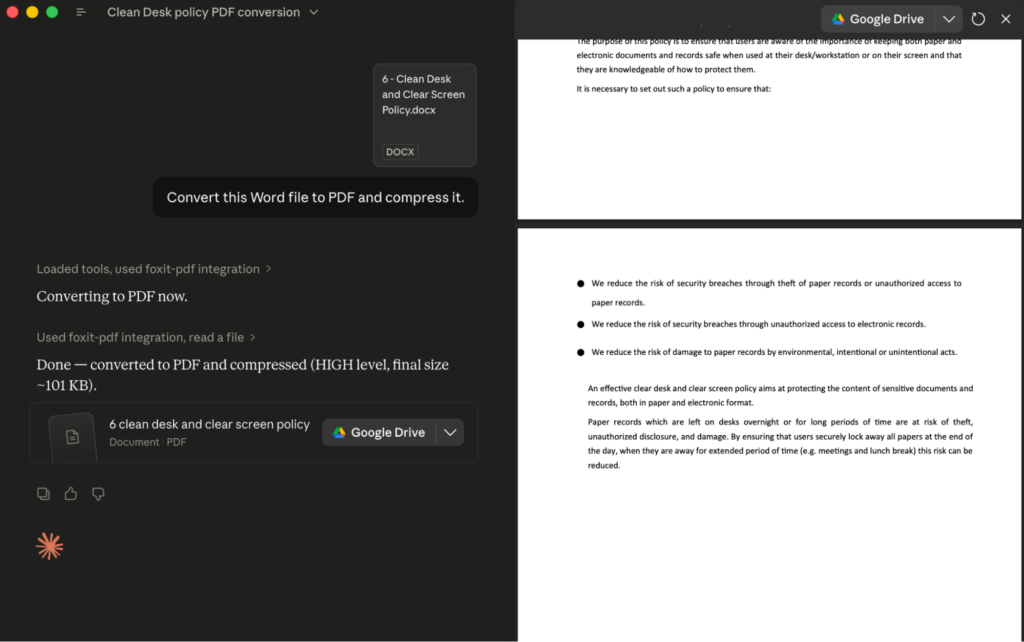
The most-used operation in production document pipelines is pdf_from_word. Your agent uploads a DOCX file, gets back a documentId, then calls pdf_from_word with that ID. The underlying PDF Services API runs the conversion asynchronously, but the MCP Server handles polling internally and delivers the final result directly to your agent.

MCP tool call:

{
  "name": "pdf_from_word",
  "input": {
    "documentId": "doc_abc123"
  }
}
MCP tool response:
{
  "success": true,
  "taskId": "task_xyz789",
  "resultDocumentId": "doc_result456",
  "message": "Word document converted to PDF successfully. Download using documentId: doc_result456"
}

Pass doc_result456 to download_document to write the output PDF to disk, or feed it directly into another tool call like pdf_structural_analysis or pdf_compress as the next step in a chain.

Extending to eSign: Foxit’s Signing API as a Complementary REST Layer

After PDF processing via MCP tools, your agent can dispatch a document for signature by calling Foxit’s eSign REST API directly. The eSign API lives at https://na1.foxitesign.foxit.com with regional variants for EU (eu1.foxitesign.foxit.com), Canada (na2.foxitesign.foxit.com), and Australia (au1.foxitesign.foxit.com). These are direct HTTP calls from your agent to the eSign endpoints, coordinated alongside MCP tool calls in the same session.

Authentication uses OAuth2 client_credentials. The eSign token exchange is a distinct flow from the PDF Services header auth that backs your MCP tools:

import requests

resp = requests.post(
    "https://na1.foxitesign.foxit.com/api/oauth2/access_token",
    data={
        "client_id": ESIGN_CLIENT_ID,
        "client_secret": ESIGN_CLIENT_SECRET,
        "grant_type": "client_credentials",
        "scope": "read-write"
    }
)
access_token = resp.json()["access_token"]

The Foxit eSign API developer guide uses “folder” terminology throughout. The key endpoints in an automated signing flow are:

  • POST /folders/createfolder: create a signing folder from one or more PDF documents, define signers, subject, and message
  • POST /folders/sendDraftFolder: dispatch the folder to signers
  • POST /templates/createtemplate: instantiate a folder from a saved template with pre-placed signature fields
  • GET /folders/getFolderHistory: retrieve the full activity audit trail for a folder
  • Webhook channels for status callbacks: register a callback URL to receive real-time events when signers view, sign, or decline

createfolder call takes the PDF output from your MCP pipeline, uploaded to eSign’s document storage after download_document retrieves it, and sets up the signing workflow:

POST /api/folders/createfolder
Authorization: Bearer {access_token}
Content-Type: application/json
{
  "folderName": "Acme Corp Contract - Q3 2025",
  "sendNow": false,
  "fileUrls": [
    "https://your-storage.example.com/acme_contract_final.pdf"
  ],
  "fileNames": [
    "acme_contract_final.pdf"
  ],
  "parties": [
    {
      "firstName": "John",
      "lastName": "Smith",
      "emailId": "[email protected]",
      "permission": "FILL_FIELDS_AND_SIGN",
      "sequence": 1
    }
  ]
}

Set sendNow to false to create a draft folder, then dispatch it with a separate call to /folders/sendDraftFolder. Alternatively, set sendNow to true to create and send in a single call. For files not accessible via URL, use base64FileString instead of fileUrls.

Foxit’s eSign API ships with HIPAA, eIDAS, ESIGN Act, UETA, 21 CFR Part 11, FERPA, and FINRA compliance built in. Audit trail records carry signer location, IP address, recipient identity, event timestamp, consent confirmation, security level, and complete folder history. For legal defensibility in regulated industries, capture and store these fields in your own data layer, because relying solely on Foxit’s folder history API for compliance record-keeping introduces a single point of failure in your audit chain.

End-to-End Workflow: AI Agent Automates a Sales Contract

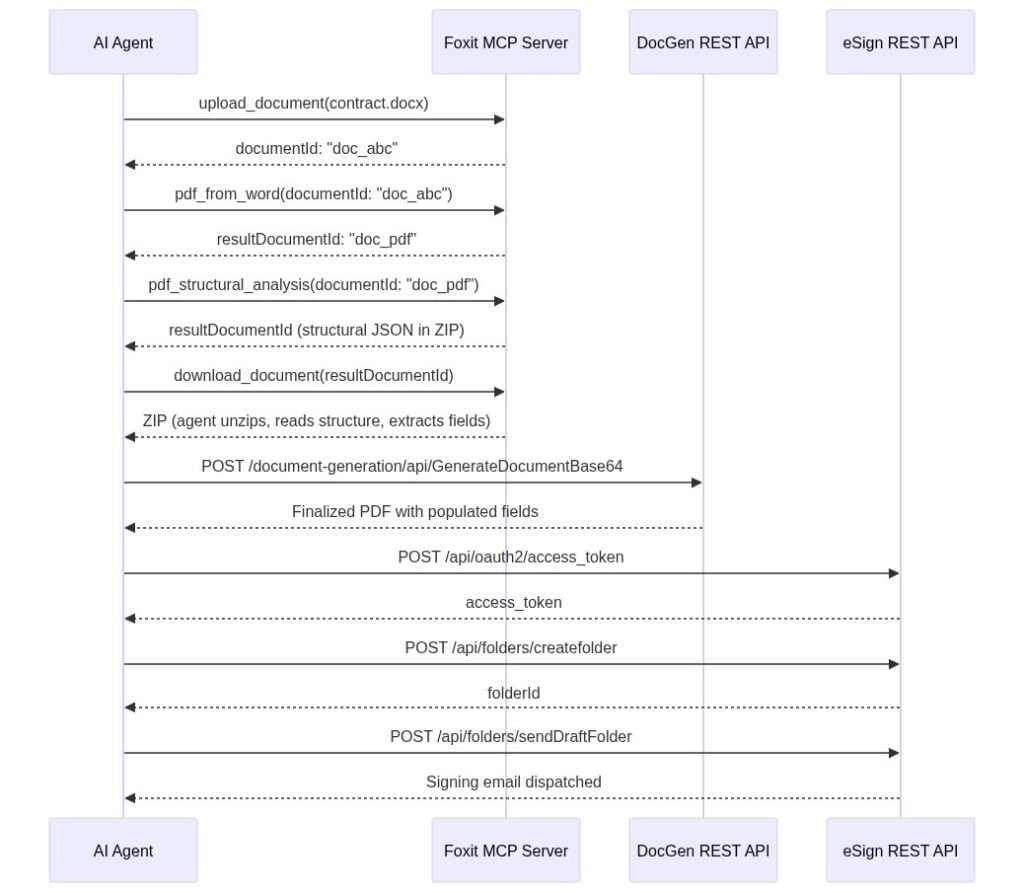
Your sales ops agent receives a natural language instruction: “Generate a contract for Acme Corp, $48,000 ARR, send to [email protected] for signature.” The agent handles every step autonomously. Each call is labeled as either an MCP tool invocation or a direct REST call.

Sequence diagram showing an AI agent using the Foxit MCP Server, DocGen REST API, and eSign REST API to automate PDF conversion, document generation, and digital signing workflows.

Step 1 uses MCP tool calls. The agent calls upload_document with the DOCX contract template, receives documentId: "doc_abc", then calls pdf_from_word. The MCP Server handles the async conversion and returns resultDocumentId: "doc_pdf" once it completes.

Step 2 uses an MCP tool call. The agent calls pdf_structural_analysis with documentId: "doc_pdf". The tool extracts party names, deal terms, and table data as JSON. The agent validates that required fields are present before proceeding.

Step 3 is a direct REST call to the DocGen API. The agent posts to /document-generation/api/GenerateDocumentBase64 with the validated field values merged into the contract template via {{dynamic_tags}} syntax. DocGen returns the finalized PDF with Acme Corp’s name, the $48,000 ARR figure, and correct dates populated.

Step 4 uses direct REST calls to the eSign API. The agent authenticates via OAuth2, uploads the DocGen output to eSign’s document storage, creates a signing folder via /folders/createfolder with [email protected] as the signer, and dispatches it via /folders/sendDraftFolder.

The LLM selects MCP tools for PDF processing and direct HTTP calls for eSign and DocGen because your system prompt specifies the endpoint contract for each step. The agent chains outputs across both call types, with coordination logic living in the prompt rather than in custom orchestration code you maintain separately.

Production Considerations: Error Handling, Rate Limits, and Data Governance

When you call PDF Services through the MCP Server, async polling happens inside the server process. Your agent receives a final resultDocumentId only after the task completes. When you call the raw PDF Services REST API directly, every operation returns a taskId you poll manually. The pattern below applies exponential backoff with a ceiling of 10 seconds per interval and a 30-second total timeout:

import time, requests

API_HOST = "https://na1.fusion.foxit.com/pdf-services"
auth_headers = {
    "client_id": "your_client_id",
    "client_secret": "your_client_secret"
}

def poll_task(task_id: str, max_wait: int = 30) -> str:
    delay = 1
    elapsed = 0
    while elapsed < max_wait:
        resp = requests.get(
            f"{API_HOST}/api/tasks/{task_id}",
            headers=auth_headers
        )
        data = resp.json()
        if data["status"] == "COMPLETED":
            return data["resultDocumentId"]
        time.sleep(delay)
        elapsed += delay
        delay = min(delay * 2, 10)
    raise TimeoutError(f"Task {task_id} timed out after {max_wait}s")

The free developer plan at developer-api.foxit.com covers development and testing volumes. Production workloads above the free-tier threshold require a volume plan requested through the Developer Portal.

For data governance, all API traffic runs over TLS 1.2+, and documents at rest use AES-256 encryption. Foxit’s API security documentation covers SOC 2 Type II audit status, HIPAA BAA support, GDPR, CCPA, eIDAS, ESIGN Act, UETA, 21 CFR Part 11, FERPA, and FINRA requirements. Customer data runs in logically segmented environments. For healthcare, legal, or financial services pipelines, confirm your data residency requirements before connecting production document flows, because the eu1na2, and au1 regional eSign endpoints determine where data is processed.

PDF API MCP Server FAQs

The Foxit PDF API MCP Server is an open-source Model Context Protocol server that exposes Foxit’s cloud PDF Services API as 30+ callable tools. Any MCP-compatible AI agent host, including Claude Desktop, VS Code with GitHub Copilot, and Cursor, can invoke these tools directly.

The server supports conversion (Word, Excel, PowerPoint, image, HTML, and URL to PDF and back), OCR, merge, split, extract, compress, flatten, linearize, watermark, compare, form data import/export, password protection, and full document property inspection across seven functional tool categories.

PDF Services tools authenticate via a client_id and client_secret set as environment variables before the MCP host launches. The eSign API uses a separate OAuth2 client_credentials token exchange against https://na1.foxitesign.foxit.com/api/oauth2/access_token. The two credential scopes are isolated by design.

Yes. The server registers using a standard mcp.json config block for VS Code with GitHub Copilot or a claude_desktop_config.json block for Claude Desktop. The same config structure works for Cursor. All three hosts discover the server’s tools automatically on connection.

The Foxit developer account is free with no credit card required and covers development and testing volumes. Production workloads above the free-tier threshold require a volume plan through the Developer Portal.

Run Your First Tool Call Now

Getting a working MCP tool call takes under 15 minutes:

  1. Create a free developer account at developer-api.foxit.com (no credit card, instant access). Copy your client_id and client_secret from the dashboard.

  2. Set the three environment variables:

export FOXIT_CLOUD_API_HOST="https://na1.fusion.foxit.com/pdf-services"
export FOXIT_CLOUD_API_CLIENT_ID="your_client_id"
export FOXIT_CLOUD_API_CLIENT_SECRET="your_client_secret"
  1. Clone the repo, register it using the config block from the Prerequisites section, restart your MCP host, and invoke pdf_from_url with any public URL. You’ll have a confirmed PDF output in your working directory. The Developer Portal also includes a live API Playground for validating request payloads against the PDF Services API before wiring them into an agent.

For a full signing workflow, the minimum viable addition to the MCP setup is authenticating against the eSign OAuth2 endpoint and posting to /folders/createfolder with a static PDF. DocGen field population, pdf_structural_analysis validation, and webhook callbacks extend the same pattern incrementally from there.

Get your free API access at developer-api.foxit.com.

Generate Dynamic PDFs from JSON using Foxit APIs

Generate Dynamic PDFs from JSON using Foxit APIs

See how easy it is to generate PDFs from JSON using Foxit’s Document Generation API. With Word as your template engine, you can dynamically build invoices, offer letters, and agreements—no complex setup required. This tutorial walks through the full process in Python and highlights the flexibility of token-based document creation.

Generate Dynamic PDFs from JSON using Foxit APIs

One of the more fascinating APIs in our library is the Document Generation API. This document generation API lets you create dynamic PDFs or Word documents using your own data as templates. That may sound simple – and the code you’re about to see is indeed simple – but the real power lies in how flexible Word can be as a template engine. This API could be used for:

All of this is made available via a simple API and a “token language” you’ll use within Word to create your templates. Whether you’re feeding in data from a database, a form submission, or a JSON API response, the process looks the same from your Python script. Let’s take a look at how this is done.

Credentials

Before we go any further, head over to our developer portal and grab a set of free credentials. This will include a client ID and secret values – you’ll need both to make use of the API.

Don’t want to read all of this? You can also follow along by video:

Using the API

The Document Generation API flow is a bit different from our PDF Services APIs in that the execution is synchronous. You don’t need to upload your document beforehand or download a result. You simply call the API (passing your data and template) and the result has your new PDF (or Word document). With it being this simple, let’s get into the code.

Loading Credentials

My script begins by loading in the credentials and API root host via the environment:

CLIENT_ID = os.environ.get('CLIENT_ID')
CLIENT_SECRET = os.environ.get('CLIENT_SECRET')
HOST = os.environ.get('HOST')

As always, try to avoid hard coding credentials directly into your code.

Calling the API

The endpoint only requires you to pass the output format, your data, and a base64 version of your file. “Your data” can be almost anything you like—though it should start as an object (i.e., a dictionary in Python with key/value pairs). Beneath that, anything goes: strings, numbers, arrays of objects, and so on.

Here’s a Python wrapper showing this in action:

def docGen(doc, data, id, secret):
    
    headers = {
        "client_id":id,
        "client_secret":secret
    }

    body = {
        "outputFormat":"pdf",
        "documentValues": data,  
        "base64FileString":doc
    }

    request = requests.post(f"{HOST}/document-generation/api/GenerateDocumentBase64", json=body, headers=headers)
    return request.json()

And here’s an example calling it:

with open('../../inputfiles/docgen_sample.docx', 'rb') as file:
    bd = file.read()
    b64 = base64.b64encode(bd).decode('utf-8')

data = {
    "name":"Raymond Camden", 
    "food": "sushi",
    "favoriteMovie": "Star Wars",
    "cats": [
        {"name":"Elise", "gender":"female", "age":14 },
        {"name":"Luna", "gender":"female", "age":13 },
        {"name":"Crackers", "gender":"male", "age":13 },
        {"name":"Gracie", "gender":"female", "age":12 },
        {"name":"Pig", "gender":"female", "age":10 },
        {"name":"Zelda", "gender":"female", "age":2 },
        {"name":"Wednesday", "gender":"female", "age":1 },
    ],
}

result = docGen(b64, data, CLIENT_ID, CLIENT_SECRET)

You’ll note here that my data is hard-coded. In a real application, this would typically be dynamic—read from the file system, queried from a database, or sourced from any other location.

The result object contains a message representing the success or failure of the operation, the file extension for the result, and the base64 representation of the result. To turn that base64 string back into a file, decode it first:

b64_bytes = result["base64FileString"].encode('ascii')
binary_data = base64.b64decode(b64_bytes)

Most likely you’ll always be outputting PDFs, so here’s a simple bit of code that stores the result:

with open('../../output/docgen_sample.pdf', 'wb') as file:
    file.write(binary_data)
    print('Done and stored to ../../output/docgen_sample.pdf')

There’s a bit more to the API than I’ve shown here so be sure to check the docs, but now it’s time for the real star of this API, Word.

Using Word as a Template

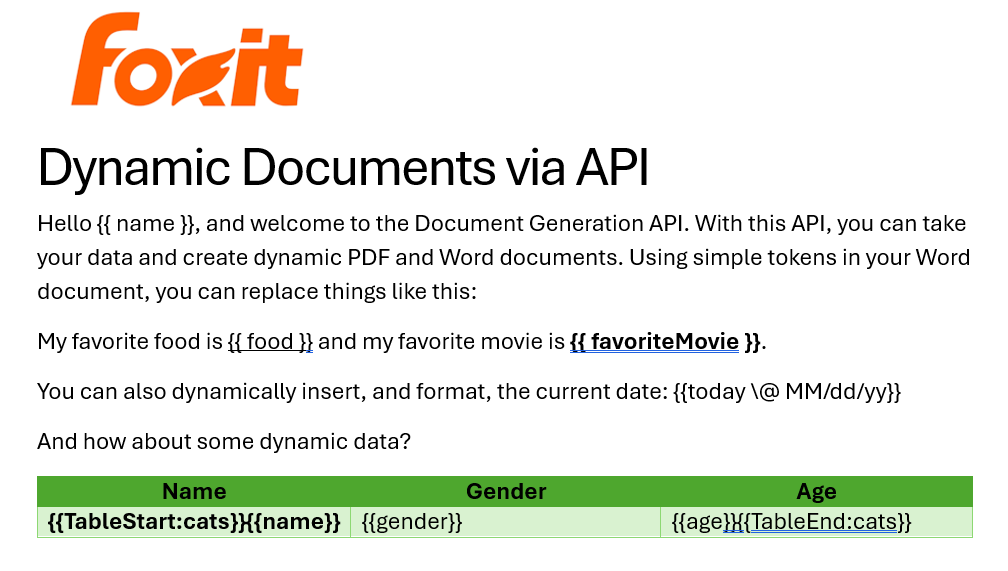
I’ve probably used Microsoft Word for longer than you’ve been alive and I’ve never really thought much about it. But when you begin to think of a simple Word document as a template, all of a sudden the possibilities begin to excite you. In our Document Generation API, the template system works via simple “tokens” in your document marked by opening and closing double brackets.

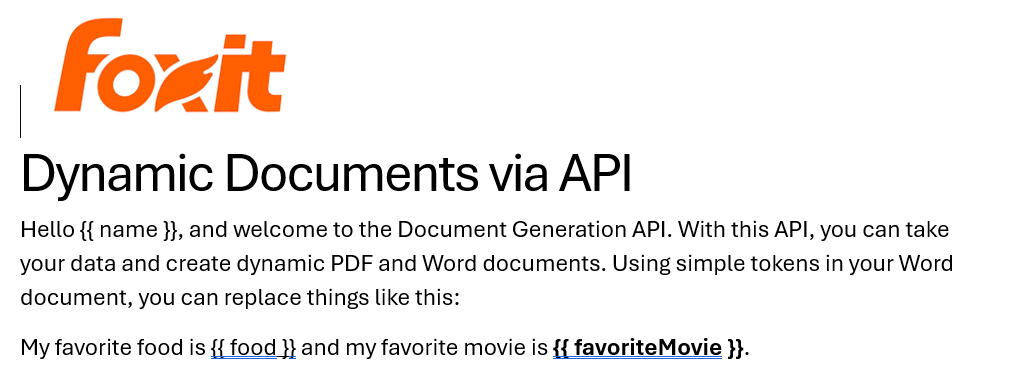
Consider this block of text:

See how name is surrounded by double brackets? And food and favoriteMovie? When this template is sent to the API along with the corresponding values, those tokens are replaced dynamically. In the screenshot, notice how favoriteMovie is bolded. That’s fine. You can use any formatting, styling, or layout options you wish.

That’s one example, but you also get some built-in values as well. For example, including today as a token will insert the current date, and can be paired with date formatting to specify how the date looks:

Remember the array of cats from earlier? You can use that to create a table in Word like this:

Notice that I’ve used two new tags here, TableStart and TableEnd, both of which reference the array, cats. Then in my table cells, I refer to the values from that array. Again, the color you see here is completely arbitrary and was me making use of the entirety of my Word design skills.

Here’s the template as a whole to show you everything in context:

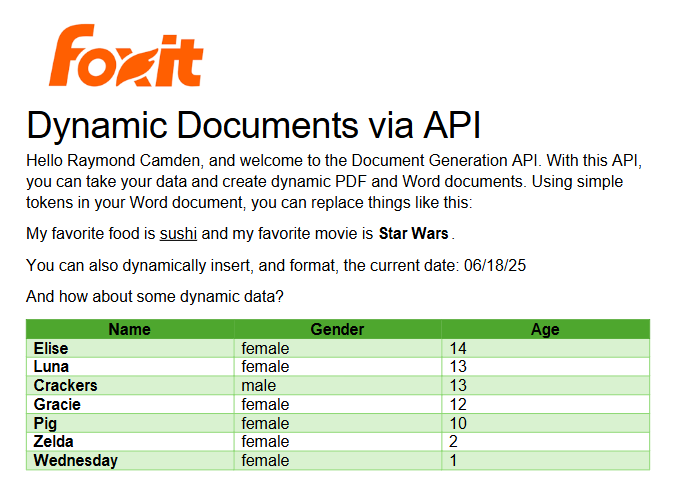
The Result

Given the code shown above with those values, and given the Word template just shared, once passed to the API, the following PDF is created:

What About Converting PDF to JSON?

So far we’ve been going one direction: JSON data in, PDF out. But what if you need to go the other way—extract structured content from a PDF and work with it in your application?

Foxit’s PDF Services API includes an Extract endpoint that handles exactly this. You upload a PDF, specify whether you want TEXT, IMAGE, or PAGE-level data, and the API returns the extracted content. The text output is particularly useful if you want to feed the result into a data pipeline, search index, or AI workflow.

Here’s a quick look at how extraction works in Python. First, upload your PDF:

def uploadDoc(path, id, secret):
    headers = {
        "client_id":id,
        "client_secret":secret
    }
    with open(path, 'rb') as f:
        files = {'file': (path, f)}
        request = requests.post(f"{HOST}/pdf-services/api/documents/upload", files=files, headers=headers)
    return request.json()

doc = uploadDoc("../../inputfiles/input.pdf", CLIENT_ID, CLIENT_SECRET)

Then call the Extract endpoint with the document ID and the type of content you want. The result comes back in a structured format you can parse, store, or pass along to other tools—including an LLM if you’re building an AI document pipeline.

You can read a full walkthrough in our PDF text extraction guide.

Ready to Try?

If this looks cool, be sure to check the docs for more information about the template language and API. Sign up for some free developer credentials and reach out on our developer forums with any questions.

If you’re building AI agents or LLM-powered workflows, Foxit also offers an MCP server that lets you connect your agents directly to Foxit PDF Services—so your AI tools can generate, extract, and process documents without any custom glue code.

Want the code? Get it on GitHub (Python).

If you are more of a Node person, check out that version. Get it on GitHub (Node.js).

Building Auditable, AI-Driven Document Workflows with Foxit APIs
Building Auditable, AI-Driven Document Workflows with Foxit APIs

We had an incredible time at API World 2025 connecting with developers, sharing ideas, and seeing how Foxit APIs power everything from AI-driven resume builders to interactive doodle apps. In this post, we’ll walk through the same hands-on workflow Jorge Euceda demoed live on stage—showing how to build an auditable, AI-powered document automation system using Foxit PDF Services and Document Generation APIs.
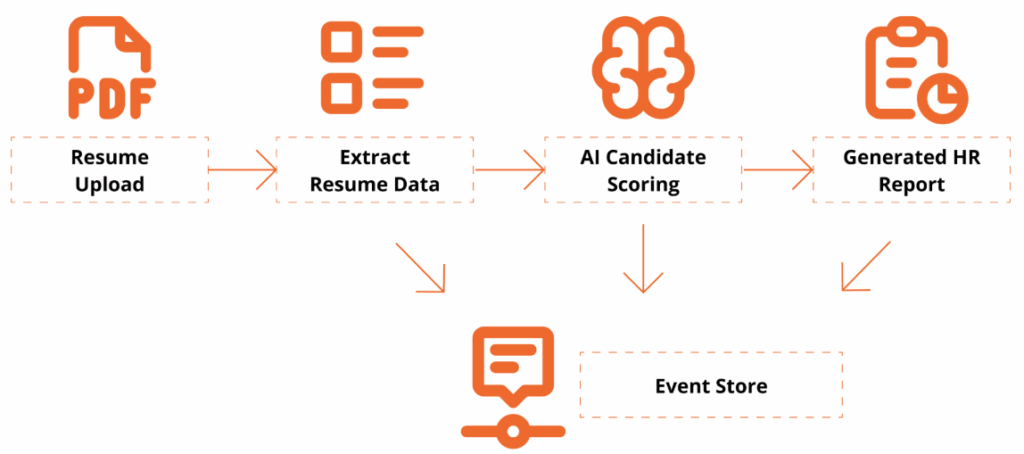
This year’s API World was packed with energy—and it was amazing meeting so many developers face-to-face at the Foxit booth. We spent three days trading ideas about document automation, AI workflows, and integration challenges.

Our team hosted a hands-on workshop and sponsored the API World Hackathon, where developers submitted 16 high-quality projects built with Foxit APIs. Submissions ranged from:

  • Automated legal-advice generators

  • Compatibility-rating apps that analyze your personality match

  • AI-powered resume optimizers that tailor your CV to dream-job descriptions

  • Collaborative doodle games that turn drawings into shareable PDFs

Each project offered a new perspective on what’s possible with Foxit APIs—and we loved seeing the creativity.

Among all the sessions, Jorge Euceda’s workshop stood out as a crowd favorite. It showed how to make AI document decisions auditable, explainable, and replayable using event sourcing and two key Foxit APIs. That’s exactly what we’ll walk through below.

Click here to grab the project overview file.

Prefer to follow along with the live session instead of reading step-by-step?
Watch Jorge’s complete “AI-Powered Resume to Report” presentation from API World 2025.
It includes every step shown below—plus real-time API responses.

What You’ll Build

A complete, auditable workflow:

Resume Upload → Extract Resume Data → AI Candidate Scoring → Generate HR Report → Event Store

This workshop is designed for technical professionals and managers who want to learn how to use application programming interfaces (APIs) and explore how AI can enhance document workflows. Attendees will get hands-on experience with Foxit’s PDF Services (extraction/OCR) and Document Generation APIs, and see how event sourcing turns AI decisions into an auditable, replayable ledger.

By the end, you’ll have a Python-based demo that extracts data from a PDF resume, analyzes it against a policy, and generates a polished HR Report PDF with a traceable event log.

Getting Set Up

To follow along, you’ll need:

  • Access to a terminal with a Python 3.9+ Environment and internet connectivity

  • Visual Studio Code or your preferred IDE

  • Basic familiarity with REST/JSON (helpful but not required)


  1. Install Dependencies
python -V
# virtual environment setup, requests installation
python3 -m venv myenv
source myenv/bin/activate
pip3 install requests
  1. Download the project’s zip file below

Project Source Code

Now extract the files somewhere in your computer, open in Visual Studio Code or your preferred IDE.

You may use any sample resume PDF for inputs/input_resume.pdf. A sample one is provided, but you may leverage any resume PDF you wish to generate a report on.

  1. Create a Foxit Account for credentials

Create a Free Developer Account now or navigate to our getting started guide, which will go over how to create a free trial.

Hands-On Walkthrough

Step 1 – Open the Project

Now that you’ve downloaded the workshop source code, navigate to the resume_to_report.py file, which will serve as our main entry point.

Once dependencies are installed and the ZIP file extracted, open your workspace and run:

python3 resume_to_report.py

You should see console logs showing:

  • An AI Report printed as JSON

  • A generated PDF (outputs/HR_Report.pdf)

  • An event ledger (outputs/events.json) with traceable actions

Step 2 — Inspect the outputs

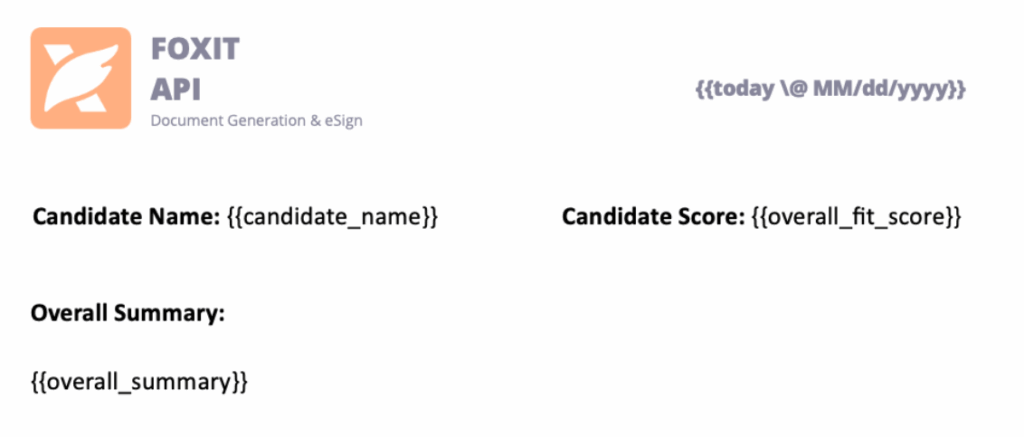
Open the generated HR report to review:

  • Candidate name and phone

  • Overall fit score

  • Matching skills & gaps

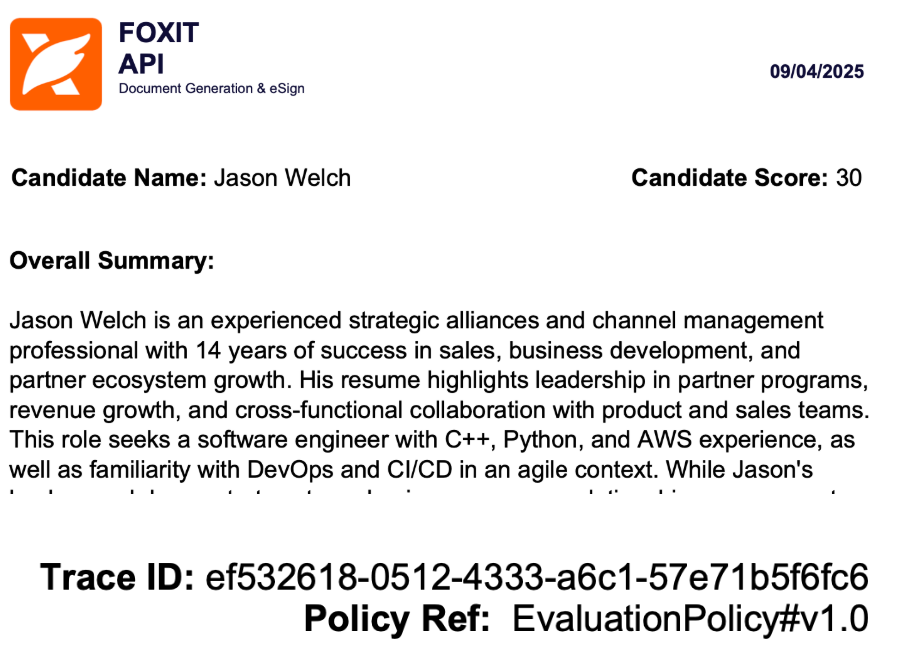
  • Summary and policy reference in the footer

Then open events.json to see your audit trail—each entry captures the AI’s decision context.

{
  "eventType": "DecisionProposed",
  "traceId": "8d1e4df6-8ac9-4f31-9b3a-841d715c2b1c",
  "payload": {
    "fitScore": 82,
    "policyRef": "EvaluationPolicy#v1.0"
  }
}

This is your audit trail.

Step 3 — Replay & Explain a Policy Change

Replay demonstrates why event-sourcing matters:

  1. Edit inputs/evaluation_policy.json: add a hard requirement (e.g., "kubernetes") or adjust the job_description emphasis.

  2. Re-run the script with the same resume.

  3. Compare:

    • New decision and updated PDF content

    • Event log now reflects the updated rationale (PolicyLoaded snapshot → new DecisionProposed with the same traceId lineage)

  4. Emphasize: The input resume hasn’t changed; only policy did — the event ledger explains the difference.

Policy: Drive Auditable & Replayable Decisions

The AI assistant uses a JSON policy file to control how it scores, caps, and summarizes results. Every policy snapshot is logged as its own event, creating a replayable audit trail for governance and compliance.


{
  "policyId": "EvaluationPolicy#v1.0",
  "job_description": "Looking for a software engineer with expertise in C++, Python, and AWS cloud services. Experience building scalable applications in agile teams; familiarity with DevOps and CI/CD.",
  "overall_summary": "Make the summary as short as possible",
  "hard_requirements": ["C++", "python", "aws"]
}

Notes:

  • policyId appears in both the report and event log.

  • job_description defines what the AI is looking for.

  • Changing these values creates a new traceable event.

Generate a Polished Report

Next, use the Foxit Document Generation API to fill your Word template and create a formatted PDF report.

Open inputs/hr_report_template.docx, you will find the following HR reporting template with placeholders for the fields we will be entering:

Tips:

  • Include lightweight branding (logo/header) to make the generated PDF presentation-ready.

  • Include a footer with traceable Policy ID and Trace ID Events

Results and Audit Trail

Here’s what the final HR Report PDF looks like:

Every decision has a Trace ID and Policy Ref, so you can recreate the report at any time and verify how the AI arrived there.

Why Event-Sourced AI Matters

This pattern does more than score resumes—it proves that AI decisions can be transparent, deterministic, and trustworthy.
By using Foxit APIs to extract, analyze, and generate documents, developers can bring auditability to any workflow that relies on machine logic.

Key Takeaways

  • Auditability – Every AI step emits a verifiable event.

  • Replayability – Change a policy and regenerate for deterministic results.

  • Explainability – Decisions carry policy and trace references for clear “why.”

  • Automation – PDF Services and Document Generation handle the document lifecycle end-to-end.

Try It Yourself

Ready to build your own auditable AI workflow?

Closing Thought

At API World, we set out to show how Foxit APIs can power real, transparent AI workflows—and the community response was incredible. Whether you’re building for HR, legal, finance, or creative industries, the same pattern applies:

Make your AI explain itself.

Start with the Foxit APIs, experiment with policies, and turn every AI decision into a traceable event that builds trust.

How to Chain PDF Actions with Foxit

How to Chain PDF Actions with Foxit

Performing a single action with the Foxit PDF Services API is straightforward, but what’s the best way to handle a sequence of operations? Instead of downloading and re-uploading a file for each step, you can chain actions together by passing the output of one job as the input for the next. This tutorial walks you through a complete Python example of how to build an efficient document optimization workflow that compresses and then linearizes a PDF.

How to Chain PDF Actions with Foxit

When working with Foxit’s PDF Services, you’ll remember that the basic flow involves:

  • Uploading your document to Foxit to get an ID
  • Starting a job
  • Checking the job
  • Downloading the result

This is handy for one off operations, for example, converting a Word document to PDF, but what if you need to do two or more operations? Luckily this is easy enough by simply handing off one result to the next. Let’s take a look at how this can work.

Credentials

Remember, to start developing and testing with the APIs, you’ll need to head over to our developer portal and grab a set of free credentials. This will include a client ID and secret values you’ll need to make use of the API.

If you would rather watch a video (or why not both?) – you can watch the walkthrough below:

Creating a Document Optimization Workflow

To demonstrate how to chain different operations together, we’re going to build a basic document optimization workflow that will:

  • Compress the document by reducing image resolution and other compression algorithims.
  • Linearize the document to make it better viewable on the web.

Given the basic flow described above, you may be tempted to do this:

  • Upload the PDF
  • Kick off the Compress job
  • Check until done
  • Download the compressed PDF
  • Upload the PDF
  • Kick off the Linearize job
  • Check until done
  • Download the compressed and linearized PDF

This wouldn’t require much code, but we can simplify the process by using the result of the compress job—once it’s complete—as the source for the linearize job. This gives us the following streamlined flow:

  • Upload the PDF
  • Kick off the Compress job
  • Check until done
  • Kick off the Linearize job
  • Check until done
  • Download the compressed and linearized PDF

Less is better! Alright, let’s look at the code.

First, here’s the typical code used to bring in our credentials from the environment, and define the Upload job:

import os
import requests
import sys 
from time import sleep 

CLIENT_ID = os.environ.get('CLIENT_ID')
CLIENT_SECRET = os.environ.get('CLIENT_SECRET')
HOST = os.environ.get('HOST')

def uploadDoc(path, id, secret):
	
	headers = {
		"client_id":id,
		"client_secret":secret
	}

	with open(path, 'rb') as f:
		files = {'file': f}

		request = requests.post(f"{HOST}/pdf-services/api/documents/upload", files=files, headers=headers)
		return request.json()
Next, here are two utility methods to wrap calling Compress and Linearize:
def compressPDF(doc, level, id, secret):
	
	headers = {
		"client_id":id,
		"client_secret":secret,
		"Content-Type":"application/json"
	}

	body = {
		"documentId":doc,
		"compressionLevel":level	
	}

	request = requests.post(f"{HOST}/pdf-services/api/documents/modify/pdf-compress", json=body, headers=headers)
	return request.json()

def linearizePDF(doc, id, secret):

	headers = {
		"client_id":id,
		"client_secret":secret,
		"Content-Type":"application/json"
	}

	body = {
		"documentId":doc
	}

	request = requests.post(f"{HOST}/pdf-services/api/documents/optimize/pdf-linearize", json=body, headers=headers)
	return request.json()

Note that the compressPDF method takes a required level argument that defines the level of compression. From the docs, we can see the supported values are LOW, MEDIUM, and HIGH.

Now, two more utility methods – one that checks the task returned by the API operations above and one that downloads a result to the file system:

def checkTask(task, id, secret):

	headers = {
		"client_id":id,
		"client_secret":secret,
		"Content-Type":"application/json"
	}

	done = False
	while done is False:

		request = requests.get(f"{HOST}/pdf-services/api/tasks/{task}", headers=headers)
		status = request.json()
		if status["status"] == "COMPLETED":
			done = True
			# really only need resultDocumentId, will address later
			return status
		elif status["status"] == "FAILED":
			print("Failure. Here is the last status:")
			print(status)
			sys.exit()
		else:
			print(f"Current status, {status['status']}, percentage: {status['progress']}")
			sleep(5)

def downloadResult(doc, path, id, secret):
	
	headers = {
		"client_id":id,
		"client_secret":secret
	}

	with open(path, "wb") as output:
		
		bits = requests.get(f"{HOST}/pdf-services/api/documents/{doc}/download", stream=True, headers=headers).content 
		output.write(bits)
Alright, so that’s all the utility methods and setup. Time to actually do what we said we would:
input = "../../inputfiles/input.pdf"
print(f"File size of input: {os.path.getsize(input)}")
doc = uploadDoc(input, CLIENT_ID, CLIENT_SECRET)
print(f"Uploaded doc to Foxit, id is {doc['documentId']}")

task = compressPDF(doc["documentId"], "HIGH", CLIENT_ID, CLIENT_SECRET)
print(f"Created task, id is {task['taskId']}")

result = checkTask(task["taskId"], CLIENT_ID, CLIENT_SECRET)
print("Done converting to PDF. Now doing linearize.")

task = linearizePDF(result["resultDocumentId"], CLIENT_ID, CLIENT_SECRET)
print(f"Created task, id is {task['taskId']}")

result = checkTask(task["taskId"], CLIENT_ID, CLIENT_SECRET)
print("Done with linearize task.")

output = "../../output/really_optimized.pdf"
downloadResult(result["resultDocumentId"], output , CLIENT_ID, CLIENT_SECRET)
print(f"Done and saved to: {output}.")
print(f"File size of output: {os.path.getsize(output)}") 

This code matches the flow described above, with the exception of outputting the size as a handy way to see the result of the compression call. When run, the initial size is 355994 bytes and the final size is 16733. That's a great saving! You should, however, ensure the result matches the quality you desire and if not, consider reducing the level of compression. Linearize doesn't impact the file size, but as stated above will make it work nicer on the web.

For a complete listing, find the sample on our GitHub repo.

Next Steps

Obviously, you could do even more chaining based on the code above. For example, as part of your optimization flow, you could even split the PDF to return a 'sample' of a document that may be for sale. You could extract information to use for AI purposes and more. Dig more into our PDF Service APIs to get an idea and let us know what you build on our developer forums!

Introducing PDF APIs from Foxit

Introducing PDF APIs from Foxit

Get started with Foxit’s new PDF APIs—convert Word to PDF, generate documents, and embed files using simple, scalable REST APIs. Includes sample Python code and walkthrough.
Introducing PDF APIs from Foxit

At the end of June, Foxit introduced a brand-new suite of tools to help developers work with documents. These APIs cover a wide range of features, including:

    • Convert between Office document formats and PDF files seamlessly
    • Optimize, manipulate, and secure PDFs with advanced APIs
    • Generate dynamic documents using Microsoft Word templates
    • Extract text and images from PDFs with powerful tools
    • Embed PDFs into web pages in a context-aware, controlled manner
    • Integrate with eSign APIs for streamlined signature workflows


These APIs are simple to use, and best of all, follow the “don’t surprise me” principal of development. In this post, I’m going to demonstrate one simple example – converting a Word document to PDF – but you can rest assured that nearly all the APIs will follow incredibly similar patterns. I’ll be using Python for my examples here, but will link to a Node.js version of the same example. And given that we’re talking REST APIs here, any language is welcome to join the document party. Let’s dive in.

Credentials

Before we go any further, head over to our developer portal and grab a set of free credentials. This will include a client ID and secret values you’ll need to make use of the API.

Don’t want to read all of this? You can also follow along by video:

API Flow

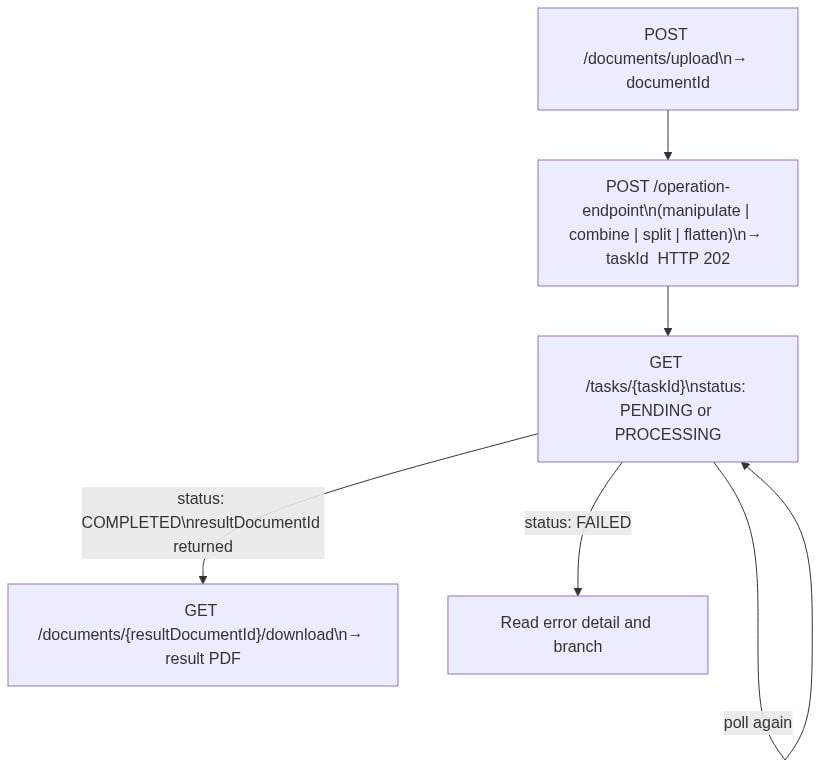
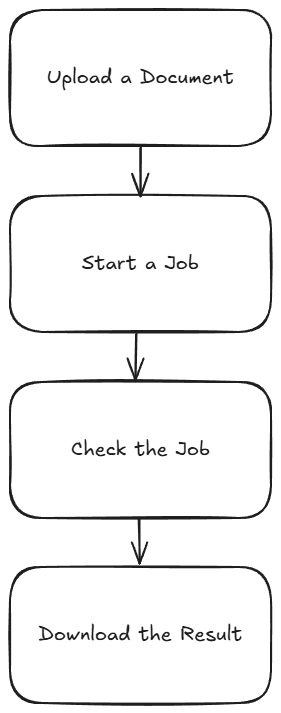
As I mentioned above, most of the PDF Services APIs will follow a similar flow. This comes down to:

  • Upload your input (like a Word document)
  • Kick off a job (like converting to PDF)
  • Check the job (hey, how ya doin?)
  • Download the result

Or, in pretty graphical format –

The great thing is, once you’ve completed one integration (this post focuses on converting Word to PDF), switching to another is easy—and much of your existing code can be reused. A lazy developer is happy developer! Let’s get started.

Loading Credentials

My script begins by loading the credentials and API root host via the environment:

CLIENT_ID = os.environ.get('CLIENT_ID')
CLIENT_SECRET = os.environ.get('CLIENT_SECRET')
HOST = os.environ.get('HOST')

It’s never a good idea to hard-code credentials in your code. But if you do it this one time, I won’t tell. Honest.

Uploading Your Input

As I mentioned, in this example we’ll be making use of the Word to PDF API. Our input will be a Word document, which we’ll upload to Foxit using the upload API. This endpoint is fairly simple – aside from your credentials, all you need to provide is the binary data of the input file. Here’s the method I created to make this process easier:

def uploadDoc(path, id, secret):
    
    headers = {
        "client_id":id,
        "client_secret":secret
    }

    with open(path, 'rb') as f:
        files = {'file': (path, f)}

        request = requests.post(f"{HOST}/pdf-services/api/documents/upload", files=files, headers=headers)
        return request.json()

And here’s how it’s used:

doc = uploadDoc("../../inputfiles/input.docx", CLIENT_ID, CLIENT_SECRET)
print(f"Uploaded doc to Foxit, id is {doc['documentId']}")

The upload API only returns one value, a documentId, which we can use in future calls.

Starting the Job

Each API operation is a job creator. By this I mean you call the endpoint and it begins your action. For Word to PDF, the only required input is the document ID from the previous call. We can build a nice little wrapper function like so:

def convertToPDF(doc, id, secret):
    
    headers = {
        "client_id":id,
        "client_secret":secret,
        "Content-Type":"application/json"
    }

    body = {
        "documentId":doc	
    }

    request = requests.post(f"{HOST}/pdf-services/api/documents/create/pdf-from-word", json=body, headers=headers)
    return request.json()

And then call it like so:

task = convertToPDF(doc["documentId"], CLIENT_ID, CLIENT_SECRET)
print(f"Created task, id is {task['taskId']}")

The result of this call, if no errors were found, isa taskId. We can use this to gauge how the job’s performing. Let’s do that now.

Job Checking

Ok, so the next part can be a bit tricky depending on your language of choice. We need to use the task status endpoint to determine how the job is performing. How often we do this, how quickly and so forth, will depend on your platform and needs. For our little sample script here, everything is running at once. I wrote a function that will check the status. If the job isn’t finished (whether successful or not), it pauses briefly before trying again. While this approach isn’t the most sophisticated, it should work well enough for basic testing:

def checkTask(task, id, secret):

    headers = {
        "client_id":id,
        "client_secret":secret,
        "Content-Type":"application/json"
    }

    done = False
    while done is False:

        request = requests.get(f"{HOST}/pdf-services/api/tasks/{task}", headers=headers)
        status = request.json()
        if status["status"] == "COMPLETED":
            done = True
            # really only need resultDocumentId, will address later
            return status
        elif status["status"] == "FAILED":
            print("Failure. Here is the last status:")
            print(status)
            sys.exit()
        else:
            print(f"Current status, {status['status']}, percentage: {status['progress']}")
            sleep(5)

As you can see, I’m using a while loop that—at least in theory—will continue running until a success or failure response is returned, with a five-second pause between each call. You can adjust that interval as needed—test different values to see what works best for your use case. Typically, most API calls should complete in under ten seconds, so a five-second delay felt like a reasonable default.

Each call to the endpoint returns a task status result. Here’s an example:

{
    'taskId': '685abc95a0d113558e4204d7', 
    'status': 'COMPLETED', 
    'progress': 100, 
    'resultDocumentId': '685abc952475582770d6917b'
}

The important part here is the status. But you could also use progress to give some feedback to the code waiting for results. Here’s my code calling this:

result = checkTask(task["taskId"], CLIENT_ID, CLIENT_SECRET)
print(f"Final result: {result}")

Downloading Your Result

The last piece of the puzzle is simply saving the result. If you noticed above, the task returned a resultDocumentId value. Taking that, and the [Download Document](NEED LINK) endpoint, we can build a utility to store the result like so:

def downloadResult(doc, path, id, secret):
    
    headers = {
        "client_id":id,
        "client_secret":secret
    }

    with open(path, "wb") as output:
        
        bits = requests.get(f"{HOST}/pdf-services/api/documents/{doc}/download", stream=True, headers=headers).content 
        output.write(bits)

And finally, call it:

downloadResult(result["resultDocumentId"], "../../output/input.pdf", CLIENT_ID, CLIENT_SECRET)
print("Done and saved to: ../../output/input.pdf")

And that’s it! While this script could certainly benefit from more robust error handling, it demonstrates the basic flow. As mentioned, most of our APIs follow this same logic.

Next Steps

Want the complete scripts? Get it on GitHub.

Want it in Node.js? Get it on GitHub.

Rather try this yourself? Sign up for a free developer account now. Need help? Head over to our developer forums and post your questions and comments.