
Create Custom Invoices with Word Templates and Foxit Document Generation
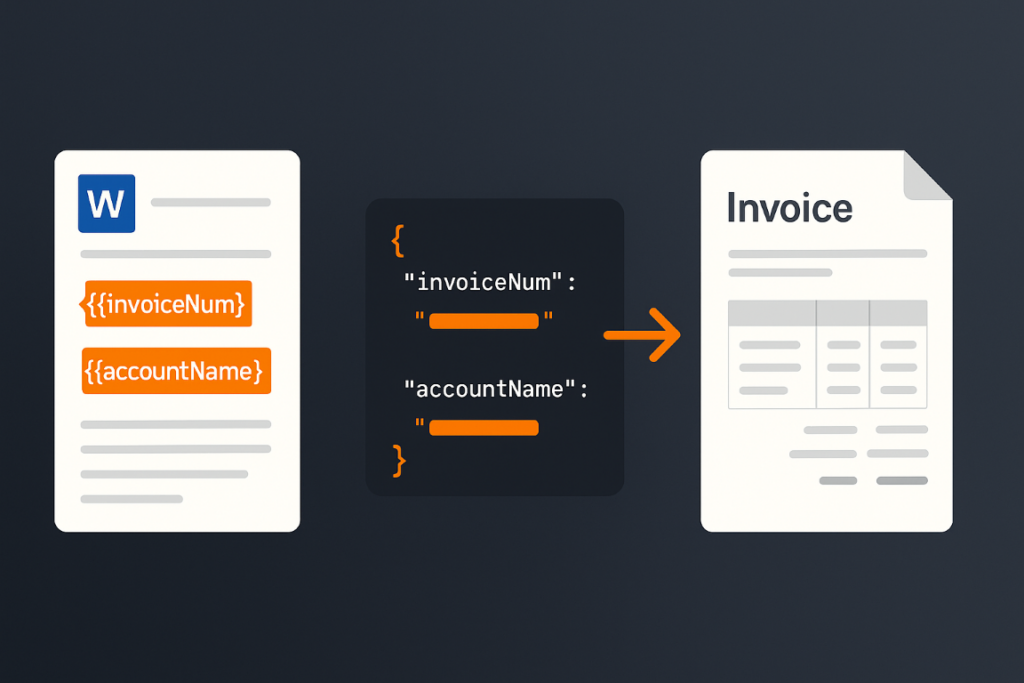
This tutorial shows how to design a Word invoice template with dynamic tokens and use Foxit’s Document Generation API and a short Python script to turn JSON data into polished, ready-to-send PDF invoices.
Manual invoice processing costs between $18 and $26 per invoice, while automated workflows bring that down to $2.50 to $4, according to industry accounts-payable benchmarks. Foxit’s Document Generation API generates well-formatted, dynamic PDF invoices from your existing data, which eliminates manual data entry, formatting errors, and the overhead of per-invoice handling. This tutorial shows you how to build that workflow end to end.
Before You Start
To follow along, grab your free credentials on the developer portal and read the introductory guide to automated document pipelines, which covers the basics of working with the API.
The API works with Microsoft Word templates containing tokens wrapped in double brackets. You pass the template and your data to the API, it replaces those tokens with your data values, and returns a PDF (or Word file, if you prefer).
Prerequisites
This tutorial runs a short Python script, so set up the following before you start:
-
Python 3.12 or newer. The script uses an f-string syntax introduced in Python 3.12.
-
pip for installing packages, plus the built-in venv module for an isolated environment.
-
The requests library for the HTTP call.
-
A code editor such as VS Code with the Python extension. PyCharm, WebStorm, or Sublime Text work too.
-
curl if you want to hit the endpoint from the command line first.
-
A Foxit developer account. Sign up for free to get your Client ID and Client Secret.
Scaffold the workspace in one shot:
mkdir foxit-invoices && cd foxit-invoices
python3 -m venv .venv
source .venv/bin/activate
pip install requests
Then export your credentials and host so the script can read them from the environment:
export CLIENT_ID="your_client_id"
export CLIENT_SECRET="your_client_secret"
export HOST="https://na1.fusion.foxit.com"
Designing Your Invoice Word Template
Template design in Word is your starting point. An invoice typically includes:
-
The customer receiving the invoice
-
The invoice number and issue date
-
The payment due date
-
A line-item table with product name, quantity, price, and a running total
The Document Generation API places no constraints on template design. Size, alignment, and styling can match your corporate standards, whether that means a simple layout or a polished, branded one. Consider the template below (download link at the end of this article):

The Word template with double-bracket tokens that the Document Generation API replaces at runtime.
Working from the top of the template:
-
{{ invoiceNum }}is the invoice number for the customer. -
{{ today \@ MM/dd/yyyy }}combines a built-in value (today, which represents the current date at API call time) with a date mask that controls the display format. The API docs list all available masks. -
{{ accountName }}is a standard token mapped directly from your data. -
{{ paymentDueDate \@ MM/dd/yyyy }}demonstrates date masks applied to dates from your own data, not just built-ins. -
The line-item table uses one header row and one data row. The dynamic row opens with
{{TableStart:lineItems}}(wherelineItemsis the name of an array in your JSON) and closes with{{TableEnd:lineItems}}. Between those markers sitproduct,qty,price,totalPrice, andROW_NUMBER(a built-in that auto-increments from 1). The\# Currencyformat applied tototalPricerenders it as a formatted currency value. -
A final table row uses
SUM(ABOVE)with currency formatting to total the column.
Structuring Your Invoice Data as JSON
In a production system, invoice data typically comes from a database or e-commerce API. For this demo, it comes from a JSON file:
[
  {
    "invoiceNum": 100,
    "accountName": "Customer Alpha",
    "accountNumber": 1,
    "paymentDueDate": "August 15, 2025",
    "lineItems": [
      { "product": "Product 1", "qty": 5, "price": 2, "totalPrice": 10 },
      { "product": "Product 5", "qty": 3, "price": 9, "totalPrice": 18 },
      { "product": "Product 4", "qty": 1, "price": 50, "totalPrice": 50 },
      { "product": "Product X", "qty": 2, "price": 15, "totalPrice": 30 }
    ]
  },
  {
    "invoiceNum": 25,
    "accountName": "Customer Beta",
    "accountNumber": 2,
    "paymentDueDate": "August 15, 2025",
    "lineItems": [
      { "product": "Product 2", "qty": 9, "price": 2, "totalPrice": 18 },
      { "product": "Product 4", "qty": 1, "price": 8, "totalPrice": 8 },
      { "product": "Product 3", "qty": 10, "price": 25, "totalPrice": 250 },
      { "product": "Product YY", "qty": 3, "price": 15, "totalPrice": 45 },
      { "product": "Product AA", "qty": 2, "price": 100, "totalPrice": 200 }
    ]
  },
  {
    "invoiceNum": 51,
    "accountName": "Customer Gamma",
    "accountNumber": 3,
    "paymentDueDate": "August 15, 2025",
    "lineItems": [
      { "product": "Product 9", "qty": 1, "price": 2, "totalPrice": 2 },
      { "product": "Product 23", "qty": 30, "price": 9, "totalPrice": 270 },
      { "product": "Product ZZ", "qty": 6, "price": 15, "totalPrice": 90 }
    ]
  }
]
The array holds three invoice objects, each matching the structure of the Word template. The accountNumber field has no matching template token, and that’s intentional. Your data can contain fields the template doesn’t use, and accountNumber is used in the Python script to build unique output filenames.
Calling the Document Generation API with Python
The Generate Document endpoint requires your credentials, a base64-encoded version of the template, and your data. The complete demo runs in just over 50 lines of Python:
import os
import requests
import sys
from time import sleep
import base64
import json
from datetime import datetime

CLIENT_ID = os.environ.get('CLIENT_ID')
CLIENT_SECRET = os.environ.get('CLIENT_SECRET')
HOST = os.environ.get('HOST')

def docGen(doc, data, id, secret):

	headers = {
		"client_id":id,
		"client_secret":secret
	}

	body = {
		"outputFormat":"pdf",
		"documentValues": data,
		"base64FileString":doc
	}

	request = requests.post(f"{HOST}/document-generation/api/GenerateDocumentBase64", json=body, headers=headers)

	return request.json()

with open('invoice.docx', 'rb') as file:
	bd = file.read()
	b64 = base64.b64encode(bd).decode('utf-8')

with open('invoicedata.json', 'r') as file:
	data = json.load(file)

for invoiceData in data:
	result = docGen(b64, invoiceData, CLIENT_ID, CLIENT_SECRET)

	if result["base64FileString"] == None:
		print("Something went wrong.")
		print(result)
		sys.exit()

	b64_bytes = result["base64FileString"].encode('ascii')
	binary_data = base64.b64decode(b64_bytes)

	filename = f"invoice_account_{invoiceData["accountNumber"]}.pdf"

	with open(filename, 'wb') as file:
		file.write(binary_data)
		print(f"Done and stored to {filename}")
After importing modules and loading credentials from environment variables, the docGen function takes the template, data, and credentials, then posts to the API endpoint. The API returns the rendered PDF as a base64 string.
The main loop reads and base64-encodes the template, loads the JSON file, iterates over each invoice object, calls the API, and writes the result to a uniquely named file using accountNumber. You don’t have to write results to disk at all, since the raw binary data can go straight to an email attachment or a document storage system.
Keep one limit in mind, since the GenerateDocumentBase64 endpoint rejects a .docx payload larger than 4 MB after base64 encoding. If your template approaches that ceiling, compress its images through Word’s Picture Format tools, drop embedded fonts and OLE objects, and split oversized templates into smaller ones.

The rendered PDF invoice the script produces, with all tokens replaced by values from the JSON payload.
Generate Invoice PDF API FAQ
What output formats does the Document Generation API support?
The API returns either a PDF or a DOCX file. You specify the format in the outputFormat field of the request body, as shown in the Python example above.
Can I use live data from a CRM or database instead of a JSON file?
Yes. The documentValues parameter accepts any JSON-serializable object, so you can pull data from Salesforce, a SQL database, a REST endpoint, or any other source and pass it directly to the API. The JSON file in this tutorial is a stand-in for whatever data source you use in production.
Do I need special Foxit software to design the Word template?
No. You design templates in standard Microsoft Word. The API reads the token syntax ({{ }}) from any valid .docx file, with no Foxit desktop software or proprietary editor required.
Is the API compliant with data security requirements?
Foxit’s API platform is SOC 2 Type II certified and supports GDPR and HIPAA compliance, which makes it suitable for invoices that include customer personally identifiable information or regulated financial data. See Foxit’s API security and compliance page for the full list of frameworks.
How do I get started without paying upfront?
The free Developer plan gives you instant access. It covers this tutorial and experimentation with your own templates before committing to a paid tier.
Next Steps
Get free credentials and download the template, Python script, and sample output from the GitHub repository to run this demo yourself.
Two natural extensions follow from here. Foxit Connectors provides 40+ pre-built integrations with platforms like Salesforce, SharePoint, and Google Drive, so you can pull invoice data directly from your CRM or ERP rather than a local JSON file. You can also chain document generation with an eSign step, sending the invoice for client acknowledgment immediately after creation, by passing the generated PDF to the Foxit eSign API.
Document Generation Explained: How the Template-to-API Pipeline Actually Works
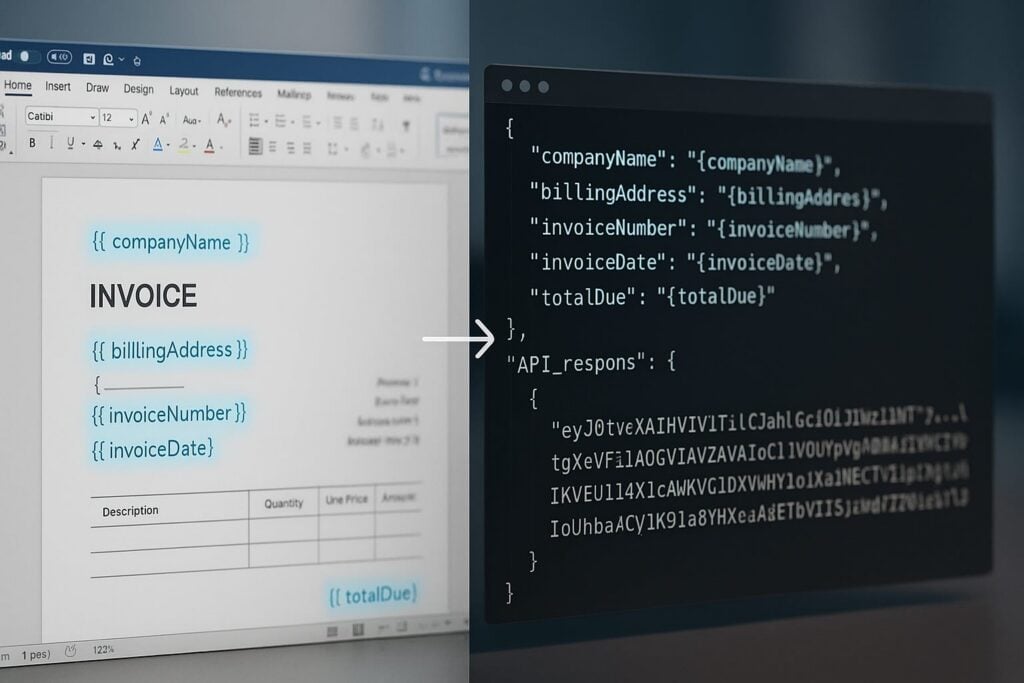
Manual document workflows break down fast as volume grows. This guide explains what document generation is, how template-driven APIs replace manual processes, and what the pipeline looks like from a Word template and JSON payload to a finished PDF.
You’ve inherited a document workflow built on Word macros, save-as duplication, and a shared drive folder someone named “FINAL_v3.” Every time a contract needs to go out, someone opens the master template, manually replaces the client name and date, exports to PDF, and emails it. Scaled to one deal a week, that works. Scaled to a thousand deals a quarter, it breaks down in ways that are hard to trace and painful to fix.
Document generation APIs make the relationship between input data and output document deterministic. This article covers how that pipeline is structured, what the token contract between template and data looks like, and what the actual API call looks like from a POST request to a decoded file.
What Document Generation Is
Document generation is the programmatic production of populated, formatted documents from a template and a structured data source. Three components are always present: a template (the structure and placeholders), a data payload (the values to inject), and a rendering engine (the API that merges the two and produces the final file).
These components map cleanly onto a separation of concerns. The template owner controls layout, language, and branding. The data owner controls what goes in each field. The rendering engine enforces the merge contract between them. When that separation holds, changing the template doesn’t require a code change, and changing the data schema requires only a template update.
Document generation occupies a distinct category from the adjacent tools that crowd the same search space. E-signature platforms collect binding signatures on completed documents. Document management systems store, version, and retrieve files. OCR and extraction tools pull structured data out of existing documents. Document generation puts data in.
Why Manual Document Workflows Break Under Load
Manual Word-based workflows fail in three predictable ways when volume grows.
Version drift happens when templates live in shared folders across teams. One team updates the disclaimer text, another adds a new liability clause, and a third is still using a version from Q3. After six months, your organization has five variants of the same contract template producing inconsistent output, with no reliable way to identify which version generated any given document.
Merge errors compound at scale. Copy-paste and mail-merge workflows both require human coordination of field-by-field substitution. When an invoice ships with the previous client’s name, or a renewal letter shows last year’s rates, the error traces back to a single manual step that had no validation layer. A 0.5% error rate is invisible at 20 documents a month. At 4,000 documents a month, it means 20 wrong documents going out the door.
Audit trail absence creates compliance exposure. A manually assembled document carries no machine-readable record of what data produced it or when. When a regulator asks which policy documents were generated from the October 2024 rate table, the answer requires a manual search through email threads and file name timestamps.
Programmatic generation makes each of these problems tractable. The same JSON payload processed against the same template version always produces the same output, and every generation event is a logged API call with a traceable input and output. The document generation software market is valued at $4.05B in 2025 and projected to grow at a 9.2% CAGR through 2035, driven by enterprise automation and compliance requirements that manual workflows can’t satisfy at scale.
How Template-Driven Generation Works: Tokens, Loops, and Conditionals
Foxit’s DocGen API uses standard Microsoft Word as the template authoring environment. Template authors work in Word, inserting double-bracket placeholders whose key names map directly to keys in the JSON payload supplied at generation time. This keeps template ownership with the people who understand the document content, with no proprietary editor and no additional software license required.
The basic token syntax covers three common cases:
{{ companyName }}renders the string value ofcompanyNamefrom the payload{{ invoiceDate \@ MM/dd/yyyy }}applies a Word date picture string to the raw date value (the leading\@is required; the friendly form without it renders blank){{ totalDue \# "$#,##0.00" }}formats a numeric value as currency using a Word numeric picture string (a friendly keyword like\# Currencyis unsupported and renders blank)
A minimal JSON payload for a template containing those three tokens would be:
{
  "companyName": "Meridian Analytics",
  "invoiceDate": "2025-06-15",
  "totalDue": 8250.0
}
The rendering engine walks the template, matches each token to the corresponding key in the payload, and writes the formatted value into the output. Template authors work entirely in Word, while the engine handles token resolution, format application, and output assembly.
Repeating sections use loop delimiters to produce table rows that repeat for each element in a JSON array. Placing {{TableStart:lineItems}} before a table row and {{TableEnd:lineItems}} after it tells the engine to emit one row per object in the lineItems array. Both delimiters must sit in cells of the same Word table row. Inside that loop, {{ROW_NUMBER}} auto-increments across rows, and a footer row immediately below the loop can use {{=SUM(ABOVE) \# "$#,##0.00"}} to compute and format a column total, so a ten-line invoice produces a correctly numbered, fully summed table with no post-processing.
Conditional content uses Word’s native Field Code View (opened with ALT + F9) to write IF-field conditions that show or hide text blocks based on data values. A clause that should appear only when contractType equals "enterprise" lives inside a field condition, and the rendering engine evaluates it at generation time. There’s no separate scripting layer and no custom expression language to learn.
The three components converge at a single API endpoint: your base64-encoded DOCX template and JSON data payload go in together, and the generated document comes back in the same HTTP response.

The API Pipeline: From POST Request to Final Document
The Foxit DocGen API compresses the generation pipeline into a single synchronous call. You POST to one endpoint with your template and data, and you receive the generated document in the same HTTP response, with no separate template upload step, no job ID to poll, and no webhook to configure for individual document generation.
Before building a generation workflow, you can use the Analyze Document API to scan a DOCX template and return a list of all embedded tokens, which confirms the token-to-key mapping before you commit to a data schema. That’s a single POST to a separate endpoint on the same host, and it returns a structured list of placeholder names and their types.
For the generation call itself, the dev-tier endpoint is:
POST https://na1.fusion.foxit.com/document-generation/api/GenerateDocumentBase64
Authentication passes your client_id and client_secret as custom HTTP headers alongside Content-Type: application/json. You retrieve both credentials from the dashboard at account.foxit.com/site/sign-up after activating your free developer plan, with no OAuth exchange and no session setup required before your first call.
The request body takes three fields:
base64FileStringis your DOCX template, base64-encoded. Keep the source.docxunder 4 MB (the practical ceiling for a single request) since base64 encoding inflates the payload by roughly 33%. If a template runs large, embedded images are usually the cause, so compress them through Word’s Picture Format settings before exporting.documentValuesis the JSON object whose keys map to token names in the templateoutputFormatis the string"pdf"or"docx", lowercase and exact (the API returns HTTP 500 for any other value, including"PDF"or"DOCX")
For an invoice template with a lineItems array, the full curl command carries your base64-encoded DOCX, the matching data object, and your credentials in the request headers:
curl -X POST "https://na1.fusion.foxit.com/document-generation/api/GenerateDocumentBase64" \
  -H "client_id: YOUR_CLIENT_ID" \
  -H "client_secret: YOUR_CLIENT_SECRET" \
  -H "Content-Type: application/json" \
  -d '{
    "base64FileString": "BASE64_ENCODED_DOCX_HERE",
    "documentValues": {
      "companyName": "Meridian Analytics",
      "invoiceDate": "2025-06-15",
      "totalDue": 8250.00,
      "lineItems": [
        { "description": "Platform License", "quantity": 1, "unitPrice": 8250.00 }
      ]
    },
    "outputFormat": "pdf"
  }'
The API returns a synchronous JSON response carrying a human-readable message, the fileExtension for naming the output file, and the base64FileString containing the generated document:
{
  "message": "PDF Document Generated Successfully",
  "fileExtension": "pdf",
  "base64FileString": "JVBERi0xLjQK..."
}
message gives you a status string for logging. fileExtension tells you whether you received "pdf" or "docx", which lets you construct the output filename programmatically without parsing the message string. base64FileString is the generated document. Your application decodes that value and routes the resulting bytes to storage, email delivery, a document management system, or whatever downstream step your workflow requires.
For teams evaluating the API before writing integration code, the Foxit developer portal includes a Postman collection with GenerateDocumentBase64 preconfigured. You can load the collection, paste your credentials and a test template, send the request, and confirm the response structure before writing a single line of application code. Foxit also provides SDKs for Node.js, Python, Java, C#, and PHP if you prefer a language-native integration path over raw HTTP.
Where Organizations Are Actually Using This
Five industries where the template-to-API pipeline produces direct operational value:
Insurance carriers face renewal cycles that generate thousands of policy documents each quarter. They pull policyholder data from their CRM, pass it as a JSON payload to the generation API, and produce populated renewal packets without manual assembly. Each document reflects current policy terms from the system of record, cutting the per-document preparation time from minutes of human work to milliseconds of API latency.
Healthcare providers need patient intake packets and HIPAA disclosure forms ready before each appointment. Clinics pull patient demographic and consent data from their EHR system, generate the packet at appointment scheduling time, and deliver it to the patient portal. The data source is the live EHR record, so the document always reflects current information.
Government agencies and courts produce case-related documents (orders, notices, motions) with fixed structure and variable case data. API-based generation means each document draws directly from structured court records, reducing transcription errors and producing a machine-readable audit trail that links every output document to the specific data that created it.
High-tech and SaaS companies trigger NDA and quote generation directly from their CRM or CPQ tools. A deal record in Salesforce or HubSpot becomes the JSON payload, and the generation API produces a finalized, formatted document without a manual drafting step. The document lands in the deal room minutes after the pricing conversation closes.
Education institutions generate hundreds or thousands of admission offer letters during enrollment periods. Student data from the Student Information System becomes the payload, and each letter reflects the correct program, scholarship amount, and enrollment deadline for that individual student. What a staff member would take days to produce manually runs as a scheduled batch job.
What to Evaluate When Choosing a Document Generation API
Output format coverage deserves attention before you commit to an API. Receiving both PDF and DOCX from the same endpoint matters when your workflow requires human review before a document is finalized. PDF suits direct delivery. DOCX suits draft-and-review cycles where a lawyer or editor needs to modify the generated document before it goes to signature. APIs that produce only PDF force you to finalize at generation time, which eliminates the review step entirely.
The execution model determines whether an API fits your latency requirements. Synchronous APIs return the document in the same HTTP response, which works for real-time generation triggered by a user action or a CRM event. Asynchronous APIs accept a job and require polling or a webhook to retrieve the result, which works better for batch jobs processing thousands of documents in a run. Confirm which model the API offers before you design your integration, because retrofitting from synchronous to async (or vice versa) affects how you handle errors, retries, and downstream routing. Foxit’s DocGen API is synchronous, so individual requests resolve in a single HTTP round trip.
Template portability determines your long-term maintenance cost. A template stored as a standard DOCX file is editable by anyone with Word, version-controllable in Git, and portable across environments. A template stored in a proprietary format requires the vendor’s editor for every update, and losing access to that editor means losing the ability to maintain your own document logic. Word-based templates also let business users own content changes without involving a developer.
Compliance posture matters as soon as your documents contain PII, PHI, or financial data. Confirm the provider’s certifications before sending real records through the API. SOC 2, GDPR compliance, and HIPAA certification are the relevant checks for most enterprise document workflows. A provider’s architecture (multi-tenant SaaS vs. single-tenant hosted) also affects how you address data residency requirements.
Developer onboarding cost is a real selection criterion. A free tier with immediate credential access, a working Postman collection, and SDK support for your language stack lets your team validate fit in hours. A procurement process that requires a sales conversation before you can run a test extends your evaluation cycle by weeks. Foxit’s developer plan is free, credit-card-free, and gives you dashboard access and credentials immediately, so your team can make an informed build-vs-buy decision based on a working integration rather than a demo.
Getting Started: Generate Your First Document Today
A working end-to-end generation pipeline takes under an hour to set up:
Go to account.foxit.com/site/sign-up and activate a free Developer plan. Dashboard access and credentials are immediate, with no credit card and no sales call required.
Retrieve your Client ID and Client Secret from the dashboard.
Grab a ready-to-use template, or author your own. Download
invoice_simple.docxfor the smallest possible smoke test, orinvoice_table.docxif you want the full loop,{{ROW_NUMBER}}, and{{=SUM(ABOVE)}}round-trip. To build your own instead, open Microsoft Word, add two or three{{ tokenName }}placeholders, and save as DOCX. Base64-encode the file usingbase64 -i template.docxon macOS or Linux, or[Convert]::ToBase64String([IO.File]::ReadAllBytes("template.docx"))in Windows PowerShell.Open the Postman collection linked on the Foxit API page, load the
GenerateDocumentBase64request, paste your base64-encoded template intobase64FileString, and add a JSON object todocumentValueswith keys matching your placeholder names. SetoutputFormatto"pdf"and send the request. Copy thebase64FileStringvalue from the JSON response and decode it. You now have a generated PDF.
From this point, connecting to a real data source is the only remaining step. Pull a record from your CRM, a row from your database, or a response from an upstream API, map its fields to the token names in your template, and pass the result as documentValues. That connection makes the pipeline production-ready, and every document it generates becomes a deterministic, auditable function of the data that produced it.
Activate your free Foxit Developer plan (no credit card, no sales call) and run your first document generation call in minutes at account.foxit.com/site/sign-up.
Document Generation Pipeline FAQ
What is document generation?
Document generation is the programmatic production of populated, formatted documents from a template plus a structured data source. Three components are always present: a template holding the layout and placeholders, a JSON data payload holding the values, and a rendering engine that merges the two into a final PDF or DOCX. The same payload against the same template always produces the same output, which makes the process deterministic and auditable.
How is document generation different from e-signature or OCR tools?
They occupy adjacent but distinct categories. E-signature platforms like DocuSign collect binding signatures on documents that already exist. Document management systems store, version, and retrieve files. OCR and extraction tools pull structured data out of existing documents. Document generation does the opposite — it puts data in, producing a new populated document from a template. Many workflows chain them: generate a contract, then route it for signature.
What does a Foxit DocGen API request and response look like?
You POST to GenerateDocumentBase64 with three fields: base64FileString (your base64-encoded DOCX template), documentValues (the JSON object whose keys match your tokens), and outputFormat ("pdf" or "docx", lowercase). Authentication uses client_id and client_secret headers. The synchronous response returns a message, a fileExtension, and a base64FileString containing the generated document, which your app decodes and routes downstream.
How do you create repeating table rows in a document generation template?
Use loop delimiters. Place {{TableStart:lineItems}} before a Word table row and {{TableEnd:lineItems}} after it, with both delimiters in cells of the same row. The engine emits one row per object in the lineItems array. Inside the loop, {{ROW_NUMBER}} auto-increments, and a footer row can use {{=SUM(ABOVE) \# "$#,##0.00"}} to compute and format a column total — so a ten-line invoice renders fully numbered and summed with no post-processing.
Can the document generation API return both PDF and DOCX?
Yes. The Foxit DocGen API returns either format from the same endpoint based on the outputFormat value. PDF suits direct delivery where the document is final at generation time. DOCX suits draft-and-review cycles, where a lawyer or editor needs to modify the generated file before it goes to signature. APIs that emit PDF only force you to finalize at generation and eliminate that review step.
Automate Dynamic PDF Generation with the Foxit DocGen API: Word Templates, JSON Data, and Real API Calls
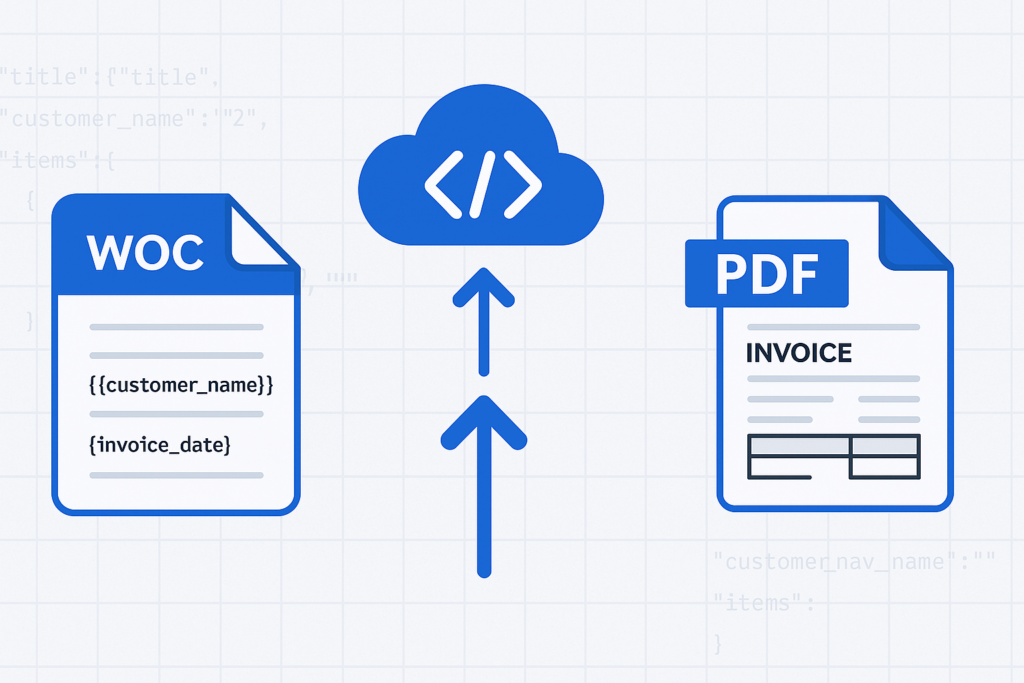
Skip the HTML-to-PDF headaches. Use Foxit’s DocGen API to turn Word templates and JSON data into clean, formatted PDFs with one API call.
If you’ve tried to generate a contract or invoice from HTML, you’ve probably burned hours on page-break-inside: avoid declarations that Chrome renders one way and a headless browser renders another. Headers and footers require separate print-media queries, and by the time you’ve got a repeating table header working correctly across pages, you’ve invested a full day of engineering into CSS that exists solely to trick a browser into behaving like a printer.
HTML documents reflow content into a viewport while PDF documents have fixed page geometry. Forcing one model into the other produces predictable failure modes: footnotes that collide with page footers, tables that split at the worst possible row, custom fonts that substitute silently, and signature blocks that drift off-page on longer documents.
There’s a larger practical cost too. For most teams, the authoritative source for enterprise document templates is already a Word file. Your legal team owns the NDA in .docx format. Finance owns the invoice in .docx format. Every structural change flows through Word because that’s where the tracked changes, formatting history, and review process live. Maintaining a parallel HTML version of each template doubles your maintenance surface from day one.
Foxit’s DocGen API eliminates that parallel entirely. You keep your templates as .docx files, embed data tags directly in Word, POST the base64-encoded template and a JSON payload to a single REST endpoint, and receive the rendered PDF (or DOCX) in the response body. You eliminate the browser rendering engine, the print-media CSS layer, and the overhead of a second template format.
How the Foxit DocGen API Works
The core model is a single synchronous POST to the GenerateDocumentBase64 endpoint at developer-api.foxit.com. Your request body carries three fields:
base64FileString: your .docx template, base64-encodeddocumentValues: a JSON object containing your merge dataoutputFormat: either"pdf"or"docx"
The API processes the template, resolves every tag against your data, and returns a JSON response containing base64FileString (the rendered document) and a message field confirming success or describing a failure. The exchange is fully synchronous, so you receive the finished document in the same HTTP response with no job ID to poll and no webhook to configure.
Authentication uses two HTTP headers: client_id and client_secret. Both come from the Foxit Developer Portal when you create an account. The free Developer plan provides 500 credits per year with no credit card required, and each GenerateDocumentBase64 call consumes exactly one credit. The Startup plan ($1,750/year) provides 3,500 credits. The Business plan ($4,500/year) covers 150,000 credits for production workloads. For context, Nutrient’s API starts at $75 for 1,000 credits, and Apryse requires a sales conversation before you can access pricing at all.
The complete call flow runs from template file to PDF on disk.
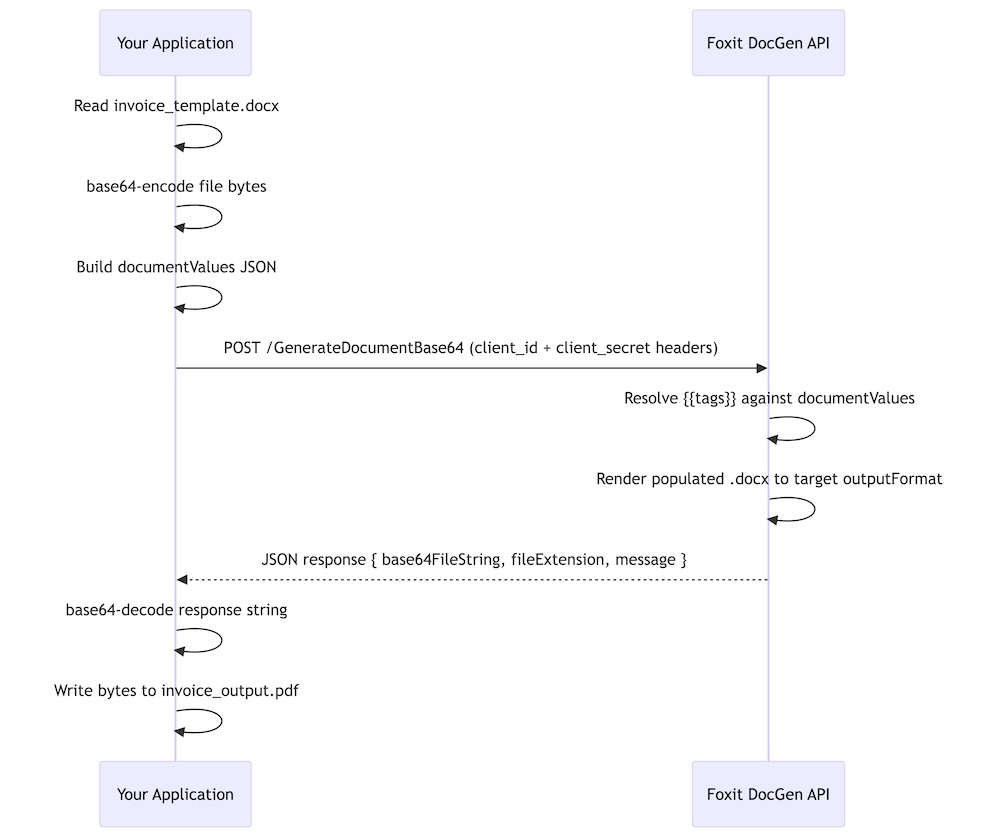
You can explore every endpoint in the live API playground at developer-api.foxit.com, and the portal includes a Postman collection you can import to run authenticated requests without writing a line of code first.
Build a Word Template with DocGen Tags
Open any .docx file in Microsoft Word and type your tags as plain text directly in the document. The DocGen API uses double-brace syntax: {{field_name}}. Tags go anywhere Word accepts text: headings, body paragraphs, table cells, headers, footers, or text boxes.
Scalar field tags resolve directly to the matching key from your documentValues JSON. A document header with {{customer_name}}, {{invoice_number}}, and {{invoice_date}} pulls those three values straight from the top-level keys of your payload.
For arrays, you wrap a single table row (the data row, not the header row) with {{TableStart:array_name}} and {{TableEnd:array_name}} markers. The wrapped row acts as a template row, and the API renders one output row per item in the JSON array. An invoice line-items table in Word looks like this:
| Description | Qty | Unit Price | Total |
|---|---|---|---|
{{TableStart:line_items}}{{description}} | {{qty}} | {{unit_price}} | {{total}}{{TableEnd:line_items}} |
Within the array row, ROW_NUMBER auto-increments with each rendered row. A SUM(ABOVE) field placed in the row directly below the {{TableEnd:line_items}} marker calculates a column total across all rendered data rows.
For nested JSON objects, use dot-notation in your tags. A shipping address block references {{shipping.street}}, {{shipping.city}}, and {{shipping.postal_code}}, mapping to properties nested inside a shipping object in your payload. The nesting can go multiple levels deep, so {{customer.address.city}} resolves against documentValues.customer.address.city.
For a working starting point, grab the downloadable invoice template from the foxit-demo-templates repo. The file is well under the 4 MB upload limit and demonstrates every pattern this article uses: scalar tags, {{TableStart:line_items}} / {{TableEnd:line_items}} with {{ROW_NUMBER}}, currency and date format switches, and subtotal / tax / total fields below the line-items table.
One sizing constraint applies while you build your own template. DocGen rejects uploads larger than 4 MB, so if you embed product photos, scanned letterhead, or full font subsets, compress the images before saving, drop embedded fonts where you can rely on system fonts, or split a large template into smaller per-section templates that you generate and merge separately.
Make Your First API Call: Generate a PDF from JSON
Run a quick pre-flight check before the first call to catch the issues that derail most clean-account run-throughs:
- Account created and
client_id/client_secretcopied from the Developer Portal API Keys section - Sample template saved locally as
invoice_template.docxin the directory you’ll run the script from - Template file size confirmed under 4 MB (
ls -lh invoice_template.docxon macOS or Linux, right-click → Properties on Windows)
With those in place, confirm your credentials work with a cURL call. The Foxit Developer Portal includes a Postman collection for this, but a quick cURL request against the API catches auth issues before any code runs:
curl -X POST "https://na1.fusion.foxit.com/document-generation/api/GenerateDocumentBase64" \
  -H "client_id: YOUR_CLIENT_ID" \
  -H "client_secret: YOUR_CLIENT_SECRET" \
  -H "Content-Type: application/json" \
  -d '{"base64FileString":"","documentValues":{},"outputFormat":"pdf"}'
A 401 here means invalid credentials. A 400 with a message about the template confirms your headers are accepted and you can proceed to the full call.
Save your .docx template as invoice_template.docx in the same directory as this script, then run the complete generation:
import requests
import base64

CLIENT_ID = "your_client_id"
CLIENT_SECRET = "your_client_secret"
API_URL = "https://na1.fusion.foxit.com/document-generation/api/GenerateDocumentBase64"

# Read and encode the template
with open("invoice_template.docx", "rb") as f:
    template_b64 = base64.b64encode(f.read()).decode("utf-8")

# Build the data payload
document_values = {
    "customer_name": "Acme Corporation",
    "invoice_number": "INV-2025-0042",
    "invoice_date": "07/15/2025",
    "due_date": "08/14/2025",
    "line_items": [
        {
            "description": "API Integration Consulting",
            "qty": 8,
            "unit_price": 195.00,
            "total": 1560.00
        },
        {
            "description": "Document Automation Setup",
            "qty": 1,
            "unit_price": 750.00,
            "total": 750.00
        }
    ],
    "subtotal": 2310.00,
    "tax_rate": 0.08,
    "tax_amount": 184.80,
    "total_due": 2494.80
}

# Construct the request body
payload = {
    "base64FileString": template_b64,
    "documentValues": document_values,
    "outputFormat": "pdf"
}

headers = {
    "client_id": CLIENT_ID,
    "client_secret": CLIENT_SECRET,
    "Content-Type": "application/json"
}

response = requests.post(API_URL, json=payload, headers=headers)

if response.status_code == 200:
    result = response.json()
    pdf_bytes = base64.b64decode(result["base64FileString"])
    if pdf_bytes[:5] != b"%PDF-":
        raise ValueError("Response did not contain a valid PDF")
    with open("invoice_output.pdf", "wb") as out:
        out.write(pdf_bytes)
    print("PDF written to invoice_output.pdf")
else:
    print(f"Error {response.status_code}: {response.json().get('message')}")
The success response is a JSON object with three keys: base64FileString (the rendered PDF, base64-encoded), fileExtension ("pdf"), and message ("PDF Document Generated Successfully"). Decoding and writing the bytes to disk gives you a complete, formatted PDF with every tag replaced by its corresponding data value. If you omit a key from documentValues, the API renders the corresponding tag as an empty string, producing a blank field in the output.
Advanced Data Scenarios: Arrays, Nested Objects, and Built-In Functions
The two-row invoice above works, but most production documents have more complex data shapes. Three patterns cover the majority of real-world cases.
For multi-row tables, the line_items array in the Python snippet above already shows the basic structure. To generate five rows, pass five objects in the array. The Word template row tagged with {{TableStart:line_items}} and {{TableEnd:line_items}} repeats exactly once per array item:
{
  "line_items": [
    {
      "description": "UX Design Review",
      "qty": 4,
      "unit_price": 150.0,
      "total": 600.0
    },
    {
      "description": "Backend API Development",
      "qty": 12,
      "unit_price": 185.0,
      "total": 2220.0
    },
    {
      "description": "Database Schema Migration",
      "qty": 3,
      "unit_price": 200.0,
      "total": 600.0
    },
    {
      "description": "QA Testing",
      "qty": 6,
      "unit_price": 95.0,
      "total": 570.0
    },
    {
      "description": "Deployment and Documentation",
      "qty": 2,
      "unit_price": 175.0,
      "total": 350.0
    }
  ]
}
The API generates exactly five table rows. Swap in 50 items and you get 50 rows, with page breaks handled by Word’s native pagination logic.
For nested objects, the DocGen API resolves dot-notation paths against the full depth of your JSON structure. A shipping confirmation template referencing {{customer.address.city}} works against this payload without any flattening on your end:
{
  "customer": {
    "name": "Sarah Chen",
    "email": "[email protected]",
    "address": {
      "street": "742 Evergreen Terrace",
      "city": "Portland",
      "state": "OR",
      "postal_code": "97201"
    }
  }
}
In the Word template, {{customer.name}}, {{customer.address.city}}, and {{customer.address.postal_code}} each resolve to the correct nested value. You can reference the same nested object from multiple locations in the template, and the API populates each instance independently.
For numeric and date formatting, the DocGen API respects Word’s native field switch syntax. Adding \# Currency to a tag formats a numeric value as a currency string, so {{unit_price \# Currency}} renders 195.00 as \$195.00. Date fields accept \@ "MM/dd/yyyy" to control output format, so {{invoice_date \@ "MM/dd/yyyy"}} formats an ISO date string to 07/15/2025. To auto-calculate a column total, place a SUM(ABOVE) field in the Word table row immediately below {{TableEnd:line_items}} and the API evaluates it against the rendered data rows.
Error Handling and Production Readiness
The DocGen API returns a focused set of HTTP status codes. A 200 confirms successful generation. A 401 means your client_id or client_secret headers are invalid, and the fix is to re-copy the credentials from the Developer Portal. A 400 covers three cases. The first is a malformed request body, for example a missing base64FileString or outputFormat. The second is structural issues with the template itself, such as a {{TableStart}} marker placed outside its table row. The third is an oversize template; DocGen rejects .docx uploads larger than 4 MB, and the fix is to compress embedded images, drop embedded fonts, or split the template before re-encoding. The message field in every non-200 response body gives you the specific reason, so log it rather than discarding the response object.
A production wrapper handles all three cases and adds exponential backoff for transient server errors:
import requests
import base64
import time

def generate_document(client_id, client_secret, template_path,
                      document_values, output_format="pdf"):
    API_URL = "https://na1.fusion.foxit.com/document-generation/api/GenerateDocumentBase64"

    with open(template_path, "rb") as f:
        template_b64 = base64.b64encode(f.read()).decode("utf-8")

    payload = {
        "base64FileString": template_b64,
        "documentValues": document_values,
        "outputFormat": output_format
    }
    headers = {
        "client_id": client_id,
        "client_secret": client_secret,
        "Content-Type": "application/json"
    }

    max_retries = 3
    for attempt in range(max_retries):
        try:
            response = requests.post(API_URL, json=payload,
                                     headers=headers, timeout=30)

            if response.status_code == 200:
                return base64.b64decode(response.json()["base64FileString"])

            if response.status_code == 401:
                raise ValueError("Authentication failed: re-check client_id and client_secret")

            if response.status_code == 400:
                msg = response.json().get("message", "Bad request")
                raise ValueError(f"Request error: {msg}")

            if response.status_code >= 500:
                if attempt < max_retries - 1:
                    wait = 2 ** attempt
                    print(f"Server error ({response.status_code}), retrying in {wait}s...")
                    time.sleep(wait)
                    continue
                raise RuntimeError(f"Server error after {max_retries} attempts")

        except requests.exceptions.Timeout:
            if attempt < max_retries - 1:
                time.sleep(2 ** attempt)
                continue
            raise

    raise RuntimeError("Max retries exceeded")
The wrapper raises immediately on 4xx responses because retrying a credential error or a malformed request produces the same result. Exponential backoff applies only to 5xx responses and timeouts, where the issue is transient.
Once generate_document() returns raw PDF bytes, routing them downstream takes three lines:
import boto3

s3 = boto3.client("s3")
pdf_bytes = generate_document(CLIENT_ID, CLIENT_SECRET, "invoice_template.docx", document_values)
s3.put_object(Bucket="my-documents-bucket", Key="invoices/INV-2025-0042.pdf", Body=pdf_bytes)
To attach the output to an email, pass pdf_bytes directly as the smtplib attachment payload. To collect a signature on the generated document, base64-encode the bytes and POST them to Foxit’s eSign API with the signer’s email address in the request body. The full eSign API reference is at docs.developer-api.foxit.com.
Common Mistakes
A short list of the issues that account for almost every failed first run.
- Smart-quote autocorrect on braces. Word’s AutoCorrect can convert the second
{of{{into a curly-quote glyph, which breaks tag parsing silently. Disable “Straight quotes with smart quotes” under AutoCorrect Options, or paste tags as plain text. - Token case sensitivity.
{{Customer_Name}}and{{customer_name}}are different keys. Match the casing in your JSON exactly. TableStartandTableEndmust sit in the same Word table row. Splitting them across two rows, or placing either marker outside the table, leaves the loop unrendered with no error.- Template over 4 MB. The API rejects oversize uploads with a 400. Compress embedded images, drop embedded fonts where system fonts will do, or split the template into smaller pieces.
- Missing payload key. The API renders an unmatched tag as an empty string rather than failing, so a 200 response does not guarantee every field is populated. Spot-check the rendered PDF as part of any pipeline test.
- Auth header typos. Headers are
client_idandclient_secretin snake_case.Client-Id,ClientId, orX-Client-Idall return 401.
Run the Full Invoice Example End-to-End Right Now
Create a free account directly at account.foxit.com/site/sign-up. This skips the pricing-page redirect you hit from the marketing site and drops you straight into the account form.
- Open account.foxit.com/site/sign-up and complete the form (no credit card required).
- After verification, sign in to the Developer Portal and the Developer plan (500 credits per year) is active by default.
- Open the API Keys section and copy your
client_idandclient_secret.
With credentials in hand, run the example end-to-end:
- Download
invoice_full.docxfrom the foxit-demo-templates repo and save it locally asinvoice_template.docxin your working directory. The file is well under the 4 MB upload limit and exercises every tag pattern this article covers. - Paste your credentials into the
CLIENT_IDandCLIENT_SECRETvariables in the Python script from the previous section. - Edit the
document_valuesdictionary with your own customer name, invoice number, and line items. - Run the script and open
invoice_output.pdf.
The free Developer plan’s 500 annual credits cover this tutorial dozens of times over before you spend anything. The full API reference at docs.developer-api.foxit.com covers every endpoint parameter, the complete tag specification, all supported output formats, and the full GenerateDocumentBase64 request and response schema.
Get started with a free account (no credit card required) and generate your first dynamic PDF in under 10 minutes.
Foxit DocGen API Quickstart: Word Template to Pixel-Perfect PDF in Under 10 Minutes
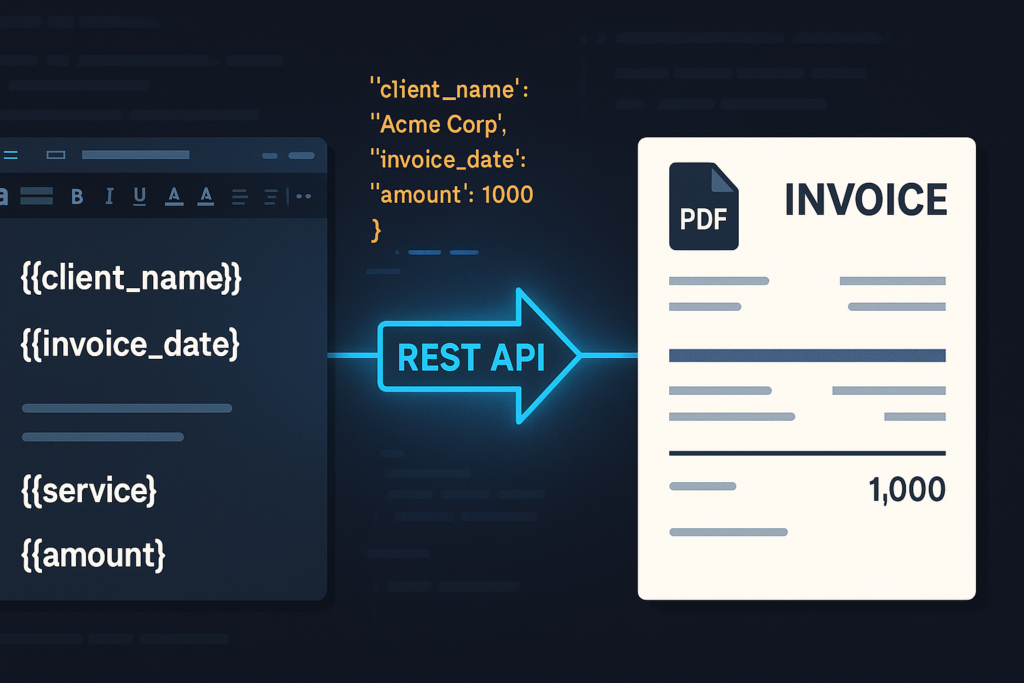
Go from a Word template to a pixel-perfect PDF in under 10 minutes with the Foxit DocGen API. This guide covers template authoring, JSON payload structure, the GenerateDocumentBase64 call, and the most common errors that trip people up.
Most document generation quickstarts hand you a template with one text field, a trivial JSON payload, and no explanation of what breaks when you add a repeating table, a date format string, or a missing key. You end up in the docs trying to work backwards from a 400 error. This tutorial covers the complete Foxit DocGen API flow end-to-end: authoring a Word template with scalar fields, formatted dates, and repeating line-item rows; building the matching JSON payload; and POSTing everything to GenerateDocumentBase64 to retrieve a production-ready PDF. Working Python and cURL throughout.
Before starting, you’ll need a free Foxit developer account at developer-api.foxit.com (no credit card required; the free tier includes 500 credits/year), your client_id and client_secret from the developer dashboard, Python 3.x with requests installed (pip install requests), and Microsoft Word for template authoring.
How the Foxit DocGen API Works: One Endpoint, One Call
The GenerateDocumentBase64 endpoint accepts a single POST request and returns the rendered document in the same response body. You pass three things: your .docx template (base64-encoded), your structured JSON data, and the desired output format. The API merges template with data and returns the rendered file as a base64-encoded string.
Your .docx file defines layout, branding, and placeholder tokens. Your JSON payload carries the runtime values that populate those tokens. The API resolves every token in the template against the corresponding key in documentValues and renders the result as a PDF or DOCX.
 The call is synchronous, returning the rendered file in the HTTP 200 response body with no job ID, polling loop, or webhook callback required. The request body always carries three keys:
 base64FileString (your .docx template, base64-encoded), documentValues (the JSON object whose keys map to template tokens), and outputFormat ("pdf" or "docx").
Authentication passes client_id and client_secret as custom HTTP headers on every request, with no OAuth 2.0 flow and no token exchange step.
Author Your Word Template with Dynamic Tags
Open Word and create a standard .docx. Place your dynamic content using double-curly-brace tokens typed directly in the document body.
For scalar string and number fields, the syntax is {{field_name}}. For a date with a specific display pattern, use {{ field_name \@ MM/dd/yyyy }}. The \@ format string controls how the API renders date values from your JSON payload.
An invoice template header section looks like this:
Invoice #: {{invoice_number}}
Date: {{ invoice_date \@ MM/dd/yyyy }}
Bill To: {{client_name}}
Address: {{billing_address}}
Repeating table rows use a pair of range markers. Place {{TableStart:line_items}} in the first cell of the row you want to repeat, and {{TableEnd:line_items}} in the last cell of that same row. The array name in both markers (line_items here) must exactly match the key name in your JSON payload. Cells within the repeating row take individual field tokens:
| {{TableStart:line_items}}{{ROW_NUMBER}} | {{description}} | {{qty}} | {{unit_price}}{{TableEnd:line_items}} |
{{ROW_NUMBER}} auto-increments across all rendered rows. Word’s built-in SUM(ABOVE) formula in a totals row below the table still works for column totals.
Two authoring mistakes account for the majority of template parsing failures. Placing tokens inside merged table cells causes a parser error because the API can’t determine which logical cell owns the token. Using Word’s smart (curly) quotes instead of straight ASCII double-braces causes an encoding mismatch that returns a 400. Before uploading your template, check Word’s autocorrect settings and run a Find & Replace search for any {{ or }} pairs that got converted to curly equivalents.
Authenticate and Prepare the Template
Your client_id and client_secret from the developer dashboard at developer-api.foxit.com pass as custom headers on every request. The base64 module ships with Python’s standard library, so the encoding step adds no new dependencies to your project:
import base64
import requests

# Load and encode the .docx template
with open("invoice_template.docx", "rb") as f:
    template_b64 = base64.b64encode(f.read()).decode("utf-8")

# Authentication and content-type headers
headers = {
    "client_id": "YOUR_CLIENT_ID",
    "client_secret": "YOUR_CLIENT_SECRET",
    "Content-Type": "application/json"
}

# Scalar fields (the line_items array is added in the next section)
document_values = {
    "invoice_number": "INV-2025-0042",
    "invoice_date": "2025-07-15",
    "client_name": "Meridian Software Inc."
}

payload = {
    "base64FileString": template_b64,
    "documentValues": document_values,
    "outputFormat": "pdf"
}
The cURL equivalent encodes the file on the fly and passes the same headers:
# Encode the template
TEMPLATE_B64=$(base64 < invoice_template.docx)

curl -s -X POST "https://na1.fusion.foxit.com/document-generation/api/GenerateDocumentBase64" \
  -H "client_id: YOUR_CLIENT_ID" \
  -H "client_secret: YOUR_CLIENT_SECRET" \
  -H "Content-Type: application/json" \
  -d "{\"base64FileString\": \"${TEMPLATE_B64}\", \"documentValues\": {\"invoice_number\": \"INV-2025-0042\", \"invoice_date\": \"2025-07-15\", \"client_name\": \"Meridian Software Inc.\"}, \"outputFormat\": \"pdf\"}"
Build the JSON Data Payload for DocGen
The full documentValues payload maps scalar fields at the top level and places the repeating line-item array under the key that matches your {{TableStart:}} / {{TableEnd:}} marker name exactly.
{
  "invoice_number": "INV-2025-0042",
  "invoice_date": "2025-07-15",
  "client_name": "Meridian Software Inc.",
  "billing_address": "400 Pine Street, Suite 12, Seattle, WA 98101",
  "line_items": [
    {
      "description": "API Integration Consulting",
      "qty": "8",
      "unit_price": "225.00"
    },
    {
      "description": "DocGen Template Authoring",
      "qty": "4",
      "unit_price": "175.00"
    },
    {
      "description": "QA and Deployment Support",
      "qty": "2",
      "unit_price": "150.00"
    }
  ]
}
A few type behaviors worth tracking. The API formats date values using the \@ format string in the template tag, so pass dates as ISO 8601 strings ("2025-07-15") and let the tag control the display format. Numeric quantities and prices work as either strings or integers. When a template token has no matching key in documentValues, the API leaves that placeholder blank in the output rather than returning an error, so missing keys produce silent blanks in your document.
Call the Generation Endpoint and Retrieve the PDF
This complete Python function adds the line_items array, posts to the endpoint, validates the response, and writes the output to disk:
import base64
import requests

with open("invoice_template.docx", "rb") as f:
    template_b64 = base64.b64encode(f.read()).decode("utf-8")

headers = {
    "client_id": "YOUR_CLIENT_ID",
    "client_secret": "YOUR_CLIENT_SECRET",
    "Content-Type": "application/json"
}

document_values = {
    "invoice_number": "INV-2025-0042",
    "invoice_date": "2025-07-15",
    "client_name": "Meridian Software Inc.",
    "billing_address": "400 Pine Street, Suite 12, Seattle, WA 98101",
    "line_items": [
        {"description": "API Integration Consulting", "qty": "8", "unit_price": "225.00"},
        {"description": "DocGen Template Authoring", "qty": "4", "unit_price": "175.00"},
        {"description": "QA and Deployment Support", "qty": "2", "unit_price": "150.00"}
    ]
}

payload = {
    "base64FileString": template_b64,
    "documentValues": document_values,
    "outputFormat": "pdf"
}

response = requests.post(
    "https://na1.fusion.foxit.com/document-generation/api/GenerateDocumentBase64",
    headers=headers,
    json=payload
)

if response.status_code == 200:
    result = response.json()
    pdf_bytes = base64.b64decode(result["base64FileString"])

    # Confirm the response is a valid PDF before writing to disk
    if pdf_bytes[:5] != b"%PDF-":
        raise ValueError("Response did not contain a valid PDF")

    with open("invoice_output.pdf", "wb") as f:
        f.write(pdf_bytes)
    print("PDF written: invoice_output.pdf")
else:
    error = response.json()
    print(f"Error {response.status_code}: {error.get('message', 'Unknown error')}")
A successful response returns HTTP 200 with a JSON body containing three fields: base64FileString (the rendered PDF, base64-encoded), fileExtension ("pdf"), and message ("PDF Document Generated Successfully"). A failed call returns a 4xx status with a JSON body containing a message field describing the error. The API is synchronous: no job IDs, no polling, no webhooks.
The %PDF- magic bytes check catches cases where the API returned a non-PDF payload: a malformed template, an incorrect outputFormat value, or an error body that got decoded as if it were the file. Run this validation before writing to disk so failures surface immediately rather than producing a corrupt file.
The cURL equivalent uses jq to extract the base64 field and writes the decoded PDF directly to a file:
curl -s -X POST "https://na1.fusion.foxit.com/document-generation/api/GenerateDocumentBase64" \
  -H "client_id: YOUR_CLIENT_ID" \
  -H "client_secret: YOUR_CLIENT_SECRET" \
  -H "Content-Type: application/json" \
  -d @request_body.json \
  | jq -r '.base64FileString' \
  | base64 --decode > invoice_output.pdf
Store the full JSON payload from the previous section in request_body.json. The jq -r flag strips JSON string escaping from the base64 field before it reaches base64 --decode. Omitting -r produces a corrupt output file.
Debugging Common Failures
Unmatched tags render as blank strings in the output PDF. The API produces an HTTP 200 and a valid PDF with the missing data absent. If your output has blank fields, compare your template token names character-by-character against your JSON keys. Token matching is case-sensitive: {{client_name}} and {{Client_Name}} are treated as different fields.
Authentication failures return a 401 with a JSON body:
{
  "message": "Unauthorized. Invalid client credentials."
}
The header names are lowercase (client_id, client_secret), and values must appear without surrounding quotes or whitespace. If you recently rotated keys, regenerate credentials from the developer dashboard and verify you’re reading the correct environment’s values.
Template parse errors return a 400:
{
  "message": "Template parsing error: invalid token format detected."
}
Two root causes produce this error. A .docx re-saved through LibreOffice alters the underlying XML structure in ways that break the parser, so re-author the template in Word. Curly (smart) quote characters in token braces cause an encoding mismatch, so use Word’s Find & Replace to swap any curly {{ and }} back to straight ASCII equivalents.
Payload size limits apply to the base64-encoded template. Check docs.developer-api.foxit.com for the current threshold. Templates exceeding the limit should have embedded images compressed through Word’s Picture Format settings before export. For templates that remain too large after compression, split the document into two .docx files and merge the generated PDFs using Foxit’s PDF Services API.
Wire the Foxit DocGen API Into Your Stack: Next Steps
The integration pattern for a CRM-triggered flow covers four steps: receive the webhook event, pull the record data from your CRM’s API, POST to GenerateDocumentBase64, then upload the decoded PDF to Amazon S3 or return it as a download URL.
def handle_crm_webhook(event):
    record = crm_client.get_record(event["record_id"])
    pdf_bytes = generate_document(record)           # wraps the API call above
    s3_url = upload_to_s3(pdf_bytes, record["id"])  # store in your delivery layer
    crm_client.attach_document(record["id"], s3_url)
Once DocGen is generating your contracts, invoices, and compliance reports, adding signatures is the natural next step. Foxit’s eSign API accepts the same PDF output and adds a fully auditable, legally binding signing workflow via REST. For low-code integration with Salesforce, HubSpot, or SAP, Foxit’s 40+ pre-built connectors let you trigger document generation from a workflow automation tool without writing the HTTP call yourself. Full documentation and connector references are at docs.developer-api.foxit.com.
Create your free account at developer-api.foxit.com, grab your client_id and client_secret, import the Postman collection from the developer dashboard, and run your first generation call against your own .docx. The round trip from account creation to a rendered PDF takes under five minutes.
Frequently Asked Questions
What does the Foxit DocGen API GenerateDocumentBase64 endpoint return?
It returns a synchronous HTTP 200 response whose JSON body contains a base64FileString key holding the fully rendered PDF (or DOCX) encoded in base64. There’s no job ID, polling loop, or webhook. The rendered file arrives in the same response.
What happens when a template token has no matching key in the JSON payload?
The API silently leaves that placeholder blank in the rendered output and still returns HTTP 200. Missing keys don’t trigger a 400 error, so always validate rendered output programmatically. The %PDF- magic bytes validation shown above is a reliable first check.
Why does my Foxit DocGen template return a 400 parsing error?
The two most common causes are token braces containing Word’s smart (curly) quotes instead of straight ASCII double-braces, and a .docx re-saved through LibreOffice, which alters the underlying OOXML structure in ways the parser rejects. Re-author the template in Microsoft Word and replace any curly quote characters using Find & Replace.
Can I generate DOCX output instead of PDF with the DocGen API?
Yes. Set "outputFormat": "docx" in the request body. The same template syntax and documentValues structure apply regardless of output format.
How does authentication work with the Foxit DocGen API?
Pass your client_id and client_secret as custom HTTP request headers on every call. There’s no OAuth token exchange or session management. Credentials are validated per-request and can be generated or rotated from the Foxit developer dashboard.
DocGen QuickStart FAQs
What is the Foxit DocGen API used for?
The Foxit DocGen API is used to generate documents from structured data. Developers can populate templates with data from systems like CRMs, databases, forms, or internal applications, then output branded PDFs or DOCX files for contracts, invoices, reports, disclosures, and other document workflows.
How does the Foxit GenerateDocumentBase64 endpoint work?
The GenerateDocumentBase64 endpoint accepts a base64-encoded document template, a JSON object containing document values, and an output format such as PDF or DOCX. The API merges the template with the supplied data and returns the generated file as a base64-encoded response.
What inputs do I need to generate a PDF with the Foxit DocGen API?
To generate a PDF, you need a document template, structured JSON data that matches the template fields, Foxit API credentials, and an output format value. In the blog example, the template is a Word .docx file and the output format is set to PDF.
Can the Foxit DocGen API generate DOCX files as well as PDFs?
Yes. The blog states that developers can set the output format to docx instead of pdf when calling the DocGen API. The same general template and data-mapping approach applies, but this specific behavior should still be validated against the current API documentation before publication.
How do repeating table rows work in a Foxit DocGen template?
In the blog example, repeating table rows use TableStart and TableEnd markers around a row in the Word template. The marker name must match the array name in the JSON payload, and each object in the array supplies values for the repeated row fields.
What happens if a JSON key is missing from a Foxit DocGen template?
The blog states that if a template token does not have a matching key in documentValues, the generated document leaves that placeholder blank instead of returning an error. Because this is a specific API behavior, it should be confirmed against the current DocGen API documentation.
How do developers authenticate with the Foxit DocGen API?
The blog states that developers authenticate by passing client_id and client_secret as HTTP request headers. Before publication, Foxit should confirm that this is the current recommended authentication method and add guidance to store credentials securely in environment variables or a secrets manager.
Why does a Foxit DocGen template return a 400 parsing error?
According to the blog, common causes include invalid template token formatting, smart quote characters in template tags, or .docx files saved in a way that changes the underlying document structure. This is useful troubleshooting guidance, but it should be validated by the product or documentation team.
Can I use the Foxit DocGen API with CRM data?
Yes. Foxit’s Document Generation API materials position the API for generating documents from structured data in systems such as CRMs, databases, web forms, ERP, or HR systems. Common use cases include quotes, contracts, disclosures, invoices, onboarding documents, and customer communications.
How can Foxit DocGen fit into a larger document workflow?
Foxit DocGen can generate a document from structured data, then the generated PDF can move into downstream workflows such as signing, storage, delivery, or archiving. Foxit’s broader API materials position Document Generation, eSign, PDF Services, and PDF Embed APIs as part of a full-stack document automation ecosystem.
Generate Dynamic PDFs from JSON using Foxit APIs

See how easy it is to generate PDFs from JSON using Foxit’s Document Generation API. With Word as your template engine, you can dynamically build invoices, offer letters, and agreements—no complex setup required. This tutorial walks through the full process in Python and highlights the flexibility of token-based document creation.
Generate Dynamic PDFs from JSON using Foxit APIs
One of the more fascinating APIs in our library is the Document Generation API. This document generation API lets you create dynamic PDFs or Word documents using your own data as templates. That may sound simple – and the code you’re about to see is indeed simple – but the real power lies in how flexible Word can be as a template engine. This API could be used for:
- Creating invoices
- Creating offer letters
- Creating dynamic agreements (which can integrate with our eSign API)
All of this is made available via a simple API and a “token language” you’ll use within Word to create your templates. Whether you’re feeding in data from a database, a form submission, or a JSON API response, the process looks the same from your Python script. Let’s take a look at how this is done.
Credentials
Before we go any further, head over to our developer portal and grab a set of free credentials. This will include a client ID and secret values – you’ll need both to make use of the API.
Don’t want to read all of this? You can also follow along by video:
Using the API
The Document Generation API flow is a bit different from our PDF Services APIs in that the execution is synchronous. You don’t need to upload your document beforehand or download a result. You simply call the API (passing your data and template) and the result has your new PDF (or Word document). With it being this simple, let’s get into the code.
Loading Credentials
My script begins by loading in the credentials and API root host via the environment:
CLIENT_ID = os.environ.get('CLIENT_ID')
CLIENT_SECRET = os.environ.get('CLIENT_SECRET')
HOST = os.environ.get('HOST')
As always, try to avoid hard coding credentials directly into your code.
Calling the API
The endpoint only requires you to pass the output format, your data, and a base64 version of your file. “Your data” can be almost anything you like—though it should start as an object (i.e., a dictionary in Python with key/value pairs). Beneath that, anything goes: strings, numbers, arrays of objects, and so on.
Here’s a Python wrapper showing this in action:
def docGen(doc, data, id, secret):

    headers = {
        "client_id":id,
        "client_secret":secret
    }

    body = {
        "outputFormat":"pdf",
        "documentValues": data,
        "base64FileString":doc
    }

    request = requests.post(f"{HOST}/document-generation/api/GenerateDocumentBase64", json=body, headers=headers)
    return request.json()
And here’s an example calling it:
with open('../../inputfiles/docgen_sample.docx', 'rb') as file:
    bd = file.read()
    b64 = base64.b64encode(bd).decode('utf-8')

data = {
    "name":"Raymond Camden",
    "food": "sushi",
    "favoriteMovie": "Star Wars",
    "cats": [
        {"name":"Elise", "gender":"female", "age":14 },
        {"name":"Luna", "gender":"female", "age":13 },
        {"name":"Crackers", "gender":"male", "age":13 },
        {"name":"Gracie", "gender":"female", "age":12 },
        {"name":"Pig", "gender":"female", "age":10 },
        {"name":"Zelda", "gender":"female", "age":2 },
        {"name":"Wednesday", "gender":"female", "age":1 },
    ],
}

result = docGen(b64, data, CLIENT_ID, CLIENT_SECRET)
You’ll note here that my data is hard-coded. In a real application, this would typically be dynamic—read from the file system, queried from a database, or sourced from any other location.
The result object contains a message representing the success or failure of the operation, the file extension for the result, and the base64 representation of the result. To turn that base64 string back into a file, decode it first:
b64_bytes = result["base64FileString"].encode('ascii')
binary_data = base64.b64decode(b64_bytes)
Most likely you’ll always be outputting PDFs, so here’s a simple bit of code that stores the result:
with open('../../output/docgen_sample.pdf', 'wb') as file:
    file.write(binary_data)
    print('Done and stored to ../../output/docgen_sample.pdf')
There’s a bit more to the API than I’ve shown here so be sure to check the docs, but now it’s time for the real star of this API, Word.
Using Word as a Template
I’ve probably used Microsoft Word for longer than you’ve been alive and I’ve never really thought much about it. But when you begin to think of a simple Word document as a template, all of a sudden the possibilities begin to excite you. In our Document Generation API, the template system works via simple “tokens” in your document marked by opening and closing double brackets.
Consider this block of text:
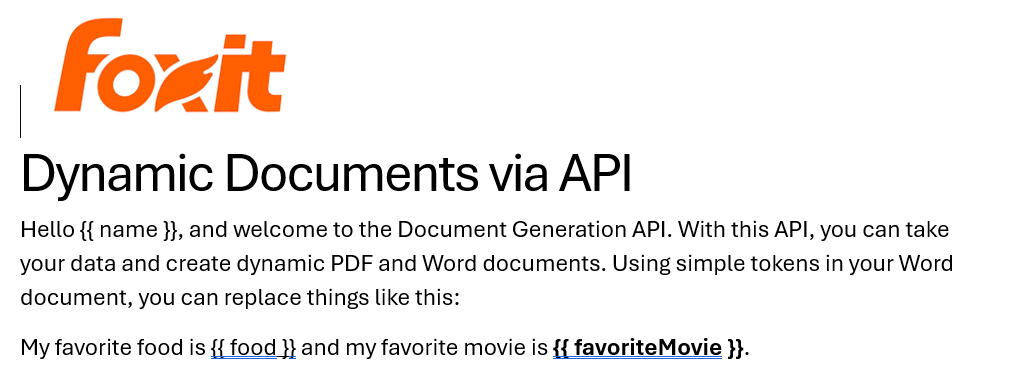
See how name is surrounded by double brackets? And food and favoriteMovie? When this template is sent to the API along with the corresponding values, those tokens are replaced dynamically. In the screenshot, notice how favoriteMovie is bolded. That’s fine. You can use any formatting, styling, or layout options you wish.
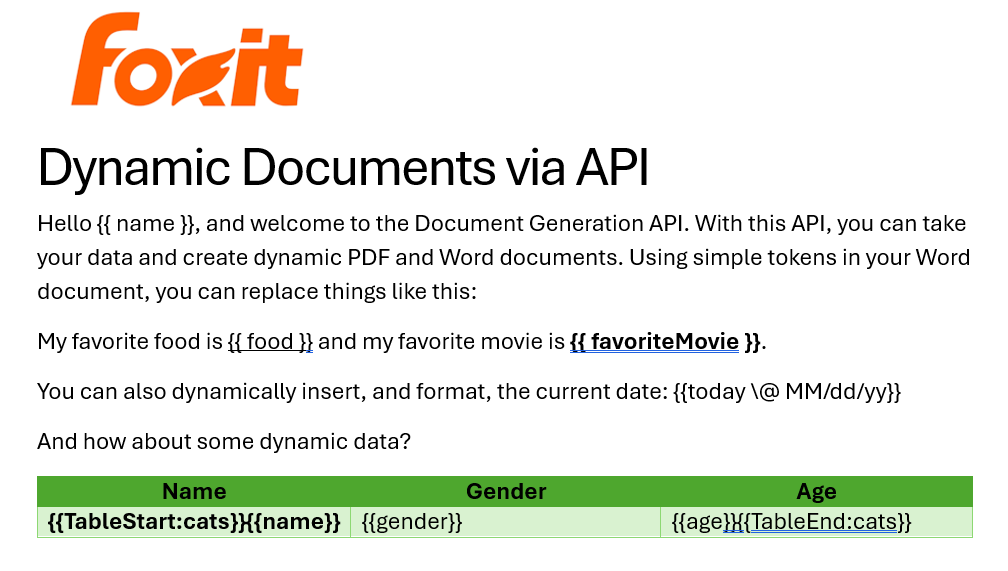
That’s one example, but you also get some built-in values as well. For example, including today as a token will insert the current date, and can be paired with date formatting to specify how the date looks:

Remember the array of cats from earlier? You can use that to create a table in Word like this:

Notice that I’ve used two new tags here, TableStart and TableEnd, both of which reference the array, cats. Then in my table cells, I refer to the values from that array. Again, the color you see here is completely arbitrary and was me making use of the entirety of my Word design skills.
Here’s the template as a whole to show you everything in context:
The Result
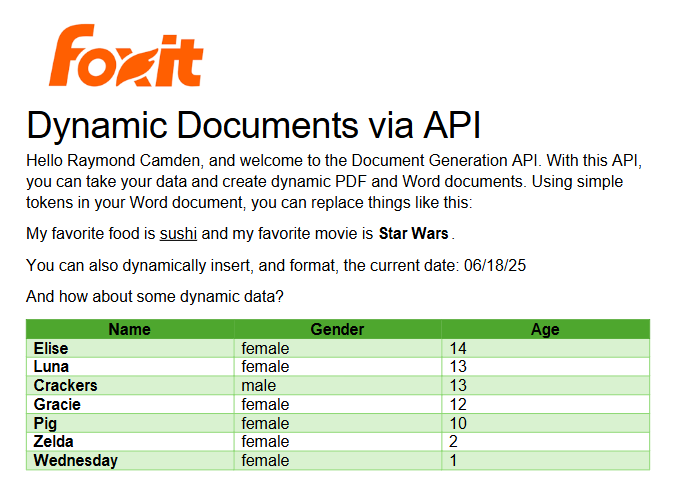
Given the code shown above with those values, and given the Word template just shared, once passed to the API, the following PDF is created:
What About Converting PDF to JSON?
So far we’ve been going one direction: JSON data in, PDF out. But what if you need to go the other way—extract structured content from a PDF and work with it in your application?
Foxit’s PDF Services API includes an Extract endpoint that handles exactly this. You upload a PDF, specify whether you want TEXT, IMAGE, or PAGE-level data, and the API returns the extracted content. The text output is particularly useful if you want to feed the result into a data pipeline, search index, or AI workflow.
Here’s a quick look at how extraction works in Python. First, upload your PDF:
def uploadDoc(path, id, secret):
    headers = {
        "client_id":id,
        "client_secret":secret
    }
    with open(path, 'rb') as f:
        files = {'file': (path, f)}
        request = requests.post(f"{HOST}/pdf-services/api/documents/upload", files=files, headers=headers)
    return request.json()

doc = uploadDoc("../../inputfiles/input.pdf", CLIENT_ID, CLIENT_SECRET)
Then call the Extract endpoint with the document ID and the type of content you want. The result comes back in a structured format you can parse, store, or pass along to other tools—including an LLM if you’re building an AI document pipeline.
You can read a full walkthrough in our PDF text extraction guide.
Ready to Try?
If this looks cool, be sure to check the docs for more information about the template language and API. Sign up for some free developer credentials and reach out on our developer forums with any questions.
If you’re building AI agents or LLM-powered workflows, Foxit also offers an MCP server that lets you connect your agents directly to Foxit PDF Services—so your AI tools can generate, extract, and process documents without any custom glue code.
Want the code? Get it on GitHub (Python).
If you are more of a Node person, check out that version. Get it on GitHub (Node.js).
Document Generation API: Automate Personalized Document Creation at Scale
Automate document creation at scale with a document generation API. Learn how templates and JSON data replace manual workflows to produce PDFs instantly.
Somewhere in your company right now, someone is copying client data from a CRM into a Word document, updating the logo, adjusting the date, and exporting it to PDF. If you’re lucky, it’s an intern doing this for 50 documents a month. If you’re not, it’s a developer who hard-coded the layout in iText or PDFKit, and Marketing is about to ask them to change the font size.
Neither of those is a document generation strategy. They’re workarounds, and like legacy Mail Merge tools that choke on anything beyond a few hundred records, they don’t scale to 50,000 invoices overnight.
The good news is that the problem is well-solved. A document generation API lets you treat documents exactly like you treat any other data pipeline. A template defines the structure, a JSON payload carries the content, and the API outputs a polished, production-ready PDF (or DOCX) in milliseconds. The copy-paste step disappears entirely.
This guide walks through how that works, where it fits in real-world systems, and how tools like Foxit’s DocGen API make the implementation straightforward, even for a team that’s never touched a document automation system before.
What Is a Document Generation API?
A document generation API is a cloud service that merges a template with structured data to produce a final document, typically a PDF or DOCX. The template defines layout, fonts, branding, and placeholder tokens. A JSON payload supplies the dynamic values. The API engine renders the finished document in milliseconds, with no manual intervention and no layout code required.
The equation looks like this:
Template (Structure) + JSON Data (Content) + API Engine = Final Document
Using a document generation API rather than building a local generator offers two key advantages, scalability and separation of concerns.
On the scalability side, the same POST request that generates one invoice generates 100,000 invoices. You don’t need to provision more rendering capacity, manage memory pressure from large PDFs, or debug pagination edge cases. The API handles all of that. On the separation-of-concerns side, your legal team can update a liability clause in the Word template without touching your codebase. Your marketing team can swap the logo without a redeploy. The document’s design is fully decoupled from the application logic that drives it.
That said, not all document generation tools take the same approach. Older solutions like PDFKit or Apache PDFBox require you to code the visual layout programmatically by drawing lines, positioning text boxes, and calculating column widths manually. That works for simple, static documents. It breaks down fast when tables grow dynamically, when conditional sections appear based on customer data, or when stakeholders want to iterate on the design. The API approach flips that model. The design stays in the template while the logic stays in the API.
The Architecture of Document Generation Automation
Understanding the three-layer architecture makes every implementation decision easier. Here’s how the pieces fit together.
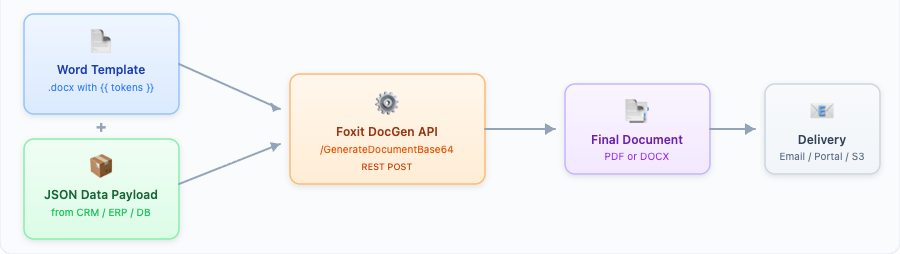
1. Template Creation
With a modern document generation API like Foxit’s, you don’t write rendering code. You open Microsoft Word, design the document exactly as it should look, and insert double-bracket tokens wherever dynamic data belongs.
To skip ahead and inspect a working artifact, two ready-made templates accompany this tutorial. The scalar-only version (invoice_simple.docx) is geared toward your first end-to-end run, and the full version (invoice_table.docx) adds the line-items table loop and a SUM(ABOVE) subtotal. Both live in the companion Foxit demo templates repo. Open them in Word to see the placeholder syntax in context, then copy the patterns into your own template.
A simple invoice template might include:
{{ companyName }}is replaced with the client’s company name{{ invoiceNumber }}is replaced with a string likeINV-00471{{ invoiceDate \@ MM/dd/yyyy }}is replaced with a date formatted as01/15/2024{{ totalDue \# "$#,##0.00" }}is replaced with a currency-formatted number like$2,500.00
That’s it. Business users can open this .docx file, update the header font, move the logo, or reword a clause, and none of those changes require a developer.
2. Data Binding
Your application pulls data from wherever it lives (a Salesforce CRM, an SAP ERP, a PostgreSQL database) and structures it as a JSON payload. The JSON keys map directly to the template token names. No transformation layer, no intermediate format.
A payload for the invoice above looks like:
{
  "companyName": "Meridian Financial Group",
  "invoiceDate": "2024-01-15",
  "invoiceNumber": "INV-00471",
  "lineItems": [
    {
      "description": "API Integration Consulting",
      "qty": 10,
      "unitPrice": 150.0,
      "lineTotal": 1500.0
    },
    {
      "description": "Compliance Review",
      "qty": 5,
      "unitPrice": 200.0,
      "lineTotal": 1000.0
    }
  ],
  "totalDue": 2500.0
}
The keys companyName, invoiceDate, and totalDue match the tokens in the template, a direct one-to-one bind. Note that lineTotal is precomputed in the payload. Foxit DocGen renders fields it receives, so any per-row arithmetic (price × quantity, tax calculations, conversions) happens in your application before the request goes out.
3. Dynamic Template Logic: Loops and Formatting
This is where document generation APIs separate themselves from simple find-and-replace tools. Real-world documents (invoices, statements, policy schedules) need rows that grow with the data, not fixed scalar fields.
Repeating tables are handled with loop delimiters. In Foxit’s syntax, you wrap the repeating row of your Word table with {{TableStart:lineItems}} in the first cell and {{TableEnd:lineItems}} in the last cell of the same row. The API iterates over the lineItems array in your JSON and renders one row per item, whether the array has 2 entries or 200.
Here’s how the Word table for the invoice payload above would look. The first row is the static header. The second row carries the loop tokens and is the only row you author. The third row uses SUM(ABOVE) to compute a subtotal across whatever number of rows the loop produces:
| # | Description | Qty | Unit Price | Line Total |
|---|---|---|---|---|
{{TableStart:lineItems}}{{ROW_NUMBER}} | {{description}} | {{qty}} | {{unitPrice \# "$#,##0.00"}} | {{lineTotal \# "$#,##0.00"}}{{TableEnd:lineItems}} |
| Subtotal: | {{=SUM(ABOVE) \# "$#,##0.00"}} |
When merged with the JSON payload (two lineItems entries), the API renders a two-row table plus the computed subtotal:
| # | Description | Qty | Unit Price | Line Total |
|---|---|---|---|---|
| 1 | API Integration Consulting | 10 | $150.00 | $1,500.00 |
| 2 | Compliance Review | 5 | $200.00 | $1,000.00 |
| Subtotal: | $2,500.00 |
{{ROW_NUMBER}} handles automatic line numbering inside the loop, and {{=SUM(ABOVE) \# "$#,##0.00"}} in a footer row sums the numeric column directly above it. Per-row arithmetic between fields (multiplying qty by unitPrice, for example) is not done by the API, so the payload sends lineTotal as a precomputed value.
Formatting specifiers are built into the token syntax and use Word’s MERGEFIELD picture strings. Currency formatting (\# "$#,##0.00") converts 2500.00 to $2,500.00, and you can adjust the symbol or decimal places by editing the picture string (\# "€#,##0.00", \# "0"). Date formatting (\@ MM/dd/yyyy) handles locale-specific date presentation without extra preprocessing in your application code.
The result is dynamic document templates that handle variable-length tables, formatted numbers, and conditional logic entirely in Word, not in your codebase . The Python example in Step 2 below sends this exact payload against the live DocGen endpoint and produces the rendered table shown above.
Top Document Generation Use Cases by Industry
Document generation sits in the critical path for several industries. These are the scenarios where teams see the most immediate return.
Financial Services: Client Reports and Investment Summaries
A wealth management firm generates quarterly performance summaries for thousands of clients. The template (header, chart placeholders, disclaimer text, signature block) stays constant. The data changes per client and includes portfolio value, allocation breakdown, benchmark comparison, and YTD return. The team pushes a nightly batch job that pulls data from their portfolio management system, constructs JSON payloads per client, and fires POST requests to the generation API, generating invoices and reports programmatically at scale. By morning, 8,000 personalized PDFs are sitting in an Amazon S3 bucket, ready to be emailed.
Insurance: The Policy Packet
An insurance carrier issuing a homeowner’s policy needs to assemble a multi-section document covering the cover letter (personalized with the policyholder’s name and address), the policy declarations page (premium, coverage limits, deductibles), the endorsements, and the liability disclaimer. Each section might be its own template. The API merges them into a single PDF. Underwriters stop manually assembling packets; the system generates them at bind time.
HR and Operations: Employee Onboarding
When a new hire accepts an offer, the HRIS triggers a webhook. The document generation service receives the employee’s data (name, role, start date, salary, benefits elections) and generates the full onboarding packet, including the offer letter, benefits summary, I-9 instructions, and handbook acknowledgment. The employee receives a complete, personalized PDF bundle within seconds of accepting. No one in HR touched it.
Sales: Branded Quotes and Contracts
Sales teams often live in the “Export to PDF” nightmare. They fill in a spreadsheet, copy it into Word, format it manually, and hope the branding looks right. A document generation API replaces that with a contract automation workflow tied directly to the CRM. When a rep marks a deal as “Proposal Sent,” Salesforce triggers a POST request with the deal data, and the API returns a PDF with the correct pricing, the client’s logo pulled from the CRM, and the correct contract terms based on the deal tier.
Foxit DocGen: The Developer Experience
Foxit brings 20+ years of PDF engine experience to a Word-template-to-PDF API that’s straightforward to integrate. The fastest happy path is to download a sample, configure your credentials, and run it. The implementation follows three steps:
Step 1: Get a Word template
The quickest start is to download invoice_simple.docx from the companion templates repo and use it as-is for your first end-to-end test. It carries the exact tokens (companyName, invoiceNumber, invoiceDate, totalDue) that the Python sample below populates. Once you’ve confirmed the round-trip works, swap in invoice_table.docx to add the line-items loop and the SUM(ABOVE) subtotal. When you’re ready to build your own, open Microsoft Word and add {{ token }} placeholders using Foxit’s double-bracket syntax. Format specifiers (\# "$#,##0.00", \@ MM/dd/yyyy) and loop delimiters ({{TableStart:items}} / {{TableEnd:items}}) go directly into the Word document. No special editor required.
Step 2: Configure credentials and send a POST request
After signing up for a Foxit developer account, grab your BASE_URL, CLIENT_ID, and CLIENT_SECRET from the developer console and set them as environment variables. The endpoint is /document-generation/api/GenerateDocumentBase64. You authenticate with your client_id and client_secret in the request headers, then send the base64-encoded template and your JSON data in the body. Here’s what that looks like in Python:
import os
import base64
import requests

# Credentials and base URL from your Foxit developer console
HOST = os.environ["BASE_URL"]
CLIENT_ID = os.environ["CLIENT_ID"]
CLIENT_SECRET = os.environ["CLIENT_SECRET"]

# Load and encode the Word template (download invoice_table.docx from the demos repo
# linked above for a quick first run)
with open("invoice_table.docx", "rb") as f:
    template_b64 = base64.b64encode(f.read()).decode("utf-8")

# JSON data payload from your CRM or database. lineTotal is precomputed in
# the application because the API renders fields rather than evaluating
# arithmetic between them.
document_values = {
    "companyName": "Meridian Financial Group",
    "invoiceDate": "2024-01-15",
    "invoiceNumber": "INV-00471",
    "lineItems": [
        {"description": "API Integration Consulting", "qty": 10, "unitPrice": 150.00, "lineTotal": 1500.00},
        {"description": "Compliance Review", "qty": 5, "unitPrice": 200.00, "lineTotal": 1000.00}
    ],
    "totalDue": 2500.00
}

# POST to Foxit DocGen API
response = requests.post(
    f"{HOST}/document-generation/api/GenerateDocumentBase64",
    headers={
        "client_id": CLIENT_ID,
        "client_secret": CLIENT_SECRET,
        "Content-Type": "application/json"
    },
    json={
        "base64FileString": template_b64,
        "documentValues": document_values,
        "outputFormat": "pdf"
    }
)

# Decode and save
result = response.json()
pdf_bytes = base64.b64decode(result["base64FileString"])
with open("invoice_00471.pdf", "wb") as f:
    f.write(pdf_bytes)

print("Invoice generated successfully.")
In this code, you read the .docx template from disk and base64-encode it because Foxit’s API expects the file as a UTF-8 string in base64FileString rather than raw bytes. You then build a document_values payload whose keys match the template’s tokens, including a precomputed lineTotal for every row since Foxit DocGen does not evaluate inline arithmetic like {{=qty*unitPrice}}. The POST request sends that payload to /document-generation/api/GenerateDocumentBase64, authenticates with client_id and client_secret headers pulled from environment variables, and asks for a PDF via outputFormat: "pdf". Finally, you decode the base64 response and write the bytes to invoice_00471.pdf on disk.
Step 3: Decode and store the response
The API returns a base64-encoded document. Decode it, write it to disk or pass it to an Amazon S3 bucket, and you’re done.
Foxit also supports DOCX output in addition to PDF. Most document generation APIs only produce PDFs, which means once the document is generated, it’s immutable. DOCX output enables a “Draft Mode” workflow where a generated document can be sent to a reviewer for light edits before it’s finalized. That’s genuinely useful in legal and HR workflows where a human needs to add a handwritten note or approve a clause. Sample code and SDKs are available for Python, JavaScript, Java, C#, and PHP, with additional language support on the developer portal. A Postman workspace is available for quick testing without writing any code first.
Common Template Mistakes
A few issues account for most failed first runs. Check these before assuming the API is the problem:
- Placeholder syntax. Tokens use double curly braces with a single space inside, like
{{ companyName }}, not{ companyName }or{{{ companyName }}}. Word’s autocorrect occasionally swaps straight braces for smart braces; if a token renders as literal text in the output, retype the braces. - Case sensitivity.
{{ CustomerName }}and{{ customerName }}are different tokens. The placeholder is matched verbatim against the JSON key, so an unmatched token silently renders as blank rather than throwing an error. - Wrong format-spec syntax. Foxit DocGen uses Word’s MERGEFIELD picture strings, not friendly keywords.
{{ totalDue \# "$#,##0.00" }}works;{{ totalDue \# Currency }}renders as blank becauseCurrencyis not a recognized picture string. Same rule applies to date formatting (\@ MM/dd/yyyy). - Missing fields in the payload. A token without a corresponding JSON key produces an empty string in the output. Validate your payload against the template’s token list before sending the request, ideally with a JSON schema in your CI.
- Expecting inline arithmetic.
{{=qty*unitPrice}}does not evaluate inside a row. Compute derived fields (line totals, tax, conversion) in your application and send them in the payload. Aggregate functions like{{=SUM(ABOVE)}}do work in a footer row beneath the loop. - Loop tokens placed outside a table row.
{{TableStart:items}}and{{TableEnd:items}}must sit inside cells of the same Word table row. Putting them in a regular paragraph or splitting them across rows produces unpredictable output. - Forgetting base64 encoding. The template must be base64-encoded as a UTF-8 string before being placed in
base64FileString. Sending the raw bytes returns a 400-level error from the API.
Why the API Approach Wins Over Build-It-Yourself
If you automate PDF creation with the API approach, you gain three concrete advantages over build-it-yourself alternatives:
Compliance and accuracy: When a developer hard-codes a PDF layout, human error enters every time someone updates the template. A token mismatch (
{{ CustomerName }}vs.{{ customerName }}) silently renders as blank. The API approach catches mismatches and enforces consistent data binding. More importantly, the data flows directly from your database to the document. There’s no manual copy-paste step and no transposition errors on a loan amount or policy limit.Speed at scale: Generating PDFs with a local library like PDFKit means each document renders sequentially on your server, and rendering time grows with document complexity, especially when tables span multiple pages. At 10,000 documents, even modest per-document rendering times add up to minutes of blocking processing. A cloud document generation API parallelizes rendering across infrastructure you don’t manage. Fifty thousand invoices overnight is a scheduling problem, not a compute problem.
Maintenance belongs to the right person: When Marketing wants to update the invoice footer, they open the Word template and make the change. When Legal updates the liability clause, same thing. The developer does nothing, with no code change, no redeploy, and no regression testing on a layout that changed by three pixels. That’s the real ROI of the template-first approach, and it compounds over time as the team iterates on document designs without creating developer tickets.
Final Thoughts
Document generation shouldn’t be a manual task or a maintenance burden. If your team is still copy-pasting data into Word or maintaining a custom PDF renderer that breaks whenever a table gets too long, the template-plus-API model is a straightforward fix, not a major architectural change.
The next step worth watching is document generation paired with generative AI. The pattern is emerging in a few places, where teams use an LLM to draft a personalized summary paragraph based on a client’s portfolio data, then pass the result as a JSON field to the document generation API. The LLM handles the prose; the API handles the formatting and branding. You get dynamic content without losing layout control.
Ready to automate your document workflow? Create a free developer account at Foxit and access the DocGen API today. Download invoice_simple.docx for a one-shot scalar test, or invoice_table.docx for the full line-items flow, set your credentials, and run the example above to generate a PDF from JSON in minutes. See for yourself why the template-plus-API approach is replacing hand-coded generators.
Building Auditable, AI-Driven Document Workflows with Foxit APIs

We had an incredible time at API World 2025 connecting with developers, sharing ideas, and seeing how Foxit APIs power everything from AI-driven resume builders to interactive doodle apps. In this post, we’ll walk through the same hands-on workflow Jorge Euceda demoed live on stage—showing how to build an auditable, AI-powered document automation system using Foxit PDF Services and Document Generation APIs.
How to Build an AI Resume Analyzer with Python & Foxit APIs (API World 25′)
This year’s API World was packed with energy—and it was amazing meeting so many developers face-to-face at the Foxit booth. We spent three days trading ideas about document automation, AI workflows, and integration challenges.
Our team hosted a hands-on workshop and sponsored the API World Hackathon, where developers submitted 16 high-quality projects built with Foxit APIs. Submissions ranged from:
Automated legal-advice generators
Compatibility-rating apps that analyze your personality match
AI-powered resume optimizers that tailor your CV to dream-job descriptions
Collaborative doodle games that turn drawings into shareable PDFs
Each project offered a new perspective on what’s possible with Foxit APIs—and we loved seeing the creativity.
Among all the sessions, Jorge Euceda’s workshop stood out as a crowd favorite. It showed how to make AI document decisions auditable, explainable, and replayable using event sourcing and two key Foxit APIs. That’s exactly what we’ll walk through below.
Replicate the Full Demo
Click here to grab the project overview file.
Prefer to follow along with the live session instead of reading step-by-step?
Watch Jorge’s complete “AI-Powered Resume to Report” presentation from API World 2025.
It includes every step shown below—plus real-time API responses.
What You’ll Build
A complete, auditable workflow:
Resume Upload → Extract Resume Data → AI Candidate Scoring → Generate HR Report → Event Store
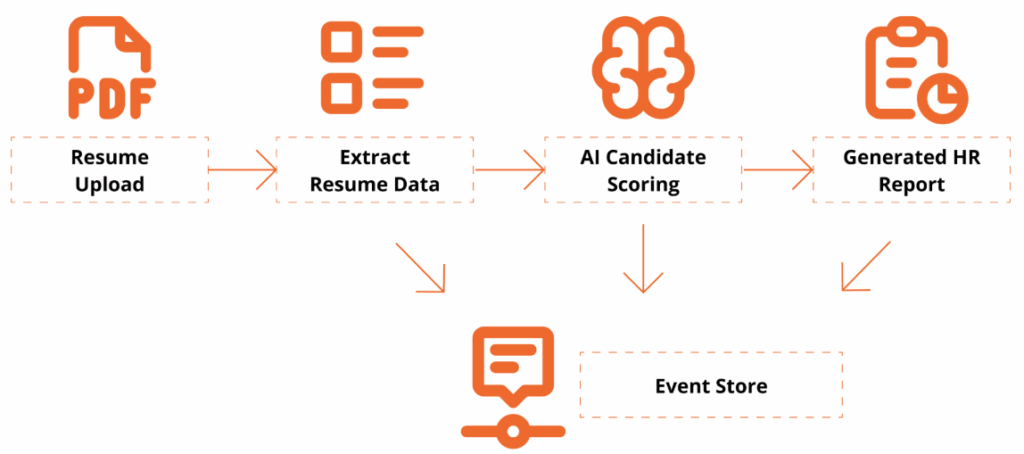
This workshop is designed for technical professionals and managers who want to learn how to use application programming interfaces (APIs) and explore how AI can enhance document workflows. Attendees will get hands-on experience with Foxit’s PDF Services (extraction/OCR) and Document Generation APIs, and see how event sourcing turns AI decisions into an auditable, replayable ledger.
By the end, you’ll have a Python-based demo that extracts data from a PDF resume, analyzes it against a policy, and generates a polished HR Report PDF with a traceable event log.
Getting Set Up
To follow along, you’ll need:
Access to a terminal with a Python 3.9+ Environment and internet connectivity
Visual Studio Code or your preferred IDE
Basic familiarity with REST/JSON (helpful but not required)
- Install Dependencies
python -V
# virtual environment setup, requests installation
python3 -m venv myenv
source myenv/bin/activate
pip3 install requests- Download the project’s zip file below
Now extract the files somewhere in your computer, open in Visual Studio Code or your preferred IDE.
You may use any sample resume PDF for inputs/input_resume.pdf. A sample one is provided, but you may leverage any resume PDF you wish to generate a report on.
- Create a Foxit Account for credentials
Create a Free Developer Account now or navigate to our getting started guide, which will go over how to create a free trial.
Hands-On Walkthrough
Step 1 – Open the Project
Now that you’ve downloaded the workshop source code, navigate to the resume_to_report.py file, which will serve as our main entry point.
Once dependencies are installed and the ZIP file extracted, open your workspace and run:
python3 resume_to_report.pyYou should see console logs showing:
An AI Report printed as JSON
A generated PDF (
outputs/HR_Report.pdf)An event ledger (
outputs/events.json) with traceable actions
Step 2 — Inspect the outputs
Open the generated HR report to review:
Candidate name and phone
Overall fit score
Matching skills & gaps
Summary and policy reference in the footer
Then open events.json to see your audit trail—each entry captures the AI’s decision context.
{
  "eventType": "DecisionProposed",
  "traceId": "8d1e4df6-8ac9-4f31-9b3a-841d715c2b1c",
  "payload": {
    "fitScore": 82,
    "policyRef": "EvaluationPolicy#v1.0"
  }
}
This is your audit trail.
Step 3 — Replay & Explain a Policy Change
Replay demonstrates why event-sourcing matters:
Edit
inputs/evaluation_policy.json: add a hard requirement (e.g.,"kubernetes") or adjust the job_description emphasis.Re-run the script with the same resume.
Compare:
New decision and updated PDF content
Event log now reflects the updated rationale (
PolicyLoadedsnapshot → newDecisionProposedwith the sametraceIdlineage)
Emphasize: The input resume hasn’t changed; only policy did — the event ledger explains the difference.
Policy: Drive Auditable & Replayable Decisions
The AI assistant uses a JSON policy file to control how it scores, caps, and summarizes results. Every policy snapshot is logged as its own event, creating a replayable audit trail for governance and compliance.
{
  "policyId": "EvaluationPolicy#v1.0",
  "job_description": "Looking for a software engineer with expertise in C++, Python, and AWS cloud services. Experience building scalable applications in agile teams; familiarity with DevOps and CI/CD.",
  "overall_summary": "Make the summary as short as possible",
  "hard_requirements": ["C++", "python", "aws"]
}
Notes:
policyIdappears in both the report and event log.job_descriptiondefines what the AI is looking for.Changing these values creates a new traceable event.
Generate a Polished Report
Next, use the Foxit Document Generation API to fill your Word template and create a formatted PDF report.
Open inputs/hr_report_template.docx, you will find the following HR reporting template with placeholders for the fields we will be entering:
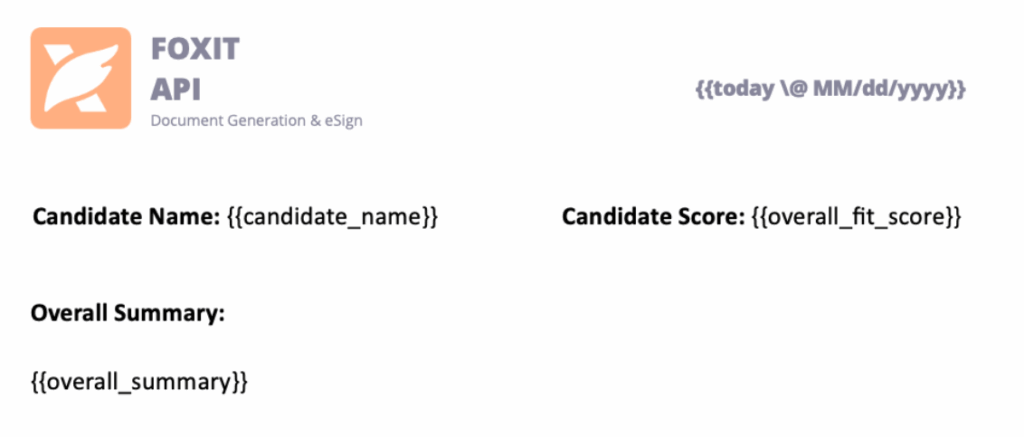
Tips:
Include lightweight branding (logo/header) to make the generated PDF presentation-ready.
Include a footer with traceable Policy ID and Trace ID Events
Results and Audit Trail
Here’s what the final HR Report PDF looks like:

Every decision has a Trace ID and Policy Ref, so you can recreate the report at any time and verify how the AI arrived there.
Why Event-Sourced AI Matters
This pattern does more than score resumes—it proves that AI decisions can be transparent, deterministic, and trustworthy.
By using Foxit APIs to extract, analyze, and generate documents, developers can bring auditability to any workflow that relies on machine logic.
Key Takeaways
Auditability – Every AI step emits a verifiable event.
Replayability – Change a policy and regenerate for deterministic results.
Explainability – Decisions carry policy and trace references for clear “why.”
Automation – PDF Services and Document Generation handle the document lifecycle end-to-end.
Try It Yourself
Ready to build your own auditable AI workflow?
Demo and Source Code: document-workflows-with-foxit.pages.dev
Foxit Developer Portal: developer-api.foxit.com
API Docs: docs.developer-api.foxit.com
Watch the Full Presentation: Euceda’s API World session
Closing Thought
At API World, we set out to show how Foxit APIs can power real, transparent AI workflows—and the community response was incredible. Whether you’re building for HR, legal, finance, or creative industries, the same pattern applies:
Make your AI explain itself.
Start with the Foxit APIs, experiment with policies, and turn every AI decision into a traceable event that builds trust.