Most document generation quickstarts hand you a template with one text field, a trivial JSON payload, and no explanation of what breaks when you add a repeating table, a date format string, or a missing key. You end up in the docs trying to work backwards from a 400 error. This tutorial covers the complete Foxit DocGen API flow end-to-end: authoring a Word template with scalar fields, formatted dates, and repeating line-item rows; building the matching JSON payload; and POSTing everything to GenerateDocumentBase64 to retrieve a production-ready PDF. Working Python and cURL throughout.
Before starting, you’ll need a free Foxit developer account at developer-api.foxit.com (no credit card required; the free tier includes 500 credits/year), your client_id and client_secret from the developer dashboard, Python 3.x with requests installed (pip install requests), and Microsoft Word for template authoring.
How the Foxit DocGen API Works: One Endpoint, One Call
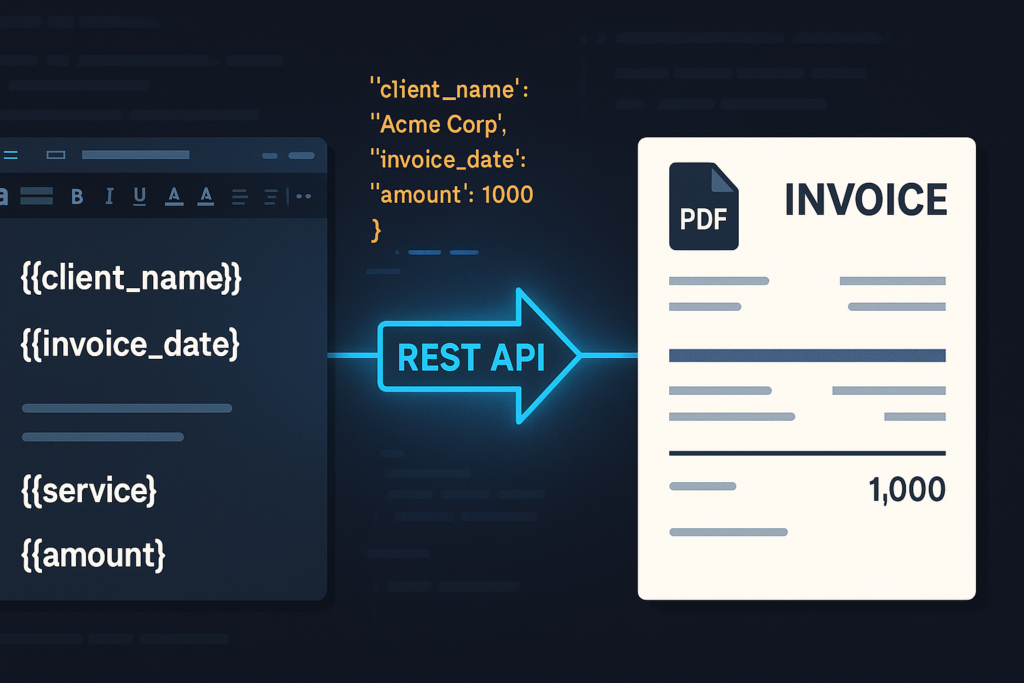
The GenerateDocumentBase64 endpoint accepts a single POST request and returns the rendered document in the same response body. You pass three things: your .docx template (base64-encoded), your structured JSON data, and the desired output format. The API merges template with data and returns the rendered file as a base64-encoded string.
Your .docx file defines layout, branding, and placeholder tokens. Your JSON payload carries the runtime values that populate those tokens. The API resolves every token in the template against the corresponding key in documentValues and renders the result as a PDF or DOCX.

The call is synchronous, returning the rendered file in the HTTP 200 response body with no job ID, polling loop, or webhook callback required. The request body always carries three keys: base64FileString (your .docx template, base64-encoded), documentValues (the JSON object whose keys map to template tokens), and outputFormat ("pdf" or "docx").
Authentication passes client_id and client_secret as custom HTTP headers on every request, with no OAuth 2.0 flow and no token exchange step.
Author Your Word Template with Dynamic Tags
Open Word and create a standard .docx. Place your dynamic content using double-curly-brace tokens typed directly in the document body.
For scalar string and number fields, the syntax is {{field_name}}. For a date with a specific display pattern, use {{ field_name \@ MM/dd/yyyy }}. The \@ format string controls how the API renders date values from your JSON payload.
An invoice template header section looks like this:
Invoice #: {{invoice_number}}
Date: {{ invoice_date \@ MM/dd/yyyy }}
Bill To: {{client_name}}
Address: {{billing_address}} Repeating table rows use a pair of range markers. Place {{TableStart:line_items}} in the first cell of the row you want to repeat, and {{TableEnd:line_items}} in the last cell of that same row. The array name in both markers (line_items here) must exactly match the key name in your JSON payload. Cells within the repeating row take individual field tokens:
| {{TableStart:line_items}}{{ROW_NUMBER}} | {{description}} | {{qty}} | {{unit_price}}{{TableEnd:line_items}} |
{{ROW_NUMBER}} auto-increments across all rendered rows. Word’s built-in SUM(ABOVE) formula in a totals row below the table still works for column totals.
Two authoring mistakes account for the majority of template parsing failures. Placing tokens inside merged table cells causes a parser error because the API can’t determine which logical cell owns the token. Using Word’s smart (curly) quotes instead of straight ASCII double-braces causes an encoding mismatch that returns a 400. Before uploading your template, check Word’s autocorrect settings and run a Find & Replace search for any {{ or }} pairs that got converted to curly equivalents.
Authenticate and Prepare the Template
Your client_id and client_secret from the developer dashboard at developer-api.foxit.com pass as custom headers on every request. The base64 module ships with Python’s standard library, so the encoding step adds no new dependencies to your project:
import base64
import requests
# Load and encode the .docx template
with open("invoice_template.docx", "rb") as f:
template_b64 = base64.b64encode(f.read()).decode("utf-8")
# Authentication and content-type headers
headers = {
"client_id": "YOUR_CLIENT_ID",
"client_secret": "YOUR_CLIENT_SECRET",
"Content-Type": "application/json"
}
# Scalar fields (the line_items array is added in the next section)
document_values = {
"invoice_number": "INV-2025-0042",
"invoice_date": "2025-07-15",
"client_name": "Meridian Software Inc."
}
payload = {
"base64FileString": template_b64,
"documentValues": document_values,
"outputFormat": "pdf"
} The cURL equivalent encodes the file on the fly and passes the same headers:
# Encode the template
TEMPLATE_B64=$(base64 < invoice_template.docx)
curl -s -X POST "https://na1.fusion.foxit.com/document-generation/api/GenerateDocumentBase64" \
-H "client_id: YOUR_CLIENT_ID" \
-H "client_secret: YOUR_CLIENT_SECRET" \
-H "Content-Type: application/json" \
-d "{\"base64FileString\": \"${TEMPLATE_B64}\", \"documentValues\": {\"invoice_number\": \"INV-2025-0042\", \"invoice_date\": \"2025-07-15\", \"client_name\": \"Meridian Software Inc.\"}, \"outputFormat\": \"pdf\"}" Build the JSON Data Payload for DocGen
The full documentValues payload maps scalar fields at the top level and places the repeating line-item array under the key that matches your {{TableStart:}} / {{TableEnd:}} marker name exactly.
{
"invoice_number": "INV-2025-0042",
"invoice_date": "2025-07-15",
"client_name": "Meridian Software Inc.",
"billing_address": "400 Pine Street, Suite 12, Seattle, WA 98101",
"line_items": [
{
"description": "API Integration Consulting",
"qty": "8",
"unit_price": "225.00"
},
{
"description": "DocGen Template Authoring",
"qty": "4",
"unit_price": "175.00"
},
{
"description": "QA and Deployment Support",
"qty": "2",
"unit_price": "150.00"
}
]
} A few type behaviors worth tracking. The API formats date values using the \@ format string in the template tag, so pass dates as ISO 8601 strings ("2025-07-15") and let the tag control the display format. Numeric quantities and prices work as either strings or integers. When a template token has no matching key in documentValues, the API leaves that placeholder blank in the output rather than returning an error, so missing keys produce silent blanks in your document.
Call the Generation Endpoint and Retrieve the PDF
This complete Python function adds the line_items array, posts to the endpoint, validates the response, and writes the output to disk:
import base64
import requests
with open("invoice_template.docx", "rb") as f:
template_b64 = base64.b64encode(f.read()).decode("utf-8")
headers = {
"client_id": "YOUR_CLIENT_ID",
"client_secret": "YOUR_CLIENT_SECRET",
"Content-Type": "application/json"
}
document_values = {
"invoice_number": "INV-2025-0042",
"invoice_date": "2025-07-15",
"client_name": "Meridian Software Inc.",
"billing_address": "400 Pine Street, Suite 12, Seattle, WA 98101",
"line_items": [
{"description": "API Integration Consulting", "qty": "8", "unit_price": "225.00"},
{"description": "DocGen Template Authoring", "qty": "4", "unit_price": "175.00"},
{"description": "QA and Deployment Support", "qty": "2", "unit_price": "150.00"}
]
}
payload = {
"base64FileString": template_b64,
"documentValues": document_values,
"outputFormat": "pdf"
}
response = requests.post(
"https://na1.fusion.foxit.com/document-generation/api/GenerateDocumentBase64",
headers=headers,
json=payload
)
if response.status_code == 200:
result = response.json()
pdf_bytes = base64.b64decode(result["base64FileString"])
# Confirm the response is a valid PDF before writing to disk
if pdf_bytes[:5] != b"%PDF-":
raise ValueError("Response did not contain a valid PDF")
with open("invoice_output.pdf", "wb") as f:
f.write(pdf_bytes)
print("PDF written: invoice_output.pdf")
else:
error = response.json()
print(f"Error {response.status_code}: {error.get('message', 'Unknown error')}") A successful response returns HTTP 200 with a JSON body containing three fields: base64FileString (the rendered PDF, base64-encoded), fileExtension ("pdf"), and message ("PDF Document Generated Successfully"). A failed call returns a 4xx status with a JSON body containing a message field describing the error. The API is synchronous: no job IDs, no polling, no webhooks.
The %PDF- magic bytes check catches cases where the API returned a non-PDF payload: a malformed template, an incorrect outputFormat value, or an error body that got decoded as if it were the file. Run this validation before writing to disk so failures surface immediately rather than producing a corrupt file.
The cURL equivalent uses jq to extract the base64 field and writes the decoded PDF directly to a file:
curl -s -X POST "https://na1.fusion.foxit.com/document-generation/api/GenerateDocumentBase64" \
-H "client_id: YOUR_CLIENT_ID" \
-H "client_secret: YOUR_CLIENT_SECRET" \
-H "Content-Type: application/json" \
-d @request_body.json \
| jq -r '.base64FileString' \
| base64 --decode > invoice_output.pdf Store the full JSON payload from the previous section in request_body.json. The jq -r flag strips JSON string escaping from the base64 field before it reaches base64 --decode. Omitting -r produces a corrupt output file.
Debugging Common Failures
Unmatched tags render as blank strings in the output PDF. The API produces an HTTP 200 and a valid PDF with the missing data absent. If your output has blank fields, compare your template token names character-by-character against your JSON keys. Token matching is case-sensitive: {{client_name}} and {{Client_Name}} are treated as different fields.
Authentication failures return a 401 with a JSON body:
{
"message": "Unauthorized. Invalid client credentials."
} The header names are lowercase (client_id, client_secret), and values must appear without surrounding quotes or whitespace. If you recently rotated keys, regenerate credentials from the developer dashboard and verify you’re reading the correct environment’s values.
Template parse errors return a 400:
{
"message": "Template parsing error: invalid token format detected."
} Two root causes produce this error. A .docx re-saved through LibreOffice alters the underlying XML structure in ways that break the parser, so re-author the template in Word. Curly (smart) quote characters in token braces cause an encoding mismatch, so use Word’s Find & Replace to swap any curly {{ and }} back to straight ASCII equivalents.
Payload size limits apply to the base64-encoded template. Check docs.developer-api.foxit.com for the current threshold. Templates exceeding the limit should have embedded images compressed through Word’s Picture Format settings before export. For templates that remain too large after compression, split the document into two .docx files and merge the generated PDFs using Foxit’s PDF Services API.
Wire the Foxit DocGen API Into Your Stack: Next Steps
The integration pattern for a CRM-triggered flow covers four steps: receive the webhook event, pull the record data from your CRM’s API, POST to GenerateDocumentBase64, then upload the decoded PDF to Amazon S3 or return it as a download URL.
def handle_crm_webhook(event):
record = crm_client.get_record(event["record_id"])
pdf_bytes = generate_document(record) # wraps the API call above
s3_url = upload_to_s3(pdf_bytes, record["id"]) # store in your delivery layer
crm_client.attach_document(record["id"], s3_url) Once DocGen is generating your contracts, invoices, and compliance reports, adding signatures is the natural next step. Foxit’s eSign API accepts the same PDF output and adds a fully auditable, legally binding signing workflow via REST. For low-code integration with Salesforce, HubSpot, or SAP, Foxit’s 40+ pre-built connectors let you trigger document generation from a workflow automation tool without writing the HTTP call yourself. Full documentation and connector references are at docs.developer-api.foxit.com.
Create your free account at developer-api.foxit.com, grab your client_id and client_secret, import the Postman collection from the developer dashboard, and run your first generation call against your own .docx. The round trip from account creation to a rendered PDF takes under five minutes.
Frequently Asked Questions
What does the Foxit DocGen API GenerateDocumentBase64 endpoint return?
It returns a synchronous HTTP 200 response whose JSON body contains a base64FileString key holding the fully rendered PDF (or DOCX) encoded in base64. There’s no job ID, polling loop, or webhook. The rendered file arrives in the same response.
What happens when a template token has no matching key in the JSON payload?
The API silently leaves that placeholder blank in the rendered output and still returns HTTP 200. Missing keys don’t trigger a 400 error, so always validate rendered output programmatically. The %PDF- magic bytes validation shown above is a reliable first check.
Why does my Foxit DocGen template return a 400 parsing error?
The two most common causes are token braces containing Word’s smart (curly) quotes instead of straight ASCII double-braces, and a .docx re-saved through LibreOffice, which alters the underlying OOXML structure in ways the parser rejects. Re-author the template in Microsoft Word and replace any curly quote characters using Find & Replace.
Can I generate DOCX output instead of PDF with the DocGen API?
Yes. Set "outputFormat": "docx" in the request body. The same template syntax and documentValues structure apply regardless of output format.
How does authentication work with the Foxit DocGen API?
Pass your client_id and client_secret as custom HTTP request headers on every call. There’s no OAuth token exchange or session management. Credentials are validated per-request and can be generated or rotated from the Foxit developer dashboard.