<

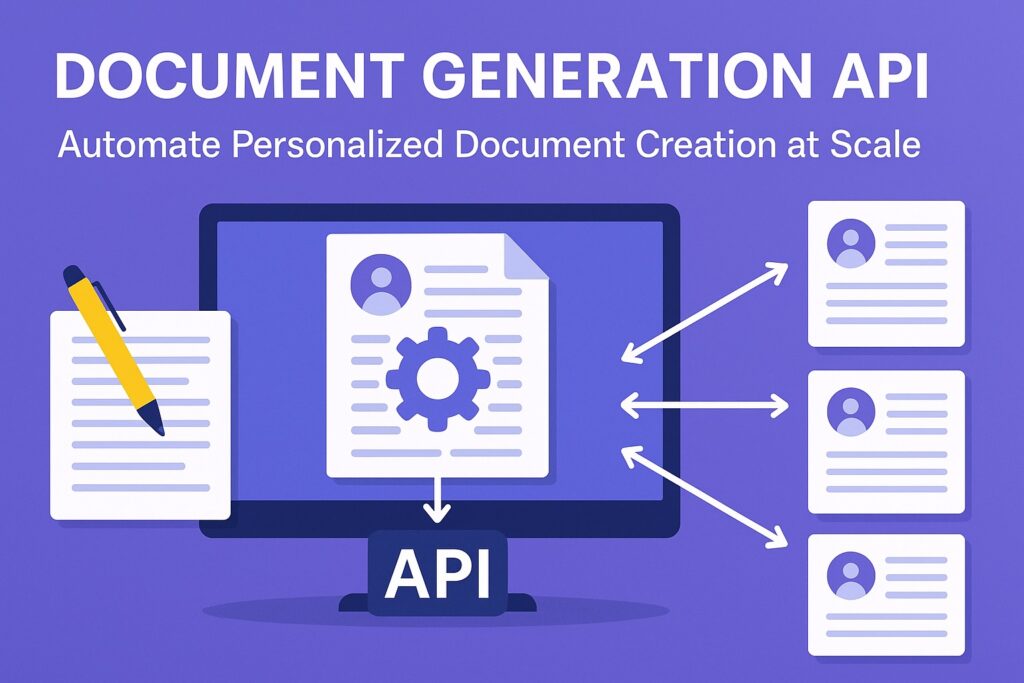
Document Generation API: Automate Personalized Document Creation at Scale

Automate document creation at scale with a document generation API. Learn how templates and JSON data replace manual workflows to produce PDFs instantly.
Document Generation API: Automate Personalized Document Creation at Scale

Somewhere in your company right now, someone is copying client data from a CRM into a Word document, updating the logo, adjusting the date, and exporting it to PDF. If you’re lucky, it’s an intern doing this for 50 documents a month. If you’re not, it’s a developer who hard-coded the layout in iText or PDFKit, and Marketing is about to ask them to change the font size.

Neither of those is a document generation strategy. They’re workarounds, and like legacy Mail Merge tools that choke on anything beyond a few hundred records, they don’t scale to 50,000 invoices overnight.

The good news is that the problem is well-solved. A document generation API lets you treat documents exactly like you treat any other data pipeline. A template defines the structure, a JSON payload carries the content, and the API outputs a polished, production-ready PDF (or DOCX) in milliseconds. The copy-paste step disappears entirely.

This guide walks through how that works, where it fits in real-world systems, and how tools like Foxit’s DocGen API make the implementation straightforward, even for a team that’s never touched a document automation system before.

What Is a Document Generation API?

document generation API is a cloud service that merges a template with structured data to produce a final document, typically a PDF or DOCX. The template defines layout, fonts, branding, and placeholder tokens. A JSON payload supplies the dynamic values. The API engine renders the finished document in milliseconds, with no manual intervention and no layout code required.

The equation looks like this:

Template (Structure) + JSON Data (Content) + API Engine = Final Document

Using a document generation API rather than building a local generator offers two key advantages, scalability and separation of concerns.

On the scalability side, the same POST request that generates one invoice generates 100,000 invoices. You don’t need to provision more rendering capacity, manage memory pressure from large PDFs, or debug pagination edge cases. The API handles all of that. On the separation-of-concerns side, your legal team can update a liability clause in the Word template without touching your codebase. Your marketing team can swap the logo without a redeploy. The document’s design is fully decoupled from the application logic that drives it.

That said, not all document generation tools take the same approach. Older solutions like PDFKit or Apache PDFBox require you to code the visual layout programmatically by drawing lines, positioning text boxes, and calculating column widths manually. That works for simple, static documents. It breaks down fast when tables grow dynamically, when conditional sections appear based on customer data, or when stakeholders want to iterate on the design. The API approach flips that model. The design stays in the template while the logic stays in the API.

The Architecture of Document Generation Automation

Understanding the three-layer architecture makes every implementation decision easier. Here’s how the pieces fit together.
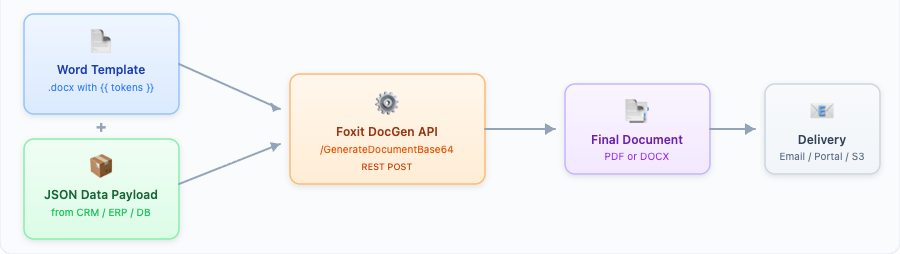
The Architecture of Document Generation Automation.

1. Template Creation

With a modern document generation API like Foxit’s, you don’t write rendering code. You open Microsoft Word, design the document exactly as it should look, and insert double-bracket tokens wherever dynamic data belongs.

To skip ahead and inspect a working artifact, two ready-made templates accompany this tutorial. The scalar-only version (invoice_simple.docx) is geared toward your first end-to-end run, and the full version (invoice_table.docx) adds the line-items table loop and a SUM(ABOVE) subtotal. Both live in the companion Foxit demo templates repo. Open them in Word to see the placeholder syntax in context, then copy the patterns into your own template.

A simple invoice template might include:

  • {{ companyName }} is replaced with the client’s company name
  • {{ invoiceNumber }} is replaced with a string like INV-00471
  • {{ invoiceDate \@ MM/dd/yyyy }} is replaced with a date formatted as 01/15/2024
  • {{ totalDue \# "$#,##0.00" }} is replaced with a currency-formatted number like $2,500.00

That’s it. Business users can open this .docx file, update the header font, move the logo, or reword a clause, and none of those changes require a developer.

2. Data Binding

Your application pulls data from wherever it lives (a Salesforce CRM, an SAP ERP, a PostgreSQL database) and structures it as a JSON payload. The JSON keys map directly to the template token names. No transformation layer, no intermediate format.

A payload for the invoice above looks like:
{
  "companyName": "Meridian Financial Group",
  "invoiceDate": "2024-01-15",
  "invoiceNumber": "INV-00471",
  "lineItems": [
    {
      "description": "API Integration Consulting",
      "qty": 10,
      "unitPrice": 150.0,
      "lineTotal": 1500.0
    },
    {
      "description": "Compliance Review",
      "qty": 5,
      "unitPrice": 200.0,
      "lineTotal": 1000.0
    }
  ],
  "totalDue": 2500.0
}

The keys companyNameinvoiceDate, and totalDue match the tokens in the template, a direct one-to-one bind. Note that lineTotal is precomputed in the payload. Foxit DocGen renders fields it receives, so any per-row arithmetic (price × quantity, tax calculations, conversions) happens in your application before the request goes out.

3. Dynamic Template Logic: Loops and Formatting

This is where document generation APIs separate themselves from simple find-and-replace tools. Real-world documents (invoices, statements, policy schedules) need rows that grow with the data, not fixed scalar fields.

Repeating tables are handled with loop delimiters. In Foxit’s syntax, you wrap the repeating row of your Word table with {{TableStart:lineItems}} in the first cell and {{TableEnd:lineItems}} in the last cell of the same row. The API iterates over the lineItems array in your JSON and renders one row per item, whether the array has 2 entries or 200.

Here’s how the Word table for the invoice payload above would look. The first row is the static header. The second row carries the loop tokens and is the only row you author. The third row uses SUM(ABOVE) to compute a subtotal across whatever number of rows the loop produces:

#DescriptionQtyUnit PriceLine Total
{{TableStart:lineItems}}{{ROW_NUMBER}}{{description}}{{qty}}{{unitPrice \# "$#,##0.00"}}{{lineTotal \# "$#,##0.00"}}{{TableEnd:lineItems}}
   Subtotal:{{=SUM(ABOVE) \# "$#,##0.00"}}

When merged with the JSON payload (two lineItems entries), the API renders a two-row table plus the computed subtotal:

#DescriptionQtyUnit PriceLine Total
1API Integration Consulting10$150.00$1,500.00
2Compliance Review5$200.00$1,000.00
   Subtotal:$2,500.00

{{ROW_NUMBER}} handles automatic line numbering inside the loop, and {{=SUM(ABOVE) \# "$#,##0.00"}} in a footer row sums the numeric column directly above it. Per-row arithmetic between fields (multiplying qty by unitPrice, for example) is not done by the API, so the payload sends lineTotal as a precomputed value.

Formatting specifiers are built into the token syntax and use Word’s MERGEFIELD picture strings. Currency formatting (\# "$#,##0.00") converts 2500.00 to $2,500.00, and you can adjust the symbol or decimal places by editing the picture string (\# "€#,##0.00"\# "0"). Date formatting (\@ MM/dd/yyyy) handles locale-specific date presentation without extra preprocessing in your application code.

The result is dynamic document templates that handle variable-length tables, formatted numbers, and conditional logic entirely in Word, not in your codebase . The Python example in Step 2 below sends this exact payload against the live DocGen endpoint and produces the rendered table shown above.

Top Document Generation Use Cases by Industry

Document generation sits in the critical path for several industries. These are the scenarios where teams see the most immediate return.

Financial Services: Client Reports and Investment Summaries

A wealth management firm generates quarterly performance summaries for thousands of clients. The template (header, chart placeholders, disclaimer text, signature block) stays constant. The data changes per client and includes portfolio value, allocation breakdown, benchmark comparison, and YTD return. The team pushes a nightly batch job that pulls data from their portfolio management system, constructs JSON payloads per client, and fires POST requests to the generation API, generating invoices and reports programmatically at scale. By morning, 8,000 personalized PDFs are sitting in an Amazon S3 bucket, ready to be emailed.

Insurance: The Policy Packet

An insurance carrier issuing a homeowner’s policy needs to assemble a multi-section document covering the cover letter (personalized with the policyholder’s name and address), the policy declarations page (premium, coverage limits, deductibles), the endorsements, and the liability disclaimer. Each section might be its own template. The API merges them into a single PDF. Underwriters stop manually assembling packets; the system generates them at bind time.

HR and Operations: Employee Onboarding

When a new hire accepts an offer, the HRIS triggers a webhook. The document generation service receives the employee’s data (name, role, start date, salary, benefits elections) and generates the full onboarding packet, including the offer letter, benefits summary, I-9 instructions, and handbook acknowledgment. The employee receives a complete, personalized PDF bundle within seconds of accepting. No one in HR touched it.

Sales: Branded Quotes and Contracts

Sales teams often live in the “Export to PDF” nightmare. They fill in a spreadsheet, copy it into Word, format it manually, and hope the branding looks right. A document generation API replaces that with a contract automation workflow tied directly to the CRM. When a rep marks a deal as “Proposal Sent,” Salesforce triggers a POST request with the deal data, and the API returns a PDF with the correct pricing, the client’s logo pulled from the CRM, and the correct contract terms based on the deal tier.

Foxit DocGen: The Developer Experience

Foxit brings 20+ years of PDF engine experience to a Word-template-to-PDF API that’s straightforward to integrate. The fastest happy path is to download a sample, configure your credentials, and run it. The implementation follows three steps:

Step 1: Get a Word template

The quickest start is to download invoice_simple.docx from the companion templates repo and use it as-is for your first end-to-end test. It carries the exact tokens (companyNameinvoiceNumberinvoiceDatetotalDue) that the Python sample below populates. Once you’ve confirmed the round-trip works, swap in invoice_table.docx to add the line-items loop and the SUM(ABOVE) subtotal. When you’re ready to build your own, open Microsoft Word and add {{ token }} placeholders using Foxit’s double-bracket syntax. Format specifiers (\# "$#,##0.00"\@ MM/dd/yyyy) and loop delimiters ({{TableStart:items}} / {{TableEnd:items}}) go directly into the Word document. No special editor required.

Step 2: Configure credentials and send a POST request

After signing up for a Foxit developer account, grab your BASE_URLCLIENT_ID, and CLIENT_SECRET from the developer console and set them as environment variables. The endpoint is /document-generation/api/GenerateDocumentBase64. You authenticate with your client_id and client_secret in the request headers, then send the base64-encoded template and your JSON data in the body. Here’s what that looks like in Python:

import os
import base64
import requests

# Credentials and base URL from your Foxit developer console
HOST = os.environ["BASE_URL"]
CLIENT_ID = os.environ["CLIENT_ID"]
CLIENT_SECRET = os.environ["CLIENT_SECRET"]

# Load and encode the Word template (download invoice_table.docx from the demos repo
# linked above for a quick first run)
with open("invoice_table.docx", "rb") as f:
    template_b64 = base64.b64encode(f.read()).decode("utf-8")

# JSON data payload from your CRM or database. lineTotal is precomputed in
# the application because the API renders fields rather than evaluating
# arithmetic between them.
document_values = {
    "companyName": "Meridian Financial Group",
    "invoiceDate": "2024-01-15",
    "invoiceNumber": "INV-00471",
    "lineItems": [
        {"description": "API Integration Consulting", "qty": 10, "unitPrice": 150.00, "lineTotal": 1500.00},
        {"description": "Compliance Review", "qty": 5, "unitPrice": 200.00, "lineTotal": 1000.00}
    ],
    "totalDue": 2500.00
}

# POST to Foxit DocGen API
response = requests.post(
    f"{HOST}/document-generation/api/GenerateDocumentBase64",
    headers={
        "client_id": CLIENT_ID,
        "client_secret": CLIENT_SECRET,
        "Content-Type": "application/json"
    },
    json={
        "base64FileString": template_b64,
        "documentValues": document_values,
        "outputFormat": "pdf"
    }
)

# Decode and save
result = response.json()
pdf_bytes = base64.b64decode(result["base64FileString"])
with open("invoice_00471.pdf", "wb") as f:
    f.write(pdf_bytes)

print("Invoice generated successfully.")

In this code, you read the .docx template from disk and base64-encode it because Foxit’s API expects the file as a UTF-8 string in base64FileString rather than raw bytes. You then build a document_values payload whose keys match the template’s tokens, including a precomputed lineTotal for every row since Foxit DocGen does not evaluate inline arithmetic like {{=qty*unitPrice}}. The POST request sends that payload to /document-generation/api/GenerateDocumentBase64, authenticates with client_id and client_secret headers pulled from environment variables, and asks for a PDF via outputFormat: "pdf". Finally, you decode the base64 response and write the bytes to invoice_00471.pdf on disk.

Step 3: Decode and store the response

The API returns a base64-encoded document. Decode it, write it to disk or pass it to an Amazon S3 bucket, and you’re done.

Foxit also supports DOCX output in addition to PDF. Most document generation APIs only produce PDFs, which means once the document is generated, it’s immutable. DOCX output enables a “Draft Mode” workflow where a generated document can be sent to a reviewer for light edits before it’s finalized. That’s genuinely useful in legal and HR workflows where a human needs to add a handwritten note or approve a clause. Sample code and SDKs are available for Python, JavaScript, Java, C#, and PHP, with additional language support on the developer portal. A Postman workspace is available for quick testing without writing any code first.

Common Template Mistakes

A few issues account for most failed first runs. Check these before assuming the API is the problem:

  • Placeholder syntax. Tokens use double curly braces with a single space inside, like {{ companyName }}, not { companyName } or {{{ companyName }}}. Word’s autocorrect occasionally swaps straight braces for smart braces; if a token renders as literal text in the output, retype the braces.
  • Case sensitivity. {{ CustomerName }} and {{ customerName }} are different tokens. The placeholder is matched verbatim against the JSON key, so an unmatched token silently renders as blank rather than throwing an error.
  • Wrong format-spec syntax. Foxit DocGen uses Word’s MERGEFIELD picture strings, not friendly keywords. {{ totalDue \# "$#,##0.00" }} works; {{ totalDue \# Currency }} renders as blank because Currency is not a recognized picture string. Same rule applies to date formatting (\@ MM/dd/yyyy).
  • Missing fields in the payload. A token without a corresponding JSON key produces an empty string in the output. Validate your payload against the template’s token list before sending the request, ideally with a JSON schema in your CI.
  • Expecting inline arithmetic. {{=qty*unitPrice}} does not evaluate inside a row. Compute derived fields (line totals, tax, conversion) in your application and send them in the payload. Aggregate functions like {{=SUM(ABOVE)}} do work in a footer row beneath the loop.
  • Loop tokens placed outside a table row. {{TableStart:items}} and {{TableEnd:items}} must sit inside cells of the same Word table row. Putting them in a regular paragraph or splitting them across rows produces unpredictable output.
  • Forgetting base64 encoding. The template must be base64-encoded as a UTF-8 string before being placed in base64FileString. Sending the raw bytes returns a 400-level error from the API.

Why the API Approach Wins Over Build-It-Yourself

If you automate PDF creation with the API approach, you gain three concrete advantages over build-it-yourself alternatives:

  • Compliance and accuracy: When a developer hard-codes a PDF layout, human error enters every time someone updates the template. A token mismatch ({{ CustomerName }} vs. {{ customerName }}) silently renders as blank. The API approach catches mismatches and enforces consistent data binding. More importantly, the data flows directly from your database to the document. There’s no manual copy-paste step and no transposition errors on a loan amount or policy limit.

  • Speed at scale: Generating PDFs with a local library like PDFKit means each document renders sequentially on your server, and rendering time grows with document complexity, especially when tables span multiple pages. At 10,000 documents, even modest per-document rendering times add up to minutes of blocking processing. A cloud document generation API parallelizes rendering across infrastructure you don’t manage. Fifty thousand invoices overnight is a scheduling problem, not a compute problem.

  • Maintenance belongs to the right person: When Marketing wants to update the invoice footer, they open the Word template and make the change. When Legal updates the liability clause, same thing. The developer does nothing, with no code change, no redeploy, and no regression testing on a layout that changed by three pixels. That’s the real ROI of the template-first approach, and it compounds over time as the team iterates on document designs without creating developer tickets.

Final Thoughts

Document generation shouldn’t be a manual task or a maintenance burden. If your team is still copy-pasting data into Word or maintaining a custom PDF renderer that breaks whenever a table gets too long, the template-plus-API model is a straightforward fix, not a major architectural change.

The next step worth watching is document generation paired with generative AI. The pattern is emerging in a few places, where teams use an LLM to draft a personalized summary paragraph based on a client’s portfolio data, then pass the result as a JSON field to the document generation API. The LLM handles the prose; the API handles the formatting and branding. You get dynamic content without losing layout control.

Ready to automate your document workflow? Create a free developer account at Foxit and access the DocGen API today. Download invoice_simple.docx for a one-shot scalar test, or invoice_table.docx for the full line-items flow, set your credentials, and run the example above to generate a PDF from JSON in minutes. See for yourself why the template-plus-API approach is replacing hand-coded generators.

Explore More Blogs
Architecture diagram of a PDF translation API pipeline using Foxit and Straker.ai with per-segment confidence scoring.

PDF Translation with Verifiable Quality: Build a Confidence-Scored Pipeline with Foxit API and Straker.ai

Most machine translation tools hand back a translated PDF with no signal about which parts to trust — a real problem for contracts, medical forms, and regulatory filings. This guide shows how to build a pipeline that scores every segment before the final render, using Foxit for structural extraction and layout-preserving rendering and Straker.ai for translation plus per-segment quality scoring.

Foxit PDF Structural Extraction API engine extracting tables, forms, and text from scanned PDFs.

Extract Anything from Any PDF: Inside Foxit’s Advanced Extraction Engine

Basic PDF extraction libraries break on scanned documents, complex tables, and form fields, leaving downstream pipelines starved of clean data. Foxit’s PDF Structural Extraction API combines OCR, layout recognition, and AI parsing to return all twelve PDF element types as structured JSON, ready for RAG, BI, and CRM workflows.

API Webinars

Explore Real-World Use Cases, Live Demos, and Best Practices.
Our technical team walks through practical applications of Foxit APIs with live Q&A, hands-on demos, and clear integration strategies. Whether you're comparing tools or actively building, these sessions are designed to help you move faster with fewer roadblocks

What You'll Learn