Extract Anything from Any PDF: Inside Foxit’s Advanced Extraction Engine

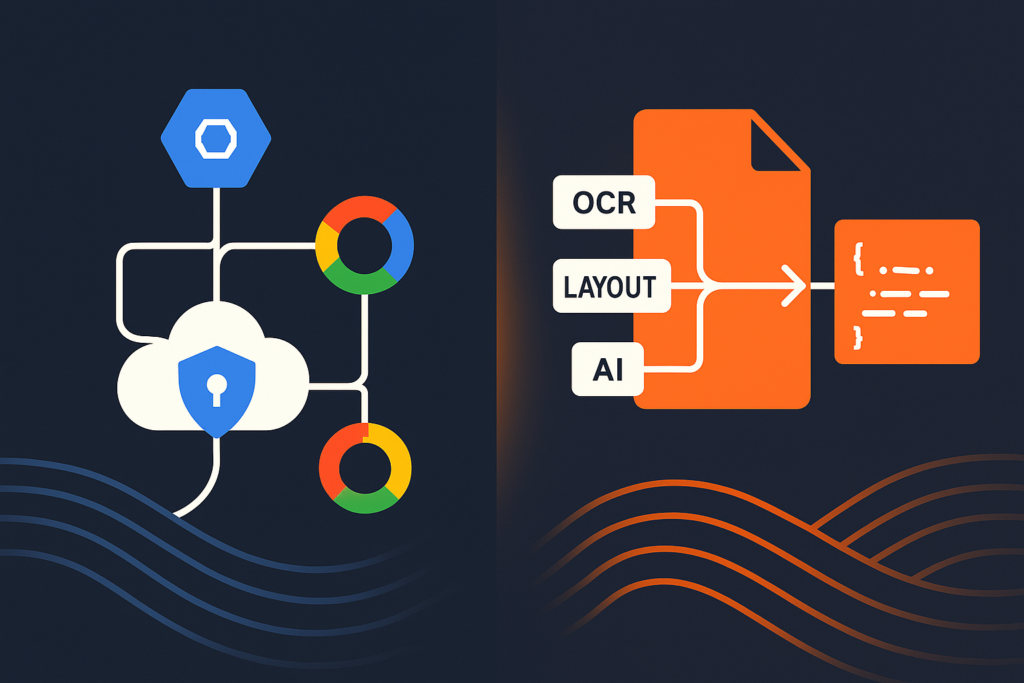
Foxit PDF Structural Extraction API engine extracting tables, forms, and text from scanned PDFs.

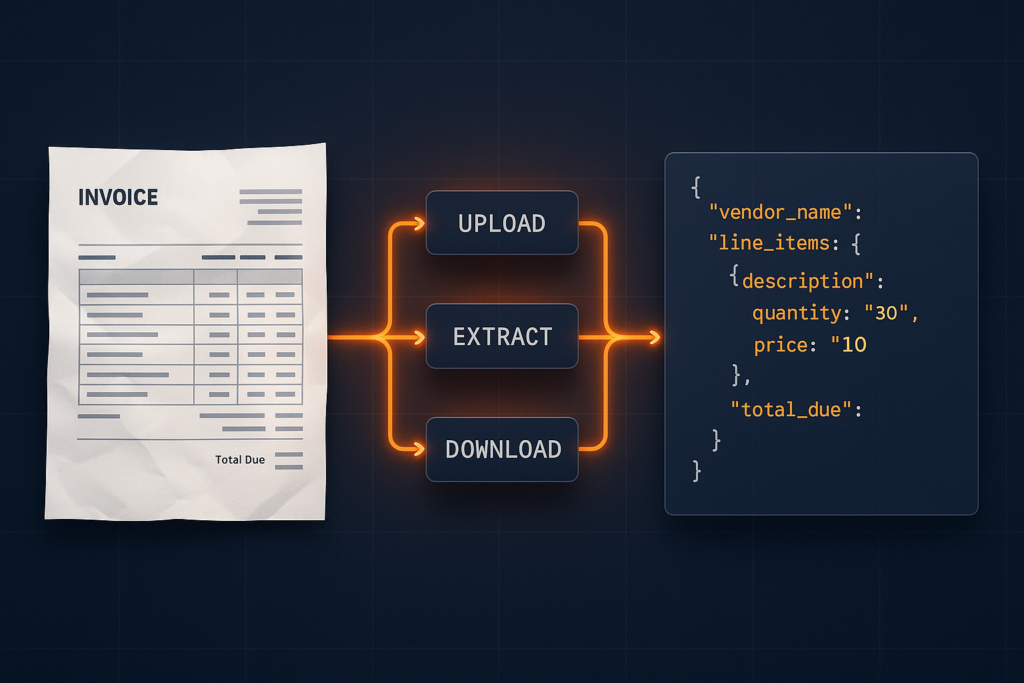
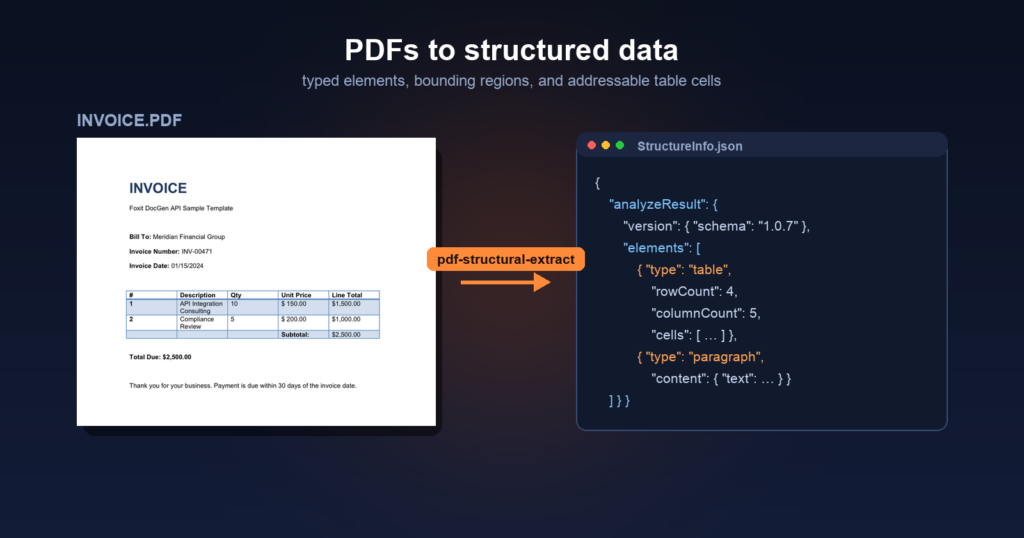
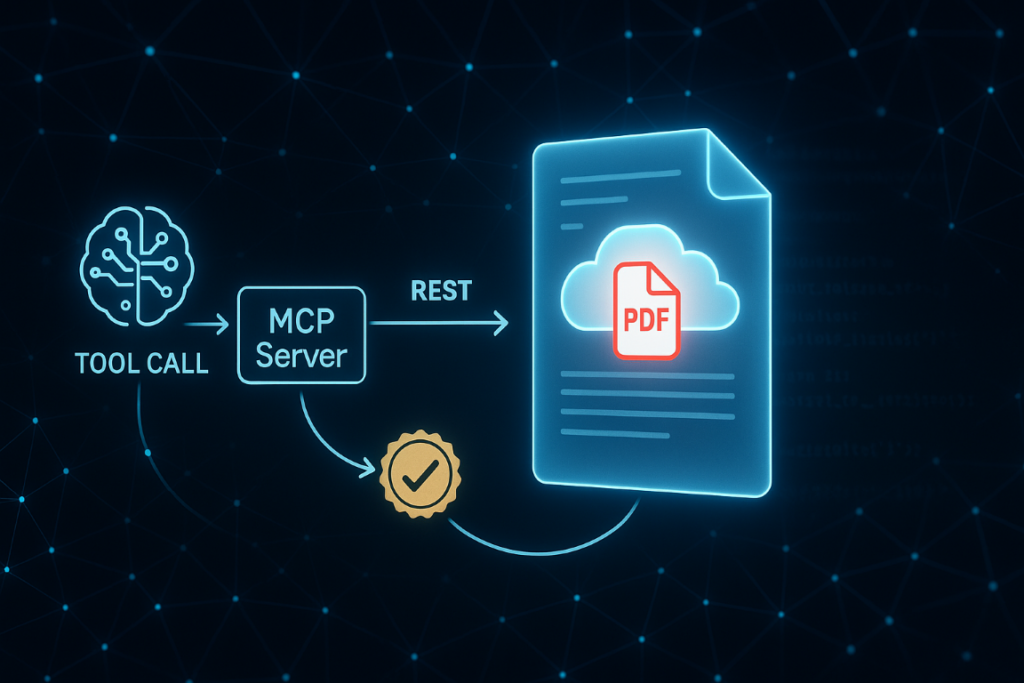
Basic PDF extraction libraries break on scanned documents, complex tables, and form fields, leaving downstream pipelines starved of clean data. Foxit’s PDF Structural Extraction API combines OCR, layout recognition, and AI parsing to return all twelve PDF element types as structured JSON, ready for RAG, BI, and CRM workflows.

Your PDF extraction pipeline passes unit tests against the sample invoices you built it on. Then production arrives and you’re looking at 47% garbled output on the Q4 contract batch because half those documents are scanned TIFFs wrapped in a PDF envelope, and your extraction library has no concept of what an image-only page actually is.

The failure modes are specific. PyMuPDF’s get_text() returns empty strings on scanned PDFs because it reads content streams directly, and image-only pages carry no text stream. pdfplumber’s table detection merges rows when column widths span non-uniform grids, which is standard in any financial statement that mixes summary and line-item rows on the same page. Embedded images containing meaningful text (stamped signatures, engineering drawing annotations, letterhead logos) get silently dropped. The library extracts coordinates for the XObject reference but does nothing with the raster data inside. Form fields built on non-standard annotation types (AcroForms using widget annotations with custom action streams) lose their values entirely when you serialize to text.

The architectural distinction that creates this problem is the difference between content serialization and semantic extraction. A PDF converter reads a content stream and writes out whatever character sequences it finds in rendering order. An extraction engine understands the spatial relationships between those character sequences: that two columns of text at x=72 and x=320 are parallel body copy, that the row at y=210 belongs to the table starting at y=180, that the text block repeating on every page is a header carrying lower retrieval weight in a RAG index. Output that lacks spatial and semantic classification looks correct on screen but breaks every downstream consumer that depends on structure.

BI dashboards require numbers tied to the right row labels. AI ingestion pipelines require heading hierarchy to chunk accurately. CRMs require form field values extracted from AcroForm widget dictionaries, delivered with field names intact. The delta between what basic extraction libraries return and what those systems can actually consume is where document pipeline engineering hours accumulate.

How Foxit’s PDF Structural Extraction Engine Works Under the Hood

Foxit exposes this capability as the PDF Structural Extraction (Trial) endpoint inside the PDF Services API (POST /pdf-services/api/documents/pdf-structural-extract). Trial status means the schema is versioned at v1.0.7 and may evolve, but the contract is stable enough to build against today, and the endpoint runs against the production base URL at developer-api.foxit.com.

The engine runs three coordinated layers. The OCR layer operates on rasterized page content, recognizing characters from image-based PDFs and scanned documents across 200+ languages. The layout recognition layer applies spatial analysis to identify column boundaries, reading order, table cell boundaries, figure regions, and header/footer zones. The AI-based parsing layer classifies extracted objects semantically, resolving ambiguous blocks (a text run that spans two layout columns, or a figure caption that reads syntactically like a section heading) into typed elements.

All three layers run inside Foxit’s core PDF engine, which powers 700 million+ users across 20+ years of production deployments. That engine has native awareness of PDF internal structures: content streams, XObject dictionaries, AcroForm field trees, and annotation layers. The OCR layer operates on the same internal page representation the rendering engine uses, so it handles annotated PDFs where text overlaps image regions, and form fields where the visual display and stored value diverge.

The same Structural Extraction endpoint is also Step 1 of Foxit’s PDF Translation (Trial) workflow, which signals that the extraction output is structured enough to backbone a full rewrite-and-rerender pipeline.

NVIDIA’s July 2025 NeMo Retriever research on PDF extraction showed that specialized OCR-based pipelines outperform general-purpose vision-language models on retrieval recall and throughput for complex elements including tables, charts, and infographics. VLMs produce plausible-looking output on clean documents but degrade on exactly the edge cases (multi-column scans, mixed-content pages, annotated overlays) that a specialized pipeline handles systematically.

The Full Object Map: All 12 Extractable PDF Element Types

The Structural Extraction schema v1.0.7 defines twelve element types in the type enum: titleheadparagraphtableimageheaderFooterformhyperlinkfootnotesidebarannotation, and formula.

The API exposes no per-object filter parameters. The only request body fields are documentId (required) and password (optional, for protected PDFs). The engine extracts the full element graph and returns everything in one asynchronous round-trip. You filter client-side on the returned JSON. The design is correct for the workload because partial extraction would require re-running layout recognition per request, costing more compute than transmitting the full element set in a single ZIP.

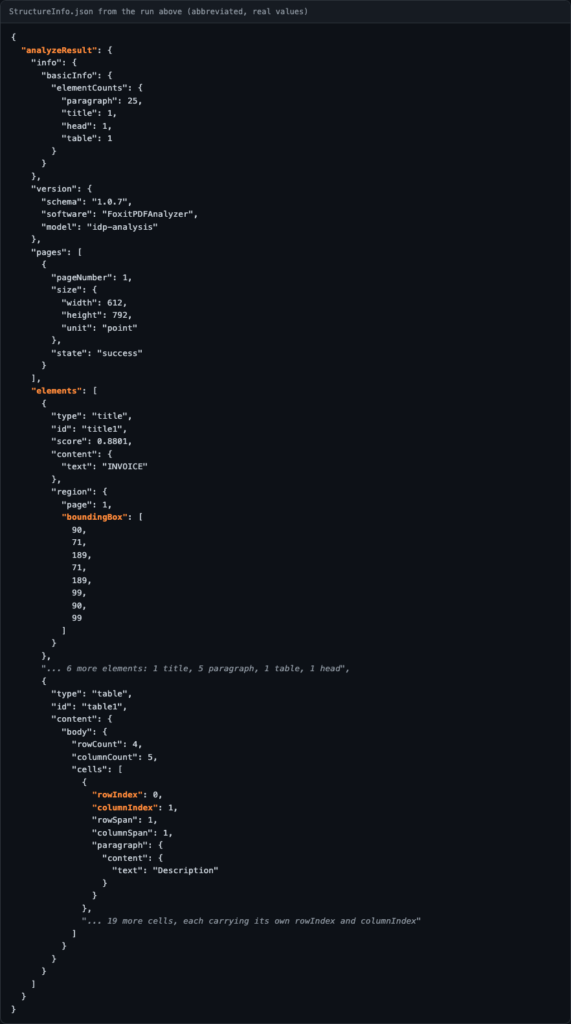
The result is a ZIP archive. At minimum it contains StructureInfo.json, whose top-level analyzeResult object holds versionpageselements, and info. Documents that contain figures or tables also produce additional binary files (image renditions and table renditions) alongside the JSON, referenced from individual elements so the JSON payload stays manageable on large documents.

Each element in the document-wide flat elements array carries its own idtypecontentregion (with page and an 8-point boundingBox polygon), and score confidence value. A table element adds its cell grid. A form element adds field data. An image element points to its binary file in the ZIP. Because titlehead, and paragraph elements appear in document reading order in the elements array, they chunk cleanly on semantically correct boundaries, which is what a RAG index needs to return complete, coherent passages.

Each type maps directly to a downstream use case: table feeds financial reporting pipelines, form drives automated CRM data entry, image routes to computer vision workflows or document archives, annotation builds compliance audit trails, and head combined with paragraph elements in reading order feeds RAG ingestion.

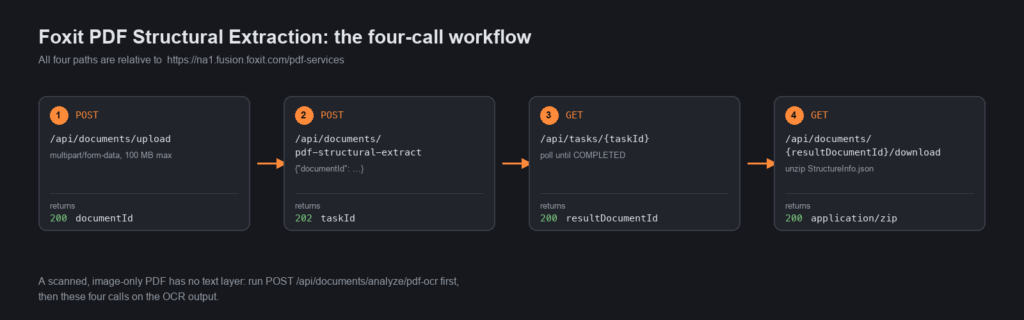
API Walkthrough: The Four-Step Async PDF Extraction Flow

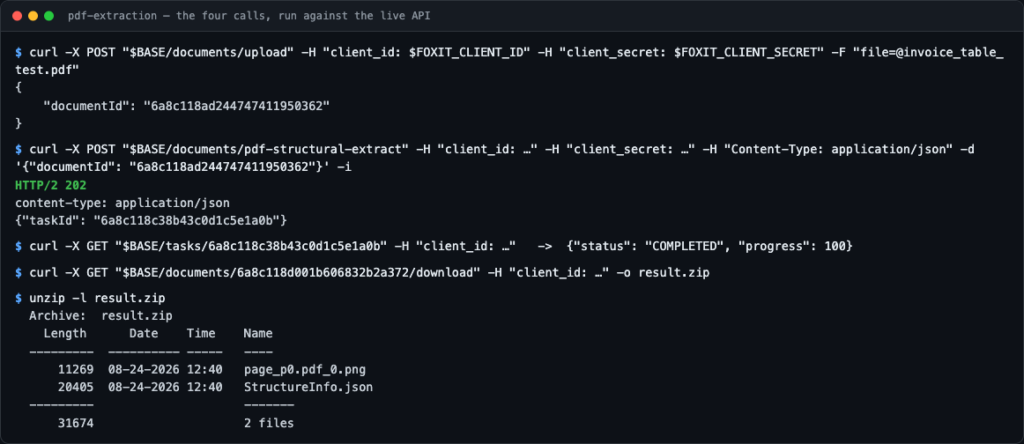
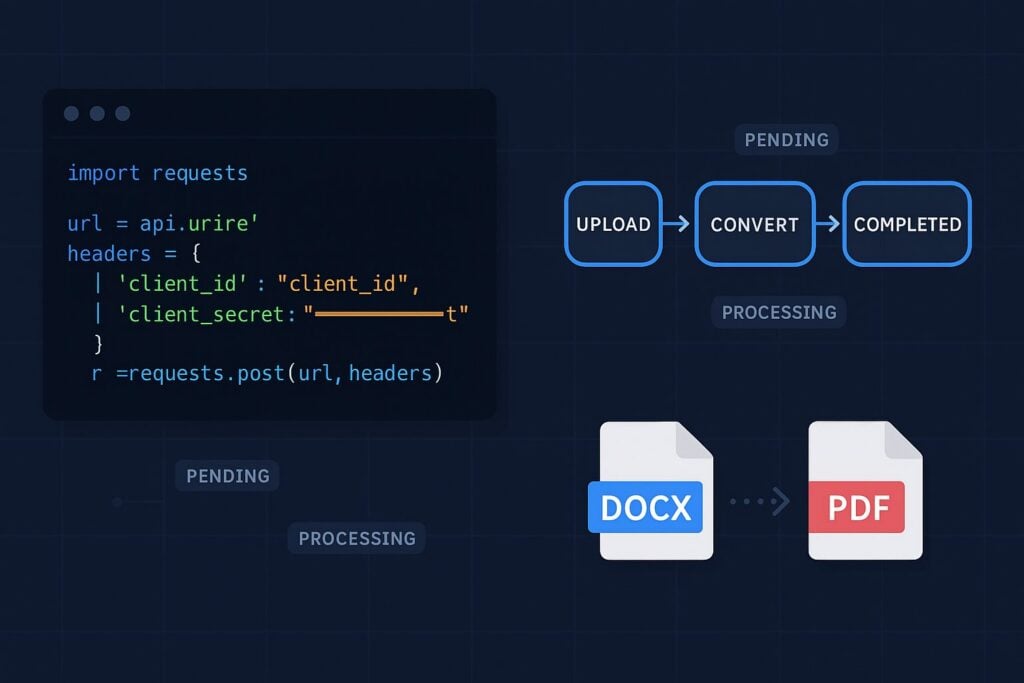
There’s no synchronous path. You upload, get a task ID, poll until completion, then download the result ZIP. Every request carries two headers: client_id and client_secret (lowercase snake_case, as specified in the API spec’s security schemes). Both come from the Developer Portal’s default application. Pass them as named HTTP headers on every request and do not use Authorization: Bearer.

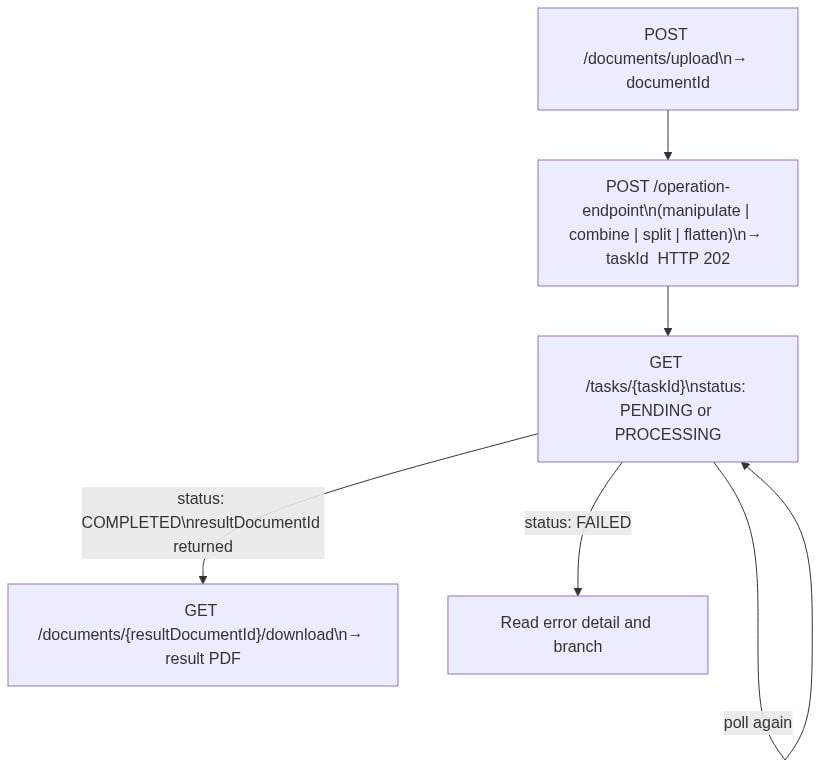
The four-step sequence runs as follows:
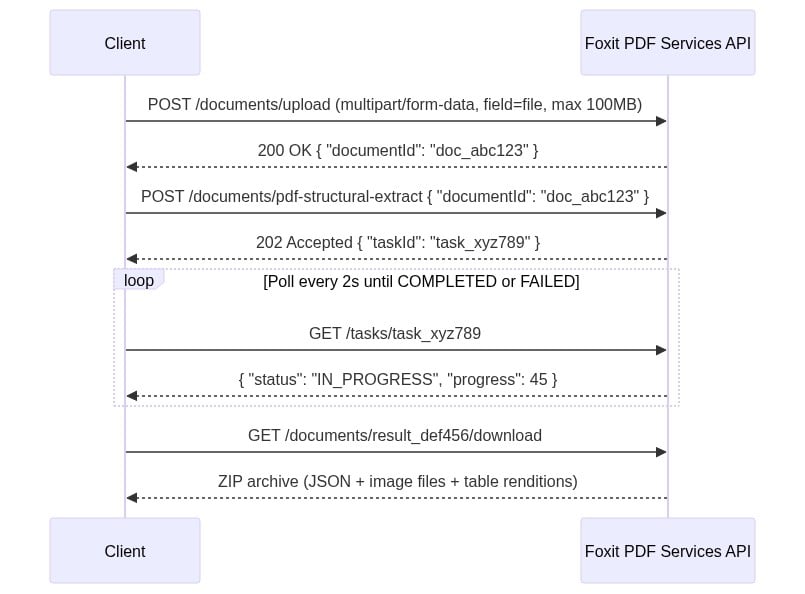
Four-step PDF structural extraction API flow between client and Foxit PDF Services. 

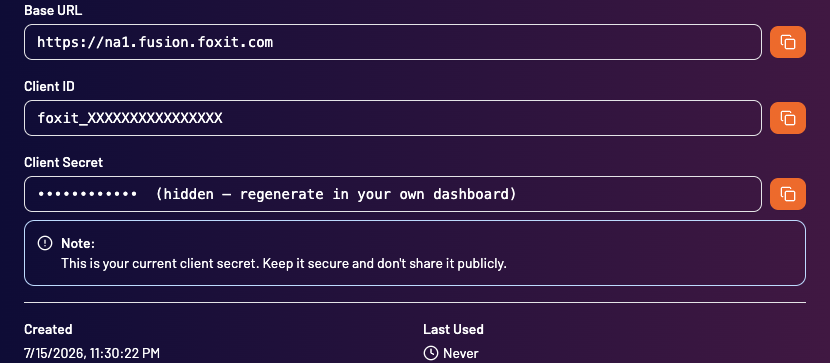
The four-step sequence diagram uses two headers on every request: client_id and client_secret. Create a free developer account at account.foxit.com/site/sign-up (no credit card required, no sales call). Once you’re in, the credentials live under the default application in the Developer Portal. Copy the Client ID and Client Secret pair and treat them like any other API secret. Pass them as named HTTP headers on every call (lowercase snake_case, not Authorization: Bearer).

  • Step 1: Upload the PDF to POST /pdf-services/api/documents/upload as multipart/form-data with the file under field name file. The 100MB ceiling is enforced with a 413 and error code MAX_UPLOAD_SIZE_EXCEEDED. The response body returns { "documentId": "doc_abc123" }.

  • Step 2: Starts extraction with POST /pdf-services/api/documents/pdf-structural-extract, passing { "documentId": "doc_abc123" }. Add a "password" field for protected PDFs. The response is 202 Accepted with { "taskId": "task_xyz789" }.

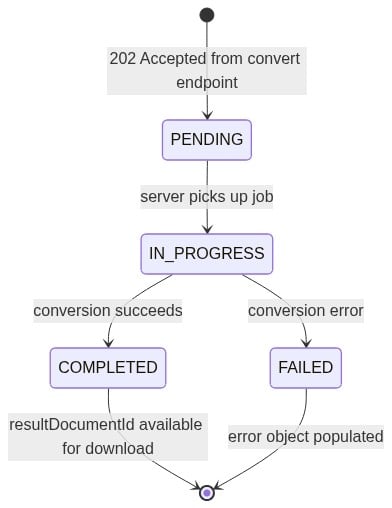
  • Step 3: Polls GET /pdf-services/api/tasks/{task-id}. The TaskResponse carries taskIdstatusprogress (0-100 integer), resultDocumentId, and an optional error object. The status enum values are PENDINGIN_PROGRESSCOMPLETED, and FAILED. Portal narrative copy occasionally uses “PROCESSING,” but the schema enum value is IN_PROGRESS. Match your code against the enum. Poll until COMPLETED and capture resultDocumentId.

  • Step 4: Downloads with GET /pdf-services/api/documents/{resultDocumentId}/download, which streams the ZIP archive. The optional filename query parameter overrides the default filename.

The complete cURL sequence for all four steps: 

# Step 1: Upload
curl -X POST "https://na1.fusion.foxit.com/pdf-services/api/documents/upload" \
  -H "client_id: YOUR_CLIENT_ID" \
  -H "client_secret: YOUR_CLIENT_SECRET" \
  -F "file=@invoice_batch.pdf"

# {"documentId":"doc_abc123"}

# Step 2: Start extraction
curl -X POST "https://na1.fusion.foxit.com/pdf-services/api/documents/pdf-structural-extract" \
  -H "client_id: YOUR_CLIENT_ID" \
  -H "client_secret: YOUR_CLIENT_SECRET" \
  -H "Content-Type: application/json" \
  -d '{"documentId":"doc_abc123"}'

# 202 Accepted: {"taskId":"task_xyz789"}

# Step 3: Poll task status
curl "https://na1.fusion.foxit.com/pdf-services/api/tasks/task_xyz789" \
  -H "client_id: YOUR_CLIENT_ID" \
  -H "client_secret: YOUR_CLIENT_SECRET"

# {"taskId":"task_xyz789","status":"COMPLETED","progress":100,"resultDocumentId":"result_def456"}

# Step 4: Download the result ZIP
curl "https://na1.fusion.foxit.com/pdf-services/api/documents/result_def456/download" \
  -H "client_id: YOUR_CLIENT_ID" \
  -H "client_secret: YOUR_CLIENT_SECRET" \
  -o extraction_result.zip

The Python version with a polling loop and ZIP parsing:

import requests, json, time, zipfile
BASE_URL = "https://na1.fusion.foxit.com/pdf-services/api"
HEADERS  = {"client_id": "YOUR_CLIENT_ID", "client_secret": "YOUR_CLIENT_SECRET"}

# Step 1: Upload
with open("invoice_batch.pdf", "rb") as f:
    doc_id = requests.post(
        f"{BASE_URL}/documents/upload", headers=HEADERS, files={"file": f}
    ).json()["documentId"]

# Step 2: Start extraction
task_id = requests.post(
    f"{BASE_URL}/documents/pdf-structural-extract",
    headers={**HEADERS, "Content-Type": "application/json"},
    json={"documentId": doc_id},
).json()["taskId"]

# Step 3: Poll until COMPLETED or FAILED
while True:
    task = requests.get(f"{BASE_URL}/tasks/{task_id}", headers=HEADERS).json()
    if task["status"] == "COMPLETED":
        result_doc_id = task["resultDocumentId"]
        break
    if task["status"] == "FAILED":
        raise RuntimeError(f"Extraction failed: {task.get('error')}")
    time.sleep(2)

# Step 4: Download the result ZIP and save it locally for inspection,
# then parse StructureInfo.json from the saved file
response = requests.get(
    f"{BASE_URL}/documents/{result_doc_id}/download", headers=HEADERS
)
with open("advanced-extraction-result.zip", "wb") as f:
    f.write(response.content)

with zipfile.ZipFile("advanced-extraction-result.zip") as zf:
    json_name = next(n for n in zf.namelist() if n.endswith("StructureInfo.json"))
    result = json.loads(zf.read(json_name))["analyzeResult"]

print(f"Schema: {result['version']['schema']}, Elements: {len(result['elements'])}")

On a clean run you should see output like Schema: 1.0.7, Elements: 9 for a small invoice batch. You’ll also find a fresh advanced-extraction-result.zip next to your script. That ZIP holds the full API response, including StructureInfo.json and any rendered image or table binaries, so you can inspect everything the engine returned and not just the parsed JSON.

First, set up and activate a Python virtual environment in your project folder. The official venv guide covers the exact commands for macOS, Linux, and Windows.

Once the virtualenv is active, the sample only needs one third-party package. Drop this into a requirements.txt next to your script and install it with pip install -r requirements.txt:

requests>=2.31.0

If you’re on macOS, use Homebrew Python (brew install python) rather than the system Python from the Xcode command-line tools. The Xcode build is linked against LibreSSL, which is enough to make a correct sample fail.
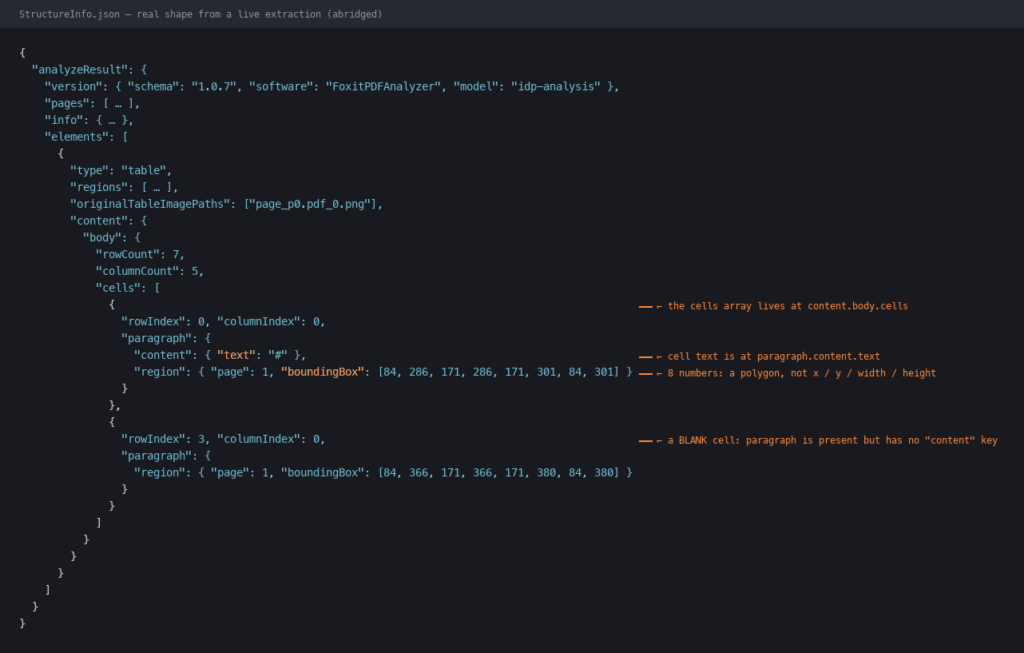
The ZIP contains a StructureInfo.json file whose top-level object wraps everything under analyzeResult. Inside that wrapper you get a version object, a pages array, a flat elements array, and an info block with analysis metadata. Each element carries its own idtypecontentregion (with page and an 8-point boundingBox polygon [x1,y1,x2,y2,x3,y3,x4,y4]), and a score confidence value:

{
  "analyzeResult": {
    "version": {
      "schema": "1.0.7",
      "software": "FoxitPDFAnalyzer",
      "model": "idp-analysis"
    },
    "pages": [
      {
        "pageNumber": 1,
        "size": { "width": 612, "height": 792, "unit": "point" },
        "state": "success"
      }
    ],
    "elements": [
      {
        "id": "title1",
        "type": "title",
        "content": {
          "text": "Q3 Revenue Summary",
          "style": {
            "fontName": "Helvetica",
            "fontSize": 24.0,
            "fontWeight": 0,
            "fontItalic": false
          }
        },
        "region": {
          "page": 1,
          "boundingBox": [72, 47, 317, 47, 317, 80, 72, 80]
        },
        "score": 0.76
      }
    ],
    "info": {
      "basicInfo": {
        "softwareVersion": "1.6.0",
        "analyzedPageCount": 1,
        "elementCounts": { "title": 1 }
      },
      "extendedMetadata": {
        "pageCount": 1,
        "isEncrypted": false,
        "hasAcroform": false,
        "language": "en"
      }
    }
  }
}

Elements of type tableimage, and form carry additional type-specific payload on top of this base shape, and any rendered image or table binary lands as a sibling file inside the ZIP referenced from the element.

HTTP errors return a standard error envelope:

{ "code": "VALIDATION_ERROR", "message": "documentId is required" }

The documented error codes include VALIDATION_ERROR (400), MAX_UPLOAD_SIZE_EXCEEDED (413), DOCUMENT_NOT_FOUND (404), STORAGE_ERROR, and INTERNAL_SERVER_ERROR (500).

Password-protected PDFs that arrive with no password parameter reach the processing stage before failing. That failure surfaces in the task status poll response after status reaches FAILED, so your error handler must inspect the task response body in addition to the HTTP status codes from the initial POST calls:

{
  "taskId": "task_xyz789",
  "status": "FAILED",
  "progress": 0,
  "error": {
    "code": "INTERNAL_SERVER_ERROR",
    "message": "Document is password-protected"
  }
}

Wiring Extracted PDF Data Into Your Workflow

Pattern 1: AI/RAG pipeline. Filter the flat elements array to titlehead, and paragraph types. Chunk by heading hierarchy, iterating over the array in the order the engine returned it (document reading order is preserved across columns and pages). Embed each chunk and index in Pineconepgvector, or your vector store of choice. Correct reading order, as provided by the extraction engine, is the prerequisite for accurate RAG retrieval on multi-column and paginated documents. When chunks split mid-thought because a layout detector merged two columns, retrieval recall drops and answer quality follows.

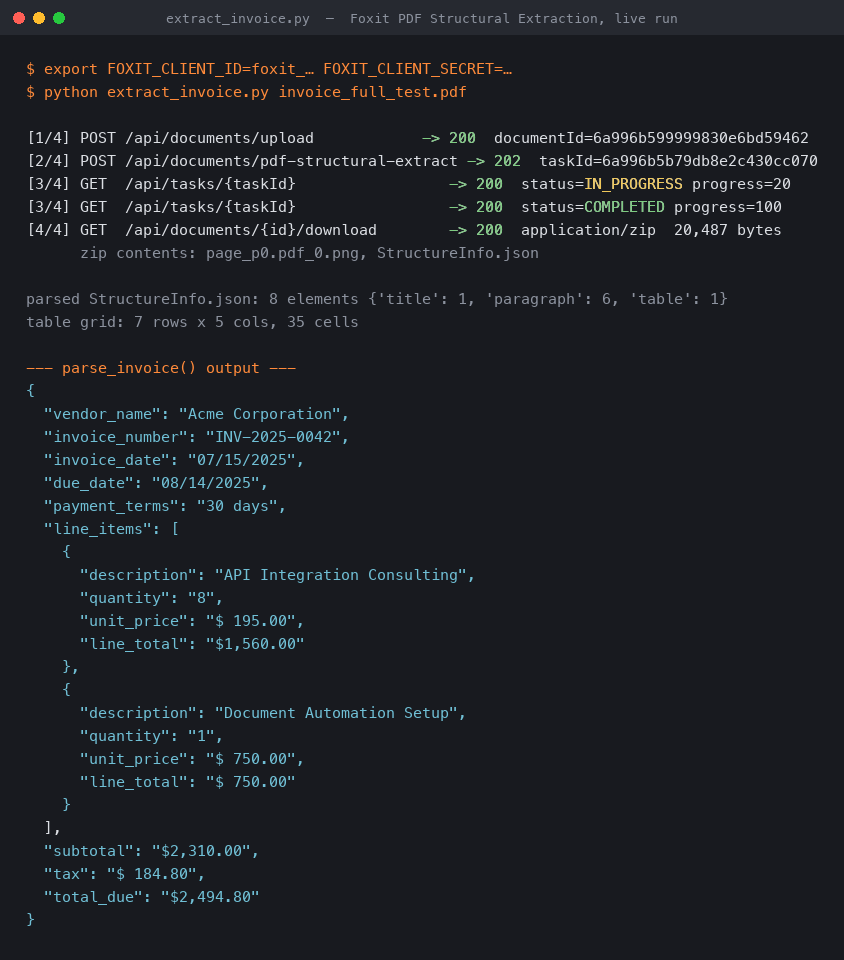
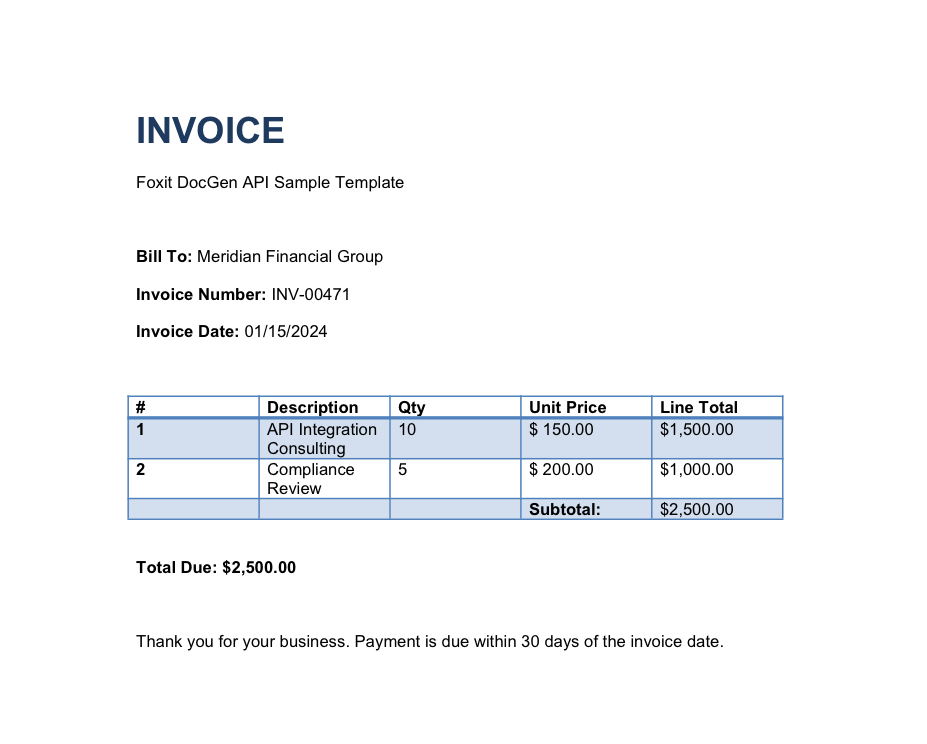
Pattern 2: BI reporting. Filter elements by type == "table" client-side, then convert each table’s cell structure into a pandas DataFrame:

import pandas as pd

# `result` is the `analyzeResult` object loaded from StructureInfo.json
tables = [e for e in result["elements"] if e["type"] == "table"]

for i, tbl in enumerate(tables):
    # Cells live at content.body.cells[]. Each cell carries rowIndex,
    # columnIndex, and a nested paragraph whose content.text holds the value.
    body = tbl["content"]["body"]
    grid = [["" for _ in range(body["columnCount"])] for _ in range(body["rowCount"])]
    for cell in body.get("cells", []):
        text = cell.get("paragraph", {}).get("content", {}).get("text", "")
        grid[cell["rowIndex"]][cell["columnIndex"]] = text
    df = pd.DataFrame(grid[1:], columns=grid[0])  # first row as header
    print(f"Table {i}: {df.shape[0]} rows x {df.shape[1]} cols")
    # df.to_gbq("finance.q3_revenue", project_id="your-project")  # BigQuery
    # df.to_sql("q3_revenue", engine)                             # Postgres / Snowflake

The row and column indices from the extraction schema map directly to DataFrame positions, so you get a correctly-structured table with zero manual parsing.

Pattern 3: n8n automation. The four-step flow maps to a chain of HTTP Request nodes in n8n. The first node uploads to POST .../upload and passes documentId through the item. The second sends POST .../pdf-structural-extract and captures taskId. A Loop Over Items construct with an HTTP Request node calling GET .../tasks/{taskId} on a two-second interval checks status until COMPLETED, then routes to the download node. The final HTTP Request node calls GET .../documents/{resultDocumentId}/download, and a Code node using n8n’s binary data helpers unpacks the ZIP and parses the JSON for routing to a Salesforce, HubSpot, Postgres, or Airtable node. The polling requirement makes this a multi-node workflow, but you write zero custom glue code and gain n8n’s built-in error routing and retry handling.

PDF Extraction Tools Compared: Foxit vs. Adobe, Google, Amazon, and Azure

ToolUnderlying ApproachEcosystem Lock-inHandles Scanned PDFsPricing ModelSetup OverheadStatus
Foxit Structural ExtractionProprietary OCR + layout recognition + AI (integrated core engine)Cloud-agnostic REST APIYes (dedicated OCR layer)Subscription, no per-page creditsLow (2 credential headers, 4 REST calls)Trial (schema v1.0.7)
Adobe PDF Extract APIAdobe Sensei ML, reading order + renditionsAdobe Document ServicesYesContact salesMedium (Adobe SDK + ecosystem)GA
Google Document AICloud ML + generative AI, Document Object ModelGoogle Cloud requiredYesPer-page pay-as-you-goMedium-high (GCP + IAM)GA
Amazon TextractDeep learning OCR, key-value and table extractionAWS-nativePartial (strong on forms, weaker on complex layouts)Per-page pay-as-you-goMedium (AWS + IAM)GA
Azure Document IntelligencePrebuilt + custom ML modelsAzure ecosystemYes (prebuilt models)Per-page + model training costsHigh for custom modelsGA

Google Document AI and Azure Document Intelligence win on ecosystem integration if you’re all-in on those clouds. Adobe wins on PDF structural fidelity for workflows already inside the Adobe Document Services ecosystem. Amazon Textract excels on standardized form documents where its pre-trained schema fits the input. These are real advantages, and the comparison is honest only when those contexts are acknowledged.

Foxit’s case is strongest when you need a cloud-agnostic REST API with zero ecosystem dependency, full object coverage across all twelve element types, and enterprise throughput (10 to 10,000+ PDFs/day) with SOC 2, GDPR, and HIPAA compliance built in. The Structural Extraction status is a real trade-off to factor in. The schema at v1.0.7 is callable and stable enough for pipeline integration today, but GA competitors carry a finalized contract. Pin your parser to the version field in the response and you’re insulated from schema evolution.

Your First PDF Extraction API Call, Right Now

Go to developer-api.foxit.com, create a free developer account (no credit card required), and copy your Client ID and Client Secret from the default application. Use the built-in API Playground or import the Postman collection from the Developer Portal to run the four-step sequence: upload a real document (an invoice, a multi-page contract, or a scanned form), call pdf-structural-extract with the returned documentId, poll tasks/{taskId} until COMPLETED, then download via documents/{resultDocumentId}/download.

Unzip the result, open StructureInfo.json, and check three things: analyzeResult.version.schema should report 1.0.7analyzeResult.elements[] should contain at least one table element and one form element if your source document includes those, and the ZIP root should contain the corresponding binary files for any image-type elements. That verification confirms the full extraction pipeline is wired correctly end-to-end.

The same endpoint pattern scales to enterprise volumes. Increase upload and poll concurrency horizontally and the architecture stays identical, with no schema changes, no infrastructure modifications, and no per-page credit consumption to track.

The engineering gap between what basic extraction libraries return and what downstream systems actually consume is where document pipeline hours accumulate. Structural Extraction closes that gap at the API layer, so the complexity stays in the engine and out of your codebase. Get started at developer-api.foxit.com.

PDF Structural Extraction FAQ

PDF structural extraction is the process of identifying and classifying the semantic elements inside a PDF, such as titles, paragraphs, tables, forms, images, and annotations, rather than just pulling raw text. Foxit’s PDF Structural Extraction API returns twelve distinct element types as structured JSON, preserving spatial relationships, reading order, and table cell grids so downstream systems like RAG pipelines, BI dashboards, and CRMs can consume the data without manual parsing.

Yes. Foxit’s PDF Structural Extraction engine includes a dedicated OCR layer that recognizes characters from image-based and scanned PDFs across 200+ languages. The OCR runs on the same internal page representation as the rendering engine, so it handles edge cases like text overlapping image regions, stamped signatures, and engineering drawing annotations that basic libraries like PyMuPDF silently drop.

Foxit’s API is cloud-agnostic with no ecosystem lock-in, requiring just two credential headers and four REST calls. Adobe PDF Extract requires the Adobe Document Services ecosystem, Google Document AI requires GCP and IAM setup, and Amazon Textract requires AWS infrastructure. Foxit also uses subscription-based pricing without per-page credits, while Google, AWS, and Azure all charge per page.

The API identifies twelve element types: title, head, paragraph, table, image, headerFooter, form, hyperlink, footnote, sidebar, annotation, and formula. Each element returns with its content, an 8-point bounding box polygon, page location, and a confidence score. Tables include full cell grids with row and column indices, forms include field data, and images are extracted as separate binary files inside the result ZIP.

The API uses a four-step asynchronous flow: upload the PDF via POST /documents/upload to get a documentId, start extraction with POST /documents/pdf-structural-extract, poll GET /tasks/{taskId} every two seconds until status is COMPLETED, then download the result ZIP via GET /documents/{resultDocumentId}/download. Authentication uses two headers, client_id and client_secret, available from the default application in the Foxit Developer Portal.

The endpoint is currently in Trial status with schema version v1.0.7, meaning the contract is stable but may evolve. It runs on the production base URL at developer-api.foxit.com and is built on Foxit’s core PDF engine, which powers 700 million+ users across 20+ years of deployments. For production pipelines, pin your parser to the version field in the response to insulate against future schema changes.

Automate Dynamic PDF Generation with the Foxit DocGen API: Word Templates, JSON Data, and Real API Calls
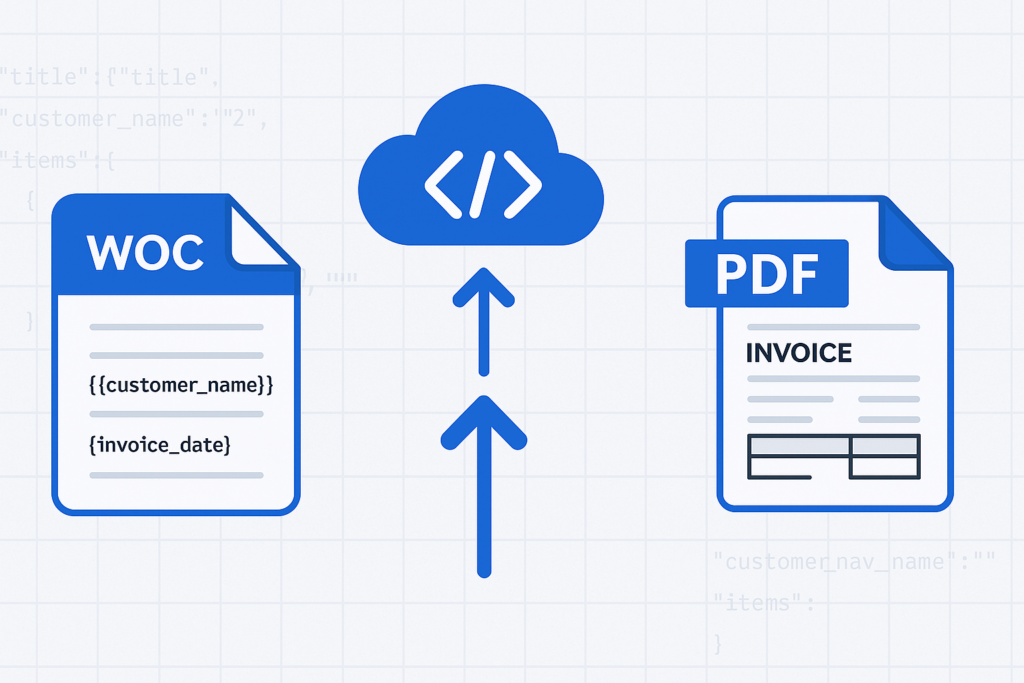
Foxit DocGen API workflow showing a Word template with data tags being converted into a PDF document using JSON data.

Skip the HTML-to-PDF headaches. Use Foxit’s DocGen API to turn Word templates and JSON data into clean, formatted PDFs with one API call.
If you’ve tried to generate a contract or invoice from HTML, you’ve probably burned hours on page-break-inside: avoid declarations that Chrome renders one way and a headless browser renders another. Headers and footers require separate print-media queries, and by the time you’ve got a repeating table header working correctly across pages, you’ve invested a full day of engineering into CSS that exists solely to trick a browser into behaving like a printer.

HTML documents reflow content into a viewport while PDF documents have fixed page geometry. Forcing one model into the other produces predictable failure modes: footnotes that collide with page footers, tables that split at the worst possible row, custom fonts that substitute silently, and signature blocks that drift off-page on longer documents.

There’s a larger practical cost too. For most teams, the authoritative source for enterprise document templates is already a Word file. Your legal team owns the NDA in .docx format. Finance owns the invoice in .docx format. Every structural change flows through Word because that’s where the tracked changes, formatting history, and review process live. Maintaining a parallel HTML version of each template doubles your maintenance surface from day one.

Foxit’s DocGen API eliminates that parallel entirely. You keep your templates as .docx files, embed data tags directly in Word, POST the base64-encoded template and a JSON payload to a single REST endpoint, and receive the rendered PDF (or DOCX) in the response body. You eliminate the browser rendering engine, the print-media CSS layer, and the overhead of a second template format.

How the Foxit DocGen API Works

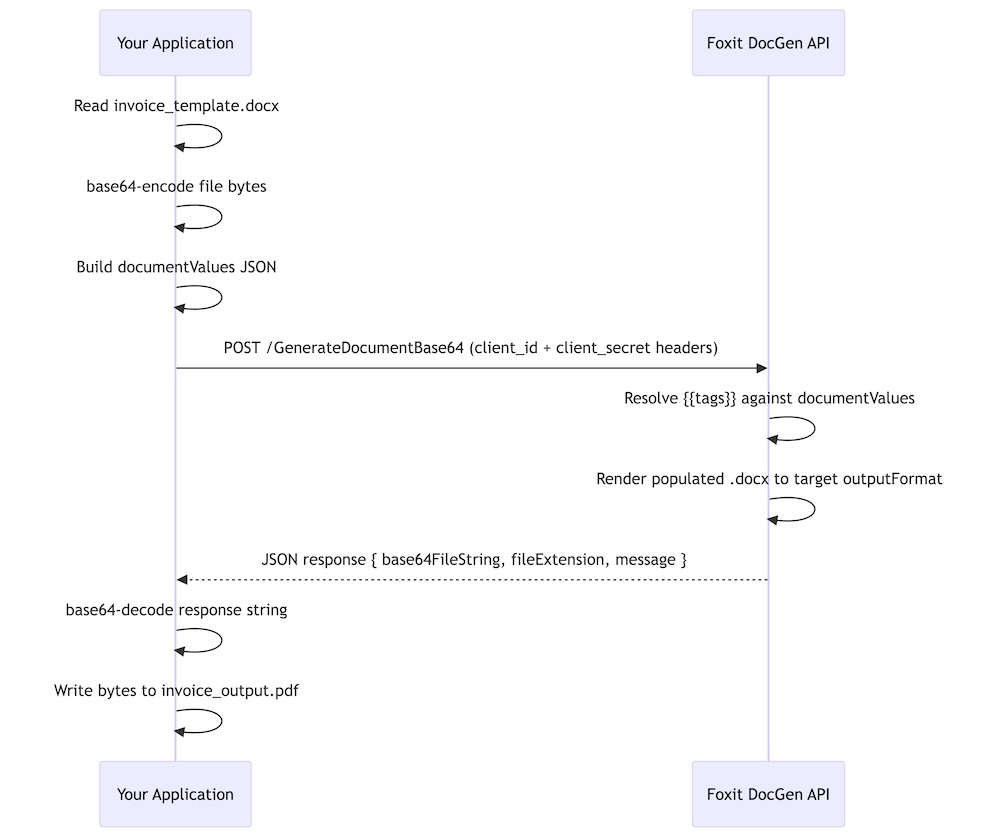
The core model is a single synchronous POST to the GenerateDocumentBase64 endpoint at developer-api.foxit.com. Your request body carries three fields:

  • base64FileString: your .docx template, base64-encoded
  • documentValues: a JSON object containing your merge data
  • outputFormat: either "pdf" or "docx"

The API processes the template, resolves every tag against your data, and returns a JSON response containing base64FileString (the rendered document) and a message field confirming success or describing a failure. The exchange is fully synchronous, so you receive the finished document in the same HTTP response with no job ID to poll and no webhook to configure.

Authentication uses two HTTP headers: client_id and client_secret. Both come from the Foxit Developer Portal when you create an account. The free Developer plan provides 500 credits per year with no credit card required, and each GenerateDocumentBase64 call consumes exactly one credit. The Startup plan ($1,750/year) provides 3,500 credits. The Business plan ($4,500/year) covers 150,000 credits for production workloads. For context, Nutrient’s API starts at $75 for 1,000 credits, and Apryse requires a sales conversation before you can access pricing at all.

The complete call flow runs from template file to PDF on disk.

Sequence diagram showing the Foxit DocGen API workflow from reading a Word template and encoding it to base64, sending the POST request, and receiving the rendered PDF response.

You can explore every endpoint in the live API playground at developer-api.foxit.com, and the portal includes a Postman collection you can import to run authenticated requests without writing a line of code first.

Build a Word Template with DocGen Tags

Open any .docx file in Microsoft Word and type your tags as plain text directly in the document. The DocGen API uses double-brace syntax: {{field_name}}. Tags go anywhere Word accepts text: headings, body paragraphs, table cells, headers, footers, or text boxes.

Scalar field tags resolve directly to the matching key from your documentValues JSON. A document header with {{customer_name}}{{invoice_number}}, and {{invoice_date}} pulls those three values straight from the top-level keys of your payload.

For arrays, you wrap a single table row (the data row, not the header row) with {{TableStart:array_name}} and {{TableEnd:array_name}} markers. The wrapped row acts as a template row, and the API renders one output row per item in the JSON array. An invoice line-items table in Word looks like this:

DescriptionQtyUnit PriceTotal
{{TableStart:line_items}}{{description}}{{qty}}{{unit_price}}{{total}}{{TableEnd:line_items}}

Within the array row, ROW_NUMBER auto-increments with each rendered row. A SUM(ABOVE) field placed in the row directly below the {{TableEnd:line_items}} marker calculates a column total across all rendered data rows.

For nested JSON objects, use dot-notation in your tags. A shipping address block references {{shipping.street}}{{shipping.city}}, and {{shipping.postal_code}}, mapping to properties nested inside a shipping object in your payload. The nesting can go multiple levels deep, so {{customer.address.city}} resolves against documentValues.customer.address.city.

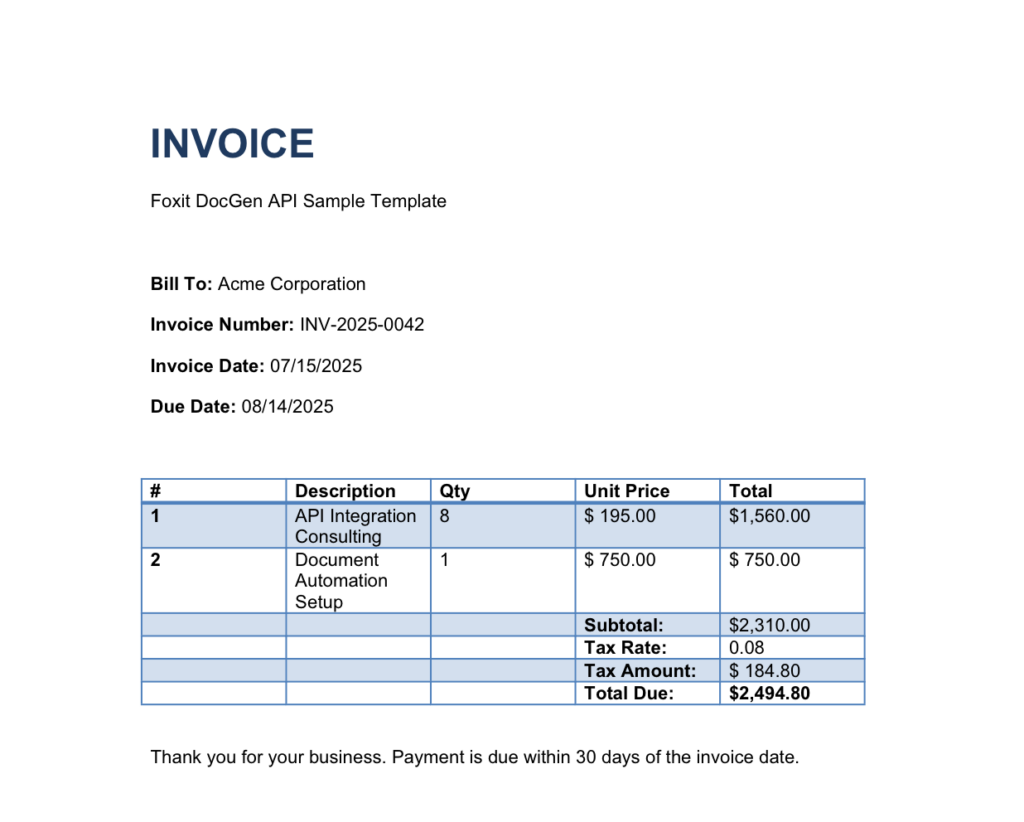
For a working starting point, grab the downloadable invoice template from the foxit-demo-templates repo. The file is well under the 4 MB upload limit and demonstrates every pattern this article uses: scalar tags, {{TableStart:line_items}} / {{TableEnd:line_items}} with {{ROW_NUMBER}}, currency and date format switches, and subtotal / tax / total fields below the line-items table.

One sizing constraint applies while you build your own template. DocGen rejects uploads larger than 4 MB, so if you embed product photos, scanned letterhead, or full font subsets, compress the images before saving, drop embedded fonts where you can rely on system fonts, or split a large template into smaller per-section templates that you generate and merge separately.

Make Your First API Call: Generate a PDF from JSON

Run a quick pre-flight check before the first call to catch the issues that derail most clean-account run-throughs:

  • Account created and client_id / client_secret copied from the Developer Portal API Keys section
  • Sample template saved locally as invoice_template.docx in the directory you’ll run the script from
  • Template file size confirmed under 4 MB (ls -lh invoice_template.docx on macOS or Linux, right-click → Properties on Windows)

With those in place, confirm your credentials work with a cURL call. The Foxit Developer Portal includes a Postman collection for this, but a quick cURL request against the API catches auth issues before any code runs:

curl -X POST "https://na1.fusion.foxit.com/document-generation/api/GenerateDocumentBase64" \
  -H "client_id: YOUR_CLIENT_ID" \
  -H "client_secret: YOUR_CLIENT_SECRET" \
  -H "Content-Type: application/json" \
  -d '{"base64FileString":"","documentValues":{},"outputFormat":"pdf"}'

A 401 here means invalid credentials. A 400 with a message about the template confirms your headers are accepted and you can proceed to the full call.

Save your .docx template as invoice_template.docx in the same directory as this script, then run the complete generation:

import requests
import base64

CLIENT_ID = "your_client_id"
CLIENT_SECRET = "your_client_secret"
API_URL = "https://na1.fusion.foxit.com/document-generation/api/GenerateDocumentBase64"

# Read and encode the template
with open("invoice_template.docx", "rb") as f:
    template_b64 = base64.b64encode(f.read()).decode("utf-8")

# Build the data payload
document_values = {
    "customer_name": "Acme Corporation",
    "invoice_number": "INV-2025-0042",
    "invoice_date": "07/15/2025",
    "due_date": "08/14/2025",
    "line_items": [
        {
            "description": "API Integration Consulting",
            "qty": 8,
            "unit_price": 195.00,
            "total": 1560.00
        },
        {
            "description": "Document Automation Setup",
            "qty": 1,
            "unit_price": 750.00,
            "total": 750.00
        }
    ],
    "subtotal": 2310.00,
    "tax_rate": 0.08,
    "tax_amount": 184.80,
    "total_due": 2494.80
}

# Construct the request body
payload = {
    "base64FileString": template_b64,
    "documentValues": document_values,
    "outputFormat": "pdf"
}

headers = {
    "client_id": CLIENT_ID,
    "client_secret": CLIENT_SECRET,
    "Content-Type": "application/json"
}

response = requests.post(API_URL, json=payload, headers=headers)

if response.status_code == 200:
    result = response.json()
    pdf_bytes = base64.b64decode(result["base64FileString"])
    if pdf_bytes[:5] != b"%PDF-":
        raise ValueError("Response did not contain a valid PDF")
    with open("invoice_output.pdf", "wb") as out:
        out.write(pdf_bytes)
    print("PDF written to invoice_output.pdf")
else:
    print(f"Error {response.status_code}: {response.json().get('message')}")

The success response is a JSON object with three keys: base64FileString (the rendered PDF, base64-encoded), fileExtension ("pdf"), and message ("PDF Document Generated Successfully"). Decoding and writing the bytes to disk gives you a complete, formatted PDF with every tag replaced by its corresponding data value. If you omit a key from documentValues, the API renders the corresponding tag as an empty string, producing a blank field in the output.

Advanced Data Scenarios: Arrays, Nested Objects, and Built-In Functions

The two-row invoice above works, but most production documents have more complex data shapes. Three patterns cover the majority of real-world cases.

For multi-row tables, the line_items array in the Python snippet above already shows the basic structure. To generate five rows, pass five objects in the array. The Word template row tagged with {{TableStart:line_items}} and {{TableEnd:line_items}} repeats exactly once per array item:

{
  "line_items": [
    {
      "description": "UX Design Review",
      "qty": 4,
      "unit_price": 150.0,
      "total": 600.0
    },
    {
      "description": "Backend API Development",
      "qty": 12,
      "unit_price": 185.0,
      "total": 2220.0
    },
    {
      "description": "Database Schema Migration",
      "qty": 3,
      "unit_price": 200.0,
      "total": 600.0
    },
    {
      "description": "QA Testing",
      "qty": 6,
      "unit_price": 95.0,
      "total": 570.0
    },
    {
      "description": "Deployment and Documentation",
      "qty": 2,
      "unit_price": 175.0,
      "total": 350.0
    }
  ]
}

The API generates exactly five table rows. Swap in 50 items and you get 50 rows, with page breaks handled by Word’s native pagination logic.

For nested objects, the DocGen API resolves dot-notation paths against the full depth of your JSON structure. A shipping confirmation template referencing {{customer.address.city}} works against this payload without any flattening on your end:

{
  "customer": {
    "name": "Sarah Chen",
    "email": "[email protected]",
    "address": {
      "street": "742 Evergreen Terrace",
      "city": "Portland",
      "state": "OR",
      "postal_code": "97201"
    }
  }
}

In the Word template, {{customer.name}}{{customer.address.city}}, and {{customer.address.postal_code}} each resolve to the correct nested value. You can reference the same nested object from multiple locations in the template, and the API populates each instance independently.

For numeric and date formatting, the DocGen API respects Word’s native field switch syntax. Adding \# Currency to a tag formats a numeric value as a currency string, so {{unit_price \# Currency}} renders 195.00 as \$195.00. Date fields accept \@ "MM/dd/yyyy" to control output format, so {{invoice_date \@ "MM/dd/yyyy"}} formats an ISO date string to 07/15/2025. To auto-calculate a column total, place a SUM(ABOVE) field in the Word table row immediately below {{TableEnd:line_items}} and the API evaluates it against the rendered data rows.

Error Handling and Production Readiness

The DocGen API returns a focused set of HTTP status codes. A 200 confirms successful generation. A 401 means your client_id or client_secret headers are invalid, and the fix is to re-copy the credentials from the Developer Portal. A 400 covers three cases. The first is a malformed request body, for example a missing base64FileString or outputFormat. The second is structural issues with the template itself, such as a {{TableStart}} marker placed outside its table row. The third is an oversize template; DocGen rejects .docx uploads larger than 4 MB, and the fix is to compress embedded images, drop embedded fonts, or split the template before re-encoding. The message field in every non-200 response body gives you the specific reason, so log it rather than discarding the response object.

A production wrapper handles all three cases and adds exponential backoff for transient server errors:

import requests
import base64
import time

def generate_document(client_id, client_secret, template_path,
                      document_values, output_format="pdf"):
    API_URL = "https://na1.fusion.foxit.com/document-generation/api/GenerateDocumentBase64"

    with open(template_path, "rb") as f:
        template_b64 = base64.b64encode(f.read()).decode("utf-8")

    payload = {
        "base64FileString": template_b64,
        "documentValues": document_values,
        "outputFormat": output_format
    }
    headers = {
        "client_id": client_id,
        "client_secret": client_secret,
        "Content-Type": "application/json"
    }

    max_retries = 3
    for attempt in range(max_retries):
        try:
            response = requests.post(API_URL, json=payload,
                                     headers=headers, timeout=30)

            if response.status_code == 200:
                return base64.b64decode(response.json()["base64FileString"])

            if response.status_code == 401:
                raise ValueError("Authentication failed: re-check client_id and client_secret")

            if response.status_code == 400:
                msg = response.json().get("message", "Bad request")
                raise ValueError(f"Request error: {msg}")

            if response.status_code >= 500:
                if attempt < max_retries - 1:
                    wait = 2 ** attempt
                    print(f"Server error ({response.status_code}), retrying in {wait}s...")
                    time.sleep(wait)
                    continue
                raise RuntimeError(f"Server error after {max_retries} attempts")

        except requests.exceptions.Timeout:
            if attempt < max_retries - 1:
                time.sleep(2 ** attempt)
                continue
            raise

    raise RuntimeError("Max retries exceeded")

The wrapper raises immediately on 4xx responses because retrying a credential error or a malformed request produces the same result. Exponential backoff applies only to 5xx responses and timeouts, where the issue is transient.

Once generate_document() returns raw PDF bytes, routing them downstream takes three lines:

import boto3

s3 = boto3.client("s3")
pdf_bytes = generate_document(CLIENT_ID, CLIENT_SECRET, "invoice_template.docx", document_values)
s3.put_object(Bucket="my-documents-bucket", Key="invoices/INV-2025-0042.pdf", Body=pdf_bytes)

To attach the output to an email, pass pdf_bytes directly as the smtplib attachment payload. To collect a signature on the generated document, base64-encode the bytes and POST them to Foxit’s eSign API with the signer’s email address in the request body. The full eSign API reference is at docs.developer-api.foxit.com.

Common Mistakes

A short list of the issues that account for almost every failed first run.

  • Smart-quote autocorrect on braces. Word’s AutoCorrect can convert the second { of {{ into a curly-quote glyph, which breaks tag parsing silently. Disable “Straight quotes with smart quotes” under AutoCorrect Options, or paste tags as plain text.
  • Token case sensitivity. {{Customer_Name}} and {{customer_name}} are different keys. Match the casing in your JSON exactly.
  • TableStart and TableEnd must sit in the same Word table row. Splitting them across two rows, or placing either marker outside the table, leaves the loop unrendered with no error.
  • Template over 4 MB. The API rejects oversize uploads with a 400. Compress embedded images, drop embedded fonts where system fonts will do, or split the template into smaller pieces.
  • Missing payload key. The API renders an unmatched tag as an empty string rather than failing, so a 200 response does not guarantee every field is populated. Spot-check the rendered PDF as part of any pipeline test.
  • Auth header typos. Headers are client_id and client_secret in snake_case. Client-IdClientId, or X-Client-Id all return 401.

Run the Full Invoice Example End-to-End Right Now

Create a free account directly at account.foxit.com/site/sign-up. This skips the pricing-page redirect you hit from the marketing site and drops you straight into the account form.

  1. Open account.foxit.com/site/sign-up and complete the form (no credit card required).
  2. After verification, sign in to the Developer Portal and the Developer plan (500 credits per year) is active by default.
  3. Open the API Keys section and copy your client_id and client_secret.

With credentials in hand, run the example end-to-end:

  1. Download invoice_full.docx from the foxit-demo-templates repo and save it locally as invoice_template.docx in your working directory. The file is well under the 4 MB upload limit and exercises every tag pattern this article covers.
  2. Paste your credentials into the CLIENT_ID and CLIENT_SECRET variables in the Python script from the previous section.
  3. Edit the document_values dictionary with your own customer name, invoice number, and line items.
  4. Run the script and open invoice_output.pdf.

The free Developer plan’s 500 annual credits cover this tutorial dozens of times over before you spend anything. The full API reference at docs.developer-api.foxit.com covers every endpoint parameter, the complete tag specification, all supported output formats, and the full GenerateDocumentBase64 request and response schema.

Get started with a free account (no credit card required) and generate your first dynamic PDF in under 10 minutes.

Document Workflow Automation: An Architectural Guide to Building API-Driven Document Pipelines
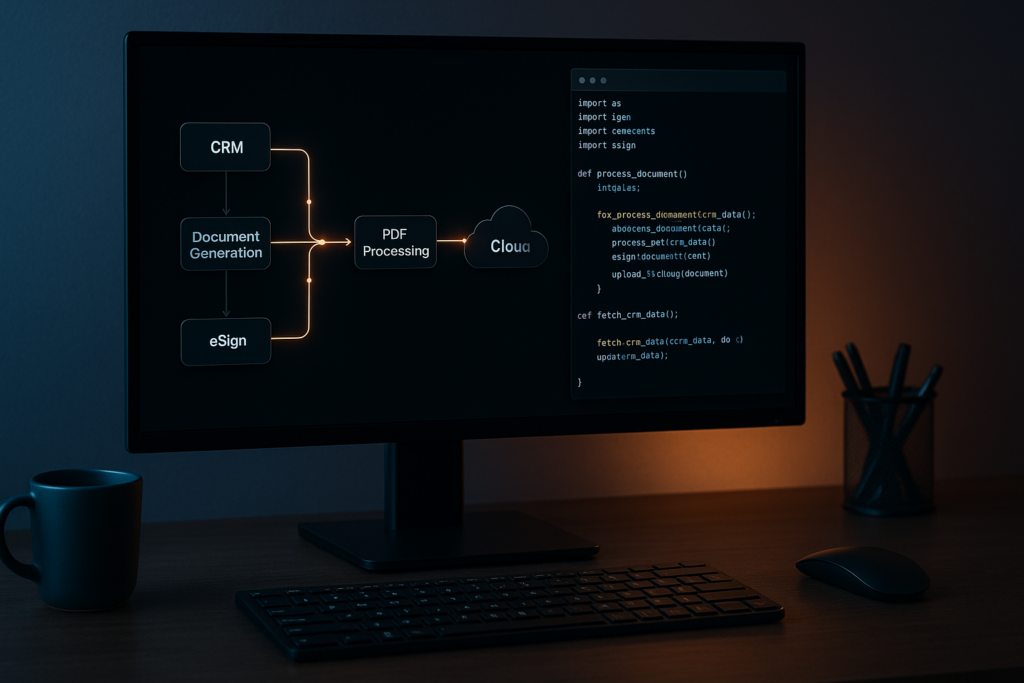
Diagram of an API-driven document workflow automation system showing CRM, document generation, eSign, and PDF processing pipeline connected to cloud infrastructure.

Automate document workflows with APIs. Learn how to scale PDF generation, eSign, and processing pipelines using modern architecture.

A PDF generation script that breaks on special characters. A cron job that retries failed document conversions by rerunning the entire job. An eSign flow tracked in a shared spreadsheet where “sent” means someone sent an email. These aren’t hypothetical failure modes; they’re the actual engineering artifacts that accumulate when document workflows grow faster than the architecture beneath them.

The scale problem compounds quickly. A team processing 200 contracts a month can survive on scripts and email hand-offs. At 2,000 contracts, those same workflows are the bottleneck. At 20,000, engineers are maintaining hacks that should have been replaced two years ago: retry logic bolted onto cron jobs, signing flows with no audit trail, and PDF generation that silently drops content when a CRM field contains a Unicode character.

The global intelligent document processing market was valued at $2.3B in 2024 and is projected to reach $12.35B by 2030 at a 33.1% CAGR, not because AI is newly fashionable, but because manual document handling is a measurable operational ceiling. The organizations crossing that ceiling aren’t doing it by adopting better tools in isolation. They’re adopting an architectural model.

The problem isn’t a lack of API options for document generation, conversion, or signing. The problem is the absence of a framework for assembling those operations into a pipeline that’s resilient, auditable, and testable. This guide gives you that framework, then grounds it in working Python examples against a real REST API suite.

Anatomy of a Document Automation Pipeline: The Five Stages

Before you write a single API call, you need a model for what you’re building. Every document workflow automation pipeline, regardless of domain, decomposes into five discrete stages.

Stage 1 is intake: you receive or capture the source data that will drive the document. This might be a webhook payload from your CRM when a deal closes, a form submission, or a batch export from an ERP system. The manual failure mode here is no schema validation, no deduplication, and no observable queue depth. Documents arrive out of order, get processed twice, or disappear without trace.

Stage 2 is generation: you render a document from a template and the structured data from stage 1. Common outputs include contracts, invoices, compliance reports, and onboarding kits. The failure mode is template version drift (production runs a different template version than staging), no validation of input data against the template’s expected schema, and no idempotent retry path if the generation call fails partway through.

Stage 3 is processing: you transform, extract from, or optimize the generated document. This covers format conversion (DOCX to PDF), content extraction for downstream indexing, compression, and linearization for fast web delivery. The failure mode is processing steps chained with no error isolation, so a failed compression step blocks the entire document from reaching signing.

Stage 4 is signing: you route the document for signature, track signer status, and capture consent with a full audit trail. The failure mode is manual polling for signer status, no webhook-driven callbacks, and no programmatic access to the audit log when a compliance review is triggered.

Stage 5 is archival and distribution: you store the signed document with a retention policy and push it to downstream systems, your DMS, CRM, or data warehouse. The failure mode is no content-addressed versioning, no record of which document version was signed, and no delivery confirmation to downstream consumers.

Idempotency is a first-class requirement at every stage. Each operation should be safely retryable: the same inputs produce the same output, and a retried call doesn’t create a duplicate document, signing request, or archive record. You implement idempotency in your orchestration layer by generating a unique key per document job and checking it before re-processing. This is a design responsibility. The API doesn’t handle it for you automatically.

The data flow through a well-designed document automation pipeline looks like this:

API-driven document workflow diagram showing CRM or ERP data flowing through document generation, PDF processing, eSignature, and storage or distribution systems.

One constraint to know upfront: the three APIs in this stack don’t share a document ID namespace. Each stage boundary requires a file handoff. DocGen returns the rendered document as base64 in the response body. You decode it and either save it to disk or upload it directly to PDF Services. PDF Services returns a resultDocumentId that you download as a file, then re-upload to eSign, which runs on a different host with different authentication. The handoff pattern is a feature, not a limitation. It makes each stage independently testable and replayable.

Architectural Decision Framework: Four Axes Before You Write Code

Four decisions determine whether your document pipeline scales cleanly or becomes the thing your team rewrites in 18 months.

Axis 1: REST API vs. SDK

Use REST APIs for cloud-native, horizontally scalable pipelines where document operations are stateless HTTP calls. Use an SDK for on-premise deployments, air-gapped environments, or latency-sensitive processing where network round-trips are a constraint. Foxit offers both: REST APIs for cloud-native pipelines and PDF SDKs for on-premise or air-gapped deployments, so the axis is a real choice, not a theoretical one. If your document pipeline runs inside a regulated environment where data can’t leave the network perimeter, the SDK is the correct answer regardless of how convenient the REST API is.

Axis 2: Synchronous vs. Asynchronous Processing

This is the most consequential call you’ll make, and it varies by stage within a single pipeline.

FactorSynchronousAsynchronous
Document sizeUnder ~10 pagesLarge or variable-length
SLA requirementSub-second responseVariable completion time acceptable
Typical use caseReal-time contract previewBatch invoice processing
Error handlingInline exception handlingDead-letter queue, retry on callback
Foxit API exampleDocGen (returns document in response body)PDF Services (returns taskId, poll for result); eSign (webhook callback on folder execution)

The Foxit suite itself illustrates this split cleanly. DocGen is synchronous: POST your template and data payload, get the rendered document back immediately in the response body. No taskId, no polling. PDF Services is asynchronous: a conversion call returns a taskId, and you poll a status endpoint until the result is ready. eSign is asynchronous via webhooks: creating a folder returns immediately, and the API delivers a callback to your registered endpoint when the folder is executed (all signers complete). Design your pipeline around this reality rather than assuming a uniform execution model across all three APIs.

Axis 3: Linear Pipeline vs. Event-Driven Architecture

A linear pipeline (where stage A blocks until complete before stage B starts) works for simple three-stage flows with predictable volume and acceptable end-to-end latency. An event-driven pipeline, where each stage emits a completion event consumed by the next stage, is the correct choice when you need error isolation (a failed stage 3 doesn’t block stage 2 outputs from being replayed), partial replay (reprocess from stage 2 without regenerating the document), or parallel processing branches (send the same document to multiple downstream consumers simultaneously).

For pipelines that start as linear but need to scale, n8n is a practical bridge. You can call Foxit’s REST APIs from n8n workflows via HTTP Request nodes, which lets you wire pipeline stages without writing custom glue code while you validate the workflow logic before committing to a fully coded implementation.

Axis 4: Error Handling Strategy for Document Pipelines

Three components belong in your initial design, not bolted on afterward.

The first is idempotency keys. Generate a unique key per document job (a UUID tied to the source record ID and timestamp works well) and check it before re-processing. If a worker crashes mid-job and the job re-queues, the idempotency key prevents duplicate processing.

The second is dead-letter handling. Define what happens to a document that has failed three consecutive processing attempts. It should route to a dead-letter queue with the failure reason and enough context to replay it manually or trigger an alert.

The third is a circuit breaker. If PDF Services returns 5xx responses on five consecutive calls within 30 seconds, stop sending requests and return a fast failure to the calling system. This prevents a degraded upstream API from exhausting your worker pool and cascading failures downstream. The circuit breaker pattern maps cleanly onto any stateless HTTP integration.

Building the Pipeline: Foxit APIs in Practice

We’ll use Foxit’s PDF Services, DocGen, and eSign APIs for the examples below. The patterns translate to any REST-based document API, but these are the endpoints we’ll call.

Document Generation with the DocGen API

DocGen takes a DOCX template (encoded as base64) and a JSON data payload, and returns the rendered document immediately in the response body. There’s no templateId concept; you send the template inline with every request. This means you own template versioning. Keep your templates in version control and pin the version used for each job to your event log.

One practical cap to design around: the DocGen endpoint rejects .docx uploads larger than 4 MB once base64-encoded. Compress embedded images through Word’s Picture Format settings, drop embedded fonts and OLE objects, and split very large templates into multiple files before the request leaves your service.

The request uses client_id and client_secret as HTTP headers against na1.fusion.foxit.com.

# Illustrative example - not production code
import base64
import requests
import json

def generate_contract(template_path: str, data: dict) -> bytes:
    with open(template_path, "rb") as f:
        template_b64 = base64.b64encode(f.read()).decode("utf-8")

    payload = {
        "outputFormat": "pdf",
        "documentValues": data,
        "base64FileString": template_b64
    }

    response = requests.post(
        "https://na1.fusion.foxit.com/document-generation/api/GenerateDocumentBase64",
        headers={
            "client_id": "YOUR_CLIENT_ID",
            "client_secret": "YOUR_CLIENT_SECRET",
            "Content-Type": "application/json"
        },
        json=payload
    )
    response.raise_for_status()
    result = response.json()
    return base64.b64decode(result["base64FileString"])

# Data pulled from your CRM or ERP; validate against your template schema before calling
contract_data = {
    "client_name": "Acme Corp",
    "contract_value": "48000",
    "effective_date": "2025-09-01",
    "payment_terms": "Net 30"
}

pdf_bytes = generate_contract("templates/msa_v3.docx", contract_data)

Validate your data payload against the template’s expected field schema before the API call. DocGen doesn’t catch type errors or missing fields with a clean error response. You get a malformed document instead. A Pydantic model or JSON Schema validation step before the POST saves significant debugging time.

PDF Processing with the PDF Services API

The most common PDF Services operation is conversion. The DOCX-to-PDF call is also the simplest entry point for teams new to the API. PDF Services uses a two-step pattern: upload the source file first to get a documentId, then call the operation endpoint with that ID. Because operations are asynchronous, the call returns a taskId that you poll until the result is available.

# Illustrative example - not production code
import time
import requests

PDF_SERVICES_HOST = "https://na1.fusion.foxit.com"
HEADERS = {
    "client_id": "YOUR_CLIENT_ID",
    "client_secret": "YOUR_CLIENT_SECRET"
}

def upload_document(file_bytes: bytes, filename: str) -> str:
    response = requests.post(
        f"{PDF_SERVICES_HOST}/pdf-services/api/documents/upload",
        headers=HEADERS,
        files={"file": (filename, file_bytes, "application/octet-stream")}
    )
    response.raise_for_status()
    return response.json()["documentId"]

def poll_task(task_id: str) -> str:
    while True:
        status_resp = requests.get(
            f"{PDF_SERVICES_HOST}/pdf-services/api/tasks/{task_id}",
            headers=HEADERS
        )
        status_resp.raise_for_status()
        status_data = status_resp.json()

        if status_data["status"] == "COMPLETED":
            return status_data["resultDocumentId"]
        elif status_data["status"] == "FAILED":
            raise RuntimeError(f"Task failed: {status_data}")
        time.sleep(2)

def download_document(document_id: str) -> bytes:
    response = requests.get(
        f"{PDF_SERVICES_HOST}/pdf-services/api/documents/{document_id}/download",
        headers=HEADERS
    )
    response.raise_for_status()
    return response.content

def convert_docx_to_pdf(docx_bytes: bytes) -> bytes:
    doc_id = upload_document(docx_bytes, "document.docx")
    response = requests.post(
        f"{PDF_SERVICES_HOST}/pdf-services/api/documents/create/pdf-from-word",
        headers={**HEADERS, "Content-Type": "application/json"},
        json={"documentId": doc_id}
    )
    response.raise_for_status()
    result_doc_id = poll_task(response.json()["taskId"])
    return download_document(result_doc_id)

def extract_text(pdf_bytes: bytes) -> str:
    doc_id = upload_document(pdf_bytes, "document.pdf")
    response = requests.post(
        f"{PDF_SERVICES_HOST}/pdf-services/api/documents/modify/pdf-extract",
        headers={**HEADERS, "Content-Type": "application/json"},
        json={"documentId": doc_id, "extractType": "TEXT"}
    )
    response.raise_for_status()
    result_doc_id = poll_task(response.json()["taskId"])
    return download_document(result_doc_id).decode("utf-8")

The pdf-extract endpoint pulls text from the PDF (pass extractType as TEXT, IMAGE, or PAGE depending on what you need). Both conversion and extraction follow the same upload, execute, poll, download cycle. Feed the text output to a downstream search index so the document is queryable immediately after processing.

Signature Orchestration with the eSign API

The eSign API uses OAuth2, not header-based authentication. Your first call exchanges client_id and client_secret for a Bearer token on a separate host (na1.foxitesign.foxit.com).

# Illustrative example - not production code
import json
import requests
from flask import Flask, request as flask_request

ESIGN_HOST = "https://na1.foxitesign.foxit.com"

def get_esign_token(client_id: str, client_secret: str) -> str:
    response = requests.post(
        f"{ESIGN_HOST}/api/oauth2/access_token",
        data={
            "grant_type": "client_credentials",
            "client_id": client_id,
            "client_secret": client_secret
        }
    )
    response.raise_for_status()
    return response.json()["access_token"]

def create_signing_folder(token: str, pdf_bytes: bytes, signers: list) -> str:
    folder_payload = {
        "folderName": "MSA - Acme Corp",
        "parties": [
            {
                "firstName": s["first_name"],
                "lastName": s["last_name"],
                "emailId": s["email"],
                "permission": "FILL_FIELDS_AND_SIGN",
                "sequence": s["sequence"]
            }
            for s in signers
        ]
    }

    response = requests.post(
        f"{ESIGN_HOST}/api/folders/createfolder",
        headers={"Authorization": f"Bearer {token}"},
        files={
            "file": ("contract.pdf", pdf_bytes, "application/pdf"),
            "data": (None, json.dumps(folder_payload), "application/json")
        }
    )
    response.raise_for_status()
    return response.json()["folderId"]

# Webhook handler receives the folder-executed event
app = Flask(__name__)

@app.route("/webhooks/esign", methods=["POST"])
def esign_webhook():
    event = flask_request.json
    if event.get("event_type") == "folder_executed":
        folder_id = event["folder_id"]
        signed_doc_url = event["documents"][0]["download_url"]
        archive_signed_document(folder_id, signed_doc_url)
    return "", 200

Register your webhook endpoint in the eSign developer portal settings. When a folder is executed (all signers complete), the API POSTs the event payload to your endpoint. Extract the signed document URL from the callback and pass it to your archival stage. The eSign API also exposes a folder activity history endpoint that returns a complete audit trail: signer identity, timestamp, IP address, and authentication method for every interaction with the folder.

Chaining the Pipeline Stages with Idempotency

The file handoff between stages is explicit by design. Here’s a minimal orchestration wrapper that chains all three stages and demonstrates the idempotency pattern:

# Illustrative example - not production code
import uuid

def run_document_pipeline(job_id: str, template_path: str, data: dict, signers: list):
    idempotency_key = f"{job_id}:{uuid.uuid4()}"

    if is_already_processed(idempotency_key):
        return  # Safe to retry

    # Stage 2: Generate (DocGen returns PDF bytes synchronously)
    pdf_bytes = generate_contract(template_path, data)
    log_pipeline_event(job_id, "generated", hash_document(pdf_bytes))

    # Stage 3: Process (extract text for indexing; convert if needed)
    extracted = extract_text(pdf_bytes)
    index_document(job_id, extracted)
    log_pipeline_event(job_id, "processed", hash_document(pdf_bytes))

    # Stage 4: Sign (eSign returns folder ID; completion arrives via webhook)
    token = get_esign_token("YOUR_CLIENT_ID", "YOUR_CLIENT_SECRET")
    folder_id = create_signing_folder(token, pdf_bytes, signers)
    log_pipeline_event(job_id, "sent_for_signature", folder_id)

    mark_processed(idempotency_key)

For async pipelines handling thousands of documents per hour, replace direct function calls with queue messages. Each stage worker pulls a job from Redis or Amazon SQS, executes the API call, ACKs on success, and publishes a completion event to the next stage’s queue. If a worker crashes mid-job, the unACKed message re-queues and the idempotency key prevents re-processing a document that has already been completed.

Auditability and Compliance by Design

GDPRHIPAA, and SOC 2 Type II each impose specific requirements around document lifecycle traceability. Retrofitting an audit layer onto a pipeline that wasn’t designed for it takes far more work than building it in from the start.

The event sourcing pattern fits document pipelines directly. Maintain an append-only log of every document event: createdconvertedsent_for_signaturesignedarchived. Use a stable document_id as the primary key. This log makes replay straightforward: if signing fails, you can replay from the processing output without regenerating the document from scratch. Each event record should include the stage name, timestamp, operator identity, and a SHA-256 hash of the document bytes at that stage.

The SHA-256 hash at each stage isn’t overhead; it’s your tamper detection mechanism. If the hash of the document presented for signing doesn’t match the hash recorded at generation, you have an integrity problem that’s immediately visible. This satisfies document integrity requirements in regulated industries without any additional tooling.

The Foxit eSign API’s built-in audit trail captures signer identity, timestamp, IP address, and authentication method for every folder interaction. Query the folder activity history endpoint to retrieve this data and persist it in your own audit store alongside your pipeline event log. Storing it in your own system, rather than relying solely on the eSign provider’s records, gives you a complete, portable audit trail that survives a provider migration.

Scaling Document Workflow Automation Without Rebuilding It

Batch Ingestion

Place incoming document jobs on a queue (Redis list or SQS FIFO queue) and run a pool of stateless worker processes. Each worker pulls a job, executes the API call with an idempotency key, and ACKs on success. Dead-letter routing handles permanently failed documents.

This pattern processes thousands of documents per hour without hammering the API or requiring coordination between workers. Because each REST API call is stateless, workers scale horizontally without any shared state. You add capacity by adding workers, not by redesigning the pipeline.

Credit Quota and Backoff

Foxit’s pricing model is credit-based: API calls consume credits, and calls pause when credits are exhausted until renewal or upgrade. Implement exponential backoff with jitter on 5xx responses as a general practice for any REST API integration.

# Illustrative example - not production code
import time
import random
import requests

def api_call_with_retry(url, headers, payload, max_retries=4):
    for attempt in range(max_retries):
        response = requests.post(url, headers=headers, json=payload)
        if response.status_code < 500:
            return response
        wait = (2 ** attempt) + random.uniform(0, 1)
        time.sleep(wait)
    response.raise_for_status()

Log quota exhaustion as a separate metric category. Consistent credit exhaustion is a signal to upgrade your plan. It shouldn’t require digging through application logs to detect.

Observability

Instrument each pipeline stage with three metrics: processing latency (time from job enqueue to stage completion), error rate per stage, and document volume per time window. Use structured JSON logging so stage failures are queryable without parsing free-text log lines. Tools like OpenTelemetry make it straightforward to emit these metrics in a vendor-neutral format.

A document that enters the pipeline and never exits is a data integrity problem. Track in-flight documents explicitly: when a job enters signing, record it. When the eSign webhook fires, close the record. Any job that’s been in stage 4 for longer than your expected SLA without a webhook callback warrants an alert, not just a log entry.

Ship Your First Document Pipeline Stage Today

The gap between a collection of one-off scripts and a production document pipeline isn’t as wide as it looks. It starts with one stage, not five.

Create a free account directly at account.foxit.com/site/sign-up (no credit card required; the Developer plan ships with 500 credits per year). The direct URL skips the pricing-page redirect you would otherwise hit from the developer portal, so you finish on the account form and then land in the API Keys section where credentials live. From there, make your first conversion call: POST a DOCX file from your own system to the PDF Services conversion endpoint using the Python example above and confirm you get a valid PDF back. That single round-trip validates your auth, your network path, and the basic integration pattern before you write any orchestration logic.

Once that’s working, pick one document type in your system that’s currently generated or processed manually and map it to the five-stage model from the second section of this article. Find the highest-friction bottleneck stage and start there, not at stage 1. If generation is the pain point, use the Developer Playground in the developer portal to test DocGen templates against real data payloads before writing a single line of integration code. If signing is the bottleneck, wire up the eSign folder creation and a webhook handler to close the loop.

The patterns in this guide (idempotency keys, event-sourced audit logs, async stage handoffs, circuit breakers) apply to any document API stack. A unified REST API suite covering generation, processing, and signing from a single provider cuts the number of authentication models to manage, reduces integration surface area, and gives you a consistent debugging path when something fails across stages. That’s the practical payoff of treating document workflow automation as a first-class architectural concern rather than a collection of scripts that should have been replaced two years ago.

Start building your first pipeline stage today.

Frequently Asked Questions

What is document workflow automation?

Document workflow automation replaces manual, script-driven document operations (generation, conversion, signing, and archival) with a structured API-driven pipeline. Each stage is independently testable, retryable via idempotency keys, and observable through structured event logs. At scale (thousands of documents per hour), automation eliminates the bottlenecks created by cron jobs, shared spreadsheets, and one-off scripts.

When should I use a synchronous vs. asynchronous document API?

Use synchronous APIs when you need sub-second responses for small documents, for example, real-time contract previews under approximately 10 pages. Use asynchronous APIs (polling or webhook-driven) for large or variable-length documents, batch invoice processing, or any workflow where variable completion time is acceptable. Many document API suites, including Foxit’s, mix both models across different endpoints, so design each pipeline stage around the actual execution model of the specific API call it makes.

How do I make a document pipeline idempotent?

Generate a unique key per document job (a UUID tied to the source record ID and timestamp works well) and check whether that key has already been processed before executing any stage. Store processed keys in a fast key-value store (Redis is a common choice). On retry, the idempotency check returns early without duplicating the document, signing request, or archive record. This is an orchestration-layer responsibility; the document API itself doesn’t provide it automatically.

What compliance requirements apply to document pipelines?

GDPR, HIPAA, and SOC 2 Type II each require document lifecycle traceability. Implement an append-only event log keyed by a stable document_id, capturing stage name, timestamp, operator identity, and a SHA-256 hash of the document at each stage. For eSign specifically, store the provider’s audit trail (signer identity, IP address, authentication method, timestamp) in your own system so the record is portable across provider migrations.

HTML to PDF API: Building Production-Grade Conversion Pipelines with Foxit PDF Services

Learn how to build a production-grade HTML to PDF pipeline using Foxit PDF Services API.

Automate HTML to PDF conversion with Foxit’s API. Build scalable pipelines to replace Puppeteer, handle bulk processing, and ensure reliable document generation.

Your Puppeteer setup works fine at low volume. You launch a Chrome process, load the page, call page.pdf(), and write the bytes to disk. Clean enough. Then your invoice generation hits 500 documents per night, your report export feature goes live in three time zones simultaneously, and the wheels start coming off. Chrome processes time out waiting for JavaScript hydration. Memory climbs until your container OOMs. The font that renders correctly on your MacBook looks wrong on the Linux build server. You spend a Friday afternoon tuning networkidle2 timeouts per template instead of shipping features.

This is the failure mode of treating a rendering engine as a conversion service. Headless Chrome is a browser. Running it at production document volume means you’re operating a browser fleet: process pooling, memory isolation, crash recovery, rendering consistency across OS environments. That infrastructure overhead comes directly out of engineering time.

The architectural alternative is a managed REST API: POST your HTML (or a URL), let the service render the PDF, and download the result. The rendering infrastructure becomes the API provider’s problem. This guide covers how to build that conversion pipeline end-to-end using Foxit PDF Services API, from authentication through batch processing and production error handling.

The Production Problem with Headless Browser PDF Conversion

A standard Puppeteer setup looks like this:

const browser = await puppeteer.launch();
const page = await browser.newPage();
await page.goto(url, { waitUntil: "networkidle2" });
const pdf = await page.pdf({ format: "A4", printBackground: true });
await browser.close();

At five documents a day, this is fine. At five hundred concurrent, each puppeteer.launch() spins up a full Chromium process (roughly 100-200MB RSS on Linux). If you’re running in a container with 2GB of memory and you get 20 concurrent requests, you’re at the limit before accounting for the Node.js process itself or any other application memory.

The standard solution is a Chrome process pool (libraries like puppeteer-cluster or generic-pool). Now you’re managing pool size tuning, handling pool exhaustion under burst traffic, and writing cleanup logic for crashed Chrome instances. You’ve added significant operational complexity to what started as a one-liner.

Font rendering is a separate category of pain. Chrome on macOS uses CoreText. Chrome on Linux uses FreeType with fontconfig. The same CSS font-family: 'Inter' declaration produces visibly different output depending on whether Inter is installed as a system font or loaded via a @font-face declaration, and whether the fallback stack resolves differently across environments. Teams that ship invoice PDFs to customers discover this in production, not in development.

JavaScript execution adds another dimension. If your page renders a data table via a React component that fetches data on mount, networkidle2 is not a reliable wait condition. Network activity can go idle before the DOM has finished updating. You end up tuning waitForSelector or adding arbitrary timeouts per template, and those timeouts become technical debt that breaks when the page changes.

The architectural fix isn’t a better Puppeteer wrapper. It’s offloading the entire rendering layer to a service that was built to handle it reliably: a managed REST API with consistent rendering environments, predictable behavior, and no infrastructure for your team to maintain.

How Cloud HTML-to-PDF APIs Handle Rendering

Cloud conversion APIs typically accept input in two modes: URL mode and file upload mode.

In URL mode, you pass a public URL. The API fetches the page, renders it, and returns a PDF. This works when your page is publicly accessible and all assets (fonts, images, stylesheets) load from the same domain or CDN. The tradeoff is that the API’s rendering environment must reach your server, which creates a dependency on network reachability and your server’s response time. If you’re generating PDFs from an internal dashboard behind a VPN, URL mode doesn’t work without additional networking.

In file upload mode, you construct the complete HTML file (with inlined CSS and assets where needed) and upload it to the API. The service processes the file and returns a PDF. This eliminates the external asset dependency and makes your conversion more deterministic: the same HTML file always produces the same PDF, regardless of what’s deployed on your web server at the time.

Beyond input mode, rendering fidelity depends on several factors:

  • CSS @media print rules control what renders into the PDF. Navigation bars, sidebars, and hover states should be hidden via print stylesheets so they don’t appear in the output.
  • Font loading strategy determines rendering consistency. Relying on system fonts produces different output across environments. Embedding fonts via @font-face with a CDN URL or base64-inlined data guarantees consistent rendering.
  • Page layout properties (paper size, margins, orientation) can be controlled through CSS @page rules embedded in the HTML itself. This keeps layout configuration in the document rather than in API parameters.
  • JavaScript execution matters for pages that render content dynamically. Some APIs wait for the page to stabilize before capturing; others capture immediately.

These factors are the same ones you’d manage with Puppeteer’s page.pdf() options, but with a cloud API you handle them through your HTML/CSS rather than through in-process code.

Setting Up Foxit PDF Services API: Authentication and First Conversion

Foxit PDF Services API is a cloud-hosted REST API built on Foxit’s proprietary PDF engine, backed by over 20 years of PDF technology development. Create an account at the Foxit Developer Portal (the Developer plan is free, includes 500 credits/year, and requires no credit card). Generate your API credentials (a client_id and client_secret) from the Developer Dashboard.

Understanding the Async Workflow

Unlike a simple request-response API, Foxit PDF Services uses an asynchronous task-based workflow. Every operation follows the same pattern:

  1. Submit the job (upload a file, or POST a URL)
  2. Receive a taskId in the response
  3. Poll the task status until it completes or fails
  4. Download the result using the resultDocumentId from the completed task

This design handles long-running operations gracefully. A complex HTML page might take several seconds to render; the async pattern means your client never blocks on a single HTTP request waiting for rendering to finish.

URL-to-PDF Conversion

For pages that are publicly accessible, URL-to-PDF is the simplest path. You POST the URL directly and the API fetches, renders, and converts it. Here’s the complete workflow in Python using the requests library:

import os
import requests
from time import sleep

HOST = os.environ["FOXIT_API_HOST"]  # e.g., https://na1.fusion.foxit.com
CLIENT_ID = os.environ["FOXIT_CLIENT_ID"]
CLIENT_SECRET = os.environ["FOXIT_CLIENT_SECRET"]

AUTH_HEADERS = {
    "client_id": CLIENT_ID,
    "client_secret": CLIENT_SECRET,
}


def create_url_to_pdf_task(url: str) -> str:
    """Submit a URL for PDF conversion. Returns a taskId."""
    headers = {**AUTH_HEADERS, "Content-Type": "application/json"}
    response = requests.post(
        f"{HOST}/pdf-services/api/documents/create/pdf-from-url",
        json={"url": url},
        headers=headers,
    )
    response.raise_for_status()
    return response.json()["taskId"]


def poll_task(task_id: str, interval: int = 5) -> dict:
    """Poll until the task completes or fails. Returns the task status object."""
    headers = {**AUTH_HEADERS, "Content-Type": "application/json"}
    while True:
        response = requests.get(
            f"{HOST}/pdf-services/api/tasks/{task_id}",
            headers=headers,
        )
        response.raise_for_status()
        status = response.json()
        if status["status"] == "COMPLETED":
            return status
        elif status["status"] == "FAILED":
            raise RuntimeError(f"Task {task_id} failed: {status}")
        sleep(interval)


def download_document(document_id: str, output_path: str) -> None:
    """Download the resulting PDF by its document ID."""
    response = requests.get(
        f"{HOST}/pdf-services/api/documents/{document_id}/download",
        headers=AUTH_HEADERS,
        stream=True,
    )
    response.raise_for_status()
    with open(output_path, "wb") as f:
        for chunk in response.iter_content(chunk_size=8192):
            f.write(chunk)


# Full workflow: URL to PDF
task_id = create_url_to_pdf_task("https://example.com/invoice/1042")
result = poll_task(task_id)
download_document(result["resultDocumentId"], "invoice_1042.pdf")
print("PDF generated successfully.")

In this code, you define three reusable functions that map to the async workflow: create_url_to_pdf_task() submits a public URL and returns a taskIdpoll_task() checks the task status in a loop until it reaches COMPLETED or FAILED, and download_document() streams the resulting PDF to disk. The final three lines wire them together into the complete conversion pipeline.

Before running: Set your FOXIT_API_HOSTFOXIT_CLIENT_ID, and FOXIT_CLIENT_SECRET environment variables with the values from your Foxit Developer Dashboard. Never commit credentials to source control; use environment variables or a secrets manager.

HTML File-to-PDF Conversion

When your content isn’t publicly accessible (internal dashboards, dynamically generated reports), you can upload an HTML file directly. This follows the standard 4-step async pattern:

def upload_document(file_path: str) -> str:
    """Upload a file to Foxit. Returns a documentId."""
    with open(file_path, "rb") as f:
        response = requests.post(
            f"{HOST}/pdf-services/api/documents/upload",
            files={"file": f},
            headers=AUTH_HEADERS,
        )
    response.raise_for_status()
    return response.json()["documentId"]


def create_html_to_pdf_task(document_id: str) -> str:
    """Create an HTML-to-PDF conversion task. Returns a taskId."""
    headers = {**AUTH_HEADERS, "Content-Type": "application/json"}
    response = requests.post(
        f"{HOST}/pdf-services/api/documents/create/pdf-from-html",
        json={"documentId": document_id},
        headers=headers,
    )
    response.raise_for_status()
    return response.json()["taskId"]


# Full workflow: HTML file to PDF
doc_id = upload_document("report.html")
task_id = create_html_to_pdf_task(doc_id)
result = poll_task(task_id)
download_document(result["resultDocumentId"], "report.pdf")
print("HTML converted to PDF successfully.")

In this code, you first upload a local .html file via upload_document(), which returns a documentId referencing the uploaded file on Foxit’s servers. Then create_html_to_pdf_task() submits that documentId for conversion. The rest of the workflow is identical: poll for completion, then download the result.

Note: Replace "report.html" with the path to your own HTML file. This code reuses the poll_task() and download_document() functions from the URL-to-PDF example above, so make sure both are defined in the same script.

The key difference: URL-to-PDF skips the upload step (you POST the URL directly), while HTML file conversion requires uploading the .html file first via the /documents/upload endpoint. Both use the same poll-and-download pattern after task creation.

Refer to the Foxit API documentation and the Postman workspace for the complete parameter reference, including any additional rendering options supported by these endpoints. The GitHub demo repository contains working examples in Python, Node.js, and PHP.

Controlling CSS and JavaScript Rendering in HTML-to-PDF Conversion

Regardless of which API you use for HTML-to-PDF conversion, the quality of the output depends on how well you prepare the HTML. The rendering parameters live in your document, not in API request fields.

The single most common rendering problem between “looks right in a browser” and “looks wrong in a PDF” is the CSS media type. By default, browsers render with screen styles, which means your navigation bar, sidebar, and hover states all appear. For PDF output, you want your @media print rules to take over.

Write your print styles explicitly:

@media print {
  nav,
  .sidebar,
  .no-print {
    display: none;
  }

  body {
    font-size: 11pt;
    font-family: "Inter", Arial, sans-serif;
    color: #000;
  }

  .invoice-table {
    page-break-inside: avoid;
  }

  .page-header {
    page-break-before: always;
  }

  @page {
    size: A4;
    margin: 20mm 15mm;
  }
}

In this stylesheet, you hide non-essential UI elements (navigation, sidebars) when printing, set a clean body font, and use page-break-inside: avoid to prevent the renderer from splitting a table row across pages. The nested @page rule sets the paper size and margins at the CSS level, so layout configuration stays in the document rather than in API parameters.

For font rendering consistency, don’t rely on system fonts. Include a @font-face declaration in your HTML that loads from a CDN, or inline the font as base64:

<style>
  @font-face {
    font-family: "Inter";
    src: url("https://fonts.gstatic.com/s/inter/v13/UcCO3FwrK3iLTeHuS_fvQtMwCp50KnMw2boKoduKmMEVuLyfAZ9hiJ.woff2")
      format("woff2");
    font-weight: 400;
    font-style: normal;
  }
</style>

In this snippet, you embed the Inter font directly in the HTML using a @font-face declaration that points to Google Fonts. This guarantees Inter renders in the PDF regardless of what fonts are installed in the API’s container environment. The tradeoff is latency: the rendering engine fetches the font file during conversion. If you’re running high-volume batch jobs, consider inlining the font as a base64 data URI to eliminate that network round trip.

For JavaScript-heavy pages, make sure the content has fully rendered before the API captures it. If you’re using the URL-to-PDF endpoint, the API fetches and renders the live page, so your page’s JavaScript will execute. For the HTML file upload path, keep your HTML self-contained with all data already rendered in the markup rather than relying on client-side JavaScript to populate it after load.

Batch HTML-to-PDF Conversion at Scale

Sequential conversion is the naive starting point:

for invoice in invoices:
    doc_id = upload_document(invoice.html_path)
    task_id = create_html_to_pdf_task(doc_id)
    result = poll_task(task_id)
    download_document(result["resultDocumentId"], f"output/{invoice.id}.pdf")

In this loop, each invoice is processed one at a time: upload, convert, poll, download, then move to the next. Each iteration blocks on the poll loop before starting the next conversion. At a few seconds per document (upload, render, poll, download), 500 invoices could take over 30 minutes.

The fix is concurrent dispatch with a semaphore to cap parallelism. Check your plan’s rate limits before setting the semaphore ceiling in production.

import asyncio
import aiohttp
import os
from pathlib import Path

HOST = os.environ["FOXIT_API_HOST"]
CLIENT_ID = os.environ["FOXIT_CLIENT_ID"]
CLIENT_SECRET = os.environ["FOXIT_CLIENT_SECRET"]
MAX_CONCURRENT = 10  # Adjust based on your plan's rate limits


async def convert_one(
    session: aiohttp.ClientSession,
    sem: asyncio.Semaphore,
    invoice_id: str,
    html_path: str,
    output_dir: Path,
) -> tuple[str, bool]:
    async with sem:
        try:
            auth = {"client_id": CLIENT_ID, "client_secret": CLIENT_SECRET}

            # Step 1: Upload the HTML file
            with open(html_path, "rb") as f:
                form = aiohttp.FormData()
                form.add_field("file", f, filename="document.html")
                async with session.post(
                    f"{HOST}/pdf-services/api/documents/upload",
                    data=form,
                    headers=auth,
                ) as resp:
                    if resp.status != 200:
                        return invoice_id, False
                    upload_result = await resp.json()
                    doc_id = upload_result["documentId"]

            # Step 2: Create the conversion task
            async with session.post(
                f"{HOST}/pdf-services/api/documents/create/pdf-from-html",
                json={"documentId": doc_id},
                headers={**auth, "Content-Type": "application/json"},
            ) as resp:
                if resp.status != 200:
                    return invoice_id, False
                task_result = await resp.json()
                task_id = task_result["taskId"]

            # Step 3: Poll for completion
            while True:
                async with session.get(
                    f"{HOST}/pdf-services/api/tasks/{task_id}",
                    headers={**auth, "Content-Type": "application/json"},
                ) as resp:
                    status = await resp.json()
                    if status["status"] == "COMPLETED":
                        result_doc_id = status["resultDocumentId"]
                        break
                    elif status["status"] == "FAILED":
                        print(f"Task failed for {invoice_id}")
                        return invoice_id, False
                await asyncio.sleep(5)

            # Step 4: Download the result
            async with session.get(
                f"{HOST}/pdf-services/api/documents/{result_doc_id}/download",
                headers=auth,
            ) as resp:
                if resp.status == 200:
                    pdf_bytes = await resp.read()
                    (output_dir / f"{invoice_id}.pdf").write_bytes(pdf_bytes)
                    return invoice_id, True
                return invoice_id, False

        except Exception as e:
            print(f"Error converting {invoice_id}: {e}")
            return invoice_id, False


async def batch_convert(invoices: list[dict], output_dir: str = "output") -> dict:
    output_path = Path(output_dir)
    output_path.mkdir(exist_ok=True)

    sem = asyncio.Semaphore(MAX_CONCURRENT)
    connector = aiohttp.TCPConnector(limit=MAX_CONCURRENT)

    async with aiohttp.ClientSession(connector=connector) as session:
        tasks = [
            convert_one(session, sem, inv["id"], inv["html_path"], output_path)
            for inv in invoices
        ]
        results = await asyncio.gather(*tasks)

    succeeded = [r[0] for r in results if r[1]]
    failed = [r[0] for r in results if not r[1]]
    return {"succeeded": len(succeeded), "failed": failed}


# Usage
invoices = [
    {"id": "inv_1042", "html_path": "templates/invoice_1042.html"},
    {"id": "inv_1043", "html_path": "templates/invoice_1043.html"},
    # ... up to thousands of entries
]

result = asyncio.run(batch_convert(invoices))
print(f"Converted {result['succeeded']} PDFs. Failed: {result['failed']}")

In this code, you use asyncio and aiohttp to process multiple HTML-to-PDF conversions concurrently. The convert_one() function runs the full 4-step workflow (upload, create task, poll, download) for a single invoice, while batch_convert() dispatches all invoices in parallel, capped by a semaphore. Results are collected via asyncio.gather() and split into succeeded and failed lists.

Before running: Set FOXIT_API_HOSTFOXIT_CLIENT_ID, and FOXIT_CLIENT_SECRET as environment variables with your credentials from the Developer Dashboard. Adjust MAX_CONCURRENT based on your plan’s rate limits, and update the invoices list with your actual file paths.

With MAX_CONCURRENT = 10 and several seconds per conversion (including polling), the batch processes 10 documents at a time instead of one at a time. The semaphore prevents you from flooding the API with simultaneous requests and hitting the rate limit ceiling. Beyond aiohttp, no additional dependencies are needed since asyncio is part of Python’s standard library.

Credit consumption at scale: the Developer plan includes 500 credits/year. The Startup plan ($1,750/year) provides 3,500 credits. Each conversion typically costs 1 credit. For higher volumes, the Business plan ($4,500/year) includes 150,000 credits. Check your remaining credit balance via the Developer Dashboard before launching a large batch job.

For volumes beyond what a single process can handle efficiently, a queue-based architecture decouples submission from processing. Services like Amazon SQS or Redis Streams handle the message brokering:

App Server → Message Queue (SQS / Redis Streams) → Worker Pool (N workers)
  Worker: upload HTML → create task → poll → download PDF → store in S3/GCS
  Worker: update job status in Postgres / Redis

Each worker picks a job from the queue, runs the 4-step conversion workflow, writes the resulting PDF to S3 or GCS, and updates the job status in a database. This pattern handles burst volume naturally: jobs queue up during spikes, workers drain at the rate the API allows, and your app server is never blocked waiting for conversions to complete.

Production Deployment Patterns for HTML-to-PDF Pipelines

Error Handling and Retry Logic

Not all errors warrant a retry. Map HTTP status codes to decisions before writing any retry logic.

400 Bad Request means your request body is malformed. Retrying the same payload returns another 400. Fix the payload, don’t retry. A 429 Too Many Requests and a 503 Service Unavailable are transient: back off and retry. A FAILED task status means the conversion itself failed (possibly due to invalid HTML or unreachable URLs); check the task response for diagnostic details.

import time
import random
import requests
from requests.exceptions import RequestException

PERMANENT_ERRORS = {400, 401, 403, 422}
TRANSIENT_ERRORS = {429, 500, 502, 503, 504}


def post_with_retry(
    url: str,
    max_retries: int = 4,
    base_delay: float = 1.0,
    **kwargs,
) -> requests.Response:
    """POST with exponential backoff and jitter for transient errors."""
    for attempt in range(max_retries + 1):
        try:
            response = requests.post(url, timeout=60, **kwargs)

            if response.status_code in range(200, 300):
                return response

            if response.status_code in PERMANENT_ERRORS:
                raise ValueError(
                    f"Permanent error {response.status_code}: {response.text}"
                )

            if response.status_code in TRANSIENT_ERRORS:
                if attempt == max_retries:
                    raise RuntimeError(
                        f"Max retries exceeded. Last status: {response.status_code}"
                    )
                delay = base_delay * (2 ** attempt) + random.uniform(0, 0.5)
                print(f"Transient error {response.status_code}. Retrying in {delay:.1f}s...")
                time.sleep(delay)

        except RequestException as e:
            if attempt == max_retries:
                raise
            delay = base_delay * (2 ** attempt) + random.uniform(0, 0.5)
            time.sleep(delay)

    raise RuntimeError("Unexpected: exhausted retries without returning or raising")


# Usage with the URL-to-PDF endpoint
auth_headers = {
    "client_id": CLIENT_ID,
    "client_secret": CLIENT_SECRET,
    "Content-Type": "application/json",
}

response = post_with_retry(
    f"{HOST}/pdf-services/api/documents/create/pdf-from-url",
    json={"url": "https://example.com/invoice/1042"},
    headers=auth_headers,
)
task_id = response.json()["taskId"]

In this code, you wrap every POST request in a retry loop with exponential backoff. The function distinguishes between permanent errors (like 400 or 401, which should not be retried) and transient errors (like 429 or 503, which resolve on their own). Each retry doubles the wait time and adds random jitter to avoid synchronized retry waves.

Before running: Replace CLIENT_IDCLIENT_SECRET, and HOST with your Foxit credentials and API host, or load them from environment variables as shown in the earlier examples.

The jitter (random.uniform(0, 0.5)) prevents a thundering herd where every worker wakes up and retries simultaneously after a 429 burst. Without it, plain exponential backoff still produces synchronized retry waves when all workers hit the rate limit at the same time.

Output Optimization: Compression and Linearization

After conversion, you can chain additional PDF operations using the same async pattern. Upload the resulting PDF, call the compression or linearization endpoint, poll, and download the optimized version.

For PDFs served directly in a browser, linearization enables Fast Web View, which lets the browser display page one while the rest of the file downloads:

def compress_and_linearize(input_pdf_path: str, output_path: str) -> None:
    """Compress a PDF, then linearize it for fast web viewing."""
    auth = {"client_id": CLIENT_ID, "client_secret": CLIENT_SECRET}
    json_headers = {**auth, "Content-Type": "application/json"}

    # Upload the PDF
    doc_id = upload_document(input_pdf_path)

    # Compress
    resp = requests.post(
        f"{HOST}/pdf-services/api/documents/modify/pdf-compress",
        json={"documentId": doc_id, "compressionLevel": "MEDIUM"},
        headers=json_headers,
    )
    resp.raise_for_status()
    task = poll_task(resp.json()["taskId"])
    compressed_doc_id = task["resultDocumentId"]

    # Linearize the compressed result (no need to re-upload; use the resultDocumentId)
    resp = requests.post(
        f"{HOST}/pdf-services/api/documents/optimize/pdf-linearize",
        json={"documentId": compressed_doc_id},
        headers=json_headers,
    )
    resp.raise_for_status()
    task = poll_task(resp.json()["taskId"])

    # Download the final optimized PDF
    download_document(task["resultDocumentId"], output_path)

In this code, you chain two PDF operations back-to-back. First, you upload the PDF and compress it at MEDIUM level (valid options are LOWMEDIUM, and HIGH). Once compression completes, you pass the resultDocumentId directly into the linearization step, which avoids a second upload. The final download gives you a PDF that is both smaller and optimized for progressive loading in browsers.

Note: This function reuses upload_document()poll_task(), and download_document() from the earlier examples. Make sure those functions are defined in the same script with your credentials configured. The Foxit developer blog post on chaining PDF actions covers this pattern in detail.

Monitoring and Secret Management

Track three metrics per conversion job: latency (to detect API degradation), credit consumption per job type (to project when you’ll exhaust your plan), and failure rate by error code (to catch template regressions before they hit customers). Set an alert when remaining credits drop below 20% of your plan allocation. The Foxit Developer Dashboard exposes real-time usage data you can check before launching batch runs.

API credentials go in environment variables or a secrets manager (AWS Secrets ManagerHashiCorp VaultGCP Secret Manager). Rotate credentials from the Developer Dashboard when team members leave or when you suspect a credential has been exposed. You can generate new credentials and revoke old ones without a service interruption if you update your environment first.

Run Your First HTML-to-PDF Conversion

Sign up for the Foxit Developer plan at no cost, no credit card, with 500 credits available immediately. Generate your client_id and client_secret from the Developer Dashboard. Clone the demo repository for working examples in Python, Node.js, and PHP, or copy the URL-to-PDF example from this guide and run it against a public page.

After your first conversion completes, check your credit usage in the Dashboard to validate your throughput estimate and cost projection for production volume. The Startup plan ($1,750/year for 3,500 credits) is self-serve with no sales call required if you need more capacity.

Start building for free on the Foxit Developer Portal

Building Auditable, AI-Driven Document Workflows with Foxit APIs

Building Auditable, AI-Driven Document Workflows with Foxit APIs

We had an incredible time at API World 2025 connecting with developers, sharing ideas, and seeing how Foxit APIs power everything from AI-driven resume builders to interactive doodle apps. In this post, we’ll walk through the same hands-on workflow Jorge Euceda demoed live on stage—showing how to build an auditable, AI-powered document automation system using Foxit PDF Services and Document Generation APIs.

This year’s API World was packed with energy—and it was amazing meeting so many developers face-to-face at the Foxit booth. We spent three days trading ideas about document automation, AI workflows, and integration challenges.

Our team hosted a hands-on workshop and sponsored the API World Hackathon, where developers submitted 16 high-quality projects built with Foxit APIs. Submissions ranged from:

  • Automated legal-advice generators

  • Compatibility-rating apps that analyze your personality match

  • AI-powered resume optimizers that tailor your CV to dream-job descriptions

  • Collaborative doodle games that turn drawings into shareable PDFs

Each project offered a new perspective on what’s possible with Foxit APIs—and we loved seeing the creativity.

Among all the sessions, Jorge Euceda’s workshop stood out as a crowd favorite. It showed how to make AI document decisions auditable, explainable, and replayable using event sourcing and two key Foxit APIs. That’s exactly what we’ll walk through below.

Click here to grab the project overview file.

Prefer to follow along with the live session instead of reading step-by-step?
Watch Jorge’s complete “AI-Powered Resume to Report” presentation from API World 2025.
It includes every step shown below—plus real-time API responses.

What You’ll Build

A complete, auditable workflow:

Resume Upload → Extract Resume Data → AI Candidate Scoring → Generate HR Report → Event Store

This workshop is designed for technical professionals and managers who want to learn how to use application programming interfaces (APIs) and explore how AI can enhance document workflows. Attendees will get hands-on experience with Foxit’s PDF Services (extraction/OCR) and Document Generation APIs, and see how event sourcing turns AI decisions into an auditable, replayable ledger.

By the end, you’ll have a Python-based demo that extracts data from a PDF resume, analyzes it against a policy, and generates a polished HR Report PDF with a traceable event log.

Getting Set Up

To follow along, you’ll need:

  • Access to a terminal with a Python 3.9+ Environment and internet connectivity

  • Visual Studio Code or your preferred IDE

  • Basic familiarity with REST/JSON (helpful but not required)


  1. Install Dependencies
python -V
# virtual environment setup, requests installation
python3 -m venv myenv
source myenv/bin/activate
pip3 install requests
  1. Download the project’s zip file below

Project Source Code

Now extract the files somewhere in your computer, open in Visual Studio Code or your preferred IDE.

You may use any sample resume PDF for inputs/input_resume.pdf. A sample one is provided, but you may leverage any resume PDF you wish to generate a report on.

  1. Create a Foxit Account for credentials

Create a Free Developer Account now or navigate to our getting started guide, which will go over how to create a free trial.

Hands-On Walkthrough

Step 1 – Open the Project

Now that you’ve downloaded the workshop source code, navigate to the resume_to_report.py file, which will serve as our main entry point.

Once dependencies are installed and the ZIP file extracted, open your workspace and run:

python3 resume_to_report.py

You should see console logs showing:

  • An AI Report printed as JSON

  • A generated PDF (outputs/HR_Report.pdf)

  • An event ledger (outputs/events.json) with traceable actions

Step 2 — Inspect the outputs

Open the generated HR report to review:

  • Candidate name and phone

  • Overall fit score

  • Matching skills & gaps

  • Summary and policy reference in the footer

Then open events.json to see your audit trail—each entry captures the AI’s decision context.

{
  "eventType": "DecisionProposed",
  "traceId": "8d1e4df6-8ac9-4f31-9b3a-841d715c2b1c",
  "payload": {
    "fitScore": 82,
    "policyRef": "EvaluationPolicy#v1.0"
  }
}

This is your audit trail.

Step 3 — Replay & Explain a Policy Change

Replay demonstrates why event-sourcing matters:

  1. Edit inputs/evaluation_policy.json: add a hard requirement (e.g., "kubernetes") or adjust the job_description emphasis.

  2. Re-run the script with the same resume.

  3. Compare:

    • New decision and updated PDF content

    • Event log now reflects the updated rationale (PolicyLoaded snapshot → new DecisionProposed with the same traceId lineage)

  4. Emphasize: The input resume hasn’t changed; only policy did — the event ledger explains the difference.

Policy: Drive Auditable & Replayable Decisions

The AI assistant uses a JSON policy file to control how it scores, caps, and summarizes results. Every policy snapshot is logged as its own event, creating a replayable audit trail for governance and compliance.


{
  "policyId": "EvaluationPolicy#v1.0",
  "job_description": "Looking for a software engineer with expertise in C++, Python, and AWS cloud services. Experience building scalable applications in agile teams; familiarity with DevOps and CI/CD.",
  "overall_summary": "Make the summary as short as possible",
  "hard_requirements": ["C++", "python", "aws"]
}

Notes:

  • policyId appears in both the report and event log.

  • job_description defines what the AI is looking for.

  • Changing these values creates a new traceable event.

Generate a Polished Report

Next, use the Foxit Document Generation API to fill your Word template and create a formatted PDF report.

Open inputs/hr_report_template.docx, you will find the following HR reporting template with placeholders for the fields we will be entering:

Tips:

  • Include lightweight branding (logo/header) to make the generated PDF presentation-ready.

  • Include a footer with traceable Policy ID and Trace ID Events

Results and Audit Trail

Here’s what the final HR Report PDF looks like:

Every decision has a Trace ID and Policy Ref, so you can recreate the report at any time and verify how the AI arrived there.

Why Event-Sourced AI Matters

This pattern does more than score resumes—it proves that AI decisions can be transparent, deterministic, and trustworthy.
By using Foxit APIs to extract, analyze, and generate documents, developers can bring auditability to any workflow that relies on machine logic.

Key Takeaways

  • Auditability – Every AI step emits a verifiable event.

  • Replayability – Change a policy and regenerate for deterministic results.

  • Explainability – Decisions carry policy and trace references for clear “why.”

  • Automation – PDF Services and Document Generation handle the document lifecycle end-to-end.

Try It Yourself

Ready to build your own auditable AI workflow?

Closing Thought

At API World, we set out to show how Foxit APIs can power real, transparent AI workflows—and the community response was incredible. Whether you’re building for HR, legal, finance, or creative industries, the same pattern applies:

Make your AI explain itself.

Start with the Foxit APIs, experiment with policies, and turn every AI decision into a traceable event that builds trust.

Convert Office Docs to PDFs Automatically with Foxit PDF Services API

Convert Office Docs to PDFs Automatically with Foxit PDF Services API

See how to build a powerful, automated workflow that converts Office documents (Word, Excel, PowerPoint) into PDFs. This step-by-step guide uses the Foxit PDF Services API, the Pipedream low-code platform, and Dropbox to create a seamless “hands-off” document processing system. We’ll walk through every step, from triggering on a new file to uploading the final PDF.

Convert Office Docs to PDFs Automatically with Foxit PDF Services API

With our REST APIs, it is now possible for any developer to set up an integration and document workflow using their language of choice. But what about workflow automations? Luckily, this is even simpler (of course, depending on platform) as you can rely on the workflow service to handle a lot the heavy lifting of whatever automation needs you may have. In this blog post, I’m going to demonstrate a workflow making use of Pipedream. Pipedream is a low-code platform that lets you build flexible workflows by piecing together various small atomic steps. It’s been a favorite of mine for some time now, and I absolutely recommend it. But note that what I’ll be showing here today could absolutely be done on other platforms, like n8n.

Want the televised version? Catch the video below:

Our Office Document to PDF Workflow

Our workflow is based on Dropbox folders and handles automatic conversion of Office docs to PDFs. To support that, it does the following:

  • Listen for new files in a Dropbox folder
  • Do a quick sanity check (is it in the input subdirectory and an Office file)
  • Download the file to Pipedream
  • Send it to Foxit via the Upload API
  • Kick off the appropriate conversion based on the Office type
  • Check status via the Status API
  • When done, download the result to Pipedream
  • And finally, push it up to Dropbox in an output subdirectory

Here’s a nice graphical representation of this workflow:

Workflow chart

Before we get into the code, note that workflow platforms like Pipedream are incredibly flexible. When I build workflows with platforms like this I try to make each step as atomic, and focused as possible. I could absolutely have built a shorter, more compact version of this workflow. However, having it broken out like this makes it easier to copy and modify going forward (which is exactly how this one came about, it was based on a simpler, earlier version).

Ok, let's break it down, step-by-step.

Getting Triggered

In Pipedream, workflows begin with a trigger. While there are many options for this, my workflow uses a "New File From Dropbox" trigger. I logged into Dropbox via Pipedream so it had access to my account. I then specified a top level folder, "Foxit", for the integration. Additionally, there are two more important settings:

  • Recursive – this tells the trigger to file for any new file under the root directory, "Foxit". My Dropbox Foxit folder has both an input and output directory.
  • Include Link – this tells Pipedream to ensure we get a link to the new file. This is required to download it later.
Trigger details

Filtering the Document Flow

The next two steps are focused on filtering and stopping the workflow, if necessary. The first, end_if_output, is a built-in Pipedream step that lets me provide a condition for the workflow to end. First, I'll check the path value from the trigger (the path of the new file) and if it contains "output", this means it's a new file in the output directory and the workflow should not run.

Declaring the end condition

The next filter is a code step that handles two tasks. First, it checks whether the new file is a supported Office type—.docx, .xlsx, or .pptx—using our APIs. If the extension isn’t one of these, the workflow ends programmatically.

Later in the workflow, I’ll also need that same extension to route the request to the correct endpoint. So the code handles both: validation and preservation of the extension.

import os 

def handler(pd: "pipedream"):
  base, extension = os.path.splitext(pd.steps['trigger']['event']['name'])

  if extension == ".docx":
    api = "/pdf-services/api/documents/create/pdf-from-word"
  elif extension == ".xlsx":
    api = "/pdf-services/api/documents/create/pdf-from-excel"
  elif extension == ".pptx":
    api = "/pdf-services/api/documents/create/pdf-from-ppt"
  else:
    return pd.flow.exit(f"Exiting workflow due to unknow extension: {extension}.")

  return { "api":api }

As you can see, if the extension isn't valid, I'm exiting the workflow using pd.flow.exit (while also logging out a proper message, which I can check later via the Pipedream UI). I also return the right endpoint if a supported extension was used. This will be useful later in the flow.

Download and Upload API Data

The next two steps are primarily about moving data from the input source (Dropbox) to our API (Foxit).

The first step, download_to_tmp, uses a simple Python script to transfer the Dropbox file into the /tmp directory for use in the workflow

import requests

def handler(pd: "pipedream"):
    download_url = pd.steps["trigger"]["event"]["link"]
    file_path = f"/tmp/{pd.steps['trigger']['event']['name']}"

    with requests.get(download_url, stream=True) as response:
      response.raise_for_status()
      with open(file_path, "wb") as file:
          for chunk in response.iter_content(chunk_size=8192):
            file.write(chunk)
            
    return file_path

Notice at the end that I return the path I used in Pipedream. This action then leads directly into the next step of uploading to Foxit via the Upload API:

import os 
import requests 

def handler(pd: "pipedream"):
  clientid = os.environ.get('FOXIT_CLIENT_ID')
  secret = os.environ.get('FOXIT_CLIENT_SECRET')
  HOST = os.environ.get('FOXIT_HOST')
  
  headers = {
    "client_id":clientid,
    "client_secret":secret
  }

  with open(pd.steps['download_to_tmp']['$return_value'], 'rb') as f:
    files = {'file': (pd.steps['download_to_tmp']['$return_value'], f)}

    request = requests.post(f"{HOST}/pdf-services/api/documents/upload", files=files, headers=headers)

    return request.json()

The result of this will be a documentId value that looks like so:

{
  "documentId": "<string>"
}

Pipedream lets you define environment variables and I've made use of them for my Foxit credentials and host. Grab your own free credentials here!

Converting the Document Using the Foxit API

The next step will actually kick off the conversion. My workflow supports three different input types (Word, PowerPoint, and Excel). These map to three API endpoints. But remember that earlier we sniffed the extension of our input and set the endpoint there. Since all three APIs work the same, that's literally all we need to do – hit the endpoint and pass the document value from the previous step.

import os 
import requests 

def handler(pd: "pipedream"):

  clientid = os.environ.get('FOXIT_CLIENT_ID')
  secret = os.environ.get('FOXIT_CLIENT_SECRET')
  HOST = os.environ.get('FOXIT_HOST')
  
  headers = {
    "client_id":clientid,
    "client_secret":secret,
    "Content-Type":"application/json"
  }

  body = {
    "documentId": pd.steps['upload_to_foxit']['$return_value']['documentId']
  }

  api = pd.steps['extension_check']['$return_value']['api']
  
  print(f"{HOST}{api}")
  request = requests.post(f"{HOST}{api}", json=body, headers=headers)
  return request.json()
The result of this call, and nearly all of the Foxit APIs, will be a task:
{
  "taskId": "<string>"
}

Checking Your Document API Status

The next step is one that may take a few seconds – checking the job status. Foxit's endpoint returns a value like so:

{
  "taskId": "<string>",
  "status": "<string>",
  "progress": "<int32>",
  "resultDocumentId": "<string>",
  "error": {
    "code": "<string>",
    "message": "<string>"
  }
}
To use this, I just hit the API, check for status, and if it’s not done, wait five seconds and call it again. Here’s the Python code for this:
import os 
import requests 
from time import sleep 

def handler(pd: "pipedream"):

  clientid = os.environ.get('FOXIT_CLIENT_ID')
  secret = os.environ.get('FOXIT_CLIENT_SECRET')
  HOST = os.environ.get('FOXIT_HOST')
  
  headers = {
    "client_id":clientid,
    "client_secret":secret,
    "Content-Type":"application/json"
  }

  done = False
  while done is False:

    request = requests.get(f"{HOST}/pdf-services/api/tasks/{pd.steps['create_conversion_job']['$return_value']['taskId']}", headers=headers)
    status = request.json()
    if status["status"] == "COMPLETED":
      done = True
      return status
    elif status["status"] == "FAILED":
      print("Failure. Here is the last status:")
      print(status)
      return pd.flow.exit("Failure in job")
    else:
      print(f"Current status, {status['status']}, percentage: {status['progress']}")
      sleep(5)

As shown, errors are simply logged by default—but you could enhance this by adding notifications, such as emailing an admin, sending a text message, or other alerts.

On success, the final output is passed along, including the key value we care about: resultDocumentId.

Download and Upload – Again

Ok, if the workflow has gotten this far, it's time to finish the process. The next step handles downloading the result from Foxit using the download endpoint:

import requests
import os

def handler(pd: "pipedream"):
  clientid = os.environ.get('FOXIT_CLIENT_ID')
  secret = os.environ.get('FOXIT_CLIENT_SECRET')
  HOST = os.environ.get('FOXIT_HOST')

  headers = {
    "client_id":clientid,
    "client_secret":secret,
  }

  # Given a file of input.docx, we need to use input.pdf
  base_name, _ = os.path.splitext(pd.steps['trigger']['event']['name'])
  path = f"/tmp/{base_name}.pdf"
  print(path) 
  
  with open(path, "wb") as output:
		
    bits = requests.get(f"{HOST}/pdf-services/api/documents/{pd.steps['check_job']['$return_value']['resultDocumentId']}/download", stream=True, headers=headers).content 
    output.write(bits)
            
    return {
      "filename":f"{base_name}.pdf",
      "path":path
    }

Note that I'm using the base name of the input, which is basically the filename minus the extension. So for example, input.docx will become input, which I then slap a pdf extension on to create the filename used to store locally to Pipedream.

Finally, I push the file back up to Dropbox, but for this, I can use a built-in Pipedream step that can upload to Dropbox. Here's how I configured it:

  • Path: Once again, Foxit
  • File Name: This one's a bit more complex, I want to store the value in the output subdirectory, and ensure the filename is dynamic. Pipedream lets you mix and match hard-coded values and expressions. I used this to enable that: output/{{steps.download_result_to_tmp.$return_value.filename}}. In this expression the portion inside the double bracket will be dynamic based on the PDF file generated previously.
  • File Path: This is an expression as well, pointing to where I saved the file previously: {{steps.download_result_to_tmp.$return_value.path}}
  • Mode: Finally, the mode attribute specifies what to do on a conflict. This setting will be based on whatever your particular workflow needs are, but for my workflow, I simply told Dropbox to overwrite the existing file.

Here's how that step looks configured in Pipedream:

Upload step

Conclusion

Believe it or not, that's the entire workflow. Once enabled, it runs in the back ground and I can simply place any files into my Dropbox folder and my Office docs will be automatically converted. What's next? Definitely get your own free credentials and check out the docs to get started. If you run into any trouble at all, hit is up on the forums and we'll be glad to help!

How to Chain PDF Actions with Foxit

How to Chain PDF Actions with Foxit

Performing a single action with the Foxit PDF Services API is straightforward, but what’s the best way to handle a sequence of operations? Instead of downloading and re-uploading a file for each step, you can chain actions together by passing the output of one job as the input for the next. This tutorial walks you through a complete Python example of how to build an efficient document optimization workflow that compresses and then linearizes a PDF.

How to Chain PDF Actions with Foxit

When working with Foxit’s PDF Services, you’ll remember that the basic flow involves:

  • Uploading your document to Foxit to get an ID
  • Starting a job
  • Checking the job
  • Downloading the result

This is handy for one off operations, for example, converting a Word document to PDF, but what if you need to do two or more operations? Luckily this is easy enough by simply handing off one result to the next. Let’s take a look at how this can work.

Credentials

Remember, to start developing and testing with the APIs, you’ll need to head over to our developer portal and grab a set of free credentials. This will include a client ID and secret values you’ll need to make use of the API.

If you would rather watch a video (or why not both?) – you can watch the walkthrough below:

Creating a Document Optimization Workflow

To demonstrate how to chain different operations together, we’re going to build a basic document optimization workflow that will:

  • Compress the document by reducing image resolution and other compression algorithims.
  • Linearize the document to make it better viewable on the web.

Given the basic flow described above, you may be tempted to do this:

  • Upload the PDF
  • Kick off the Compress job
  • Check until done
  • Download the compressed PDF
  • Upload the PDF
  • Kick off the Linearize job
  • Check until done
  • Download the compressed and linearized PDF

This wouldn’t require much code, but we can simplify the process by using the result of the compress job—once it’s complete—as the source for the linearize job. This gives us the following streamlined flow:

  • Upload the PDF
  • Kick off the Compress job
  • Check until done
  • Kick off the Linearize job
  • Check until done
  • Download the compressed and linearized PDF

Less is better! Alright, let’s look at the code.

First, here’s the typical code used to bring in our credentials from the environment, and define the Upload job:

import os
import requests
import sys 
from time import sleep 

CLIENT_ID = os.environ.get('CLIENT_ID')
CLIENT_SECRET = os.environ.get('CLIENT_SECRET')
HOST = os.environ.get('HOST')

def uploadDoc(path, id, secret):
	
	headers = {
		"client_id":id,
		"client_secret":secret
	}

	with open(path, 'rb') as f:
		files = {'file': f}

		request = requests.post(f"{HOST}/pdf-services/api/documents/upload", files=files, headers=headers)
		return request.json()
Next, here are two utility methods to wrap calling Compress and Linearize:
def compressPDF(doc, level, id, secret):
	
	headers = {
		"client_id":id,
		"client_secret":secret,
		"Content-Type":"application/json"
	}

	body = {
		"documentId":doc,
		"compressionLevel":level	
	}

	request = requests.post(f"{HOST}/pdf-services/api/documents/modify/pdf-compress", json=body, headers=headers)
	return request.json()

def linearizePDF(doc, id, secret):

	headers = {
		"client_id":id,
		"client_secret":secret,
		"Content-Type":"application/json"
	}

	body = {
		"documentId":doc
	}

	request = requests.post(f"{HOST}/pdf-services/api/documents/optimize/pdf-linearize", json=body, headers=headers)
	return request.json()

Note that the compressPDF method takes a required level argument that defines the level of compression. From the docs, we can see the supported values are LOW, MEDIUM, and HIGH.

Now, two more utility methods – one that checks the task returned by the API operations above and one that downloads a result to the file system:

def checkTask(task, id, secret):

	headers = {
		"client_id":id,
		"client_secret":secret,
		"Content-Type":"application/json"
	}

	done = False
	while done is False:

		request = requests.get(f"{HOST}/pdf-services/api/tasks/{task}", headers=headers)
		status = request.json()
		if status["status"] == "COMPLETED":
			done = True
			# really only need resultDocumentId, will address later
			return status
		elif status["status"] == "FAILED":
			print("Failure. Here is the last status:")
			print(status)
			sys.exit()
		else:
			print(f"Current status, {status['status']}, percentage: {status['progress']}")
			sleep(5)

def downloadResult(doc, path, id, secret):
	
	headers = {
		"client_id":id,
		"client_secret":secret
	}

	with open(path, "wb") as output:
		
		bits = requests.get(f"{HOST}/pdf-services/api/documents/{doc}/download", stream=True, headers=headers).content 
		output.write(bits)
Alright, so that’s all the utility methods and setup. Time to actually do what we said we would:
input = "../../inputfiles/input.pdf"
print(f"File size of input: {os.path.getsize(input)}")
doc = uploadDoc(input, CLIENT_ID, CLIENT_SECRET)
print(f"Uploaded doc to Foxit, id is {doc['documentId']}")

task = compressPDF(doc["documentId"], "HIGH", CLIENT_ID, CLIENT_SECRET)
print(f"Created task, id is {task['taskId']}")

result = checkTask(task["taskId"], CLIENT_ID, CLIENT_SECRET)
print("Done converting to PDF. Now doing linearize.")

task = linearizePDF(result["resultDocumentId"], CLIENT_ID, CLIENT_SECRET)
print(f"Created task, id is {task['taskId']}")

result = checkTask(task["taskId"], CLIENT_ID, CLIENT_SECRET)
print("Done with linearize task.")

output = "../../output/really_optimized.pdf"
downloadResult(result["resultDocumentId"], output , CLIENT_ID, CLIENT_SECRET)
print(f"Done and saved to: {output}.")
print(f"File size of output: {os.path.getsize(output)}") 

This code matches the flow described above, with the exception of outputting the size as a handy way to see the result of the compression call. When run, the initial size is 355994 bytes and the final size is 16733. That's a great saving! You should, however, ensure the result matches the quality you desire and if not, consider reducing the level of compression. Linearize doesn't impact the file size, but as stated above will make it work nicer on the web.

For a complete listing, find the sample on our GitHub repo.

Next Steps

Obviously, you could do even more chaining based on the code above. For example, as part of your optimization flow, you could even split the PDF to return a 'sample' of a document that may be for sale. You could extract information to use for AI purposes and more. Dig more into our PDF Service APIs to get an idea and let us know what you build on our developer forums!

How to Extract Text from PDFs using Foxit’s REST APIs

How to Extract Text from PDFs using Foxit's REST APIs

Want to extract text from PDF files with just a few lines of Python? This guide shows how to use Foxit’s REST Extract API to pull text content from PDFs, ideal for search, automation, or AI workflows. From setting up credentials to searching for keywords across multiple files, this post walks through the full process with example code and GitHub demos.

How to Extract Text from PDFs using Foxit’s REST APIs

PDFs are an excellent way to store information—they combine text, images, and more in a perfectly laid-out, eye-catching design that fulfills every marketer’s wildest dreams. But sometimes you just need the text! There’s a variety of reasons you may want to convert a rich PDF document into plain text:

  • For indexing in a search engine
  • To search documents for keywords
  • To pass to generative AI services for introspection

Let’s take a look at the Extract API to see just how easy this is.

Start Here: Obtain Free Credentials to Use the Foxit API

Before we go any further, head over to our developer portal and grab a set of free credentials. This will include a client ID and secret values – you’ll need both to make use of the API.

Rather watch the movie version? Check out the video below:

Foxit PDF API Workflow Overview with Python

The API follows the same format as the rest of our PDF Services in that you upload your input, kick off the job, check the job’s status, and download the result. As we’ve covered this a few times now on the blog (see my introductory post, we’ll skip over the details of uploading the document and loading in credentials. Here’s the Python code we’ve demonstrated before showing this in action:

CLIENT_ID = os.environ.get('CLIENT_ID')
CLIENT_SECRET = os.environ.get('CLIENT_SECRET')
HOST = os.environ.get('HOST')

def uploadDoc(path, id, secret):
	
	headers = {
		"client_id":id,
		"client_secret":secret
	}

	with open(path, 'rb') as f:
		files = {'file': (path, f)}

		request = requests.post(f"{HOST}/pdf-services/api/documents/upload", files=files, headers=headers)
		return request.json()

doc = uploadDoc("../../inputfiles/input.pdf", CLIENT_ID, CLIENT_SECRET)
print(f"Uploaded pdf to Foxit, id is {doc['documentId']}")

Now let's get into the meat of the Extract API. The API takes three arguments:

  • The ID of the previously uploaded document.
  • The type of information to extract—either TEXT, IMAGE, or PAGE. In theory, it should be pretty obvious what these do, but just in case: TEXT returns the text contents of the PDF. IMAGE gives you a ZIP file of images from the PDF. PAGE returns a new PDF containing just the page you requested.
  • You can also pass in a page range, which can be a combo of specific pages and ranges. If you don’t include one, the entire PDF gets processed for extraction.

To make this simple to use, I've built a wrapper function that lets you pass these arguments:

def extractPDF(doc, type, id, secret, pageRange=None):
    
    headers = {
        "client_id":id,
        "client_secret":secret,
        "Content-Type":"application/json"
    }

    body = {
        "documentId":doc,
        "extractType":type
    }

    if pageRange:
        body["pageRange"] = pageRange 

    request = requests.post(f"{HOST}/pdf-services/api/documents/modify/pdf-extract", json=body, headers=headers)
    return request.json()

Literally, that's it. At this point, you get a task object back that – like with our other APIs – can be checked for completion, and once it’s done, the results can be downloaded. Since we're working with text, though, let's simplify and just grab the text as a variable:

def getResult(doc, id, secret):
    
    headers = {
        "client_id":id,
        "client_secret":secret
    }

    return requests.get(f"{HOST}/pdf-services/api/documents/{doc}/download", headers=headers).text
This utility method takes a document ID value and gets the textual content. Here’s how that code looks:
doc = uploadDoc("../../inputfiles/input.pdf", CLIENT_ID, CLIENT_SECRET)
print(f"Uploaded pdf to Foxit, id is {doc['documentId']}")

task = extractPDF(doc["documentId"], "TEXT", CLIENT_ID, CLIENT_SECRET)
print(f"Created task, id is {task['taskId']}")

result = checkTask(task["taskId"], CLIENT_ID, CLIENT_SECRET)
print(f"Final result: {result}")

text = getResult(result["resultDocumentId"], CLIENT_ID, CLIENT_SECRET)
print(text)
You can see the entire script on our GitHub. Running it will just give you a wall of text. Not terribly exciting. So, let’s make it exciting!

Searching PDFs for Keywords

Let’s iterate on the previous example for something that could be a bit more useful – given a set of input PDFs, extract the text from each and report if a certain keyword, or keywords are found. I’ll start by gathering a list of PDFs from a source directory. But you could imagine this coming from new files in a cloud storage provider, attachments in new emails, and so forth:
# Get PDFs from our input directory
inputFiles = list(filter(lambda x: x.endswith('.pdf'), os.listdir('../../inputfiles')))
Now, I’ll define a keyword. A more complex version of this would probably use a list of keywords, but we’ll keep it simple for now:
# Keyword to match on: 
keyword = "Shakespeare"
And now to actually do the work. Remember, we’ve already defined our methods, so the only thing changing here is the code calling them:
for file in inputFiles:
    
    doc = uploadDoc(f"../../inputfiles/{file}", CLIENT_ID, CLIENT_SECRET)
    print(f"Uploaded pdf, {file}, to Foxit, id is {doc['documentId']}")

    task = extractPDF(doc["documentId"], "TEXT", CLIENT_ID, CLIENT_SECRET)
    result = checkTask(task["taskId"], CLIENT_ID, CLIENT_SECRET)

    text = getResult(result["resultDocumentId"], CLIENT_ID, CLIENT_SECRET)
    if keyword in text:
        print(f"\033[32mThe pdf, {file}, matched on our keyword: {keyword}\033[0m")
    else:
        print(f"The pdf, {file}, did not match on our keyword: {keyword}")
    
    print("")
Given my set of inputs, there’s only one match. Here’s the output I received:
Output from the script showing documents that contained the keyword | Foxit APIs
You can find the complete source code for this on our GitHub repo.

What’s Next?

The demo here is fairly simple, but you could imagine it being expanded to include things like automatic routing of PDFs with matching keywords, email alerts, and so forth. As a reminder, when working with any process like this, you can cache the result of the extraction. Imagine a scenario where the important keywords may change in the future. Your code could store the result of the text extract to the file system (perhaps with the same name as the PDF but using `.txt` as the extension instead) and simply skip calling our API when the cache exists. Our API will miss you, but that’s ok.

If this all sounds exciting, be sure to check the docs for more information about the template language and API. Sign up for some free developer credentials and reach out on our developer forums with any questions.

Introducing PDF APIs from Foxit

Introducing PDF APIs from Foxit

Get started with Foxit’s new PDF APIs—convert Word to PDF, generate documents, and embed files using simple, scalable REST APIs. Includes sample Python code and walkthrough.

Introducing PDF APIs from Foxit

At the end of June, Foxit introduced a brand-new suite of tools to help developers work with documents. These APIs cover a wide range of features, including:

    • Convert between Office document formats and PDF files seamlessly
    • Optimize, manipulate, and secure PDFs with advanced APIs
    • Generate dynamic documents using Microsoft Word templates
    • Extract text and images from PDFs with powerful tools
    • Embed PDFs into web pages in a context-aware, controlled manner
    • Integrate with eSign APIs for streamlined signature workflows


These APIs are simple to use, and best of all, follow the “don’t surprise me” principal of development. In this post, I’m going to demonstrate one simple example – converting a Word document to PDF – but you can rest assured that nearly all the APIs will follow incredibly similar patterns. I’ll be using Python for my examples here, but will link to a Node.js version of the same example. And given that we’re talking REST APIs here, any language is welcome to join the document party. Let’s dive in.

Credentials

Before we go any further, head over to our developer portal and grab a set of free credentials. This will include a client ID and secret values you’ll need to make use of the API.

Don’t want to read all of this? You can also follow along by video:

API Flow

As I mentioned above, most of the PDF Services APIs will follow a similar flow. This comes down to:

  • Upload your input (like a Word document)
  • Kick off a job (like converting to PDF)
  • Check the job (hey, how ya doin?)
  • Download the result

Or, in pretty graphical format –

The great thing is, once you’ve completed one integration (this post focuses on converting Word to PDF), switching to another is easy—and much of your existing code can be reused. A lazy developer is happy developer! Let’s get started.

Loading Credentials

My script begins by loading the credentials and API root host via the environment:

CLIENT_ID = os.environ.get('CLIENT_ID')
CLIENT_SECRET = os.environ.get('CLIENT_SECRET')
HOST = os.environ.get('HOST')

It’s never a good idea to hard-code credentials in your code. But if you do it this one time, I won’t tell. Honest.

Uploading Your Input

As I mentioned, in this example we’ll be making use of the Word to PDF API. Our input will be a Word document, which we’ll upload to Foxit using the upload API. This endpoint is fairly simple – aside from your credentials, all you need to provide is the binary data of the input file. Here’s the method I created to make this process easier:

def uploadDoc(path, id, secret):
    
    headers = {
        "client_id":id,
        "client_secret":secret
    }

    with open(path, 'rb') as f:
        files = {'file': (path, f)}

        request = requests.post(f"{HOST}/pdf-services/api/documents/upload", files=files, headers=headers)
        return request.json()

And here’s how it’s used:

doc = uploadDoc("../../inputfiles/input.docx", CLIENT_ID, CLIENT_SECRET)
print(f"Uploaded doc to Foxit, id is {doc['documentId']}")

The upload API only returns one value, a documentId, which we can use in future calls.

Starting the Job

Each API operation is a job creator. By this I mean you call the endpoint and it begins your action. For Word to PDF, the only required input is the document ID from the previous call. We can build a nice little wrapper function like so:

def convertToPDF(doc, id, secret):
    
    headers = {
        "client_id":id,
        "client_secret":secret,
        "Content-Type":"application/json"
    }

    body = {
        "documentId":doc	
    }

    request = requests.post(f"{HOST}/pdf-services/api/documents/create/pdf-from-word", json=body, headers=headers)
    return request.json()

And then call it like so:

task = convertToPDF(doc["documentId"], CLIENT_ID, CLIENT_SECRET)
print(f"Created task, id is {task['taskId']}")

The result of this call, if no errors were found, isa taskId. We can use this to gauge how the job’s performing. Let’s do that now.

Job Checking

Ok, so the next part can be a bit tricky depending on your language of choice. We need to use the task status endpoint to determine how the job is performing. How often we do this, how quickly and so forth, will depend on your platform and needs. For our little sample script here, everything is running at once. I wrote a function that will check the status. If the job isn’t finished (whether successful or not), it pauses briefly before trying again. While this approach isn’t the most sophisticated, it should work well enough for basic testing:

def checkTask(task, id, secret):

    headers = {
        "client_id":id,
        "client_secret":secret,
        "Content-Type":"application/json"
    }

    done = False
    while done is False:

        request = requests.get(f"{HOST}/pdf-services/api/tasks/{task}", headers=headers)
        status = request.json()
        if status["status"] == "COMPLETED":
            done = True
            # really only need resultDocumentId, will address later
            return status
        elif status["status"] == "FAILED":
            print("Failure. Here is the last status:")
            print(status)
            sys.exit()
        else:
            print(f"Current status, {status['status']}, percentage: {status['progress']}")
            sleep(5)

As you can see, I’m using a while loop that—at least in theory—will continue running until a success or failure response is returned, with a five-second pause between each call. You can adjust that interval as needed—test different values to see what works best for your use case. Typically, most API calls should complete in under ten seconds, so a five-second delay felt like a reasonable default.

Each call to the endpoint returns a task status result. Here’s an example:

{
    'taskId': '685abc95a0d113558e4204d7', 
    'status': 'COMPLETED', 
    'progress': 100, 
    'resultDocumentId': '685abc952475582770d6917b'
}

The important part here is the status. But you could also use progress to give some feedback to the code waiting for results. Here’s my code calling this:

result = checkTask(task["taskId"], CLIENT_ID, CLIENT_SECRET)
print(f"Final result: {result}")

Downloading Your Result

The last piece of the puzzle is simply saving the result. If you noticed above, the task returned a resultDocumentId value. Taking that, and the [Download Document](NEED LINK) endpoint, we can build a utility to store the result like so:

def downloadResult(doc, path, id, secret):
    
    headers = {
        "client_id":id,
        "client_secret":secret
    }

    with open(path, "wb") as output:
        
        bits = requests.get(f"{HOST}/pdf-services/api/documents/{doc}/download", stream=True, headers=headers).content 
        output.write(bits)

And finally, call it:

downloadResult(result["resultDocumentId"], "../../output/input.pdf", CLIENT_ID, CLIENT_SECRET)
print("Done and saved to: ../../output/input.pdf")

And that’s it! While this script could certainly benefit from more robust error handling, it demonstrates the basic flow. As mentioned, most of our APIs follow this same logic.

Next Steps

Want the complete scripts? Get it on GitHub.

Want it in Node.js? Get it on GitHub.

Rather try this yourself? Sign up for a free developer account now. Need help? Head over to our developer forums and post your questions and comments.