
6 Best PandaDoc API alternatives for developers in 2026
PandaDoc’s API works well for sales documents, but Enterprise-only access and per-seat pricing get in the way of signing embedded in your product. This roundup compares six alternatives, including Foxit eSign, DocuSign, and BoldSign, across seven criteria that decide how well an eSign API fits your app. Use the side-by-side table to shortlist the right option before you commit.
PandaDoc built its API around document workflows (proposals, quotes, contracts with approval chains). The API is capable, but two frictions surface quickly when you try to embed signing inside a product you’re building. API access sits on the quote-based Enterprise tier, so a developer who wants programmatic control can’t pick a published plan and start. The self-serve plans are priced per seat, tracking headcount rather than envelope volume, which misaligns cost with the way product-embedded signing actually scales.
If your use case is pure signing or in-app embedded flows, you’ll likely outgrow PandaDoc’s API shape before you outgrow the need. This roundup covers six PandaDoc API alternatives (Foxit eSign, DocuSign, Adobe Acrobat Sign, Dropbox Sign, SignNow, and BoldSign), measured across seven criteria that determine how well an e-signature API fits a product integration. Every claim below was checked against the vendor’s own live pages in September 2026, and the Foxit behaviour was checked against the live sandbox.
What to look for in an e-signature API
The best e-signature API for a product integration keeps signers inside your application, authenticates server-side without interrupting the flow, and prices by usage rather than headcount. Every entry in this roundup is assessed against the same seven criteria, each of which maps to a row in the comparison table below.
In-app embedding mechanism. Three patterns exist in the market. The first returns a raw iframe URL directly from the API that you drop into an <iframe>. The second provides a vendor JavaScript library or web component that manages the session for you. The third redirects the signer to the vendor’s own domain and returns them afterward. The table names the mechanism and says whether the signer stays inside your application.
Auth approach. The grant type and how credentials reach the token endpoint. Client-credentials grants suit server-side integrations best, since no human login step interrupts the flow.
Webhook granularity. Which lifecycle events fire (viewed, signed, declined, expired) and whether payloads carry a signed HMAC you can verify before trusting them.
Client-library coverage. Official language SDKs versus a documented REST API with request samples. Both work, but the delta in integration time is real, and a published SDK that the vendor itself marks as out of date is worth less than a clean REST reference.
Named compliance certifications. Listed by name, not tier label. Certifications gated behind a plan upgrade, a signed agreement, or a qualified third-party provider are marked as such, because the conditions matter in a procurement conversation.
Pricing model structure. Described as per-seat, per-envelope, volume-based, or consumption and credit-based.
Free developer tier. Whether one exists, whether a credit card is required, and whether it carries production traffic or test-mode traffic only. Those three facts determine whether you can validate your integration before committing.
PandaDoc API at a glance
PandaDoc offers a free tier that includes 60 documents per year with no credit card, two self-serve per-seat monthly tiers at $19 and $49 per seat, and a quote-based Enterprise tier where API access lives.
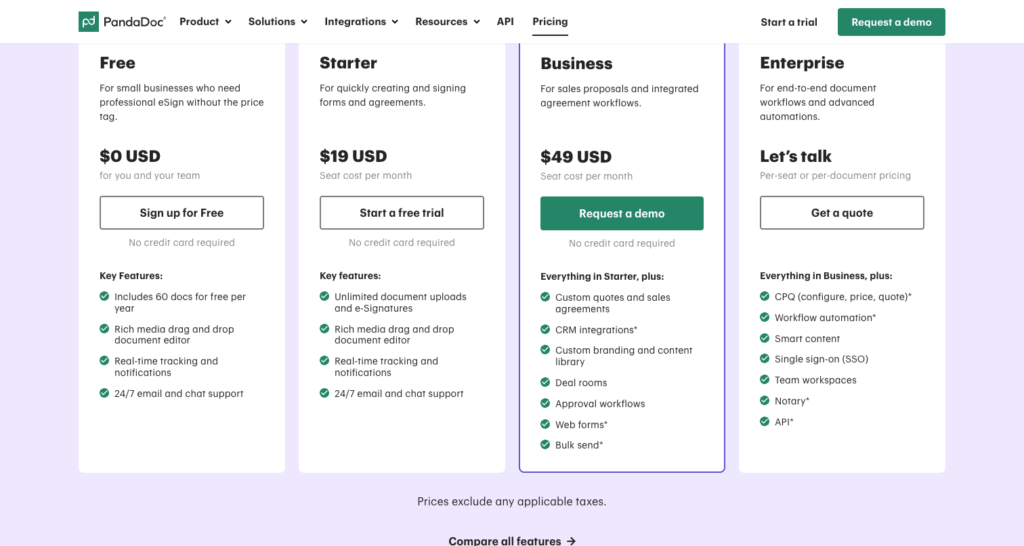
PandaDoc’s published plans. Note that API sits in the Enterprise column, under “Let’s talk” pricing, while Starter and Business are metered per seat.
At the API level, PandaDoc supports document creation from a PDF or a pre-built template, recipient groups, and field placement through its field tags reference. Field tags use bracket notation and cover eight types, including textfield (short form t), checkbox (c), signature (s), date (d), initials (i), dropdown (dd), radio (r), and stamp (st). Radio and stamp each carry their own documented limitations, so a radio block has to sit on one page with unique option values, and a stamp field is square with its height derived from its width. The API changelog documents ongoing updates to this surface.
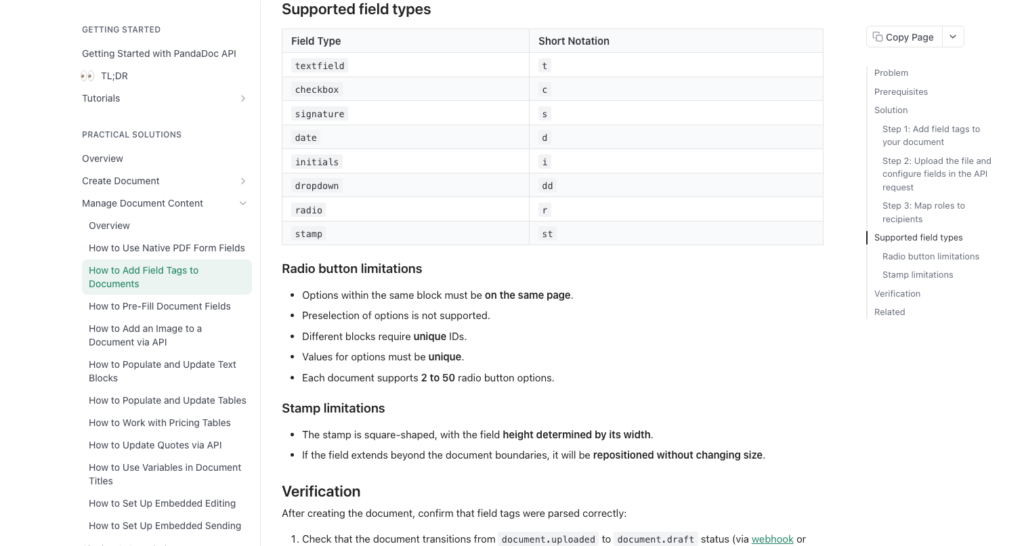
The Supported field types table, with radio and stamp as the two types most roundups miss, each followed by its own limitations section.
For in-app embedding, PandaDoc ships a separate pandadoc.js JavaScript library alongside four official client SDKs covering Python, Node, Java, and PHP. Webhooks fire on document lifecycle events. Branding control is restricted on the lower self-serve tiers.
PandaDoc fits well where the workflow is sales-heavy, covering proposals with approval routing, quotes that require CRM sync, and contracts that evolve through negotiation. That’s a different job than product-embedded signing, which is where the mismatch above comes from.
6 PandaDoc API alternatives
Each of the 6 is scored against the same 7 criteria above, starting with the option built specifically for product-embedded signing.
Foxit eSign API
Foxit eSign’s API is built for the product-embedded use case. Authentication runs over the OAuth 2.0 client-credentials flow against a POST-only, form-encoded token endpoint at POST https://na1.foxitesign.foxit.com/api/oauth2/access_token, and a JSON body to that endpoint returns HTTP 415 because it accepts only application/x-www-form-urlencoded. The regional hosts, per the Foxit eSign developers guide, are na1.foxitesign.foxit.com (US), eu1.foxitesign.foxit.com (EU), na2.foxitesign.foxit.com (CA, not ca1), and au1.foxitesign.foxit.com (AU).
Embedded signing runs through createEmbeddedSigningSession, and the parameter does not work on its own. Setting it to true with nothing else returns {"result": "error", "error_description": "email id of embedded signer(s) not submitted"} and no folder at all, which is the single most common way to lose an afternoon here. You have to pair it with either embeddedSignersEmailIds, an array naming the signers who get a session, or createEmbeddedSigningSessionForAllParties set to true, which covers every party on the envelope. Either pairing returns result: success and a top-level embeddedSigningSessions array whose entries carry emailIdOfSigner, embeddedToken, and embeddedSessionURL, the last of which is what you load in your own iframe. Setting createEmbeddedSigningSessionForAllParties alone, without createEmbeddedSigningSession, is silently ignored, returning success with folderStatus: DRAFT and no sessions.
{
  "folderName": "Customer agreement",
  "inputType": "base64",
  "base64FileString": ["<base64 of your PDF>"],
  "fileNames": ["agreement.pdf"],
  "processTextTags": true,
  "sendNow": false,
  "parties": [
    {
      "firstName": "Jane",
      "lastName": "Smith",
      "emailId": "[email protected]",
      "permission": "FILL_FIELDS_AND_SIGN",
      "sequence": 1
    }
  ],
  "createEmbeddedSigningSession": true,
  "embeddedSignersEmailIds": ["[email protected]"]
}
The body above is the minimum that produces a working session. The one behaviour worth planning around is that folderStatus comes back as SHARED rather than DRAFT even with sendNow: false, because the envelope has to be live for the session URL to open. No email goes out either way, so sendNow: false still means the signer only reaches the document through the URL you hand them.
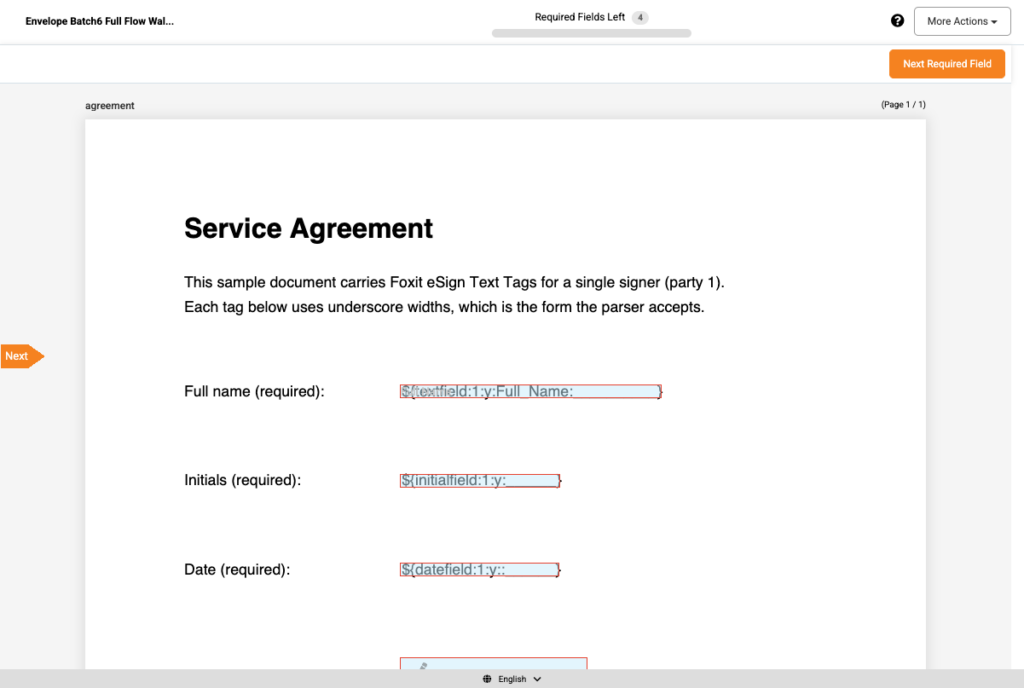
The embeddedSessionURL opened in a browser. The “Required Fields Left” counter in the header confirms the Text Tags were parsed into interactive fields rather than left as literal text.
Branding is handled by the themeColor parameter, four redirect parameters (signSuccessUrl, signDeclineUrl, signLaterUrl, signErrorUrl), and a long list of visibility toggles that goes well beyond the three most roundups mention. Alongside hideSenderName, hideFolderName, and hideDocumentsName, the developers guide documents hideSignerSelectOption, hideSignerActions, hideAddMeButton, hideAddNewButton, hideAddGroupButton, hideDeclineToSign, hideMoreAction, and hideNextRequiredFieldBtn, among others. Notification emails carry their own path through emailTemplateId, which applies an account-level template with custom content, logo, button colour, and footer. What the guide does not document anywhere is full white-label customization, and there is nothing in it about suppressing Foxit’s own mail delivery in favour of your SMTP server.
The client-library position is a documented REST API with request samples in cURL, PHP cURL, .NET, and Java, plus the official Foxit eSign Postman collection. No language-specific SDK exists. The collection imports cleanly, but two of its request bodies need their JSON repaired before they will run. “Create Envelope from URL” carries "inputType": "{"inputType": "url"}" with unescaped nested quotes, and sending it verbatim against the live sandbox returns HTTP 400 with Unexpected character ('i' (code 105)): was expecting comma to separate OBJECT entries. “Create Envelope from Base64” holds a bare unquoted base64 token inside an array and sets inputType to base64FileString, where the value the API actually accepts is base64. Both are quick fixes, but budget for them rather than assuming the collection runs as downloaded.
Compliance splits across two sources. The Foxit eSign compliance page documents conformance with eIDAS AES and QES (QES applies when used with a qualified trust service provider), ESIGN, UETA, HIPAA, GDPR, 21 CFR Part 11, and CCPA. The Foxit trust center is the source for SOC 2 Type 2 attested operations and for the Business Associate Agreement, which it frames as available where applicable rather than as a blanket offer.
Pricing is consumption and credit-based across the whole Foxit API Platform, which consolidates eSign alongside PDF Services, Document Generation, and PDF Embed on one account and one credit pool. The free Developer plan carries 500 shared credits per year, eSign is metered at 5 credits per envelope, and no credit card is required to open the account. That works out to roughly 100 envelopes on the free tier. Activating eSign provisions a 30-day Business trial in TEST mode, where completed envelopes are watermarked, so plan the production cutover separately from the integration work.
Best fit for teams building compliance-regulated products that need regional data residency, a granular compliance certification list, and an embedding mechanism that keeps signers inside the host application.
DocuSign eSignature API
DocuSign’s eSignature API is the most mature option on this list, with the broadest ecosystem of third-party integrations. Authentication supports OAuth2 authorization code and JWT grants, and the JWT path suits server-side integrations.
Embedded signing uses a recipient view URL returned by the API. The embedded signing guide is explicit that iframes work but come with conditions, stating that they “are not supported with all types of authentication options or SBS pen types” and that “Only full-screen iframes are supported for signers on mobile devices.” The newer focused view only works inside an iframe, and DocuSign’s own JavaScript library builds that iframe in the DOM for you. Client SDKs cover eight platforms, namely C#, Java, Node.js, PHP, Python, Ruby, iOS, and Android. Webhooks fire on a detailed event set including envelope and recipient lifecycle states, and payloads can be verified against a shared HMAC key.
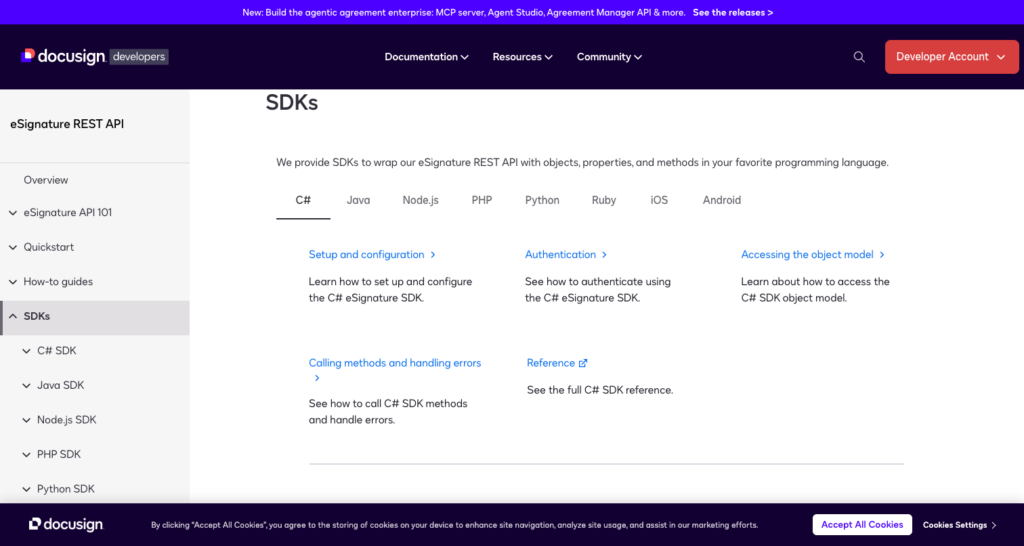
The eight tabs on DocuSign’s SDK page. The two mobile SDKs are easy to miss because the page opens on C# by default.
Compliance certifications include SOC 2 Type 2, ISO 27001, HIPAA (via BAA, plan-dependent), eIDAS, ESIGN, and UETA. FedRAMP Moderate authorization covers eSignature and CLM on a Government Community Cloud deployment, which DocuSign describes as running on “special servers that only house government data.” That is a separate environment from the commercial cloud, so treat it as a distinct procurement path rather than a property of the standard product. See DocuSign eSignature plans for the current plan structure. Pricing is per-seat and per-envelope depending on plan tier.
A free developer account is available with “No obligation, no credit card required.” It runs against the demo environment rather than production, so promoting an integration means a separate go-live review.
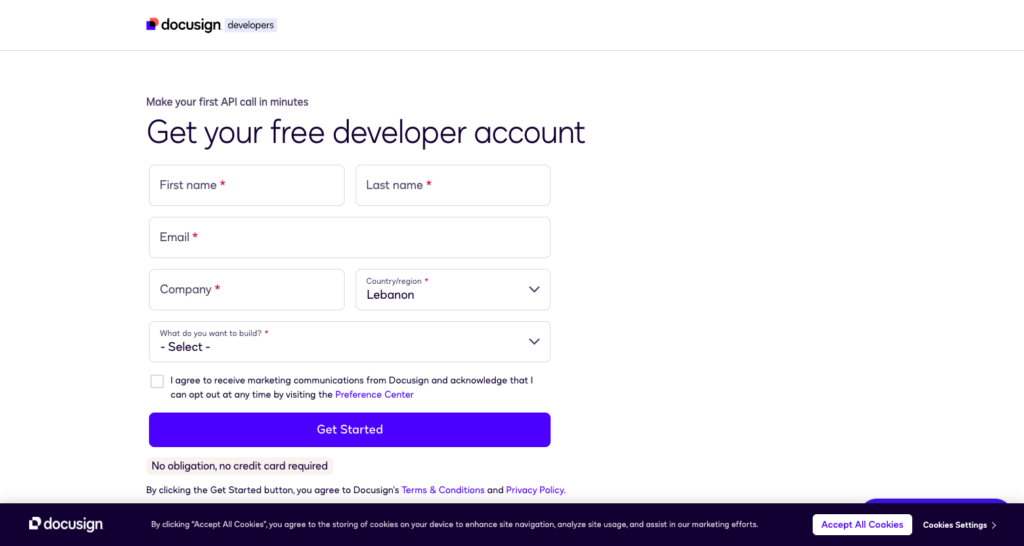
The developer account form. The no-credit-card condition sits directly under the submit button, and the account it creates is a demo environment.
Best fit for enterprises with existing DocuSign contracts, teams that need FedRAMP coverage on the government cloud, or projects where the size of the SDK ecosystem reduces integration risk.
Adobe Acrobat Sign API
Adobe Acrobat Sign’s REST API, documented at the Acrobat Sign developer guide, offers OAuth2 authorization code and refresh token flows. Embedded signing redirects the signer to Adobe’s domain by default, though the API does support returning a signing URL you can iframe, and the configuration is less straightforward than dedicated embedded-first APIs.
Adobe does publish SDKs, and the SDK Downloads page names C#, JAVA, JavaScript, OpenAPI, and REST, each with a readme, docs, and a repo download. The more decision-relevant fact is printed on that same page, where Adobe states that “The SDKs are obsolete and haven’t been in sync with REST v6 APIs for a while” and directs developers to the API endpoints and the Postman workspace instead. Treat the SDK list as historical and plan on raw REST calls.
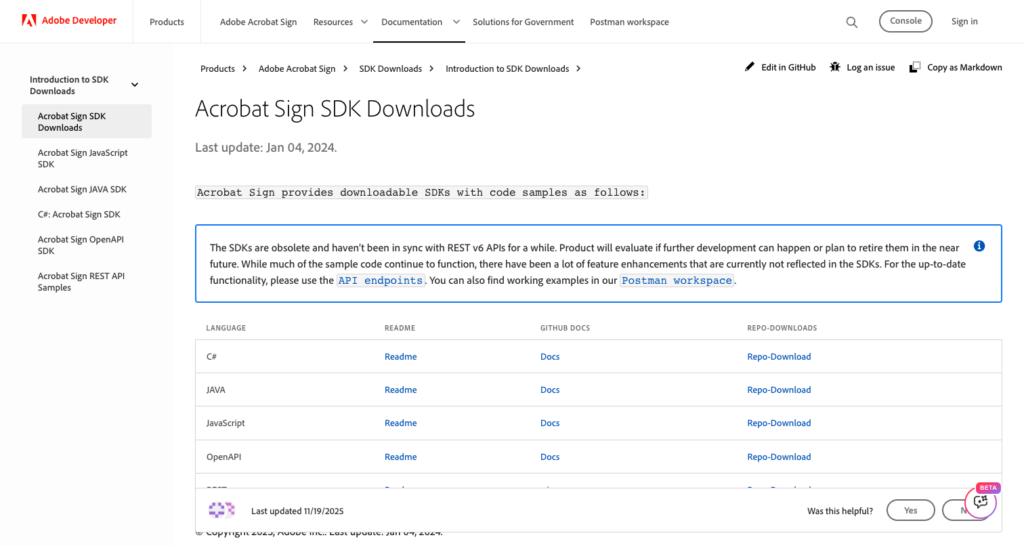
Adobe ships five SDKs and marks them obsolete on the same page. The blue callout is the sentence that should drive your integration plan.
Adobe integrates natively with Microsoft 365, Creative Cloud, and Acrobat. Webhooks fire on the AGREEMENT, WIDGET, and MEGASIGN resource types, scoped at ACCOUNT, GROUP, USER, or RESOURCE level, so bulk-send events are covered alongside agreements and web forms.
Compliance includes SOC 2 Type 2, ISO 27001, FedRAMP Moderate on the Acrobat Sign for Government offering, HIPAA (via BAA, plan-dependent), eIDAS, ESIGN, and UETA. Adobe publishes no standalone Acrobat Sign pricing page reachable through standard navigation, and plan structure varies by Adobe agreement type, so pricing is generally per-seat and negotiated. A free Acrobat Sign Developer Edition account does exist, and the developer guide states that it includes access to the Acrobat Sign API plus testing for document exchange and execution.
Best fit for organizations already running the Adobe enterprise stack, or where native Acrobat and Creative Cloud integration reduces friction for document authors.
Dropbox Sign API
Dropbox Sign (formerly HelloSign) is API-first by design. The SDK overview lists SDKs generated from an OpenAPI spec covering C#, Java, PHP, Python, Ruby, and Node.js. Authentication uses OAuth2 authorization code for user-facing flows and an API key for server-to-server calls.
Embedded signing returns a URL from the API that you load in an <iframe>, and the vendor’s hellosign-embedded JavaScript package manages the iframe lifecycle. Webhooks carry HMAC-SHA256 signatures for payload verification and fire on a full set of signature request lifecycle events.
Compliance covers SOC 2 Type 2, HIPAA (via BAA, plan-dependent), eIDAS, ESIGN, and UETA. Pricing on the Dropbox Sign API product page is volume-based rather than per-seat, with monthly subscription tiers keyed to signature-request count. Essentials starts at $75 per month and 50 requests, Standard at $250 per month and 100 requests, and Premium is custom, with volumes over 500 requests per month routed through sales. The API itself is free in test mode, which is how you validate an integration before committing to a tier.
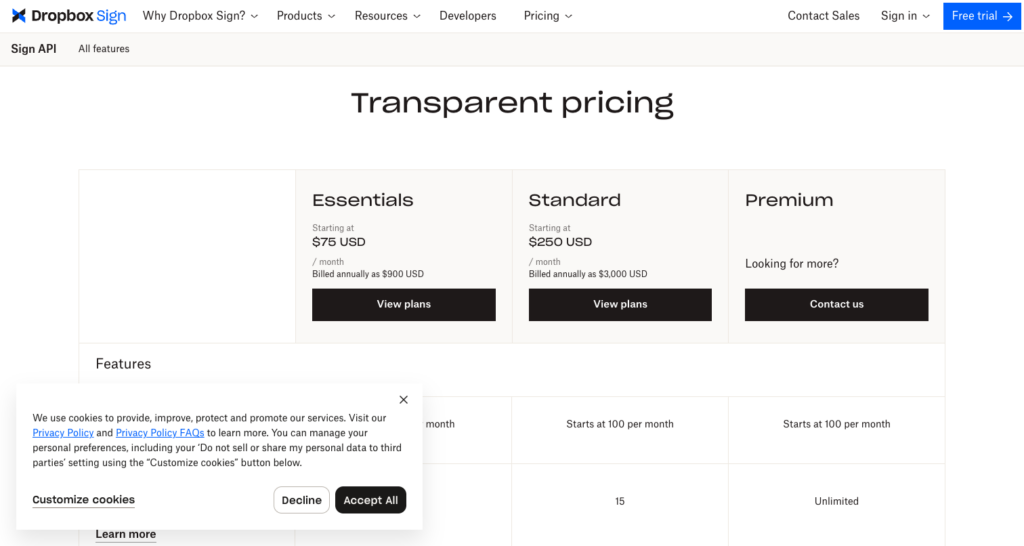
Dropbox Sign meters the API by signature request volume. No seat count appears anywhere on the API product page.
Best fit for teams that want broad official SDK coverage and a developer-first embedded signing path, particularly where a Dropbox ecosystem connection is already present.
SignNow API
SignNow’s API treats white-labeling as a documented, first-class capability. The white-labeled signing guide covers brand containers created with POST /v2/brands, logo upload through POST /v2/brands/{brand_id}/resources/logo, background and button colour control through PUT /v2/brands/{brand_id}/resources/general, and per-element visibility in the signing editor through PUT /v2/brands/{brand_id}/resources/editor. The same guide tells you not to use SignNow’s default email delivery and to “trigger your own emails using your SMTP server” instead, which is the piece that makes full brand suppression achievable. Authentication is OAuth2 authorization code and password grant, and the SignNow API docs document the full flow.
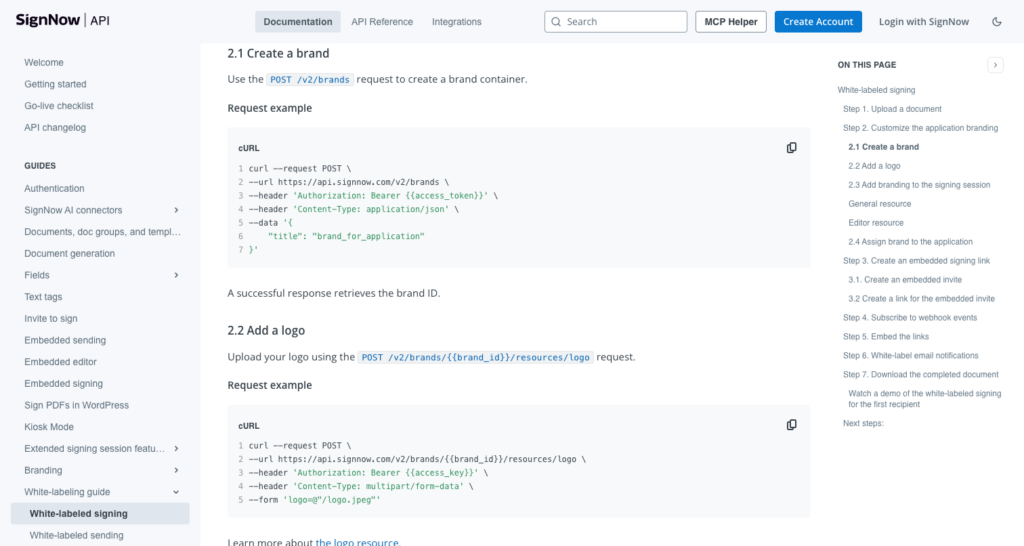
The brand container and logo endpoints, with the request bodies inline. This is the page that carries the detail, not the white-labeling index.
Embedded signing is iframe-based, generated via POST /v2/documents/{document_id}/embedded-invites. Official SDKs cover PHP, Python, Java, .NET, and JavaScript. Webhooks support document lifecycle events. Compliance includes SOC 2 Type 2, HIPAA, eIDAS, ESIGN, UETA, and GDPR.
Pricing is volume-based, not per-seat. Every tier on the SignNow plans page is marked “Unlimited users” under the headline “Free unlimited users with plans that scale,” with Business at $8 per month, Business Premium at $15, and Enterprise at $30, each including 100 signature invites per year. Full API access sits on the Site License tier, which is priced at $1.50 per signature invite with volume discounts.
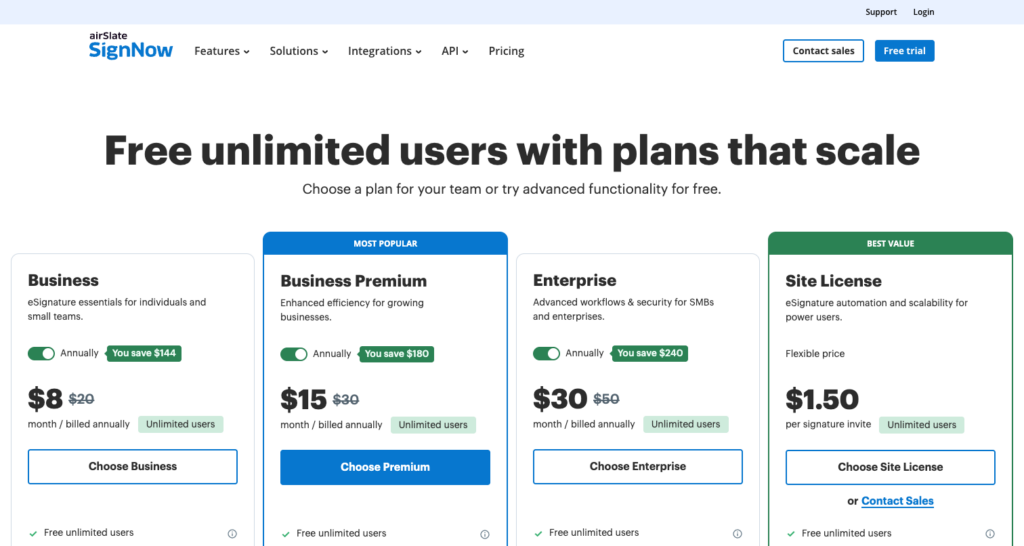
Every SignNow tier carries an “Unlimited users” badge. The Site License column, where full API access lives, is metered per signature invite.
Best fit for SaaS products where the requirement is full brand suppression of the signing vendor, including email notifications and signing UI chrome.
BoldSign API
BoldSign is API-first, developer-first. The BoldSign developer docs document iframe-based embedded signing through a Get Embedded Signing Link API that returns a URL you drop into an <iframe>. Official client libraries cover .NET (C#), PHP, Python, Java, and Node.js. Authentication supports both API key and OAuth2 access token patterns. Webhooks notify on document events.
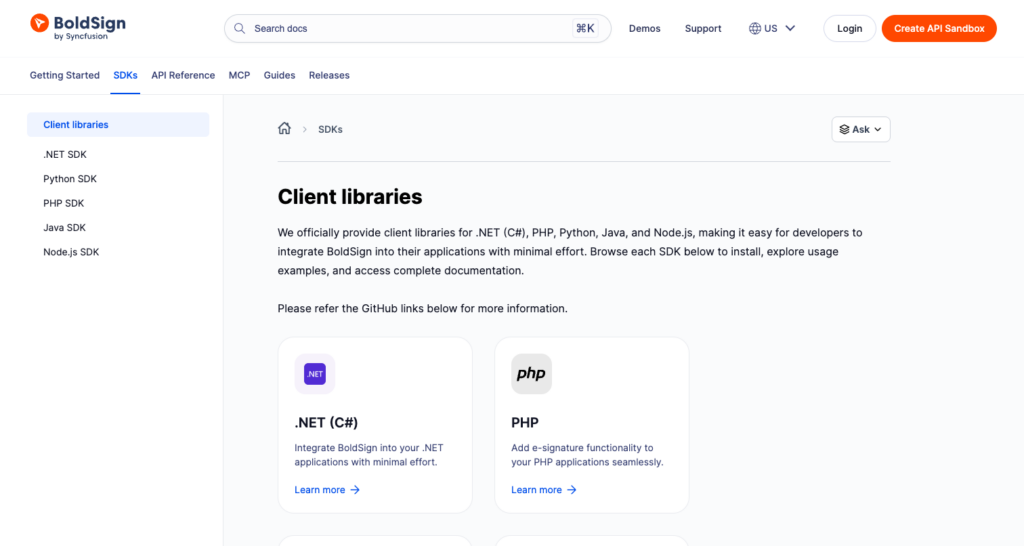
BoldSign’s client libraries page. All five are vendor-maintained, with GitHub links per language.
Compliance documentation covers SOC 2 Type 2, eIDAS, ESIGN, UETA, HIPAA, and GDPR, plus data residency in the US, EU, Canada, and Australia. HIPAA is the one certification that is plan-gated, appearing first on the Business plan and carried upward from there, including on the Enterprise API plan. Everything else in that list is present on every tier.
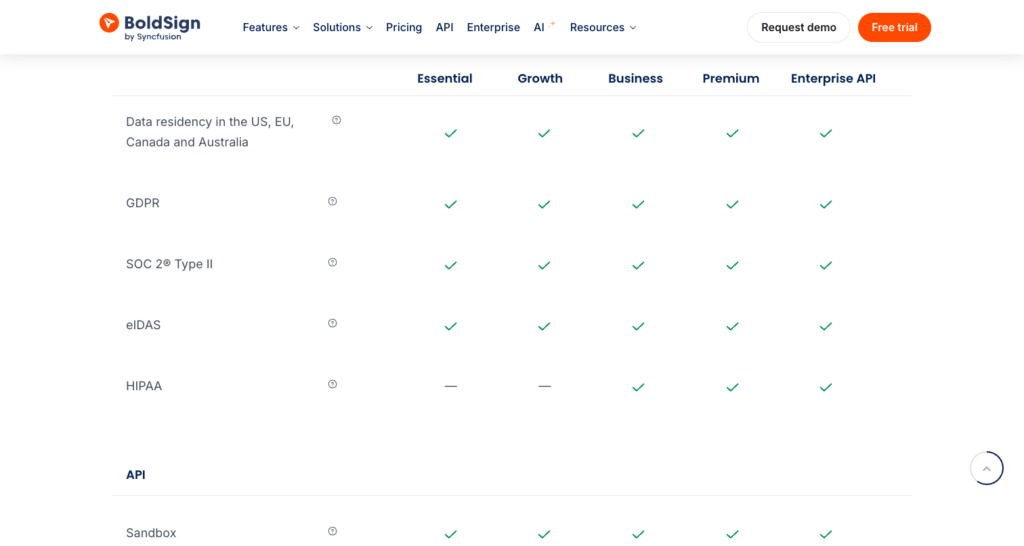
The compliance block of BoldSign’s plan comparison. HIPAA is the only row with dashes, and they sit on the two cheapest tiers.
The API product is priced per envelope rather than per seat. That distinction matters because BoldSign’s web app tiers are seat-based and the two get conflated. The Enterprise API plan is $0.75 per envelope, starting at $30 per month with 40 envelopes included. A free sandbox gives full API access with no credit card required, with signed documents watermarked and deleted automatically 14 days after creation.
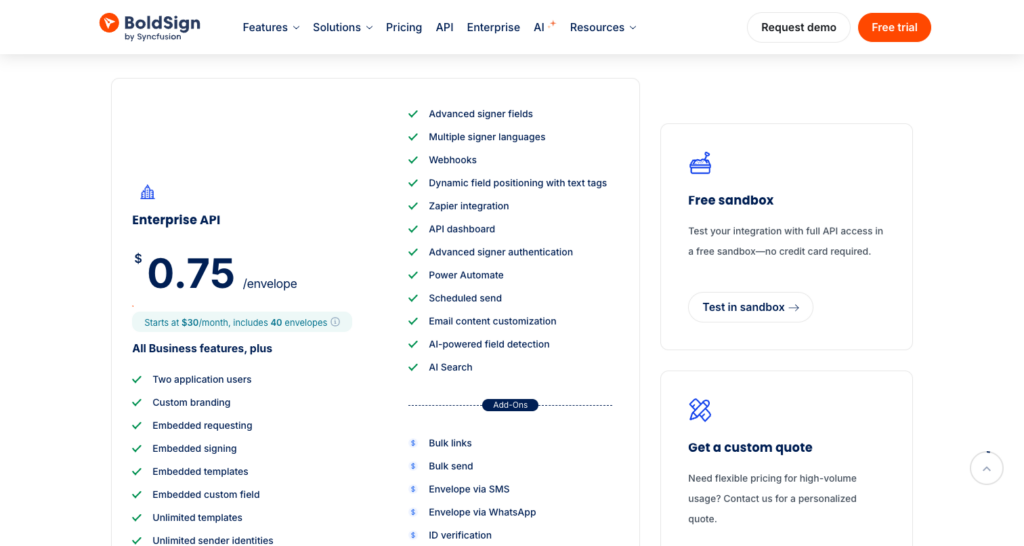
BoldSign’s API tier is metered per envelope. The free sandbox card on the right states the no-credit-card condition.
Best fit for teams that want a modern, lower-overhead alternative to DocuSign with a documented embedded signing path and a no-credit-card sandbox to validate before committing.
Shortlisting your options
| Criterion | Foxit eSign | DocuSign | Adobe Acrobat Sign | Dropbox Sign | SignNow | BoldSign |
|---|---|---|---|---|---|---|
| In-app embedding | Signer stays in your app. iframe URL from createEmbeddedSigningSession plus embeddedSignersEmailIds or createEmbeddedSigningSessionForAllParties | Signer stays in your app. Recipient view URL in an iframe, with auth-method and mobile full-screen caveats | Redirect to Adobe’s domain by default. Signing URL can be iframed, with more configuration | Signer stays in your app. URL from the API, with hellosign-embedded managing the iframe | Signer stays in your app. iframe URL via the embedded-invites endpoint | Signer stays in your app. iframe URL from the Get Embedded Signing Link API |
| Auth approach | OAuth2 client-credentials, POST-only form-encoded endpoint | OAuth2 authorization code and JWT grant | OAuth2 authorization code and refresh token | OAuth2 authorization code, with API key for server-to-server | OAuth2 authorization code and password grant | API key or OAuth2 access token |
| Webhook granularity | Envelope lifecycle events with HMAC secret-key verification | Full envelope and recipient lifecycle with HMAC verification | AGREEMENT, WIDGET, and MEGASIGN resource types, scoped at account, group, user, or resource level | Full signature request lifecycle with HMAC-SHA256 signature | Document lifecycle events | Document lifecycle events |
| Client libraries | REST API with cURL, PHP cURL, .NET, and Java samples, plus a Postman collection whose two envelope-creation bodies need JSON repair. No language SDK | C#, Java, Node.js, PHP, Python, Ruby, iOS, Android | C#, Java, JavaScript, OpenAPI, REST, all marked obsolete by Adobe and out of sync with REST v6 | C#, Java, PHP, Python, Ruby, Node.js (OpenAPI-generated) | PHP, Python, Java, .NET, JavaScript | .NET, Java, Node.js, PHP, Python |
| Compliance certifications | eIDAS AES and QES (QES requires qualified trust service provider), ESIGN, UETA, HIPAA, GDPR, 21 CFR Part 11, CCPA (compliance page), SOC 2 Type 2 and conditional BAA (trust center) | SOC 2 Type 2, ISO 27001, eIDAS, ESIGN, UETA, HIPAA via BAA (plan-dependent), FedRAMP Moderate on the Government Community Cloud | SOC 2 Type 2, ISO 27001, eIDAS, ESIGN, UETA, HIPAA via BAA (plan-dependent), FedRAMP Moderate on Acrobat Sign for Government | SOC 2 Type 2, eIDAS, ESIGN, UETA, HIPAA via BAA (plan-dependent) | SOC 2 Type 2, eIDAS, ESIGN, UETA, HIPAA, GDPR | SOC 2 Type 2, eIDAS, ESIGN, UETA, GDPR, data residency in US, EU, CA, AU. HIPAA from the Business plan upward |
| Pricing model | Consumption and credit-based, shared across eSign, PDF Services, DocGen, and Embed, at 5 credits per envelope | Per-seat and per-envelope (tier-dependent) | Per-seat, negotiated. No standalone Acrobat Sign pricing page is published | Volume-based monthly tiers keyed to signature-request count | Volume-based. Unlimited users on every tier, with full API access on Site License at $1.50 per signature invite | Per-envelope for the API product at $0.75, from $30 per month with 40 envelopes. Web app tiers are per-seat |
| Free developer tier | Yes. Free Developer plan, no credit card, 500 shared credits per year at 5 credits per envelope, roughly 100 envelopes. eSign activation runs 30 days in TEST mode with watermarked envelopes | Yes. Free developer account, no credit card, demo environment rather than production | Yes. Acrobat Sign Developer Edition, free, with API access for testing document exchange and execution | Yes. The API is free in test mode, with paid tiers required for production traffic | Yes. Free trial on the self-serve tiers, with full API access gated to the Site License tier | Yes. Free sandbox, no credit card, full API access. Signed documents are watermarked and deleted after 14 days |
Decision path for compliance-regulated apps. Foxit eSign’s two-source compliance posture covers eIDAS AES and QES, HIPAA, GDPR, 21 CFR Part 11, and CCPA on the compliance page, with SOC 2 Type 2 and the conditional BAA on the trust center, giving regulated teams a verifiable certification list alongside regional host selection across US, EU, CA, and AU. If FedRAMP Moderate is a hard requirement, both DocuSign and Adobe carry it on dedicated government cloud offerings, which is a separate procurement path from their commercial products.
Decision path for lowest-friction embedding. Foxit eSign, Dropbox Sign, and BoldSign all return an embeddable URL from the API with minimal configuration. Foxit eSign and BoldSign let you start with no credit card. Dropbox Sign’s hellosign-embedded library handles iframe lifecycle management if you’d rather not manage that directly.
Decision path for teams already on DocuSign. Stay on DocuSign. The JWT grant, the government cloud coverage, and the existing SDK investment represent switching costs that rarely pay back unless a specific compliance delta or pricing model change forces the move.
Decision path for full white-label. SignNow is the documented choice. Its white-labeled signing guide covers brand containers, logo and colour control, per-element visibility in the signing editor, and the instruction to send signing links from your own SMTP server, a surface no other vendor on this list documents to the same depth.
PandaDoc API alternatives FAQ
Which of these e-signature APIs support HIPAA compliance?
For Foxit eSign, HIPAA is documented on the Foxit eSign compliance page, and the Foxit trust center states that Foxit is prepared to enter into a Business Associate Agreement where applicable, so the BAA is conditional rather than blanket. BoldSign gates HIPAA to its Business plan and above, which its own plan comparison shows explicitly. Across the market, HIPAA support is usually tied to a specific plan tier and a signed BAA rather than being a platform-wide property, so read the plan table rather than the marketing page.
Does Foxit eSign offer a free developer plan?
Yes, through the developer-API sign-up form. No credit card is required, and the account-level pool of 500 shared credits per year (5 per eSign envelope) covers roughly 100 envelopes across the full signing lifecycle before the 30-day TEST-mode trial needs a production decision.
Can I test an e-signature API integration without a credit card?
All six alternatives let you start without one, but what the free environment can do varies. DocuSign’s is a demo environment rather than production, BoldSign watermarks and auto-deletes sandbox documents after 14 days, and SignNow reserves full API access for its Site License tier. Check the free-tier row in the table above for each vendor’s specific conditions.
What auth grant type should a server-side product integration use?
Client-credentials or JWT, since neither requires a human login step at token time. Foxit eSign uses client-credentials; DocuSign supports JWT alongside authorization code. Authorization code grants suit user-facing flows instead.
Conclusion
Choosing among PandaDoc API alternatives comes down to the same seven questions every time, namely whether the signer stays in your app, how the API authenticates, what the webhooks tell you, whether an official client library exists and is current, which certifications are named rather than implied, whether the meter counts seats or envelopes, and how far you can get before a credit card is required. Those answers move. Adobe’s SDKs were current once and are now marked obsolete on Adobe’s own page, SignNow has dropped its seat meter entirely, and a Postman collection can ship with JSON that does not parse. Check the vendor’s live pages rather than a roundup from last year, including this one.
If you want to test a full signing flow today, the Foxit eSign developer account is free, needs no credit card, and gives you 500 shared credits per year across eSign and the rest of the Foxit API platform, which is about 100 envelopes to build against before you decide anything.
How to extract invoice data from PDFs into structured JSON
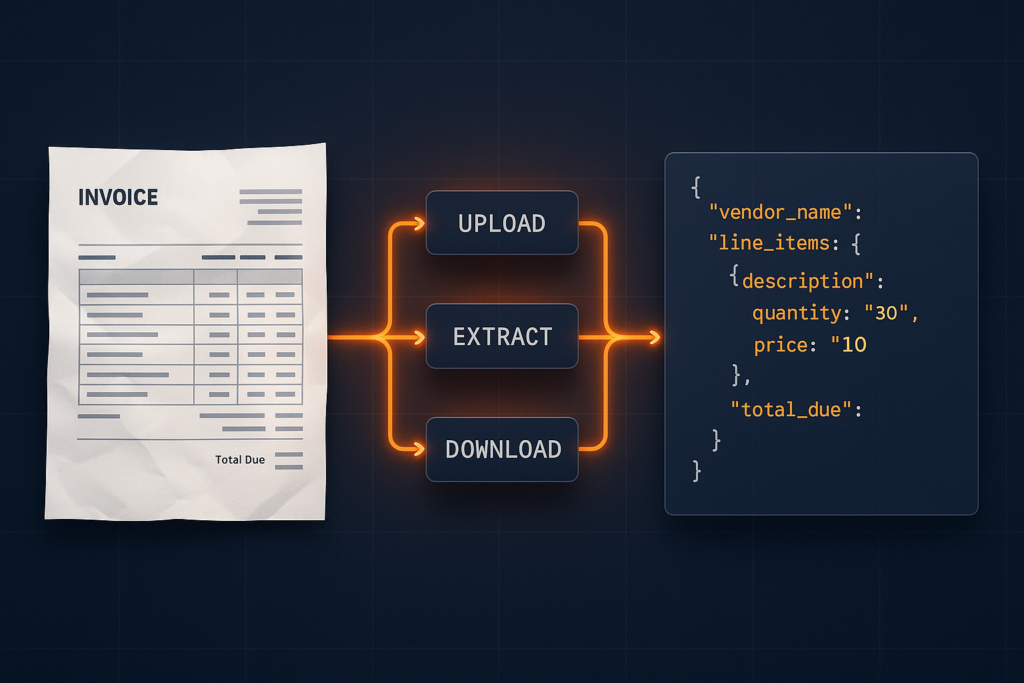
Invoice PDFs rarely follow one layout, so generic text extraction breaks on multi-column tables, wrapped cells, and scanned pages. This guide walks through the four API calls that convert a raw invoice PDF into typed JSON, plus the post-processing code that maps the response onto a clean invoice schema your backend can use right away.
Invoice PDFs are structurally unpredictable. Vendor A ships a five-column line-item table, vendor B embeds the same information in a paragraph block, and half the scanned copies in a legacy archive have no text layer at all. Generic text extraction reads characters in the order they were written to the file rather than the reading order a human sees, so field values drift with every layout variation.
The Foxit PDF Structural Extraction API, also known as the PDF Structural Analysis API, addresses this directly. You submit a PDF invoice and receive a typed, hierarchical JSON document with named element types, bounding regions, and an addressable table cell grid. This guide covers the four REST calls that turn a raw PDF into a StructureInfo.json file, the Python post-processing that maps that output onto a clean invoice schema, and the edge cases your pipeline will hit on real vendor documents. Every response shape and field name below comes from a live run against the API, not from the reference docs alone.
Why invoice PDFs break generic parsers
Three structural problems cause most invoice parsing failures, and OCR accuracy is only one of them.
The first is layout variance across vendors. A PDF’s text layer records characters in the order they were drawn, which often follows vector rendering order rather than left-to-right, top-to-bottom reading order. Extract raw text from a five-column line-item table and you frequently get interleaved fragments, where description text from one column mixes with unit prices from another because the writer rendered all rows of one column before moving to the next. No string-parsing logic reliably recovers column boundaries from that flattened sequence.
The second is merged and multi-row cells. Line-item tables routinely span cells across rows for items with multi-line descriptions. Text extraction collapses those cell boundaries into a flat string and drops the row-to-total relationship an accounting system needs.
The third is rasterized scans with no text layer. A PDF created by scanning a paper invoice contains only an embedded image, so anything that reads the text layer alone comes back empty. That kind of file has image data but no searchable text at all. Tools built for scanned input bundle an OCR step rather than skipping it, and any pipeline you build has to do the same before extraction can happen.
Structure-aware extraction addresses all three by classifying document regions into typed elements before exposing their content.
Invoice fields to target before touching the API
Define the target schema before writing code. A concrete target tells you which elements to read from StructureInfo.json and which to skip, which saves iteration time on every invoice you process.
A workable invoice schema covers three groups:
- Header fields, including vendor name, invoice number, invoice date, due date, and payment terms
- Line items, a repeating array of description, quantity, unit price, and line total
- Footer totals, including subtotal, tax amount, and total amount due
{
  "vendor_name": "",
  "invoice_number": "",
  "invoice_date": "",
  "due_date": "",
  "payment_terms": "",
  "line_items": [
    {
      "description": "",
      "quantity": "",
      "unit_price": "",
      "line_total": ""
    }
  ],
  "subtotal": "",
  "tax": "",
  "total_due": ""
}
Keep every value a string at extraction time. Type conversion, currency parsing, and date normalization belong downstream, after validation, where a bad value can be rejected with context instead of raising inside the parser.
The sample invoice used throughout this guide is invoice_full_test.pdf, so you can run every call below against the same document.
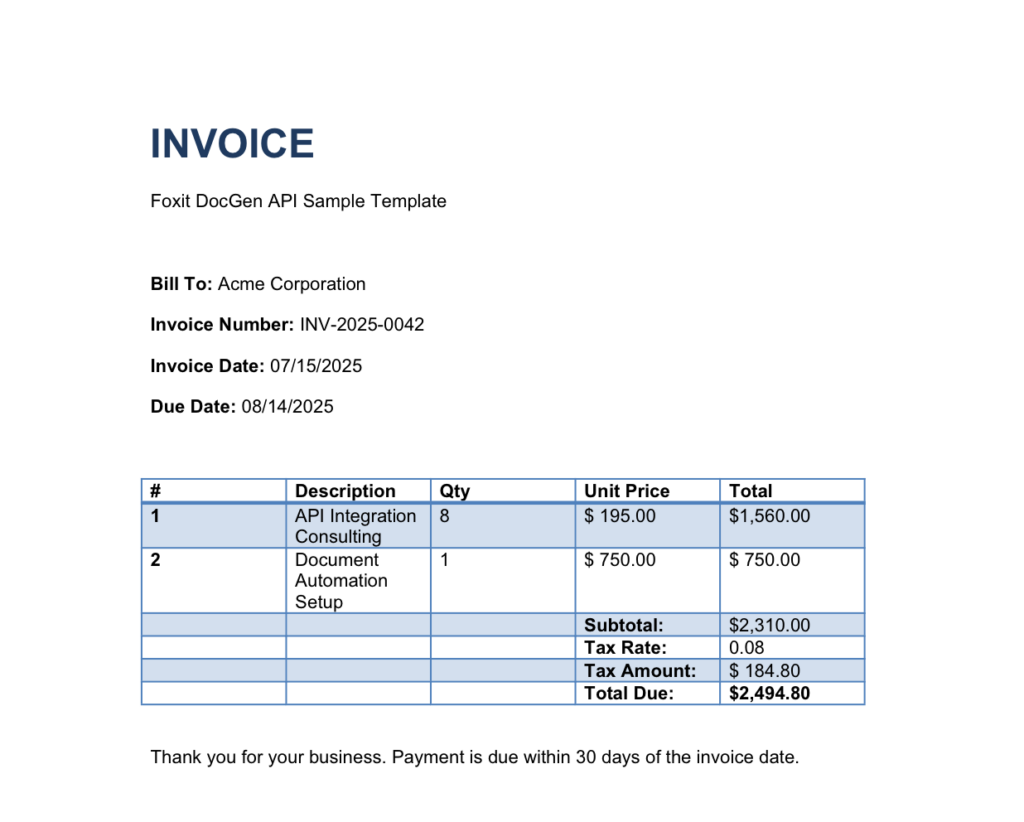
The input document. Notice that the Subtotal, Tax Rate, Tax Amount, and Total Due labels sit in the second-to-last column rather than the first. That detail determines how the post-processing code has to find them.
Prerequisites
You need the following before the first API call:
- Python 3.9 or newer and pip
- A virtual environment via venv, so the dependency below stays isolated
- The requests library for HTTP calls
- A code editor such as VS Code with the Python extension
- A free Foxit developer account
Scaffold the workspace in one shot:
mkdir invoice-extraction && cd invoice-extraction && python3 -m venv .venv && source .venv/bin/activate && pip install requestsThen download the sample invoice into that folder:
curl -L -o invoice_full_test.pdf https://github.com/lucienchemaly/foxit-demo-templates/raw/main/invoice_full_test.pdfFoxit API authentication and setup
Signing up activates a free Developer plan that includes 500 credits per year with no credit card required. A structural extraction call costs one credit, while the upload, polling, and download calls are not billed, so a full run of the workflow below costs a single credit.
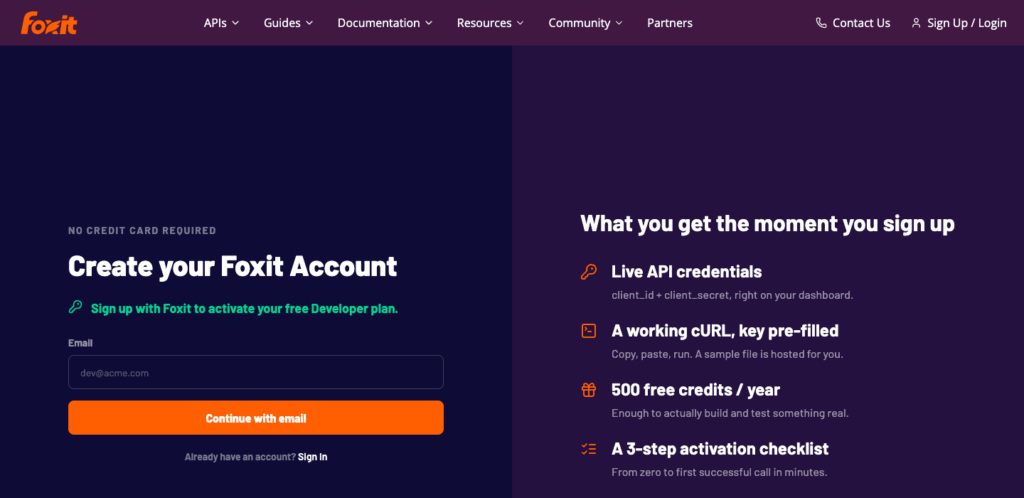
The account creation screen. The free Developer plan is enough to work through this entire guide.
Foxit authenticates PDF Services requests with a client ID and client secret passed as HTTP headers, so there is no OAuth token exchange to implement. Both values come from the default application created in your Developer Portal dashboard, alongside the base URL your calls need.
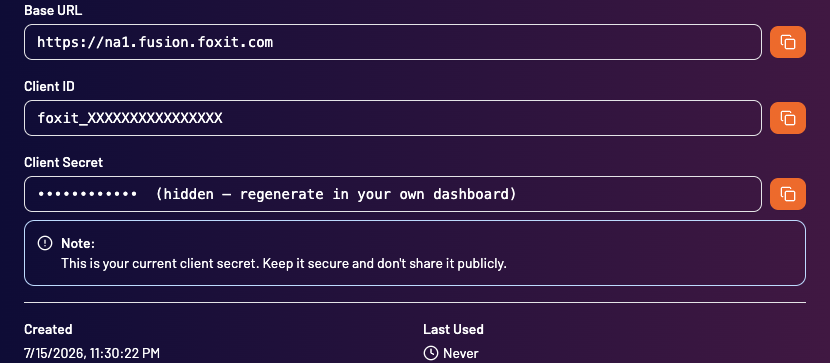
The credentials panel. Copy the Client ID and Client Secret into environment variables rather than pasting them into source files.
Export them into your shell so no credential is ever committed:
export FOXIT_CLIENT_ID="your_client_id"
export FOXIT_CLIENT_SECRET="your_client_secret"
The structural extraction reference page carries a Test Request button that fires live calls straight from the browser, which is the quickest way to confirm your credentials work before writing any Python. The endpoint is currently labelled Trial in the reference, so expect its surface to evolve.
Pin your parser to the version field inside the analyzeResult response. The current schema ships as 1.0.7, and pinning prevents silent breakage if that changes.
The four-step PDF to JSON invoice extraction workflow
The API is asynchronous. You upload a document, start a task, poll until the task completes, then download the result.
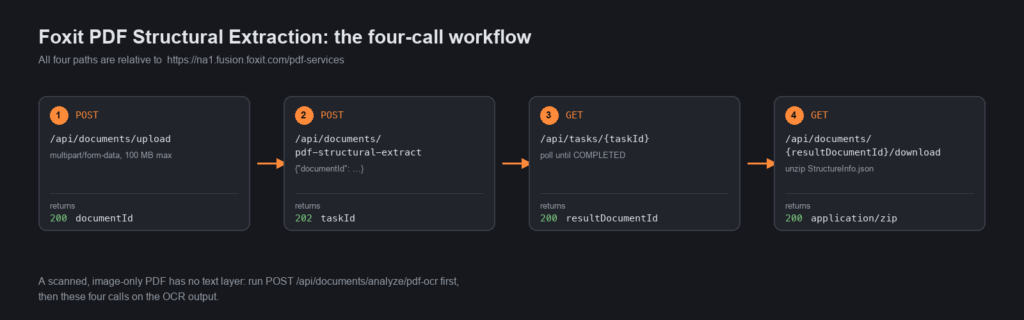
All four paths sit under https://na1.fusion.foxit.com/pdf-services. Calling them without that prefix returns 404.
The path prefix matters more than it looks. The four endpoints live under /pdf-services/api/..., and requesting a bare /documents/{id}/download returns 404 rather than a helpful error.
import io
import json
import os
import time
import zipfile

import requests

BASE_URL = "https://na1.fusion.foxit.com/pdf-services"
HEADERS = {
    "client_id": os.environ["FOXIT_CLIENT_ID"],
    "client_secret": os.environ["FOXIT_CLIENT_SECRET"],
}
POLL_SECONDS = 2
POLL_TIMEOUT = 120


def extract_structure(pdf_path: str) -> dict:
    # Step 1: upload the PDF (multipart/form-data, 100 MB maximum)
    with open(pdf_path, "rb") as handle:
        upload = requests.post(
            f"{BASE_URL}/api/documents/upload",
            headers=HEADERS,
            files={"file": (os.path.basename(pdf_path), handle, "application/pdf")},
        )
    upload.raise_for_status()
    document_id = upload.json()["documentId"]

    # Step 2: start the structural extraction task
    started = requests.post(
        f"{BASE_URL}/api/documents/pdf-structural-extract",
        headers=HEADERS,
        json={"documentId": document_id},
    )
    started.raise_for_status()
    task_id = started.json()["taskId"]

    # Step 3: poll until COMPLETED, bounded, and handle FAILED
    deadline = time.monotonic() + POLL_TIMEOUT
    while True:
        response = requests.get(f"{BASE_URL}/api/tasks/{task_id}", headers=HEADERS)
        response.raise_for_status()
        task = response.json()
        if task["status"] == "COMPLETED":
            break
        if task["status"] == "FAILED":
            raise RuntimeError(f"extraction task {task_id} FAILED: {task}")
        if time.monotonic() > deadline:
            raise TimeoutError(f"task {task_id} stuck at {task['status']}")
        time.sleep(POLL_SECONDS)

    # Step 4: download the result ZIP and read StructureInfo.json
    result = requests.get(
        f"{BASE_URL}/api/documents/{task['resultDocumentId']}/download",
        headers=HEADERS,
    )
    result.raise_for_status()
    with zipfile.ZipFile(io.BytesIO(result.content)) as archive:
        return json.loads(archive.read("StructureInfo.json"))
This code:
- Reads both credentials from the environment.
- Uploads the PDF as multipart form data and captures the returned
documentId. - Hands that id to the extraction endpoint to receive a
taskId. - Polls the task endpoint every two seconds, bounded by a deadline, checking explicitly for
FAILEDso a rejected document raises instead of spinning forever. - Once the status reads
COMPLETED, downloads the ZIP archive using the task’sresultDocumentIdand readsStructureInfo.jsonout of it in memory.
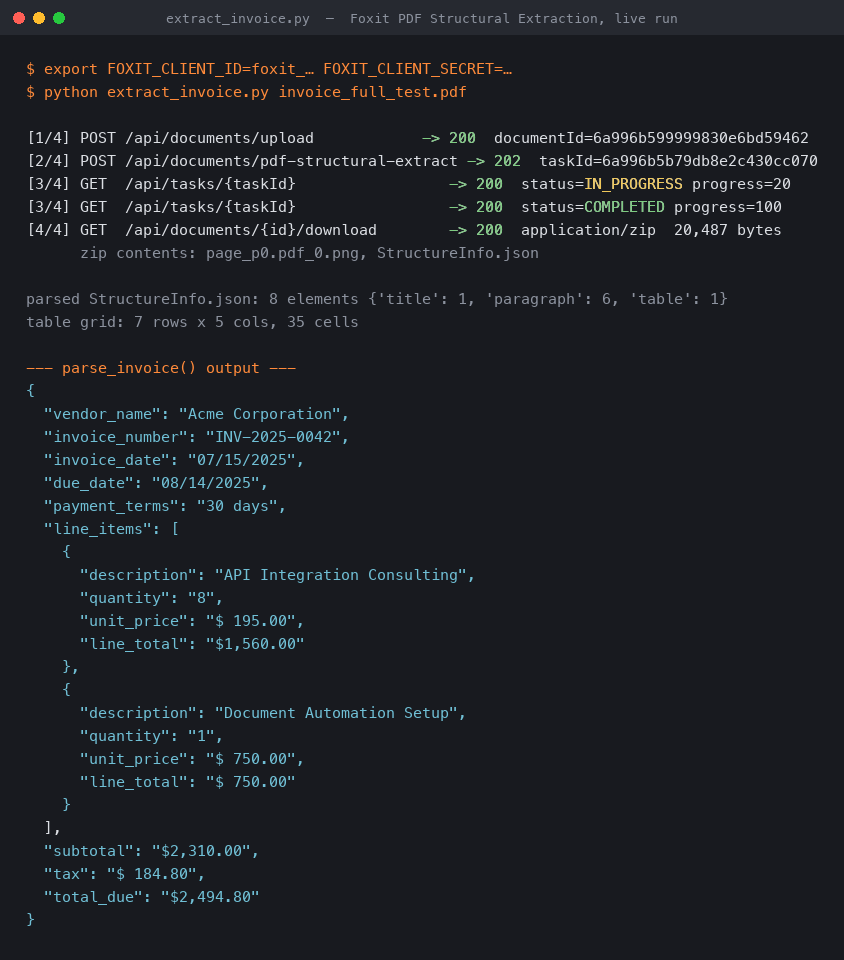
A real run against the sample invoice. The task reports IN_PROGRESS at 20 percent before reaching COMPLETED, and the final object carries every field from the schema defined earlier.
How to map raw output to a clean invoice schema
Choosing an invoice data extraction API is only half the work. The other half is mapping whatever it returns onto a schema your backend already understands, and that mapping is where the shape of the response starts to matter.
StructureInfo.json wraps everything in an analyzeResult object with four top-level keys, version, pages, info, and elements. The elements array is where the work happens. Each element carries a type drawn from twelve values, including paragraph, table, title, image, form, and formula, along with its bounding region and content. The same API can also extract embedded images as standalone image files, in addition to returning them as typed image elements within StructureInfo.json.
Two details in that structure cause most of the bugs in a first implementation, and neither is obvious from the field names.
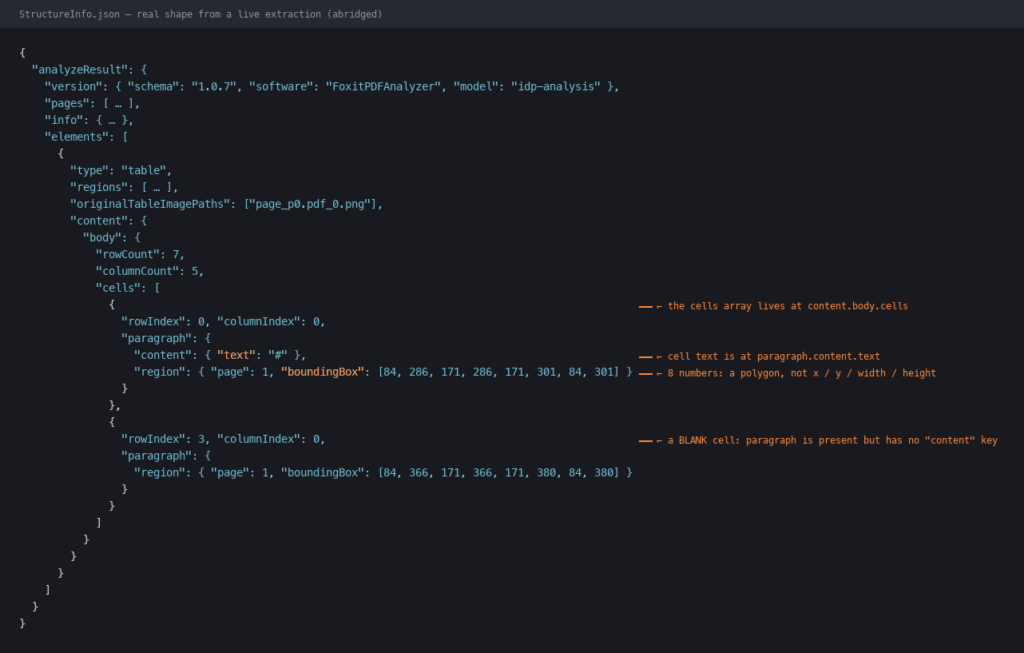
The actual response shape from a live extraction. A table’s cells are nested at content.body.cells, cell text sits at paragraph.content.text, and region.boundingBox is an eight-number polygon rather than an x, y, width, height rectangle.
A table element does not expose a top-level cells array. Its grid is nested at content.body.cells, where each cell carries rowIndex, columnIndex, and a paragraph object. Cell text then sits one level deeper still, at paragraph.content.text, because content is an object rather than a string. Reaching for cell["paragraph"]["content"] returns a dict, not the text you want.
Blank cells are the second detail. When a vendor leaves a cell empty, the API still returns the cell with its indices and a paragraph object, but that paragraph has no content key at all. An unguarded read raises KeyError partway through a document that looked fine in testing.
def element_text(element: dict) -> str:
    """Return an element's text, or an empty string when it carries none."""
    text = element.get("content", {}).get("text", "")
    return " ".join(text.split())


def cell_text(cell: dict) -> str:
    """Return a table cell's text, or an empty string when the cell is blank."""
    return element_text(cell.get("paragraph", {}))
In this code, element_text reads the nested content.text value and normalizes its whitespace, which matters because cell text can contain a literal \r\n where a label wraps across two lines. Using " ".join(text.split()) collapses those into single spaces, whereas .strip() leaves a mid-string newline untouched. cell_text then reuses that helper for table cells, returning an empty string for a blank cell instead of raising.
With the accessors in place, build a grid and read it row by row.
import re

FOOTER_LABELS = ("subtotal", "tax rate", "tax amount", "tax", "total due", "total")
HEADER_PATTERNS = {
    "vendor_name":    r"bill to:\s*(.+)",
    "invoice_number": r"invoice number:\s*(.+)",
    "invoice_date":   r"invoice date:\s*(.+)",
    "due_date":       r"due date:\s*(.+)",
    "payment_terms":  r"payment is due within (.+?) of",
}


def parse_invoice(structure_info: dict) -> dict:
    elements = structure_info["analyzeResult"]["elements"]
    invoice = {key: "" for key in HEADER_PATTERNS}
    invoice.update(line_items=[], subtotal="", tax="", total_due="")

    # Header fields come from paragraph elements above the table
    for element in elements:
        if element["type"] != "paragraph":
            continue
        text = element_text(element)
        for field, pattern in HEADER_PATTERNS.items():
            match = re.search(pattern, text, re.IGNORECASE)
            if match and not invoice[field]:
                invoice[field] = match.group(1).strip()

    tables = [element for element in elements if element["type"] == "table"]
    if not tables:
        return invoice

    grid: dict = {}
    for cell in tables[0]["content"]["body"]["cells"]:
        grid.setdefault(cell["rowIndex"], {})[cell["columnIndex"]] = cell_text(cell)

    # Resolve columns from the header row instead of assuming positions
    columns = {name.lower(): index for index, name in grid.get(0, {}).items() if name}

    def column_for(*candidates, default):
        for candidate in candidates:
            for name, index in columns.items():
                if candidate in name:
                    return index
        return default

    description_col = column_for("description", "item", default=1)
    quantity_col = column_for("qty", "quantity", default=2)
    unit_price_col = column_for("unit price", default=3)
    line_total_col = column_for("total", "amount", default=4)

    for row_index in sorted(index for index in grid if index > 0):
        row = grid[row_index]
        label = next(
            (value.lower().rstrip(":").strip() for value in row.values()
             if value.lower().rstrip(":").strip() in FOOTER_LABELS),
            None,
        )
        if label:
            value = row[max(row)]
            if label == "subtotal":
                invoice["subtotal"] = value
            elif label == "tax amount":
                invoice["tax"] = value
            elif label in ("total due", "total"):
                invoice["total_due"] = value
            continue
        if row.get(description_col):
            invoice["line_items"].append({
                "description": row.get(description_col, ""),
                "quantity": row.get(quantity_col, ""),
                "unit_price": row.get(unit_price_col, ""),
                "line_total": row.get(line_total_col, ""),
            })

    return invoice
In this code, you first walk the paragraph elements and pull header fields out with labelled regular expressions, which works because Foxit exposes each header line as its own element with its reading order preserved. You then flatten the table into a {rowIndex: {columnIndex: text}} grid and resolve column positions from the header row by name, so a vendor who adds a leading row-number column does not shift every field by one. Each subsequent row is classified before it is read, so that if any cell in the row matches a known footer label the row is treated as a total and its value taken from the last populated column, and otherwise the row becomes a line item. Scanning the whole row for the label is the part that matters, because footer labels do not sit in the first column.
Footer totals living inside the line-item table is convenient rather than awkward, since one pass over the cell grid covers line items and totals together. Form elements do not appear on a typical invoice, so there is no need to look for them.
Before and after
The two blocks below show the same data on either side of that mapping. First, one real cell exactly as the API returns it, taken verbatim from the run above:
{
  "paragraph": {
    "type": "paragraph",
    "content": {
      "text": "API Integration\r\nConsulting"
    },
    "region": {
      "page": 1,
      "boundingBox": [171, 300, 258, 300, 258, 328, 171, 328]
    },
    "id": "paragraph12",
    "paragraphOrder": 12
  },
  "rowSpan": 1,
  "columnSpan": 1,
  "rowIndex": 1,
  "columnIndex": 1,
  "region": {
    "page": 1,
    "boundingBox": [171, 300, 258, 300, 258, 328, 171, 328]
  },
  "score": 0.8555269837379456
}
That fragment is the shape of every cell you will handle. The text is nested at paragraph.content.text rather than sitting directly on the cell. The position arrives as an eight-number boundingBox polygon on both the cell and its paragraph, not as a rectangle. And the value itself contains a literal \r\n where the description wrapped onto a second line in the source table, which is the case .strip() silently fails to clean.
Second, the complete object parse_invoice returns for the whole document, which is what your backend actually consumes:
{
  "vendor_name": "Acme Corporation",
  "invoice_number": "INV-2025-0042",
  "invoice_date": "07/15/2025",
  "due_date": "08/14/2025",
  "payment_terms": "30 days",
  "line_items": [
    {
      "description": "API Integration Consulting",
      "quantity": "8",
      "unit_price": "$ 195.00",
      "line_total": "$1,560.00"
    },
    {
      "description": "Document Automation Setup",
      "quantity": "1",
      "unit_price": "$ 750.00",
      "line_total": "$ 750.00"
    }
  ],
  "subtotal": "$2,310.00",
  "tax": "$ 184.80",
  "total_due": "$2,494.80"
}
The wrapped description has become the single clean string "API Integration Consulting", the header fields have been lifted out of the paragraph elements above the table, and the four footer rows have been separated from the two genuine line items. That output is backend-ready, so you can write it straight to a database, push it to a reporting pipeline, or validate it against an accounts-payable schema without further parsing.
Common mistakes
- Dropping the path prefix. All four endpoints sit under
/pdf-services/api/.... A bare/documents/{id}/downloadreturns 404. - Reading
cellsoff the table element. The grid is nested atcontent.body.cells. A top-levelcellslookup raisesKeyError. - Treating
paragraph.contentas a string. It is an object, so the text is atparagraph.content.text. - Assuming footer labels are in column 0. On real invoices they commonly sit in the second-to-last column, with the value beside them.
- Forgetting blank cells. A blank cell keeps its
paragraphobject but carries nocontentkey. - Polling without a bound. A
FAILEDtask never becomesCOMPLETED, so an unboundedwhile Trueloop hangs. - Trusting
info.basicInfo.elementCounts. It can disagree with the length of theelementsarray, so size loops from the array itself. - Using
.strip()to clean cell text. A wrapped label contains a mid-string\r\nthat.strip()leaves in place. Use" ".join(text.split()).
Invoice parsing FAQ
What is invoice data extraction from PDF?
Invoice data extraction from PDF is the programmatic conversion of semi-structured PDF invoice content into a schema-typed data object. The source can be a digital-native PDF with an embedded text layer or a scanned image-only PDF that needs OCR first. The output is a structured record, typically JSON, with typed fields for header values, line items, and totals that downstream systems consume without manual parsing.
How do I extract line items from a PDF invoice?
Line items live in table elements inside StructureInfo.json. Read the grid from content.body.cells, where every cell carries a rowIndex and columnIndex, build a {rowIndex: {columnIndex: text}} dictionary, resolve the column positions from the header row, then read each data row in column order. Classify rows before reading them so footer totals are not appended as line items.
Can an extraction API handle scanned PDF invoices?
The PDF Structural Extraction API expects a PDF that already has a text layer. Tested against an image-only PDF, it returns no text and an empty table rather than an error. To handle scans, run the document through Foxit’s OCR endpoint first (POST /pdf-services/api/documents/analyze/pdf-ocr with outputFormat set to PDF), then pass the OCR output through the four-step workflow. That makes five calls rather than four, and the OCR step is billed as its own credit.
What does the JSON output from PDF invoice extraction look like?
The downloaded ZIP unpacks to StructureInfo.json, holding an analyzeResult object with version, pages, info, and elements keys. The elements array carries every classified region, each with a type drawn from twelve values. A table element nests its grid at content.body.cells, and each cell’s text sits at paragraph.content.text.
Why build a grid instead of iterating the cells array directly?
A grid keyed by row and column decouples your field mapping from the order the API happens to return cells in, and it lets you address a specific position directly, which is what the footer-label check needs. It also makes missing cells visible as absent keys rather than as silently shifted values.
What element types does the API classify?
The API classifies regions into twelve element types, including paragraph, table, title, image, form, and formula. On a typical invoice, paragraph elements carry the header fields while a single table element carries both line items and footer totals, so filtering by type lets you target only what your schema needs.
How should I handle invoices where footer totals sit outside the line-item table?
Some layouts place totals in a separate table element or in standalone paragraph elements below the main table. Keep the row-classification logic in its own function so you can apply it to a second table element, then fall back to scanning paragraph elements for currency-formatted strings next to known label text.
Wrapping up
The four-step workflow of upload, extract, poll, and download produces a typed, hierarchical JSON document from any digital-native invoice PDF. Post-processing the elements array through a row and column grid turns that into a clean invoice object your backend can consume directly. The same four calls extend to purchase orders, receipts, and any other tabular financial document, with only the mapping logic changing to match the target schema.
The Foxit PDF Structural Extraction API is part of the broader Foxit PDF Services API, which covers conversion, compression, OCR, and other document operations under the same credential set. The infrastructure is SOC 2 Type II certified, with GDPR-supporting features and HIPAA-aligned controls including BAA availability, which matters for teams processing financial documents under compliance review.
The complete script from this guide is available as extract_invoice.py if you want to run it before adapting it.
Create your free developer account and start turning invoice PDFs into structured JSON today. No credit card required, and the 500 credits on the free Developer plan are enough to build and test something real.
How Foxit compares to Google Document AI for document data extraction
Seven Google Document AI processors are being retired in June 2026, pushing teams to look at alternatives. This comparison walks through integration setup, extraction architecture, output schema, and data residency for Foxit’s PDF Structural Extraction API against Google Document AI, so you can decide with real implementation detail instead of a feature list.
Seven Google Document AI processors hit end-of-life on 30 June 2026. Google is retiring the Enterprise Document OCR, Expense, Custom classifier, Custom splitter, Invoice, Pay slip, and Bank statement parsers, and processor versions follow a rolling schedule where each version is deprecated six months after a newer one ships.
For many teams, the deprecation notice does more than prompt a migration ticket. It opens a broader question about whether Google Document AI is still the right foundation for the extraction stack, and what the credible Google Document AI alternatives actually look like once you compare them on implementation detail rather than feature lists.
This article gives you the technical specifics to make that call, comparing the Foxit PDF Structural Extraction API and Google Document AI across five dimensions that drive the real build-vs-switch decision, covering integration overhead, extraction architecture, output schema, document and language coverage, and data residency.
Five axes for evaluating Google Document AI alternatives
Any extraction API comparison lives or dies on the criteria it uses. These five dimensions cover what a production engineering team actually cares about, going well beyond a proof-of-concept benchmark.
Integration complexity measures how many external dependencies you must provision before your first call returns data. A tool that requires a GCP project, service account, IAM role grants, and billing enablement adds meaningful friction before a single byte of document gets processed. For teams with CI/CD pipelines and strict access-control policies, every new cloud dependency is a potential blocker.
Extraction architecture covers how the API reads a document internally, including what happens when a file mixes scanned pages, machine-typed text, and embedded tables in the same document.
Output schema determines how much post-processing your downstream systems require. A flat token list forces you to reconstruct document structure yourself, while a pre-labeled semantic taxonomy reduces that burden before the data reaches your RAG pipeline or BI dashboard.
Document and language coverage sets the practical ceiling on what you can run through the API in production. Language breadth matters especially for multi-region workloads processing invoices or contracts in non-Latin scripts.
Data residency encompasses where documents travel during processing, how long they remain on third-party infrastructure, and what audit evidence you can produce for compliance reviews. For regulated industries, this dimension often decides the question before the others are evaluated.
Integration setup and authentication overhead
Getting to a first call on Google Document AI requires a GCP project, a service account with an IAM role assignment (at minimum roles/documentai.apiUser), billing enablement on the project, and an environment variable pointing to a downloaded service account JSON key. Teams outside the GCP ecosystem absorb all of that as onboarding cost before any extraction runs.
Foxit’s path is shorter. Create a free developer account at the Foxit Developer Portal, retrieve your client_id and client_secret from the default application, and attach them as two HTTP headers on every request. The entire setup takes minutes and requires nothing from GCP.
Prerequisites
To run the code below you need Python 3.8+, the requests library installed into an isolated virtual environment with pip, an editor such as VS Code with the Python extension (PyCharm or Sublime Text work equally well), and a free Foxit developer account from app.developer-api.foxit.com/sign-up to supply the two credential values. Scaffold the workspace in one shot:
mkdir foxit-extract && cd foxit-extract && python3 -m venv .venv && source .venv/bin/activate && pip install requestsExtraction then follows a four-step asynchronous workflow, annotated at each step:
export FOXIT_CLIENT_ID="your_client_id"
export FOXIT_CLIENT_SECRET="your_client_secret"
Extraction then follows a four-step asynchronous workflow, annotated at each step:
import os
import requests
import time

BASE_URL = "https://na1.fusion.foxit.com/pdf-services/api"
HEADERS = {
    "client_id": os.environ["FOXIT_CLIENT_ID"],          # lowercase snake_case, not Authorization: Bearer
    "client_secret": os.environ["FOXIT_CLIENT_SECRET"]
}

# Step 1: Upload the document (multipart/form-data, field name "file", max 100 MB)
with open("contract.pdf", "rb") as f:
    upload_resp = requests.post(
        f"{BASE_URL}/documents/upload",
        headers=HEADERS,
        files={"file": f}
    )
document_id = upload_resp.json()["documentId"]

# Step 2: Start structural extraction
extract_resp = requests.post(
    f"{BASE_URL}/documents/pdf-structural-extract",
    headers=HEADERS,
    json={"documentId": document_id}
)
task_id = extract_resp.json()["taskId"]

# Step 3: Poll every 2 seconds until COMPLETED (statuses are uppercase)
result_doc_id = None
for _ in range(60):
    status_resp = requests.get(
        f"{BASE_URL}/tasks/{task_id}",
        headers=HEADERS
    )
    payload = status_resp.json()
    if payload["status"] == "COMPLETED":
        result_doc_id = payload["resultDocumentId"]
        break
    if payload["status"] == "FAILED":
        raise RuntimeError(f"Extraction failed: {payload}")
    time.sleep(2)

if result_doc_id is None:
    raise TimeoutError("Extraction did not complete within 120 seconds")

# Step 4: Download the ZIP archive containing StructureInfo.json
result_resp = requests.get(
    f"{BASE_URL}/documents/{result_doc_id}/download",
    headers=HEADERS
)
with open("extraction_result.zip", "wb") as out:
    out.write(result_resp.content)
Authentication uses lowercase snake_case header names on every call. The upload endpoint accepts multipart/form-data with the PDF file under the field name file, with a 100 MB size limit per document.
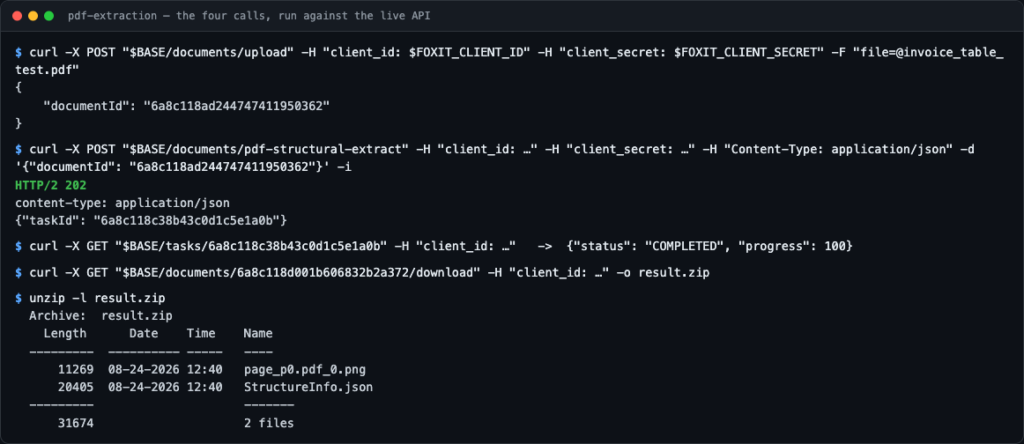
The four calls against the live API. Note the 202 on the extract call and the COMPLETED status before any download is attempted.
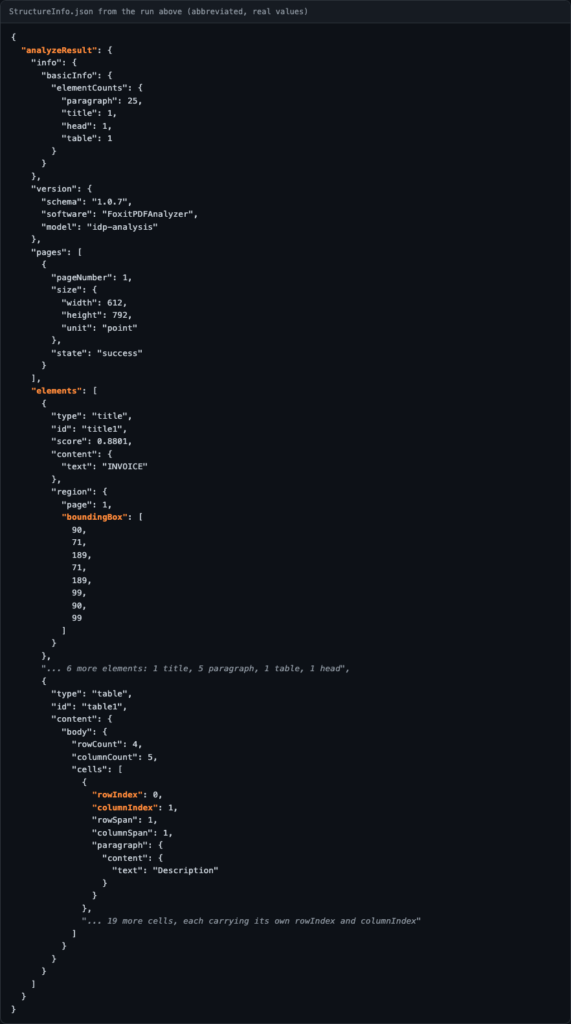
The response shape from that run. Every element sits under analyzeResult, and text elements carry region.boundingBox as an eight-number polygon rather than a four-number rectangle. A table element is the exception, since its region comes back empty and its geometry sits in a regions array instead.
The table below puts both platforms side by side on the integration and output dimensions:
| Dimension | Google Document AI | Foxit PDF Structural Extraction API |
|---|---|---|
| Account setup | GCP project, service account, IAM role, billing | Free developer account, no credit card |
| Authentication | Service account JSON key via GOOGLE_APPLICATION_CREDENTIALS | client_id and client_secret as HTTP headers |
| Call pattern | Synchronous or async depending on processor | Four-step async (upload, extract, poll, download) |
| Output format | Document proto (blocks, paragraphs, tokens) | StructureInfo.json with 12 semantic element types |
| Cloud dependency | GCP-native; Vertex AI integration available | Cloud-agnostic, any stack |
| Language coverage | Varies by processor | 200+ languages via dedicated OCR layer |
Common mistakes and troubleshooting
Four failure modes account for most of the time lost on a first integration. Only the first one reports itself clearly; the other three surface as exceptions in your own code rather than as API errors.
- Sending an
Authorization: Bearerheader : PDF Services authenticates with two separate lowercase headers,client_idandclient_secret. There is no token exchange step and no OAuth flow to implement. This is the one mistake the API names outright, returning HTTP 400 with{"allow": false, "reason": "Missing credentials: provide both 'client_id' and 'client_secret' headers."}. - Treating the extract call as synchronous :
pdf-structural-extractreturns HTTP 202 with ataskId, never the result. Read the status fromGET /tasks/{taskId}, which also returns aprogresspercentage, and note that the values are uppercase (PENDING,IN_PROGRESS,COMPLETED,FAILED). Comparing against lowercase strings produces a poll loop that never exits, which is why the sample above also breaks out onFAILEDand caps its attempts. - Reading
region.boundingBoxon every element : text elements such astitle,head, andparagraphcarryregionas{page, boundingBox}, but atableelement returns an emptyregionand puts its geometry in aregionsarray instead. A loop that assumes one shape raisesKeyErroron the first document containing a table. - Indexing
elementsat the JSON root : every result nests underanalyzeResult, sodata["elements"]raisesKeyErrorwhiledata["analyzeResult"]["elements"]works. The same applies to uploads above the 100 MB per-document limit, which fail at the upload step rather than during extraction.
Extraction architecture, output format, and document coverage
Google Document AI’s processing model is processor-centric. You select a processor type (Invoice Parser, Form Parser, Document OCR), and the service returns a Document proto containing position-anchored blocks, paragraphs, and tokens. Semantic meaning depends on which processor you deployed, so a Form Parser and an Invoice Parser return structurally similar protos but with different field-level annotations.
Foxit’s PDF Structural Extraction API runs three coordinated layers on every document, regardless of document type. The OCR layer handles rasterized content across more than 200 languages. The layout recognition layer maps spatial relationships and table cell grids, resolving multi-column text blocks, overlapping text-image regions, stamped signatures on top of text fields, and engineering drawing annotations. The AI parsing layer then classifies content semantically, assigning each element a type from a fixed taxonomy of twelve labels.

The rendered pipeline. Every document takes the same path, so there is no processor to choose per document type.
Those twelve types appear in StructureInfo.json inside the returned ZIP archive, covering title, head, paragraph, table, image, headerFooter, form, hyperlink, footnote, sidebar, annotation, and formula. Each element carries its reading-order position and spatial coordinates, so the structure your downstream system receives reflects how a human would read the original document rather than raw storage order.
The practical delta shows up in RAG pipeline integration. Google Document AI’s Document proto gives you text and coordinates, but your pipeline needs a post-processing step to decide what each block means semantically. With StructureInfo.json, you filter to table elements, iterate rows, and pass the content directly to your embedding model, because the semantic classification happened upstream.
The output schema comparison below clarifies where each platform puts the interpretive work:
| Schema dimension | Google Document AI (Document proto) | Foxit (StructureInfo.json) |
|---|---|---|
| Structure model | Hierarchical, covering pages, blocks, paragraphs, and tokens | Flat list of semantically typed elements with spatial metadata |
| Semantic labels | Field-level labels tied to specific processor selection | 12 fixed element types, processor-independent |
| Table representation | Cell tokens within a table block | Dedicated table element type with cell grid coordinates |
| Reading order | Implicit (coordinate ordering required client-side) | Explicit, preserved in element sequence |
| Formula support | Limited | Dedicated formula element type |
Document coverage on both platforms is broad. Foxit processes scanned PDFs, image-based PDFs, multi-page contracts, invoices, and form-heavy documents. The layout layer handles edge cases that trip up simpler OCR tools, including stamped signatures overlapping text fields, mixed raster-vector pages, and footnote regions that appear spatially disconnected from their reference markers.
Data privacy and ecosystem independence
Regulated workloads ask two questions before any technical evaluation, starting with where the document goes and what audit evidence you can produce.
Foxit’s API compliance page documents SOC 2 Type II independent audit, HIPAA-aligned features with Business Associate Agreement (BAA) support, and GDPR-supporting features including redaction, anonymization, and secure metadata handling. Foxit’s AI service documentation states that input documents and results are held temporarily and deleted within 24 hours. If your organization requires a BAA, Foxit can provide one.
Google Document AI routes all processing through GCP infrastructure. Teams subject to data residency requirements need to select the appropriate GCP region, review Google’s data processing addendum, and confirm their cloud agreement covers the specific data types being processed. That review is standard for teams already operating within GCP, but it adds a compliance surface for teams that are not.
Foxit’s API is cloud-agnostic. Your team calls it from any existing stack, passing two credential headers, and extracts documents without spinning up a GCP project, provisioning a storage bucket, or accepting GCP billing terms. For teams evaluating outside GCP, that independence cuts both technical and commercial risk from the decision.
When to use Google Document AI and when to use Foxit
The right choice depends on your existing infrastructure and what your extraction output needs to do.
| Scenario | Best fit | Key reason |
|---|---|---|
| Teams already deep in GCP who want Vertex AI integration | Google Document AI | Native Vertex AI pipeline support and Google-managed processor versions reduce ops overhead |
| High-volume PDF processing outside the GCP ecosystem | Foxit | Cloud-agnostic with credit-based pricing, with no GCP billing or IAM dependency |
| Workloads with strict data residency or BAA requirements | Foxit | SOC 2 Type II audit, HIPAA-aligned features with BAA support, and GDPR-supporting features |
| Teams that need semantic element classification ready for downstream consumption | Foxit | StructureInfo.json delivers 12 pre-labeled element types without a client-side post-processing step |
The fourth scenario is worth walking through in detail. Your team has a contract review pipeline that needs to extract all tables and footnotes from multi-page PDFs and push them into a downstream system. With the Foxit API, the workflow runs like this:
- Upload the PDF to
/pdf-services/api/documents/uploadand receive adocumentId. - POST to
/pdf-services/api/documents/pdf-structural-extractwith thedocumentIdand receive ataskId. - Poll
/pdf-services/api/tasks/{taskId}every two seconds untilstatusequalsCOMPLETED. - Download the result ZIP from
/pdf-services/api/documents/{resultDocumentId}/downloadand parseStructureInfo.json.
Once you have StructureInfo.json, filtering to table and footnote elements is a single-pass list comprehension. The labeled elements arrive with spatial coordinates and reading order intact, so your downstream system receives structured, ordered data ready for indexing, embedding, or display, with no second model call, no coordinate sorting, and no block-level classification required.
Teams running active Vertex AI pipelines in GCP, with processors not among the seven being retired, have no technical reason to switch. For everyone else, the four API calls above give you a working extraction against your own documents in minutes.
Google Document AI FAQ
What is Google Document AI?
Google Document AI is a managed cloud service for document parsing and data extraction, built on GCP processors. You select a processor type (such as Invoice Parser, Form Parser, or Document OCR), send a document via the API, and receive a structured Document proto containing text, coordinates, and field-level annotations. All processing runs on Google Cloud Platform infrastructure.
How does the Foxit PDF Structural Extraction API differ from Google Document AI?
Foxit’s API runs three coordinated processing layers on every document (OCR, layout recognition, and AI parsing) regardless of document type, while Google Document AI uses a processor model where semantic classification depends on the specific processor you select. The output schemas also differ. Foxit returns StructureInfo.json inside a ZIP archive with twelve pre-labeled element types preserving reading order and spatial relationships, while Google Document AI returns a Document proto with hierarchical blocks, paragraphs, and tokens that require client-side semantic interpretation. Foxit is also cloud-agnostic and needs no GCP project, while Google Document AI is GCP-native.
What are Foxit’s data-handling and compliance commitments for the extraction API?
Foxit’s API compliance page documents SOC 2 Type II independent audit, HIPAA-aligned features with Business Associate Agreement (BAA) support, and GDPR-supporting features including redaction, anonymization, and secure metadata handling. Foxit’s AI service documentation states that input documents and results are held temporarily and deleted within 24 hours. Foxit does not claim HIPAA certification or GDPR certification, and the API compliance page does not state that documents are never stored, so teams with specific retention requirements should review the documentation directly and request a BAA where applicable.
What output format does the Foxit PDF Structural Extraction API return?
The API returns a ZIP archive containing StructureInfo.json. That file classifies every element in the document using one of twelve labeled types, including title, head, paragraph, table, image, headerFooter, form, hyperlink, footnote, sidebar, annotation, and formula. Each element includes spatial coordinates and reading-order position, so the structure your downstream system receives reflects how a human would read the original document. Table elements carry cell grid coordinates, making row-level data extraction straightforward without additional parsing.
Can I try the Foxit PDF Structural Extraction API without a paid plan?
Yes. Create a free developer account at app.developer-api.foxit.com/sign-up. No credit card is required. Once you register, your client_id and client_secret are available immediately in the Developer Portal, and you can run extractions against your own documents using the API Playground or the downloadable Postman collection.
How does Foxit handle scanned or image-based PDFs?
Foxit’s OCR layer processes rasterized content across more than 200 languages, so scanned PDFs and image-based documents (including TIFFs) are processable without pre-conversion. The layout recognition layer then maps spatial relationships and resolves edge cases such as multi-column text blocks, overlapping text-image regions, and footnote regions that appear spatially disconnected from their reference markers.
Which document types does Google Document AI support after the June 2026 deprecations?
After 30 June 2026, Google is retiring the Enterprise Document OCR, Expense, Custom classifier, Custom splitter, Invoice, Pay slip, and Bank statement processors. Remaining processors (including Form Parser and Document OCR for non-deprecated versions) continue to operate on their own rolling deprecation schedule, where each version is deprecated six months after a newer one ships. Teams relying on any of the seven retired processors need to migrate before that date.
Conclusion
Across all five axes, the practical difference between Google Document AI alternatives comes down to how much infrastructure you take on to reach a first result. Foxit requires two credential headers. Google’s setup adds a GCP project, service account, IAM configuration, and billing enablement before you process a single document. Foxit’s three-layer extraction model (OCR, layout recognition, AI parsing) delivers semantic classification across every document type without processor selection. StructureInfo.json‘s twelve labeled element types reduce client-side post-processing compared to Google’s Document proto. Both platforms handle the major document types, and Foxit’s 200-plus language OCR covers non-Latin scripts across all document categories. Foxit’s SOC 2 Type II audit, HIPAA-aligned BAA support, and GDPR-supporting features give regulated teams a documented compliance baseline, and the cloud-agnostic model means your team runs document extraction without taking on GCP billing, IAM governance, or ecosystem lock-in.
Create a free developer account at app.developer-api.foxit.com/sign-up, no credit card required, and run the four-step extraction against your own document today.
6 Best DocuSign API Alternatives for Developers in 2026

Comparing a DocuSign API alternative can eat hours of research time. This guide breaks down six eSign APIs, including Dropbox Sign, Adobe Acrobat Sign, PandaDoc, SignNow, BoldSign, and Foxit eSign, against the six criteria that matter most for integration speed and long-term maintenance.
DocuSign’s API works, but redirecting signers to an external DocuSign-hosted page puts a seam in your user experience you can’t fully control, pricing tiers require a sales call to decode, and per-envelope costs escalate unpredictably at scale. If you’ve already decided DocuSign isn’t the right fit, this roundup gives you a structured way to narrow the field fast.
Six alternatives are covered here (Dropbox Sign, Adobe Acrobat Sign, PandaDoc, SignNow, BoldSign, and Foxit eSign), evaluated against six criteria that directly affect integration time and long-term maintainability. Each tool is broken down the same way, so you can compare like against like rather than marketing page against marketing page.
What to evaluate in an eSign API
The six criteria below separate APIs worth building on from ones that will cost you significant refactoring time later. Pin them down before you compare options.
Embedded signing depth. An iframe-based session keeps signers inside your application, while a redirect-based session hands them off to a third-party URL. The delta between “supports embedded signing” and “delivers a fully iframe-native experience” is significant.
Auth model. OAuth2 client credentials gives your backend a machine-to-machine token with no user interaction required. API key auth is simpler but typically coarser in permission scope and harder to rotate safely at scale.
Webhook event granularity. A single “document completed” event isn’t enough if your workflow needs to react to individual signer events, field changes, or expiration triggers. Check what event names are actually documented, not listed on a marketing page.
SDK language coverage. Confirm whether the vendor ships official SDKs for Python, Java, Node.js, and Go. If raw REST calls are your only option, factor in the maintenance overhead for your team.
Compliance certifications. eIDAS, ESIGN, UETA, HIPAA, GDPR, and 21 CFR Part 11 have different requirements. Confirm which certifications are documented and current, not featured in a hero banner.
Pricing model transparency. Envelope-based, seat-based, and consumption-based pricing each carry different risk profiles at scale. If you can’t read the pricing page without talking to sales, add that friction to your evaluation score.
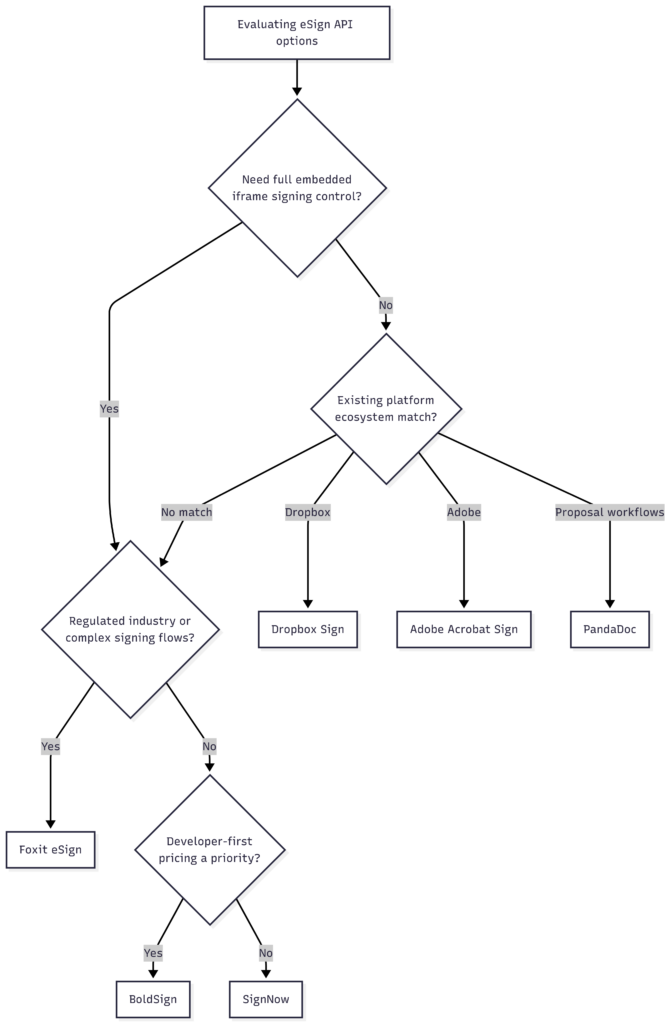
The six alternatives at a glance
The table summarizes where each tool lands on the criteria above. Treat it as a shortlist filter, then read the section for any tool that survives. Compliance and pricing move often, so the linked pages are the source of truth, not this table.
| Tool | Auth | Embedded signing | Webhooks | Official SDKs | Pricing model |
|---|---|---|---|---|---|
| Dropbox Sign | OAuth2 + API key | Iframe via sign_url | Signer-level events | Python, Node, Java, Ruby, PHP | API tier, published |
| Adobe Acrobat Sign | OAuth2 | Transient docs + widgets | Extensive | Java, plus REST | Enterprise, sales-led |
| PandaDoc | OAuth2 + API key | Iframe (send + sign) | Document lifecycle | Node, Python, plus REST | Document/seat-based |
| SignNow | OAuth2 + API key | Embedded session URLs | Functional, coarser | Fewer official SDKs | Per-envelope, published |
| BoldSign | OAuth2 + API key | Iframe embedded | Documented events | .NET, Java, Node, Python | Tiered, transparent |
| Foxit eSign | OAuth2 client credentials | Iframe / web view, no redirect | 9 events incl. folder_executed, HMAC-signed | REST, examples in Python | Tiered, published |
Dropbox Sign
Dropbox Sign (formerly HelloSign) runs a clean REST API with solid embedded signing and documentation that developers consistently rate as approachable. If you’re already in the Dropbox ecosystem and don’t need heavy customization, it provides a reliable, well-documented API. But it does have thinner webhook payloads and narrower embedded-UX control than purpose-built full-control APIs.
- Auth model. OAuth2 for multi-account apps, plus straightforward API key auth for single-account integrations.
- Embedded signing. Embedded requests return a
sign_urlyou load directly into an iframe, keeping signers in your app. - Webhook granularity. Events fire at each signer-level state change, though payloads are less granular than the top-tier options.
- SDKs. Official SDKs for Python, Node.js, Java, Ruby, and PHP.
- Compliance. Positioned for general business use; confirm the current certification list in their docs before relying on a specific standard.
- Pricing model. API pricing is published as its own tier, separate from the end-user product.
See the developer docs and API pricing.
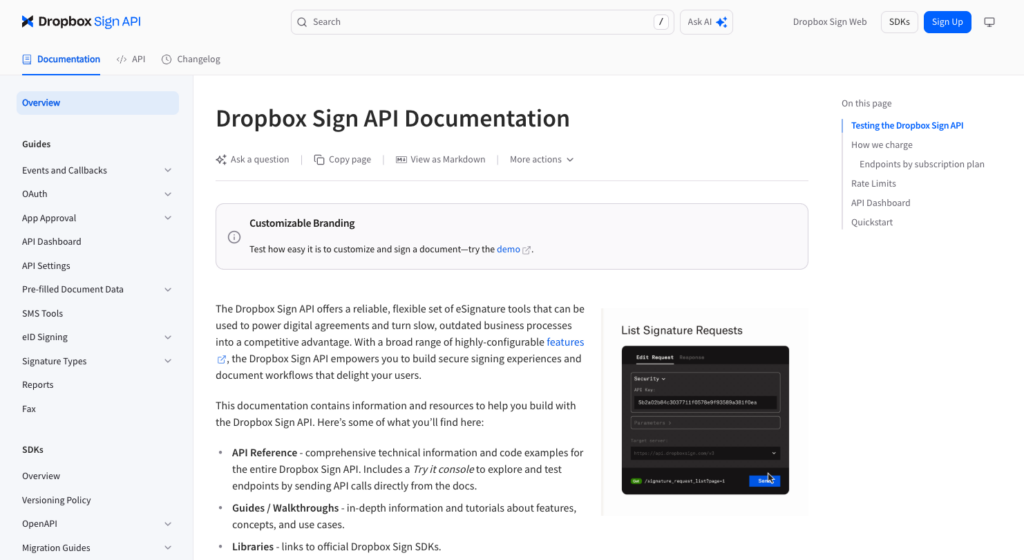
Dropbox Sign’s developer documentation. The organized reference and SDK list are the reason it scores well on the docs-quality criterion.
Adobe Acrobat Sign
Adobe Acrobat Sign brings enterprise-scale infrastructure and a deep compliance footprint to its REST API, at the cost of a larger, more complex surface area. It’s a reasonable fit for large enterprises already standardized on Adobe Document Cloud with compliance needs that benefit from Adobe’s footprint. On the other side, it also has the largest integration overhead on this list and pricing that is not self-serve.
- Auth model. OAuth2, integrated with Adobe’s broader identity and Document Cloud platform.
- Embedded signing. Supported via Transient Documents and widget-based flows rather than a single drop-in iframe call.
- Webhook granularity. Extensive event coverage, appropriate for large multi-step enterprise workflows.
- SDKs. An official Java SDK plus a broad REST surface; other languages typically integrate at the REST level.
- Compliance. Strong certification footprint aimed at healthcare, finance, and government; verify the specifics for your regulatory context.
- Pricing model. Enterprise-tier and sales-led; expect a conversation rather than a public per-call rate.
See the developer guide and Adobe’s Acrobat business pricing page.
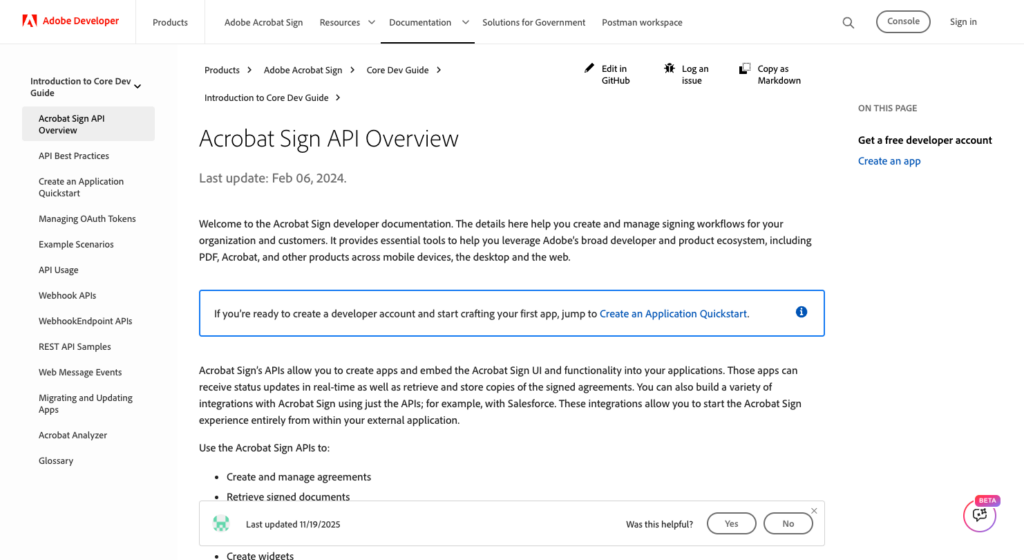
The Acrobat Sign API overview. The breadth here is the point, and also the integration-overhead warning.
PandaDoc
PandaDoc’s API sits closer to document-creation-plus-signing than pure eSignature, which is a strength if you need both from one integration. It works well for building quote-to-sign or proposal-to-signature workflows where generation and signing happen through one API. The tradeoffs are document-based pricing that adds up at volume, and thinner signing-order controls than purpose-built eSign APIs.
- Auth model. OAuth2 and API key options.
- Embedded signing. Embedded sending and signing via iframe, alongside template-driven document generation.
- Webhook granularity. Document-lifecycle events covering creation, sending, and completion.
- SDKs. Official Node.js and Python SDKs, plus a documented REST API.
- Compliance. Business-grade; confirm the current list against your requirements in their docs.
- Pricing model. Document-centric and can climb at high envelope volumes, so model your cost at target scale.
See the developer documentation and pricing.
PandaDoc’s developer hub. Document generation sitting next to signing is what distinguishes it from pure eSign APIs.
SignNow
SignNow offers a capable REST API that is frequently competitive on per-envelope cost at volume, which makes it a common pick for high-throughput, straightforward signing. It’s a cost-sensitive option that can handle high-volume, straightforward signing if you don’t have any complex embedded-UX requirements. However, its coarser webhooks and narrower SDK coverage will push you toward raw REST.
- Auth model. API key and OAuth2 authentication.
- Embedded signing. Embedded session URL generation for in-app signing.
- Webhook granularity. Functional, but event types are coarser than the top-tier options.
- SDKs. Narrower official SDK coverage, so expect more raw REST work outside the main supported languages.
- Compliance. Business and industry compliance is advertised; verify the current certifications in their docs.
- Pricing model. Per-envelope pricing that is published and tends to reward volume.
See the API documentation and pricing.
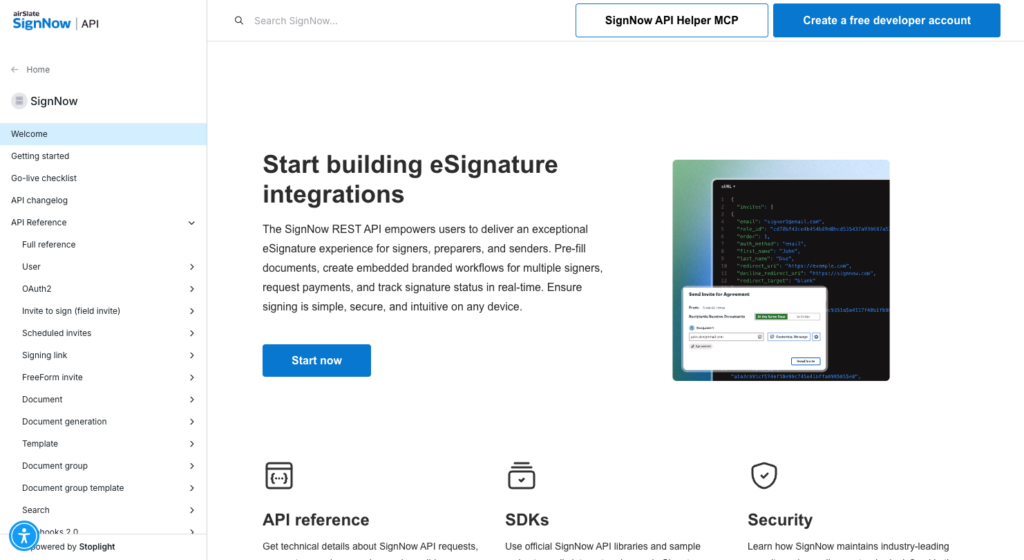
SignNow’s REST API documentation. Envelope creation, signer routing, and embedded session URLs are all covered here.
BoldSign
BoldSign is a developer-first eSign API with a clean REST interface and pricing that is more transparent than most enterprise alternatives at the lower tiers. This option offers a modern, well-documented API with straightforward pricing, outside the most heavily regulated industries. Worth noting is a smaller compliance footprint than the established players.
- Auth model. OAuth2 and API key options.
- Embedded signing. Solid iframe-based embedded signing built for developer integration.
- Webhook granularity. Documented event types suitable for most integration workflows.
- SDKs. Official SDKs including .NET, Java, Node.js, and Python.
- Compliance. A newer entrant with a smaller certification footprint than established players, so verify current standards before committing in a regulated industry.
- Pricing model. Tiered and transparent, published without a mandatory sales call at the lower tiers.
See the developer portal and pricing.
The BoldSign Developer Hub. Transparent pricing and a self-serve sandbox are its main developer-experience draws.
Foxit eSign
Foxit eSign gives developers full control over the signing experience, with no redirect to an external Foxit-hosted page at any point. This is the tool covered in the most technical depth here, and the getting-started section below runs against its live API.
- Auth model. OAuth2 client credentials. Your backend gets a machine-to-machine Bearer token with no user login in the loop.
- Embedded signing. Signing sessions load inside an iframe or web view within your own application. You control the header, sidebars, and the exact page signers land on after finishing.
- Webhook granularity. Nine event types, including
folder_executed, and every callback is signed with an HMAC-SHA-256 digest of the raw body so you can verify authenticity. - SDKs. A documented REST API with worked examples; the getting-started code below is Python.
- Compliance. eIDAS at the AES and QES levels (QES requires pairing with a qualified trust service provider), plus the ESIGN Act, UETA, HIPAA, GDPR, 21 CFR Part 11, CCPA, FINRA, FERPA, and SOC 2 Type II infrastructure.
- Pricing model. Tiered and published, with a free developer account to build against.
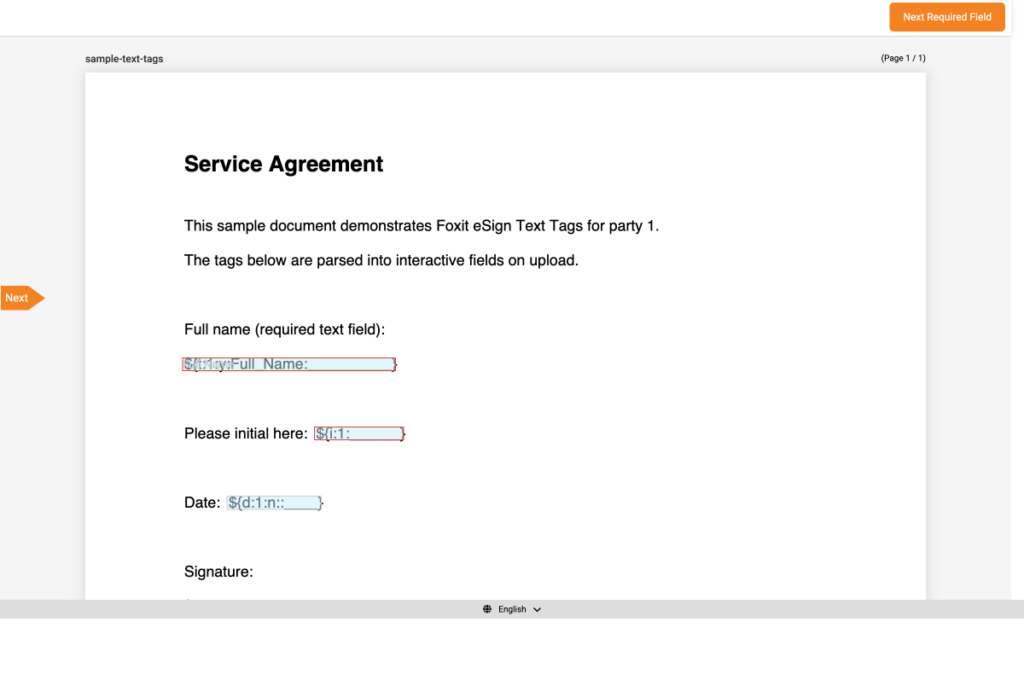
The Foxit eSign embedded signing session, loaded in-app. Text tags in the source PDF are parsed into the interactive Full name, initial, date, and signature fields shown here, with no redirect to an external page.
Signing order control
Setting signInSequence to false on a folder request puts all recipients into parallel mode, while leaving it true enforces the sequence you define. Hybrid flows mix both, so some signers proceed in parallel while others wait on prior steps.
Compliance coverage
Full details live at the Foxit compliance page and the Foxit Trust Center.
Best for development teams that need full embedded-signing control, flexible signer routing, and broad compliance coverage from a single integration, especially in regulated industries.
Watch out for planning your regional endpoint (the instance_url returned at auth) into your configuration rather than hardcoding one.
Getting started with the Foxit eSign API
Three steps take you from zero to your first signed document. The code below runs end to end against the live API.
The Foxit eSign dashboard you land on after signing in. The API you are about to call drives the same envelopes shown here.
Step 1. Activate the API tab. Log into your Foxit eSign account, navigate to Settings, and open the API tab. Fill out the form to receive your client_id and client_secret.
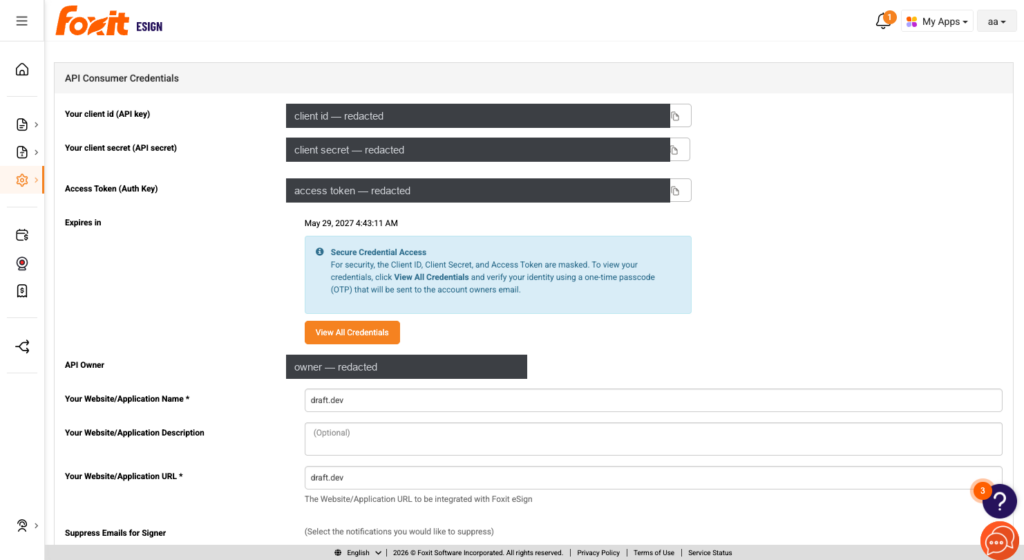
The API Consumer Credentials screen. Foxit masks the client id, secret, and access token by default and requires a one-time passcode to reveal them, which is the credential-handling behavior worth knowing before you build.
Step 2. Obtain a Bearer token. POST to the regional OAuth2 endpoint with a form-encoded body (sending a JSON body returns HTTP 415 Unsupported Media Type). The response includes access_token, token_type, expires_in, and instance_url.
Step 3. Create an envelope and register a webhook. Use the Bearer token in the Authorization header to create an envelope (Foxit calls it a folder) from a source document, then register a webhook targeting the folder_executed (EXECUTED) event to be notified once every party has signed and the document is executed.
The code reads credentials from environment variables. It exchanges credentials for a token, then creates a draft envelope from a sample PDF without emailing anyone.
import os
import requests

# The token endpoint requires a form-encoded body
# (application/x-www-form-urlencoded). Sending a JSON body returns
# HTTP 415 Unsupported Media Type.
TOKEN_URL = "https://na1.foxitesign.foxit.com/api/oauth2/access_token"

# Step 1: Exchange credentials for a Bearer token.
token_response = requests.post(
    TOKEN_URL,
    data={  # use data= (form-encoded), NOT json=
        "grant_type": "client_credentials",
        "client_id": os.environ["FOXIT_ESIGN_CLIENT_ID"],
        "client_secret": os.environ["FOXIT_ESIGN_CLIENT_SECRET"],
        "scope": "read-write",
    },
)
token_response.raise_for_status()
token_data = token_response.json()

access_token = token_data["access_token"]     # Bearer token
instance_url = token_data["instance_url"]      # already a full URL, e.g. https://na1.foxitesign.foxit.com/
base = instance_url.rstrip("/")                # trim trailing slash; do NOT re-add https://

# Step 2: Create an envelope (folder) from a document.
# sendNow=False creates a DRAFT and emails no one.
headers = {
    "Authorization": f"Bearer {access_token}",
    "Content-Type": "application/json",
}
payload = {
    "folderName": "Service Agreement",
    "fileUrls": ["https://your-app.example.com/agreement.pdf"],
    "fileNames": ["agreement.pdf"],
    "sendNow": False,                          # DRAFT; set True to dispatch to signers
    # signInSequence True  = signers proceed in the sequence you define
    # signInSequence False = all signers receive the document in parallel
    "signInSequence": True,
    "parties": [
        {
            "firstName": "Jane",
            "lastName": "Doe",
            "emailId": "[email protected]",
            "sequence": 1,
        }
    ],
}
resp = requests.post(f"{base}/api/folders/createfolder", headers=headers, json=payload)
resp.raise_for_status()
folder_id = resp.json()["folder"]["folderId"]  # the id nests under "folder"
print("Envelope created:", folder_id)
The code above reads your client id and secret from the environment, POSTs them form-encoded to the regional token endpoint, and reads the access_token and instance_url from the response. Because instance_url is already a complete URL, you strip its trailing slash and use it directly rather than prepending a scheme. You then POST to /api/folders/createfolder with the source document, the signing parties, and sendNow set to false so the envelope is created as a draft without notifying anyone, and read the new folder’s id from folder.folderId in the response.
Registering the executed webhook
You register webhooks once in the eSign portal’s API settings, not through the token flow above. Add your endpoint URL and a webhook secret, then enable the events you care about. The screenshot below shows the real configuration screen with folder_executed selected.
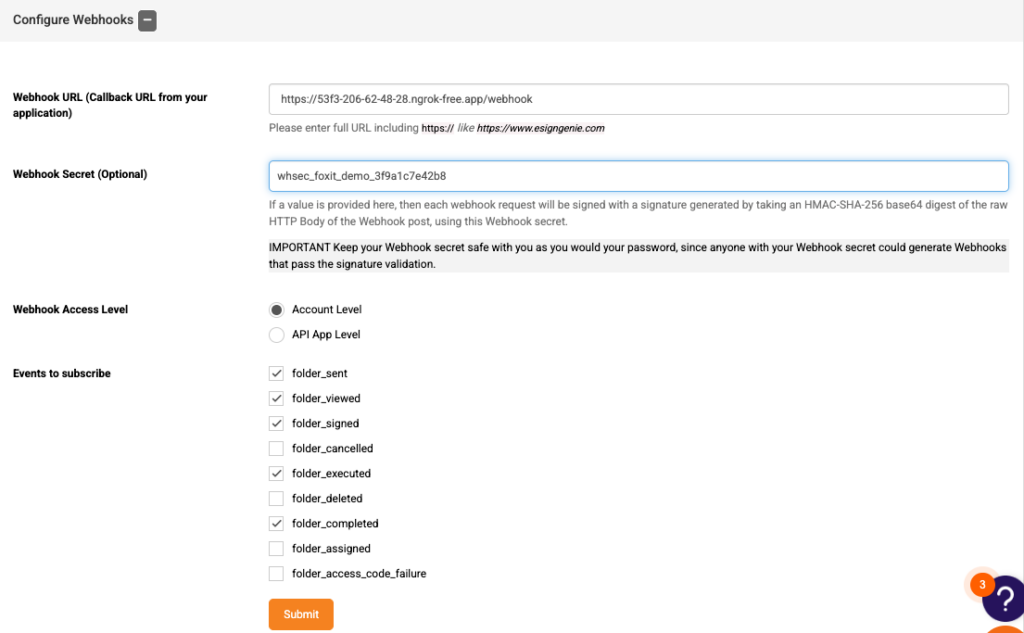
The Configure Webhooks page. Note the nine event checkboxes, folder_executed selected, and the field note confirming each request is signed with a Base64 HMAC-SHA-256 digest of the raw body.
folder_executed fires when all parties have signed and the document reaches the EXECUTED state, which is the point at which the completed, legally binding PDF is ready to archive. Foxit delivers each event as an HTTP POST with the signature appended as a query parameter (?signature=...), where the signature is the Base64-encoded HMAC-SHA-256 of the raw request body keyed with your webhook secret. Recompute that digest on receipt and compare it before you act on the callback.
import base64, hashlib, hmac

def verify_webhook(raw_body: bytes, signature: str, secret: str) -> bool:
    """Return True only if the callback's signature matches the raw body."""
    expected = base64.b64encode(
        hmac.new(secret.encode(), raw_body, hashlib.sha256).digest()
    ).decode()
    return hmac.compare_digest(expected, signature)
The full API reference is at developersguide.foxitesign.foxit.com.
Docusign API FAQ
What is an eSignature API?
An eSignature API lets your application send, track, and complete legally binding signature requests without building a separate signing portal. Your app calls the endpoints to create the workflow, route the document to signers, capture their signatures, and pull the completed, audit-ready record, all without anyone leaving your product.
What are the best DocuSign API alternatives for developers in 2026?
Six strong alternatives worth evaluating are Dropbox Sign (well-documented, fits the Dropbox ecosystem), Adobe Acrobat Sign (enterprise compliance depth), PandaDoc (proposal-to-signature workflows), SignNow (cost-effective at volume), BoldSign (developer-first, clean REST interface), and Foxit eSign (full embedded control and multi-standard compliance across eIDAS, ESIGN, UETA, HIPAA, GDPR, and 21 CFR Part 11).
Does the Foxit eSign API support embedded signing?
Yes. Signing sessions load inside an iframe or web view within your own application, with no redirect to an external Foxit page. You can customize headers and sidebars, and configure where signers land after completing the document. The experience stays inside your product throughout.
What compliance standards does the Foxit eSign API meet?
Foxit eSign meets eIDAS at the AES (Advanced Electronic Signature) and QES (Qualified Electronic Signature) levels (QES requires pairing with a qualified trust service provider). Additional certifications include the ESIGN Act, UETA, HIPAA, GDPR, 21 CFR Part 11, CCPA, FINRA, FERPA, and SOC 2 Type II infrastructure. Full details are at the Foxit compliance page.
How do I get started with the Foxit eSign API?
Create an account at developer-api.foxit.com, activate the API tab in your eSign account settings to receive your client_id and client_secret, then POST to https://na1.foxitesign.foxit.com/api/oauth2/access_token with a form-encoded body to obtain a Bearer token. Use that token in the Authorization header to make your first envelope call.
How does OAuth2 client credentials auth work in the Foxit eSign API?
Your backend POSTs a form-encoded request to the regional token endpoint using your client_id and client_secret. The response returns a Bearer token with a defined expiry and a region-specific instance_url. Every subsequent API call passes that token in the Authorization header, with no session-level user login required at any point.
What webhook events does the Foxit eSign API support?
You register webhooks through the eSign API Settings page and configure them to fire on specific event types, nine in total, spanning sent, viewed, signed, cancelled, executed, deleted, completed, assigned, and access-code-failure. The folder_executed event fires when all parties have completed signing. Foxit signs each webhook POST with an HMAC-SHA-256 digest of the raw body, giving you a verifiable authenticity signal on every inbound notification.
How does Foxit eSign handle parallel and sequential signing flows?
Setting signInSequence to false on a folder request sends the document to all recipients simultaneously. Setting it to true enforces the order you define in the sequence field on each party. Hybrid flows combine both modes, so some signers proceed in parallel while others wait on prior steps, all from a single API call.
Which eSign API is best for regulated industries?
Foxit eSign covers the broadest compliance footprint across eIDAS (AES and QES), HIPAA, GDPR, 21 CFR Part 11, FINRA, FERPA, CCPA, and SOC 2 Type II. Adobe Acrobat Sign also carries strong enterprise certifications relevant to healthcare and finance. Teams in regulated industries should verify current certification status directly with each vendor before committing.
What is the difference between envelope-based and consumption-based eSign pricing?
Envelope-based pricing charges a fixed fee per document sent for signature, which makes costs predictable at low volumes but expensive at scale. Consumption-based pricing ties costs to actual usage metrics (API calls, active users, or data volume), which can reduce spend at high volume but introduces budget variability. Seat-based pricing charges per licensed user regardless of volume, which suits teams with consistent, predictable signing activity.
Picking the right eSign API
The six criteria (embedded signing depth, auth model, webhook event granularity, SDK language coverage, compliance certifications, and pricing transparency) cut the field quickly when you apply them consistently.
Dropbox Sign fits teams in the Dropbox ecosystem who want reliable coverage without high complexity. Adobe Acrobat Sign suits large enterprises with existing Adobe infrastructure and deep compliance footprints. PandaDoc is the right call for proposal-to-signature workflows. SignNow works for cost-sensitive, high-volume signing at scale. BoldSign offers a clean developer experience outside the most heavily regulated industries.
If you need full embedded-signing control, flexible signer routing, and compliance coverage across eIDAS, HIPAA, GDPR, and 21 CFR Part 11 bundled without piecing those certifications together from add-ons, Foxit eSign is worth a close look. Once a folder reaches the EXECUTED state, the completed document carries a full audit trail and signer certificate, which is what you archive as the legal record.
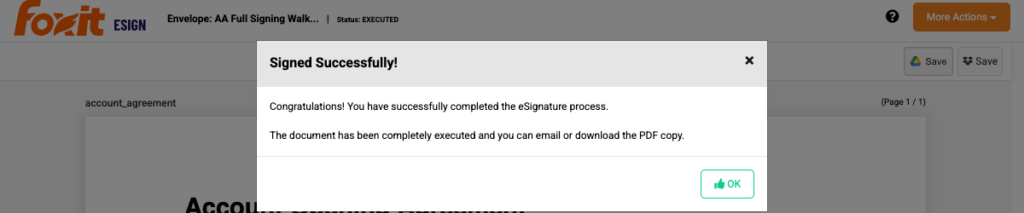
An executed Foxit eSign agreement. The EXECUTED state is the archival point the folder_executed webhook announces.
Visit developer-api.foxit.com to create a free developer account and try the full signature flow with no commitment.
How to Turn PDFs into Structured Data with Foxit’s PDF Structural Extraction API
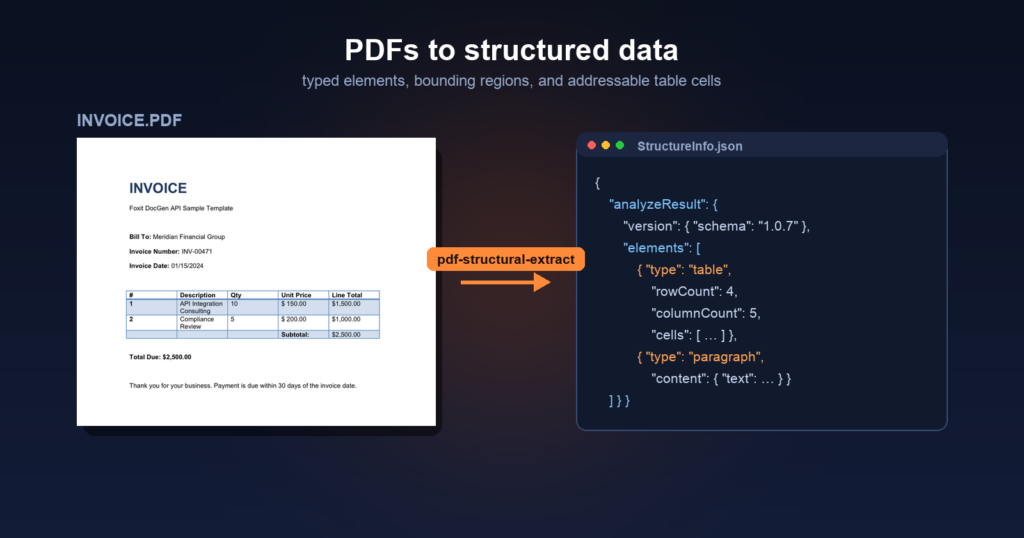
PDF data extraction with Foxit’s Structural Extraction API turns messy invoices and tables into typed JSON, complete with bounding regions and addressable cells. This tutorial walks through the four REST calls, upload, extract, poll, and download, and shows working Python code that builds a clean dictionary from an invoice’s line items. It also covers common mistakes like case-sensitive auth headers and stale document IDs.
Pull text out of a multi-column invoice and you get a flat string with column headers mixed into values, row boundaries gone, and field labels indistinguishable from the data they describe. Foxit’s PDF Structural Extraction API returns typed JSON instead, where every element carries a type, its text, a bounding region, and, for tables, an addressable grid of cells.
This tutorial walks the four REST calls that get you there, uploading a PDF, starting the analysis, polling the task, and downloading the result. By the end you’ll have working Python code that turns an invoice into a dictionary your pipeline can address by key.
Raw text vs. structured extraction
What separates raw text extraction from structured extraction is the shape of the output, not the accuracy of the characters.
Take a vendor invoice with a line-item table covering description, quantity, and unit price. Text extraction returns something like "1 API Integration Consulting 10 $ 150.00 $1,500.00". The content is all there, but the row and column relationships are gone, so your parsing code has to reconstruct structure the PDF already encoded, and it has to do that differently for every layout you encounter.
Structured extraction preserves what raw text discards. The pdf-structural-extract endpoint returns each element with a type, a content object holding the text and its font styling, and a region giving the page number and bounding polygon. Tables come back as a cell grid with explicit rowIndex and columnIndex values, so a cell’s position is data rather than something you infer from coordinates.
Prerequisites
- Python 3.8+ with pip and a virtual environment via venv.
- The requests library for the HTTP calls.
- curl if you want to try the endpoints before writing code.
- A code editor, VS Code with the Python extension is a good default, though PyCharm or Sublime Text work equally well.
- A Foxit Developer account, free with no credit card, created at app.developer-api.foxit.com/sign-up. Activate the Developer plan (500 credits per year) and copy the Client ID and Client Secret from the APIs Dashboard.
- A sample PDF, so you do not have to build one. This tutorial uses invoice_table_test.pdf, a one-page invoice with a five-column line-item table.
Scaffold the workspace in one shot:
mkdir foxit-extract && cd foxit-extract
python3 -m venv .venv && source .venv/bin/activate
pip install requests
curl -L -o invoice.pdf https://github.com/lucienchemaly/foxit-demo-templates/raw/main/invoice_table_test.pdf
export FOXIT_CLIENT_ID="your_client_id"
export FOXIT_CLIENT_SECRET="your_client_secret"
Here is the invoice the rest of the tutorial extracts from.
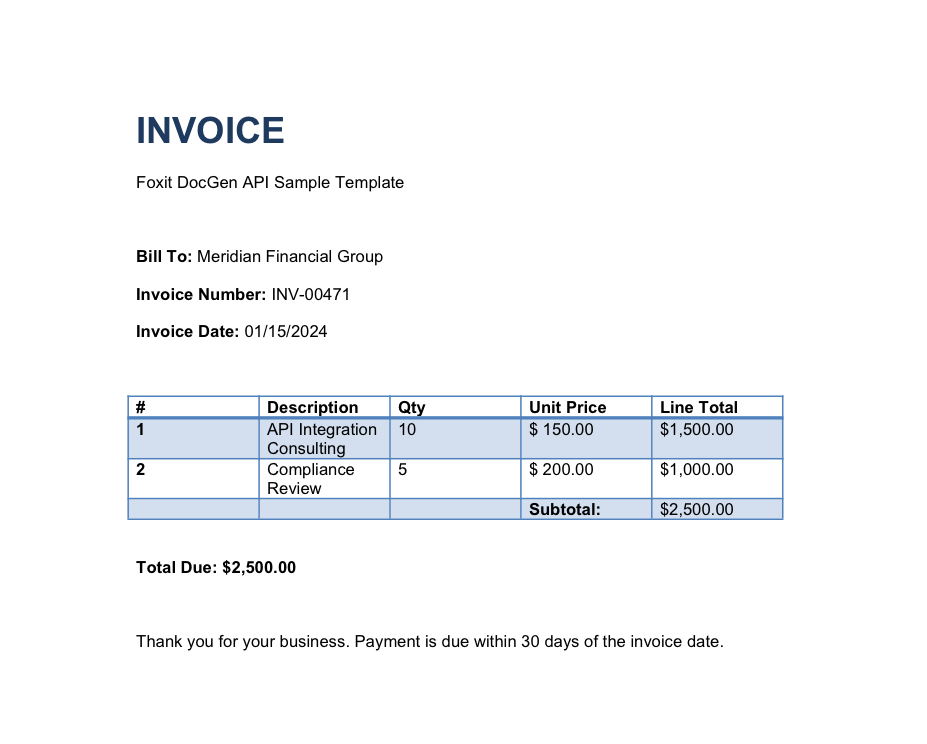
The source document. The five-column table and the labeled fields above it are what the extraction turns into addressable JSON.
Authentication
PDF Services authenticates with two named request headers on every call, client_id and client_secret, both lowercase with an underscore. There is no OAuth exchange and no bearer token, and wrapping the credentials in an Authorization: Bearer header returns a 400 instead. The base host for every endpoint in this tutorial is https://na1.fusion.foxit.com/pdf-services.
Keep the values in environment variables rather than in the file, so nothing secret travels with your code.
The four-call extraction flow
Structural extraction is an asynchronous job, so it runs in four steps.

The four calls and what each one hands to the next. The id you download with comes from the finished task, not the upload.
- Upload the PDF and receive a
documentId. - Start the analysis against that id and receive a
taskId. - Poll the task until its
statusreachesCOMPLETED, which also returns aresultDocumentId. - Download the result, a ZIP archive holding the structured JSON.
Step 1: Upload the document
Send the PDF as multipart/form-data to the upload endpoint, using the form field name file.
curl -X POST "https://na1.fusion.foxit.com/pdf-services/api/documents/upload" \
  -H "client_id: $FOXIT_CLIENT_ID" \
  -H "client_secret: $FOXIT_CLIENT_SECRET" \
  -F "[email protected]"
The -F flag is what makes curl send a multipart body, and the @ prefix tells it to read the file from disk rather than treat the value as a literal string. Uploads are capped at 100 MB, and an uploaded document is deleted after 24 hours, so treat the documentId as short-lived rather than a permanent handle.
A successful upload returns a single key:
{
  "documentId": "6a6c9834a820c33d30d222e5"
}
Step 2: Start the structural analysis
POST that id to the extraction endpoint with a JSON body.
curl -X POST "https://na1.fusion.foxit.com/pdf-services/api/documents/pdf-structural-extract" \
  -H "client_id: $FOXIT_CLIENT_ID" \
  -H "client_secret: $FOXIT_CLIENT_SECRET" \
  -H "Content-Type: application/json" \
  -d '{"documentId": "6a6c9834a820c33d30d222e5"}'
The call returns HTTP 202 with a taskId rather than the finished document, since analysis runs asynchronously. documentId is the only required field in the body, and a password-protected source PDF takes an optional password alongside it. Full request and response details live in the PDF Structural Extraction reference, which also carries the endpoint’s Trial designation, so pin the schema version you parse against rather than assuming it is stable.
{
  "taskId": "6a6c9835d24a2429666f61b6"
}
Step 3: Poll the task
Ask for the task by id until it finishes.
curl "https://na1.fusion.foxit.com/pdf-services/api/tasks/6a6c9835d24a2429666f61b6" \
  -H "client_id: $FOXIT_CLIENT_ID" \
  -H "client_secret: $FOXIT_CLIENT_SECRET"
The response carries the state, a percentage, and, once the work is done, the id of the result document:
{
  "taskId": "6a6c9835d24a2429666f61b6",
  "status": "COMPLETED",
  "progress": 100,
  "resultDocumentId": "6a6c98375e2cab6bb50e740b"
}
Task statuses are uppercase. The schema enum runs PENDING, IN_PROGRESS, COMPLETED, and FAILED, so a comparison against a lowercase "completed" never matches and your loop spins until it times out. Portal copy sometimes says “processing” in prose, but IN_PROGRESS is the value on the wire.
Step 4: Download the result
Fetch the finished artifact using the resultDocumentId from the poll, not the documentId from the upload. Confusing the two is the most common 4xx at this step.
curl -o extract.zip \
  "https://na1.fusion.foxit.com/pdf-services/api/documents/6a6c98375e2cab6bb50e740b/download" \
  -H "client_id: $FOXIT_CLIENT_ID" \
  -H "client_secret: $FOXIT_CLIENT_SECRET"
The response comes back as application/zip. Unzipping it gives you StructureInfo.json, the structured output, alongside a rendered PNG of each analyzed page (page_p0.pdf_0.png for a one-page file).
The whole flow in Python
Here is the complete script, reading credentials from the environment.
import os
import time
import zipfile
import json
import requests

BASE = "https://na1.fusion.foxit.com/pdf-services/api"
HEADERS = {
    "client_id": os.environ["FOXIT_CLIENT_ID"],
    "client_secret": os.environ["FOXIT_CLIENT_SECRET"],
}


def upload(path):
    with open(path, "rb") as fh:
        r = requests.post(f"{BASE}/documents/upload", headers=HEADERS, files={"file": fh})
    r.raise_for_status()
    return r.json()["documentId"]


def start_extract(document_id):
    r = requests.post(
        f"{BASE}/documents/pdf-structural-extract",
        headers={**HEADERS, "Content-Type": "application/json"},
        json={"documentId": document_id},
    )
    r.raise_for_status()
    return r.json()["taskId"]


def wait_for_task(task_id, interval=3, timeout=180):
    deadline = time.time() + timeout
    while time.time() < deadline:
        r = requests.get(f"{BASE}/tasks/{task_id}", headers=HEADERS)
        r.raise_for_status()
        body = r.json()
        if body["status"] == "COMPLETED":
            return body["resultDocumentId"]
        if body["status"] == "FAILED":
            raise RuntimeError(f"Extraction failed: {body.get('error')}")
        time.sleep(interval)
    raise TimeoutError(f"Task {task_id} unfinished after {timeout}s")


def download_zip(result_id, out="extract.zip"):
    r = requests.get(f"{BASE}/documents/{result_id}/download", headers=HEADERS)
    r.raise_for_status()
    with open(out, "wb") as fh:
        fh.write(r.content)
    return out


document_id = upload("invoice.pdf")
result_id = wait_for_task(start_extract(document_id))
archive = download_zip(result_id)

with zipfile.ZipFile(archive) as z:
    structure = json.loads(z.read("StructureInfo.json"))

analyze = structure["analyzeResult"]
print("schema", analyze["version"]["schema"], "pages", len(analyze["pages"]))
In this code, you upload the invoice and keep the returned documentId, hand that id to the extraction endpoint to get a taskId, then poll the task on a fixed interval until it reports COMPLETED and yields a resultDocumentId. The download call writes the ZIP to disk, and rather than unpacking it to a folder you read StructureInfo.json straight out of the archive. The top-level key is analyzeResult, which is where the schema version, the page list, and the element array all live.
A three-second interval with a 180-second ceiling is comfortable for single-page documents. Back off rather than tightening the loop if you process long files, since polling every second only burns request budget without finishing the job sooner.
Reading the structured JSON
analyzeResult holds four things worth knowing about, an info block of document metadata, a version block, the pages array, and the elements array that carries the content.
{
  "analyzeResult": {
    "version": {
      "schema": "1.0.7",
      "software": "FoxitPDFAnalyzer",
      "model": "idp-analysis"
    },
    "pages": [
      { "pageNumber": 1, "size": {}, "state": {} }
    ],
    "elements": [
      {
        "type": "title",
        "content": {
          "text": "INVOICE",
          "style": { "fontFamilyName": "Arial", "fontSize": 24.0 }
        },
        "region": {
          "page": 1,
          "boundingBox": [90, 71, 189, 71, 189, 99, 90, 99]
        },
        "score": 0.88,
        "id": "title1"
      }
    ]
  }
}
Each element follows the same shape. The type classifies it, and extracting this invoice returns title, head, paragraph, and table. The schema defines a wider set, adding image, headerFooter, form, hyperlink, footnote, sidebar, annotation, and formula, so branch on the types your documents actually produce rather than assuming only four exist. The text and its font styling sit under content, so you read content.text rather than a top-level text key. The region gives the one-based page plus a boundingBox, and that box is an eight-number polygon listing four corner pairs in order, not a four-number rectangle. Every element also carries a confidence score and a stable id such as title1 or paragraph2, and paragraphs additionally carry a paragraphOrder for reading sequence.
Tables are the interesting case. Rather than a headers array and a two-dimensional rows array, a table exposes a cell list under content.body:
{
  "type": "table",
  "content": {
    "body": {
      "rowCount": 4,
      "columnCount": 5,
      "cells": [
        {
          "paragraph": { "type": "paragraph", "content": { "text": "Description" } },
          "rowSpan": 1,
          "columnSpan": 1,
          "rowIndex": 0,
          "columnIndex": 1
        }
      ]
    }
  }
}
Each cell states its own rowIndex and columnIndex along with rowSpan and columnSpan, and its text lives at paragraph.content.text. That is more verbose than a plain grid, but it means merged cells stay describable and you never have to infer column membership from x-coordinates.
Turning the cell list into rows
Since the API hands you cells rather than rows, build the grid yourself once and work with it afterwards.
def table_to_grid(table):
    body = table["content"]["body"]
    grid = [["" for _ in range(body["columnCount"])] for _ in range(body["rowCount"])]
    for cell in body["cells"]:
        text = cell.get("paragraph", {}).get("content", {}).get("text", "")
        grid[cell["rowIndex"]][cell["columnIndex"]] = text.replace("\r\n", " ")
    return grid


tables = [e for e in analyze["elements"] if e["type"] == "table"]
header, *data_rows = table_to_grid(tables[0])

line_items = [dict(zip(header, row)) for row in data_rows]
text_blocks = {
    e["id"]: e["content"].get("text", "")
    for e in analyze["elements"]
    if e["type"] in ("title", "head", "paragraph")
}

print(header)
for item in line_items:
    print(item)
The code above allocates an empty grid from rowCount and columnCount, then drops each cell’s text into its stated position, which sidesteps any assumption about cell ordering in the array. Cell text can contain literal \r\n where a label wraps inside its column, so the replace call flattens that to a space before it reaches your data layer. Splitting the first row off as the header lets you zip each remaining row into a dictionary keyed by column name, and the same comprehension pattern collects the title, heading, and paragraph text by element id.
Running it against the sample invoice prints the real extraction:
['#', 'Description', 'Qty', 'Unit Price', 'Line Total']
{'#': '1', 'Description': 'API Integration Consulting', 'Qty': '10', 'Unit Price': '$ 150.00', 'Line Total': '$1,500.00'}
{'#': '2', 'Description': 'Compliance Review', 'Qty': '5', 'Unit Price': '$ 200.00', 'Line Total': '$1,000.00'}
{'#': '', 'Description': '', 'Qty': '', 'Unit Price': 'Subtotal:', 'Line Total': '$2,500.00'}
Two things in that output are worth designing around. The unit price arrives as the string "$ 150.00", so currency parsing is still your job, and the final row is a subtotal rather than a line item, which is a reminder that the analyzer reports table geometry rather than business meaning. Filter trailing rows on an empty # or Description before you treat them as products. If you want to inspect a full result without running the calls yourself, the StructureInfo_sample.json from this exact run is available to read.
Feeding the output into an agent or downstream workflow
Once the table is a list of dictionaries and the labeled text is keyed by id, the payload is already agent-ready.
agent_context = {
    "document": {"schema": analyze["version"]["schema"], "pages": len(analyze["pages"])},
    "text_blocks": text_blocks,
    "line_items": line_items,
}
Because every element also carries a region, you can layer spatial checks on top, such as confirming a table sits below a particular heading by comparing the y values in their bounding polygons before you trust the association. Foxit also publishes an MCP server for PDF Services, so the same operations are reachable from an agent that speaks the Model Context Protocol rather than raw HTTP.
Common mistakes
- PascalCase auth headers : the keys are lowercase
client_idandclient_secret.ClientIdandClientSecretdo not authenticate, and neither does anAuthorization: Bearerheader, which returns a 400. - Comparing status to a lowercase string : task statuses are uppercase, so test against
COMPLETEDandFAILED. - Downloading with the upload id : the download path takes the
resultDocumentIdfrom the completed task, not thedocumentIdfrom the upload. - Reading
elementsfrom the root : the array is nested underanalyzeResult, sostructure["analyzeResult"]["elements"]is the path. - Expecting
bboxor a rows array : positions arrive asregion.boundingBoxwith eight numbers, and tables arrive ascontent.body.cellswith index fields rather than a headers plus rows pair. - Treating the ZIP as the JSON : the download is an archive, and the structured output is the
StructureInfo.jsonentry inside it. - Reusing a stale
documentId: uploads are removed after 24 hours, and the cap on an upload is 100 MB. - Polling every second : that exhausts request budget without speeding anything up. A few seconds between checks is enough.
PDF data extraction FAQ
What element types does the structural extraction return?
Extracting this invoice produces title, head, paragraph, and table elements. Every element carries type, content, region, score, and id, with tables adding a cell grid under content.body.
How is this different from raw text extraction for tables?
Raw text collapses a table into one string and loses row and column boundaries. Structural extraction reports rowCount, columnCount, and a cell list where each cell states its own rowIndex and columnIndex, so position is data rather than inference.
Is the extraction synchronous?
No. The extract call returns HTTP 202 with a taskId, and you poll GET /pdf-services/api/tasks/{taskId} until the status reaches COMPLETED, which is when resultDocumentId appears.
What does the download actually contain?
A ZIP archive holding StructureInfo.json plus a rendered PNG per analyzed page. The JSON is the structured output and the PNG is useful for visual spot checks.
What schema version does the output use?
The sample run reports analyzeResult.version.schema of 1.0.7, produced by FoxitPDFAnalyzer with the idp-analysis model. Read the version from the payload rather than hardcoding it, since it can move.
Does a failed task tell me why?
The task object surfaces the failure state in status as FAILED, so branch on that and log the whole task body when it happens.
Can I extract several documents at once?
Each upload and each task is independent, so run them concurrently and keep one taskId per document. The upload cap is 100 MB per file.
Get started with Foxit’s PDF Structural Extraction API
The pattern is four calls. Upload the PDF for a documentId, start pdf-structural-extract for a taskId, poll until COMPLETED for a resultDocumentId, then download the ZIP and read StructureInfo.json. From there analyzeResult.elements gives you typed titles, headings, paragraphs, and a table cell grid you can turn into dictionaries in a few lines.
Create a free developer account (no credit card) at account.foxit.com/site/sign-up, grab your Client ID and Secret from the APIs Dashboard, and run the script above against invoice_table_test.pdf to see the structured output for yourself.
eSignature API: A Developer’s Guide to Adding Signing to Your App
Adding a signing step to your app involves more than it first appears. Authentication, document preparation, session handling, and completion tracking all need to work together. This guide walks through a full esignature API integration with Foxit eSign, from your first authenticated request to a signed, webhook-confirmed document.
Adding a signing step to an existing app sounds straightforward until you try to implement it. Getting a document signed is a simple idea, but the actual API surface, how authentication works, how you mark up a PDF, and how you learn that signing finished all take longer to figure out than they should. This guide walks a complete Foxit eSign API integration from the first authenticated request through to a webhook-confirmed, digitally signed document. Comfort with REST APIs and bearer tokens is enough to follow along.
What an eSignature API is and how signing workflows work
An eSignature API is a REST interface that owns the document-signing lifecycle, covering preparation, delivery, the signing session, and the audit trail. You supply the document and the signers, and the API handles field rendering, identity capture, signature application, and tamper-evident recordkeeping, so none of that infrastructure is yours to build.
The distinction that matters most for app developers is redirect-based versus embedded signing. Redirect-based signing sends the user to a hosted URL to sign and returns them afterwards, which means they leave your product mid-task. Embedded signing renders the session inside your own application, typically in an iframe, so the user never changes context. If signing sits in the middle of an onboarding or checkout flow, embedded keeps that flow intact.
Foxit eSign supports both. The lifecycle you implement runs through five stages, starting with OAuth 2.0 authentication, then PDF preparation with Text Tags, a POST to /esign/api/v1/folders/createfolder that defines signers and mints a session, the signer completing the embedded session, and a folder_executed webhook confirming the document is final.

The five stages this guide implements in order. Each one maps to a section below.
Prerequisites
Signing up for eSign API access is self-serve on the Foxit API Platform — no sales ticket and no waiting for an administrator. The platform provisions a trial eSign account for you and manages its credentials, so the whole setup is a short walkthrough:
- Create and sign in to your Foxit API Platform account. You need an active Foxit API plan and a complete CAS profile — first name, last name, email address, and company name (a company address is required for eSign provisioning). Your eSign account is provisioned from those profile details, so complete them before you start.
- Open the Dashboard and select Get started with eSign in the Dashboard header. That takes you to the eSign activation page.
- Choose your document-storage region. The activation card preselects United States, with European Union and Canada as alternatives. Select Activate with [region] storage. Confirm the region before activating: once the remote account exists, the region is locked, and changing it later means submitting a case with Foxit Support.
- Wait for provisioning to complete. You may see “Creating your eSign account” and then “Confirming your eSign account” — the second is a reliability check that reconciles ambiguous creation results, so let it finish instead of retrying activation.
- Confirm eSign is ready. A successful activation displays “eSign is ready”, your eSign company number, and the selected region. The platform manages the API account and its credentials, and the same unified
client_id/client_secretyou use for PDF Services also authenticate eSign API, Document Generation, and Embed API — there is no separate eSign key pair to generate. If credential retrieval is still pending or failed, use Resume credentials or Retry credentials on the page; the first-call button stays disabled until credentials are ready. - (Optional but worth it) Run the sample request on the activation page. It uses your profile’s name and email as the first signing party, sends a Base64-encoded one-page contract, adds Signer Name, Today’s Date, Signature, and Date Signed fields, creates a draft with sending disabled, and returns an embedded sending session URL — a quick end-to-end check that everything is wired up. The button switches to Running and then reports “Sample draft created. The embedded sending session is ready.”
Two things to know before you build: your provisioned account is an eSign Business trial that lasts 30 days and starts in TEST mode, so every envelope carries a watermark. Moving the account to Production mode is a Sales/Operations step performed in Foxit Monitor, not something the API can do.
Beyond the account, the rest of the prerequisites are lightweight:
- Python 3.8+ with pip and a venv, for the webhook handler later in this guide.
- Flask and requests for the sample code.
- curl for the token exchange, and ngrok or any tunnel that gives your local webhook endpoint a public HTTPS URL.
- A code editor, VS Code with the Python extension being a reasonable default alongside PyCharm.
- A tagged sample PDF, so you do not have to author one. This guide uses agreement-signable.pdf, which already carries Text Tags for a single signer.
Scaffold the workspace in one shot:
mkdir foxit-esign && cd foxit-esign
python3 -m venv .venv && source .venv/bin/activate
pip install flask requests
export ESIGN_HOST="https://na1.foxitesign.foxit.com"export ESIGN_CLIENT_ID="your_api_key"
export ESIGN_CLIENT_SECRET="your_api_secret"
export WEBHOOK_SECRET="your_webhook_secret"
Step 1: Authenticate with the Foxit eSign API
The platform provisions your eSign account and manages its credentials, and that single pair is shared across eSign API, PDF Services, Document Generation, and Embed API. No bearer token, no client_credentials grant, no expires_in to watch.
The quickest way to prove a credential pair works is a minimal folder creation — the same /esign/api/v1/folders/createfolder endpoint Step 3 explains field by field:
curl -X POST "$ESIGN_HOST/esign/api/v1/folders/createfolder" \
  -H "client_id: $ESIGN_CLIENT_ID" \
  -H "client_secret: $ESIGN_CLIENT_SECRET" \
  -H "Content-Type: application/json" \
  -d '{
    "folderName": "Auth check",
    "inputType": "url",
    "fileUrls": ["https://github.com/lucienchemaly/foxit-demo-templates/raw/main/esign/agreement-signable.pdf"],
    "fileNames": ["agreement.pdf"],
    "parties": [
      {
        "firstName": "Jane",
        "lastName": "Smith",
        "emailId": "[email protected]",
        "permission": "FILL_FIELDS_AND_SIGN",
        "sequence": 1
      }
    ],
    "processTextTags": false,
    "processAcroFields": false,
    "createEmbeddedSigningSession": false,
    "createEmbeddedSendingSession": true,
    "sendNow": false
  }'
A valid credential pair returns JSON with a folder object carrying folderId and folderStatus (DRAFT here, since sendNow is false), so the response doubles as your auth check — a rejected pair comes back as an error before any folder exists. Send the same two headers on every subsequent request. There is nothing to mint or refresh like an OAuth token; if the platform ever flags the stored credentials as stale, refresh them from the activation page with Resume credentials or Retry credentials. And because eSign shares the PDF Services credential pair, the two integrations are interchangeable — one pair of credentials covers both.
Step 2: Prepare a document and define signature fields with Text Tags
Foxit eSign reads field definitions out of the PDF itself at upload time. You embed them as Text Tags, plain-text strings placed where each field belongs, and the API converts them into interactive fields on ingest.
The syntax is ${fieldtype:party_number:required:field_name:width}, where y marks a field required and n marks it optional, the party number maps to a signer’s sequence, and width is expressed as underscores.
${signfield:1:y:____}                 # required signature, party 1
${datefield:1:y::____}                # required date, party 1
${i:1:______}                         # initials field, party 1
${t:1:y:Full_Name:__________}         # required text field, party 1, named "Full_Name"
${signfield:2:y:____}                 # required signature, party 2
Each tag names a type, either in full or by its short alias. The supported set covers signfield (s), initialfield (i), datefield (d), textfield (t), textboxfield (tb), checkboxfield (c), radiobuttonfield (rb), securedfield (sc), attachmentfield (a), imagefield (img), accept (ab), decline (db), payfield (pf), and formulafield (ff). Author them in lowercase to match the documented syntax.
Express width as underscores and never as a literal space, because a space stops the tag from being recognized. A tag written ${s:1: } renders in the signing UI as plain ${s:1: } text with no field attached, while ${signfield:1:y:____} becomes a real signature field. That failure is silent, so the create call still succeeds and you only notice when a signer has nothing to sign.
Two preparation details save support tickets later. Foxit eSign converts tags to fields but does not delete the tag text, so set the tag’s text color to match the page background if you do not want signers reading raw ${...} strings. And paste tags through a plain-text editor first, because smart-quote autocorrect in Word or Google Docs silently swaps straight ASCII characters for typographic ones and tag parsing then fails without an error.
If you would rather not tag a document by hand for a first run, agreement-signable.pdf is already prepared and hosted at a public URL you can pass straight to the next step.
Step 3: Send the document and mint an embedded session
One call to /esign/api/v1/folders/createfolder submits the document, defines the signers, and, when you ask for it, returns a ready-to-render signing URL. Foxit calls the signing container a folder rather than an envelope.
{
  "folderName": "Customer Agreement - Acme Corp",
  "fileUrls": ["https://github.com/lucienchemaly/foxit-demo-templates/raw/main/esign/agreement-signable.pdf"],
  "fileNames": ["agreement.pdf"],
  "parties": [
    {
      "firstName": "Jane",
      "lastName": "Smith",
      "emailId": "[email protected]",
      "permission": "FILL_FIELDS_AND_SIGN",
      "sequence": 1
    }
  ],
  "processTextTags": true,
  "createEmbeddedSigningSession": true,
  "embeddedSignersEmailIds": ["[email protected]"],
  "sendNow": false
}
In this body you point the API at the tagged PDF with fileUrls and give it a display name through fileNames, define the single signer in parties with firstName, lastName, emailId, the FILL_FIELDS_AND_SIGN permission and a signing sequence, then set processTextTags to true so the embedded tags become real fields. Asking for createEmbeddedSigningSession and naming the signer in embeddedSignersEmailIds returns a session URL in the same response, and sendNow set to false keeps Foxit from emailing an invitation, which is what you want while testing.
One nuance to expect here. sendNow: false on its own produces a DRAFT folder, but pairing it with createEmbeddedSigningSession returns folderStatus of SHARED, since the folder has to be live for the session URL to open. No email goes out either way, so the flag still suppresses the invitation, and the status you see just reflects that the document is now signable. To attach the file as bytes instead of a URL, send base64FileString as an array together with inputType set to "base64".
The response nests the folder identifier at folder.folderId and carries an embeddedSigningSessions array. Each entry holds emailIdOfSigner, the raw embeddedToken, and the renderable embeddedSessionURL, which follows this shape:
https://{HOST_NAME}/embedded/embeddedsign?eetid={URL-ENCODED-EMBEDDED-TOKEN}
Three behaviors are worth designing around before you ship. Omitting embeddedSignersEmailIds returns email id of embedded signer(s) not submitted, so always list embedded signers explicitly. Every party number used in a Text Tag needs a matching entry in parties, because a sendNow: true create still reports success while silently dropping the fields of a party that is not listed, which means a mandatory signature is never routed. And for a multi-party document where everyone signs in your app, createEmbeddedSigningSessionForAllParties set to true covers all recipients rather than naming them one by one.
To dispatch a draft later, POST to /api/folders/sendDraftFolder.
Folder state moves through DRAFT, SHARED, COMPLETED, and finally EXECUTED once the digital signature is applied. A run of this guide’s single-signer flow produced exactly that path, with the activity log labelling the creation event CREATED and then recording Envelope viewed, Jane Smith signed this folder at COMPLETED, and Document(s) successfully executed at EXECUTED. PARTIALLY SIGNED appears only when a folder has more than one party and some but not all of them have signed, so you will not see it on a single-signer document.
Step 4: Render the signing session in your app
Load the embeddedSessionURL in an iframe. The sandbox attribute needs a specific minimum set of permissions, and trimming it is a common way to break the signing UI with no visible error.
<iframe
  id="signing-session"
  src="PASTE_EMBEDDED_SESSION_URL_HERE"
  width="100%"
  height="780px"
  style="border: none;"
  sandbox="allow-scripts allow-same-origin allow-forms allow-popups allow-top-navigation"
></iframe>
In this markup the src receives the embeddedSessionURL from the createfolder response, and the five sandbox permissions are the minimum the signing UI needs. Removing allow-popups or allow-top-navigation breaks the flow in ways that surface no obvious error, so keep all five unless you have tested a reduced set end to end. Session URLs are short-lived, so generate one when the user is ready to sign rather than caching it, and request a fresh one per signer through /esign/api/v1/embedded/regenerateEmbeddedSigningSession when a session goes stale.
To check the flow before wiring it into your own UI, download the ready-to-run iFrame test page, open it in a browser, paste your embeddedSessionURL into the input, and load it. A correctly tagged document renders with active signing controls.
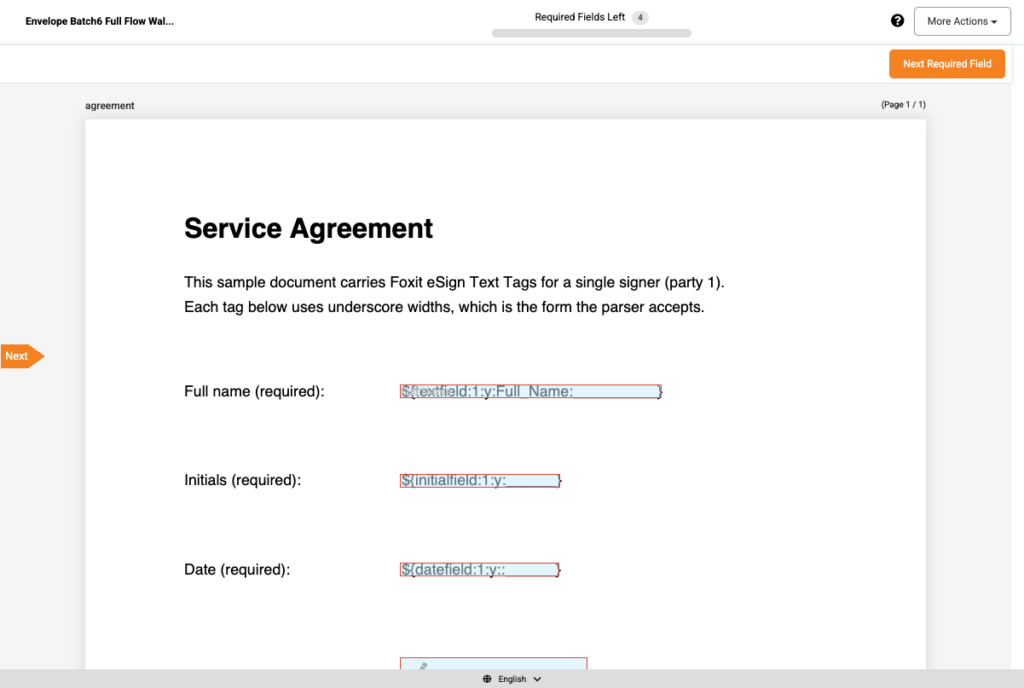
A real session opened from the embeddedSessionURL this guide’s request returns. All four tags in the sample became required fields, which is what the counter is reporting. The raw tag text still shows through each box, which is exactly why you color it to match the page background before shipping.
Step 5: Confirm completion with webhooks
Polling for completion wastes requests and adds latency. Register a webhook instead and Foxit eSign posts to your endpoint as each signing event happens.
Registration lives on the eSign portal’s API settings page at /consumer/consumerdetails, under Configure Webhooks, where you set the callback URL, a webhook secret, and the events you want. That page is visible only to the account owner, so an admin-level user will not find it. Your endpoint has to be reachable over public HTTPS.
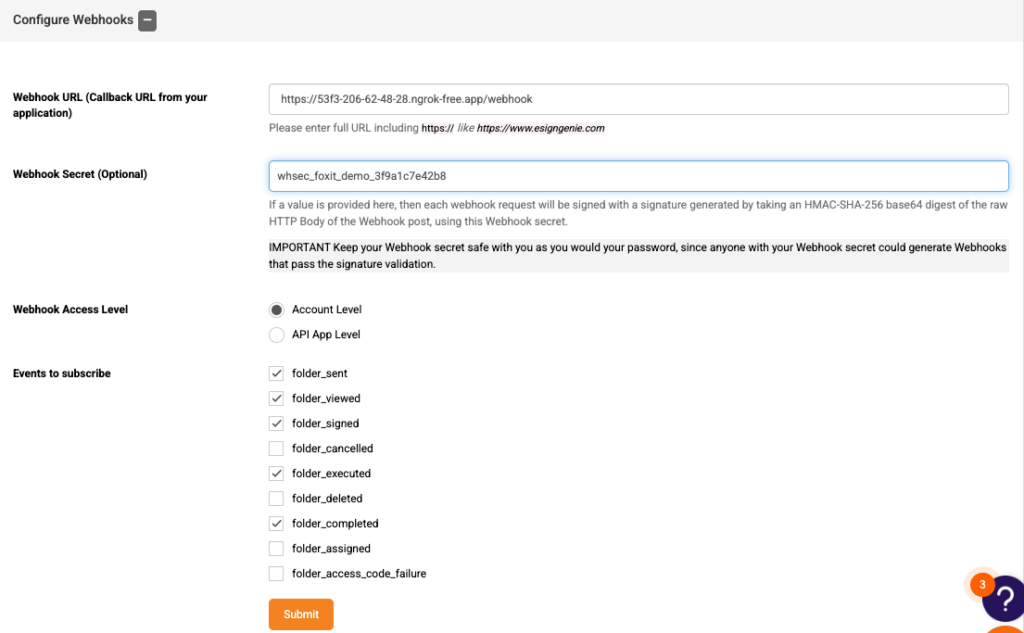
The owner-only webhook settings. The event checkboxes control which callbacks reach your endpoint.
The events available are folder_sent, folder_viewed, folder_signed, folder_cancelled, folder_executed, folder_deleted, folder_completed, folder_assigned, and folder_access_code_failure. In practice folder_viewed, folder_signed, folder_completed, and folder_executed are the ones that fire on an API-dispatched folder.
The event to build on is folder_executed. folder_completed fires once every party has signed, but folder_executed fires after Foxit applies the digital signature and locks the audit trail, so it is the point at which a download gives you the final document.
Foxit signs every callback. It delivers the POST as <your-url>?signature=<base64>, where the signature is the base64 of an HMAC-SHA-256 over the raw request body keyed with your webhook secret. Verify it against the unparsed bytes, since re-serializing the JSON changes whitespace or key order and breaks the comparison.
import base64
import hashlib
import hmac
import os

from flask import Flask, request, jsonify

app = Flask(__name__)
WEBHOOK_SECRET = os.environ["WEBHOOK_SECRET"]


def verify_signature(raw_body: bytes, signature: str) -> bool:
    expected = base64.b64encode(
        hmac.new(WEBHOOK_SECRET.encode(), raw_body, hashlib.sha256).digest()
    ).decode()
    return hmac.compare_digest(expected, signature)


@app.route("/webhooks/esign", methods=["POST"])
def handle_esign_event():
    raw_body = request.get_data()
    if not verify_signature(raw_body, request.args.get("signature", "")):
        return jsonify({"error": "invalid signature"}), 403

    payload = request.get_json(silent=True) or {}
    event_name = payload.get("event_name")
    folder = payload.get("data", {}).get("folder", {})

    if event_name == "folder_executed":
        # The document is final here. Archive it, update your record, notify the user.
        app.logger.info("Signing finished for folder %s", folder.get("folderId"))

    return jsonify({"status": "received"}), 200
In this handler you read the unparsed body first, recompute the HMAC over those exact bytes with your webhook secret, and compare it against the signature query parameter using hmac.compare_digest so the check is not timing-dependent. A mismatch returns 403 before any business logic runs, which stops a spoofed POST to your public URL from triggging an archive. Only after the signature passes do you parse the JSON, read event_name, and branch on folder_executed to run downstream work, returning 200 so Foxit records the delivery as successful. A ready-to-run version of this receiver lives at webhook_receiver.py in the demo repo.
Test the whole path against a draft. Create the folder with sendNow set to false, dispatch it, sign in the embedded session, and watch the events arrive. Once the signer finishes, the session redirects to a result URL carrying event=signing_success, and the document reaches EXECUTED within a few seconds.
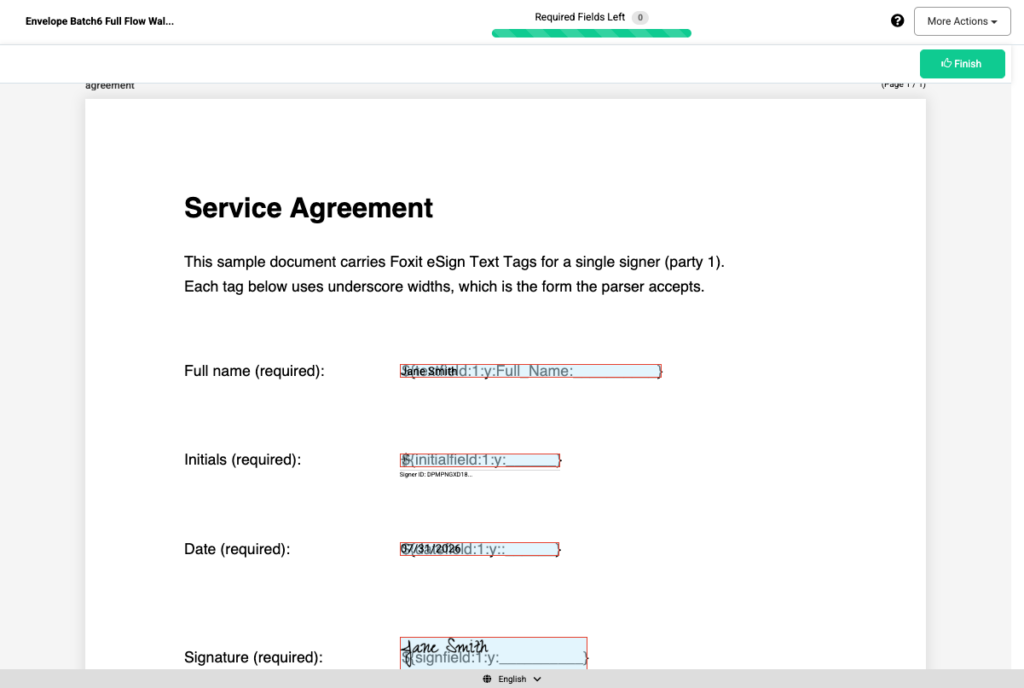
The session once every field is filled. The counter reads zero and Finish activates, which is the state that produces folder_completed and then folder_executed.
Step 6: Retrieve the executed document and its audit trail
With folder_executed in hand, pull the final PDF. The download takes the folder id as a query parameter.
curl -o executed.pdf \
  "$ESIGN_HOST/api/folders/download?folderId=35117696" \
  -H "Authorization: Bearer $ACCESS_TOKEN"
The response streams the executed PDF, which arrives with a content type of application/octet-stream rather than application/pdf, so write the bytes to a file rather than sniffing the header. The returned document carries the filled field values and the signature certificate, so a text extraction of it contains the signer’s typed name, the date, and the per-signer Signer ID recorded on the certificate page.
For the audit trail itself, GET /api/folders/viewActivityHistory?folderId={id} returns a details object holding the folder metadata plus an activities array, where each entry carries an activity description and the folderStatus at that moment. That endpoint is GET-only and only returns data once the folder has been shared, so a pure DRAFT folder reports nothing useful.
The signature certificate attached to a document once folder_executed has fired. Each signer’s adopted signature sits beside the identity record Foxit captured, which is the tamper-evident audit trail you are archiving alongside the PDF.
Common mistakes
- Dropping the
/api/prefix : every eSign path sits under/api/, so it is/api/folders/createfolder, not/folders/createfolder. - snake_case request fields : the body is camelCase.
folderName,fileUrls,emailId, andsendNowwork, whilefolder_name,document_url,email, andsend_nowdo not. - Omitting
processTextTags: without it the tags stay inert text, the signer sees raw${...}strings, and they can finish without signing anything. - A tag party with no matching
partiesentry : the create returns success and that party’s fields disappear silently, so their signature is never collected. - Skipping signature verification : a public webhook URL that acts on any POST is a spoofing target. Verify the HMAC before you touch the payload.
- Archiving on
folder_completed: that fires before the digital signature is applied. Wait forfolder_executed. - Caching an
embeddedSessionURL: sessions expire. Mint one when the signer is ready, and regenerate when needed. - Trimming the iframe
sandboxlist : removingallow-popupsorallow-top-navigationbreaks signing with no error message. - Smart quotes or a space inside a tag : both stop tag recognition. Use straight ASCII and underscores.
- Reusing PDF Services credentials : eSign has its own portal, host, and key pair.
eSignature API FAQ
What is an eSignature API?
A REST interface that handles the document-signing lifecycle, covering preparation, delivery, the signing session, and the audit trail, so your app makes calls rather than building signing infrastructure.
What is embedded signing and why does it improve the user experience?
Embedded signing renders the session inside your own application instead of redirecting to a hosted page, so the signer finishes without leaving your product. That matters most when signing sits inside a flow you do not want to interrupt, like onboarding or checkout.
How do Text Tags relate to the parties in the API call?
The party number in a tag maps to a signer’s sequence in the parties array, so ${s:1: } is signed by the party with sequence: 1. Keeping those aligned is the difference between fields routing correctly and vanishing silently.
What is the difference between folder_completed and folder_executed?
folder_completed fires when all parties have signed. folder_executed fires after Foxit applies the digital signature and locks the audit trail, which is why downstream archiving should trigger on folder_executed.
How do I verify a webhook actually came from Foxit?
Recompute a base64 HMAC-SHA-256 of the raw request body using your webhook secret and compare it with the signature query parameter. Verify against raw bytes, never re-serialized JSON.
Can one folder hold several documents?
Yes. Pass additional entries in fileUrls with matching fileNames. Each document carries its own Text Tags, and party assignments stay consistent across the folder.
Do I need a paid plan to build this?
No. The free tier gives you credentials and lets you run the full flow, and no credit card is required to create the account.
Can I review a document before it reaches signers?
Yes. Create it with sendNow set to false for a DRAFT folder, inspect it in the eSign dashboard, then dispatch with /api/folders/sendDraftFolder.
Wrapping up
That is the full path for an eSignature API integration. Authenticate with the client_credentials grant, prepare a PDF with Text Tags, create the folder with processTextTags and an embedded session, render the returned embeddedSessionURL in an iframe, and act on a signature-verified folder_executed webhook.
The same shape extends to multi-signer approval chains, CRM-triggered signing when a deal closes, and template-based documents where fields arrive pre-filled from your own data. Those build on the pieces already in place rather than replacing them.
Ready to build? Create a free account (no credit card required) at account.foxit.com/site/sign-up, generate your API Key and Secret from the API tab, and run the token call above against agreement-signable.pdf to see a session URL come back.
Build a CRM-Triggered PDF Generation and eSign Workflow in Power Automate with Foxit’s REST APIs
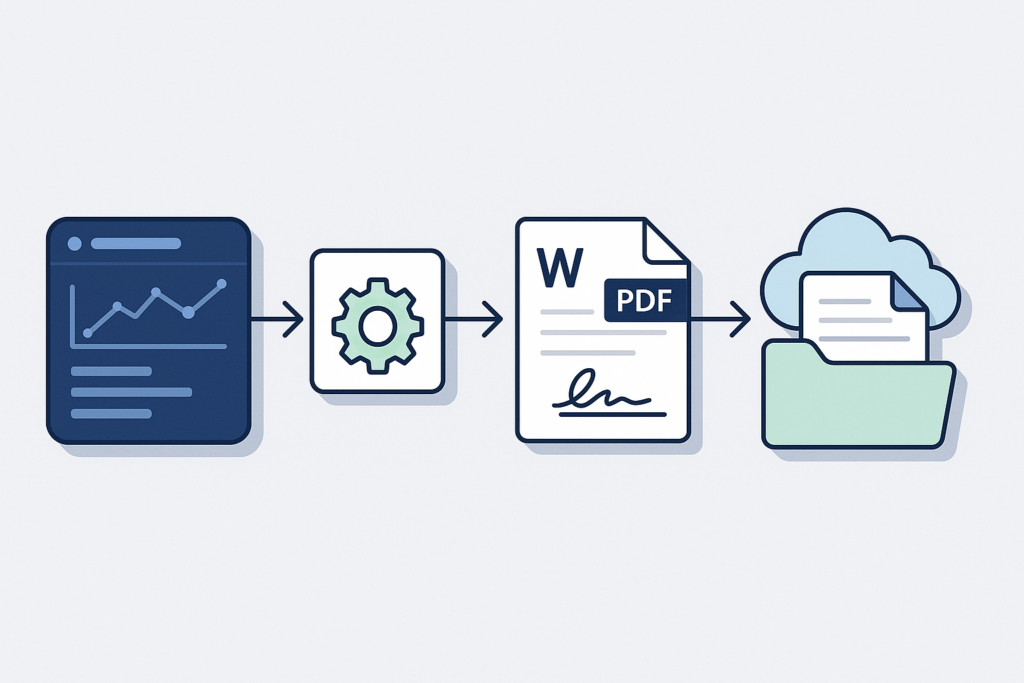
This guide shows how to trigger a Word-to-PDF contract from a closed CRM deal, route it for signature through Foxit’s eSign API, and archive the signed copy automatically, using nothing but HTTP actions and a webhook.
Most Power Automate document tutorials stop at a SharePoint file move or an AI Builder extraction, and the ones that touch signatures assume a native connector that does not exist for a headless, API-first pipeline. The gap is the full chain, where a CRM deal closes, a contract is generated from a Word template, the PDF is routed for signature, and the signed copy is archived, with no manual export and no polling. This article builds that pipeline in Power Automate using the HTTP action to call Foxit’s REST endpoints directly, which is the same pattern that carries over to n8n, Zapier, or any orchestrator that can make an HTTP request.
Foxit exposes two REST APIs that chain cleanly for this. The Document Generation API takes a base64-encoded Word template plus a JSON payload and returns a base64 PDF, and the eSign API handles the signing lifecycle behind an OAuth2 token. The base64 PDF from generation drops straight into the eSign upload call, so the handoff stays inside one flow with no SDK to install and no desktop agent. This Power Automate Foxit API integration walks the two hosts and their two auth models, the document generation call, the send-for-signature call with embedded signature fields, and a second flow that receives Foxit’s webhook and archives the executed document.
Prerequisites
Power Automate runs in the browser, so there is no local runtime to install. What you need are the right accounts and one sample file.
A Power Automate account with the HTTP action : the HTTP action is a premium connector, so you need a per-user or per-flow premium license. This is the one paid dependency in the tutorial. On the free Microsoft 365 tier you will hit a wall at the first HTTP action, so confirm the plan before you start.
A Foxit Developer account : create one at account.foxit.com/site/sign-up and activate the free Developer plan, which includes 500 credits per year with no credit card. From the APIs Dashboard, copy the Document Generation Client ID and Secret, and separately the eSign Client ID and Secret. These are two different credential pairs for two different APIs.
A CRM that can trigger a flow : this article uses the Salesforce connector as the example. Any CRM with a Power Automate connector, or any system that can POST to a webhook URL, works the same way.
The sample contract template : download contract_signing.docx so you do not have to author one. It already carries both Document Generation merge tags and eSign signature tags, which is what makes the two-API handoff work.
A REST client : Postman or curl, to test each Foxit call in isolation before wiring it into a flow.
Store both Foxit credential pairs in the Power Automate secure store or as environment variables in your solution, never pasted as literals into an action, so they do not travel in exported flow definitions.
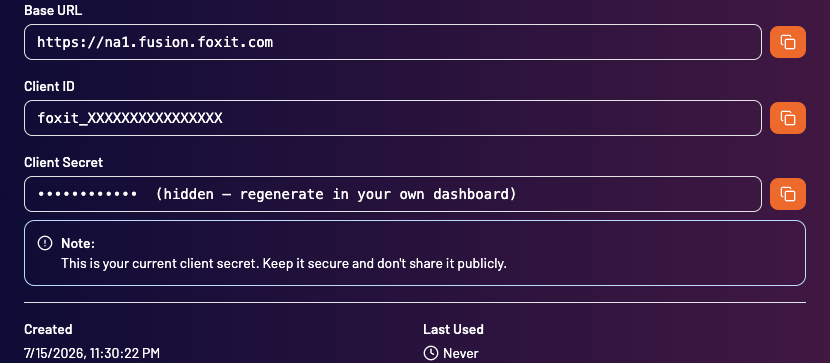
The APIs Dashboard is where you retrieve the Client ID and Secret. Document Generation and eSign each have their own pair.
How the Power Automate Foxit API Integration Works: Two APIs, Two Hosts, Two Flows
The pipeline has four stages. A CRM Closed Won event triggers document generation, the generated PDF is sent for signature, and the executed document is archived once every party has signed.
Salesforce: Opportunity → Closed Won
        │
        ▼
HTTP: POST GenerateDocumentBase64   (na1.fusion.foxit.com)   → base64 PDF
        │
        ▼
HTTP: POST createfolder             (na1.foxitesign.foxit.com) → folderId, email sent
        │
   … signer signs (async) …
        ▼
Flow 2: When a HTTP request is received  <- Foxit webhook (folder_executed)
        │
        ▼
HTTP: GET download → OneDrive: Create file
Power Automate owns orchestration and control flow. Foxit owns document rendering and the signature lifecycle. The single most common mistake in this integration is treating the two Foxit products as one, so keep them separate from the start. Document Generation runs on https://na1.fusion.foxit.com and authenticates with lowercase client_id and client_secret request headers. eSign runs on https://na1.foxitesign.foxit.com and authenticates with an OAuth 2.0 bearer token obtained from its own credential pair. They do not share credentials or a portal.
The work also splits into two flows for a reason. Generation and sending are synchronous, so they belong in one flow that runs when the deal closes. Signing completes minutes or days later, so a second flow triggered by Foxit’s webhook handles the archive step. That separation is what removes any polling from the design.
Here is the main flow built in the Power Automate designer, with the four HTTP actions chained after the trigger.
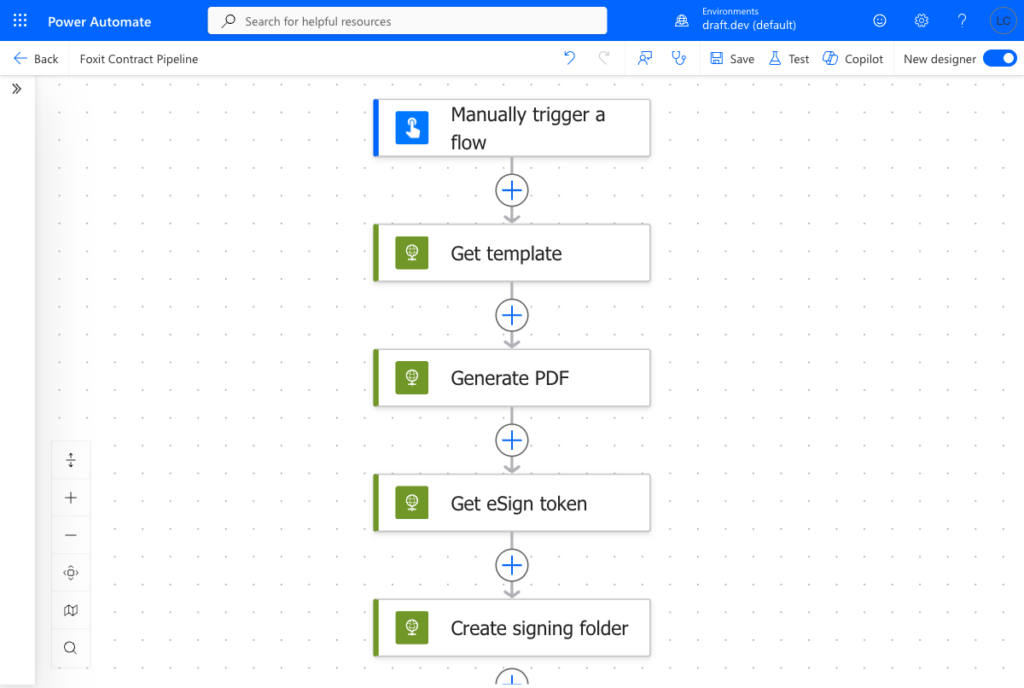
The four HTTP actions in order. This build uses a manual trigger so the flow runs on demand while you test; in production the Salesforce trigger from Step 1 takes its place as the entry point, and nothing downstream changes.
Step 1: CRM Trigger, Firing the Flow on a Closed Deal
Create an automated cloud flow and choose the Salesforce trigger for a created or modified record, pointing it at the Opportunity object. Add a condition so the flow only proceeds when the Stage equals Closed Won, which keeps every mid-pipeline edit from generating a contract.
Map the CRM fields the contract needs. For the sample template, that is the client name, the contract date, the deal value, and the signer’s name and email. Read them from the trigger output with expressions like triggerOutputs()?['body/Account_Name'] and store each in a variable or reference it inline, so the next two steps can assemble their payloads cleanly.
This step is swappable. Any CRM with a Power Automate connector, or any system that can POST JSON to a Power Automate HTTP-request trigger, drops in here without touching the Foxit calls that follow. If you use HubSpot or Dynamics 365, only the trigger and field paths change, so the rest of this tutorial stays identical.
Step 2: Generate the Contract PDF with GenerateDocumentBase64
The contract_signing.docx template drives this step. It contains Document Generation merge tags for the scalar fields and a table loop for line items, using Foxit’s {{ }} syntax:
{{clientName}}
{{contractDate \@ MM/dd/yyyy}}
{{dealValue \# "$#,##0.00"}}

{{TableStart:lineItems}} {{description}}   {{amount}} {{TableEnd:lineItems}}
The \@ switch formats a date and the \# switch formats a currency value, so you can pass a raw ISO date and a plain number and let the template render them. The {{TableStart:lineItems}} and {{TableEnd:lineItems}} tokens sit in a single Word table row and repeat that row for each object in the lineItems array.
Before the flow can send the template, it needs the file as a base64 string. The build here gets it with an HTTP GET action named Get template, pointed at the raw contract_signing.docx URL, and base64-encodes the response with the base64() expression. For a template you maintain yourself, store it in OneDrive or SharePoint and use a Get file content action instead of the GET. Then add a second HTTP action named Generate PDF, set to POST https://na1.fusion.foxit.com/document-generation/api/GenerateDocumentBase64 with client_id and client_secret headers and this JSON body:
{
  "base64FileString": "@{base64(body('Get_template'))}",
  "documentValues": {
    "clientName": "@{variables('clientName')}",
    "contractDate": "2026-07-17",
    "dealValue": 48500,
    "lineItems": [
      { "description": "Platform license (annual)", "amount": "$36,000.00" },
      { "description": "Onboarding and training", "amount": "$12,500.00" }
    ]
  },
  "outputFormat": "pdf"
}
In this code, you send the base64-encoded template as base64FileString, pass the CRM-sourced fields as documentValues whose keys match the template tags exactly, and request a PDF with outputFormat set to the lowercase "pdf". The keys clientName, dealValue, and the lineItems array with its description and amount fields have to match the tag names in the Word file, since a mismatch leaves the tag unrendered rather than raising an error. The call is synchronous and returns HTTP 200 with a JSON response containing message, fileExtension, and base64FileString, where base64FileString is the rendered PDF as a base64 string.
The call is synchronous, so there is no task to poll and no status to check, and the generated contract is available immediately. Reference the rendered PDF in the next step directly with the expression body('Generate_PDF')?['base64FileString'], or add a Parse JSON action first if you prefer typed outputs. When you need the raw bytes rather than the string, for archiving or a file action, convert with the base64ToBinary() expression, one of the Workflow Definition Language conversion functions.
One limit to plan for is the upload size. Document Generation rejects .docx payloads larger than 4 MB after base64 encoding, which is roughly a 3 MB raw file, and the limit is not surfaced in a friendly error. If you hit it, compress images through Word’s Picture Format tools, drop embedded fonts and OLE objects, and split oversized templates. The sample here is about 37 KB, so first runs stay well clear of the cap. For template authoring detail and common payload errors, Foxit’s Document Generation API quickstart is the reference.
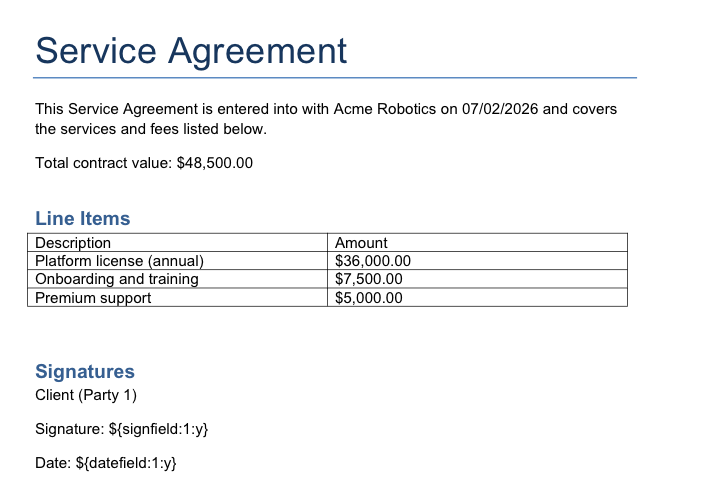
The generated contract. The signature and date fields at the bottom come from the eSign Text Tags embedded in the same template, ready for Step 3.
Step 3: Send for Signature with OAuth2 and createfolder
The eSign API needs a bearer token first. Add an HTTP action that POSTs to https://na1.foxitesign.foxit.com/api/oauth2/access_token with content type application/x-www-form-urlencoded and this body:
grant_type=client_credentials&client_id=YOUR_ESIGN_CLIENT_ID&client_secret=YOUR_ESIGN_CLIENT_SECRET&scope=read-writeName this action Get eSign token. Its JSON response carries access_token, token_type set to bearer, expires_in, and instance_url, and you reference the token in the next call as body('Get_eSign_token')?['access_token']. This is the client-credentials grant, which fits a server-to-server flow where no human is present to log in.
The signature fields are already defined in the template. contract_signing.docx carries two eSign Text Tags, ${signfield:1:y} and ${datefield:1:y}, which follow the ${fieldtype:party:mandatory} syntax. Here both are mandatory fields assigned to party 1, the client who signs. Because the tags live in the Word file, the PDF that Document Generation produced in Step 2 already has a signature and date field in place, so there is no manual field placement after generation. Keep two rules in mind when you author your own tags. Replace any space inside a tag with an underscore, since a literal space breaks tag recognition, and set the tag text color to match the document background so the tokens do not show in the final PDF.
Now add the send action, an HTTP action named Create signing folder, set to POST https://na1.foxitesign.foxit.com/api/folders/createfolder with an Authorization: Bearer @{body('Get_eSign_token')?['access_token']} header and this body:
{
  "folderName": "Acme Corp Contract",
  "inputType": "base64",
  "base64FileString": ["@{body('Generate_PDF')?['base64FileString']}"],
  "fileNames": ["contract_signing.pdf"],
  "parties": [
    {
      "firstName": "Jordan",
      "lastName": "Lee",
      "emailId": "[email protected]",
      "permission": "FILL_FIELDS_AND_SIGN",
      "sequence": 1
    }
  ],
  "processTextTags": true,
  "sendNow": true
}
In this code, you attach the Step 2 PDF by passing it as the single element of the base64FileString array together with inputType set to "base64", which is the pairing the API requires for base64 uploads. The parties array names the signer with firstName, lastName, emailId, and a permission of FILL_FIELDS_AND_SIGN, and its sequence of 1 matches the party number in the ${signfield:1:y} tag. Setting processTextTags to true is what converts those embedded tags into real, interactive fields, and sendNow set to true dispatches the signing invitation immediately. The response returns result as success and nests the identifier at folder.folderId, which you store for the archive flow. Foxit calls this container a folder rather than an envelope.
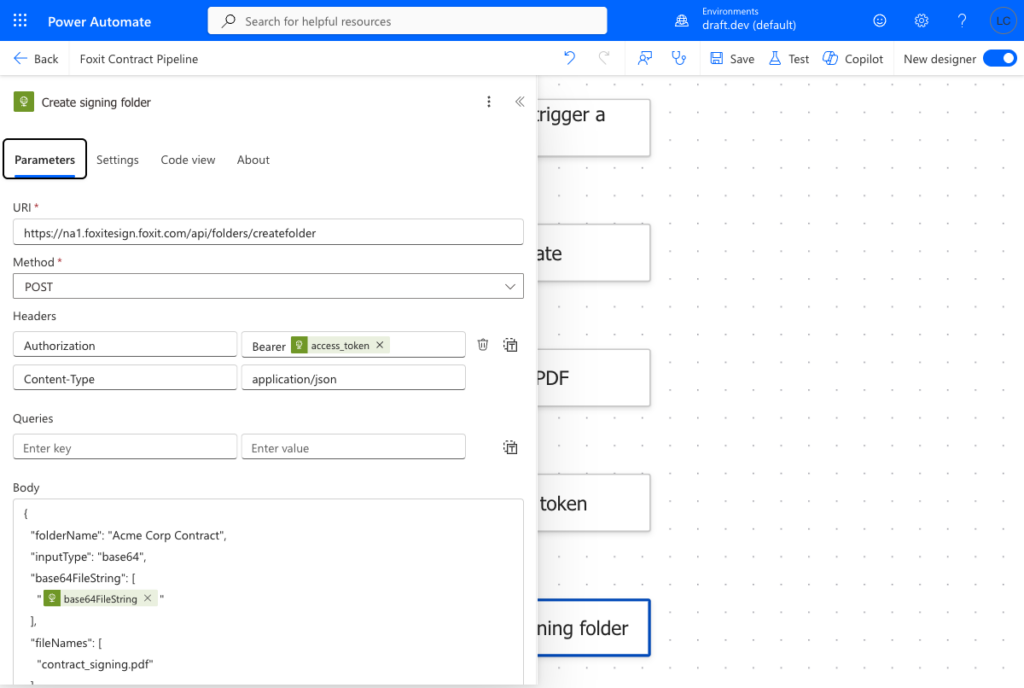
The Create signing folder action. The access_token and base64FileString chips are dynamic references to the two prior HTTP actions, so the eSign token and the generated PDF flow straight into this call with no copy-paste.
Two behaviors are worth handling before you ship. Every party number referenced by a Text Tag must have a matching entry in the parties array, because if a tag points at a party that is not listed, a sendNow: true create still returns success but silently drops that party’s fields, so their signature is never routed. If you need a human to approve the contract before it leaves, set sendNow to false to create a draft without emailing anyone, then dispatch it later with POST https://na1.foxitesign.foxit.com/api/folders/sendDraftFolder.
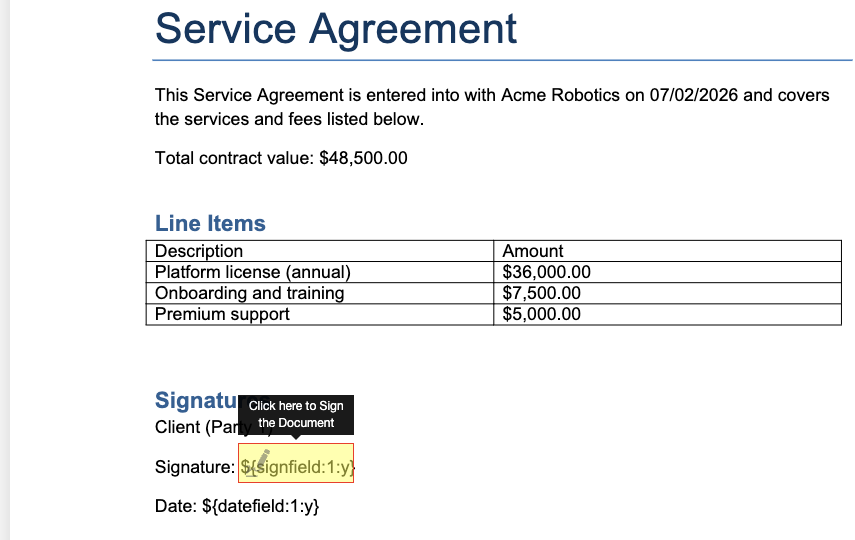
What the recipient sees after createfolder sends the invitation. The signature field is the one defined by the ${signfield:1:y} tag.
Step 4: Receive the Webhook and Archive the Signed Document
Create a second automated flow using the When a HTTP request is received trigger. Saving the flow generates a callback URL. Register that URL as the webhook endpoint on the eSign portal’s API settings page, which is owner-only, and select the signing events you want delivered.
Archive on the right event. The folder status moves through DRAFT, then SHARED, then PARTIALLY SIGNED, then COMPLETED, then EXECUTED. Trigger the archive on folder_executed, not folder_completed. The folder_completed event fires when all signatures are in but before the digital signature has been applied to the PDF, whereas folder_executed guarantees the file you download is the final, digitally signed document.
Verify each callback before acting on it. Foxit delivers every webhook as POST <your-url>?signature=<base64>, where the signature is the base64 of an HMAC-SHA-256 of the raw request body keyed with your webhook secret. Power Automate’s expression language has no native HMAC function, so there are two practical paths. The stronger one calls a small Azure Function or an Office Script that recomputes the HMAC over the raw body and returns a match boolean, which the flow checks in a Condition. The lighter one restricts the trigger to your tenant and treats the webhook secret as a shared value checked in a Condition, which is simpler but weaker. Choose based on how exposed the endpoint is.
Once a callback is verified and the event is folder_executed, parse folderId from the payload and download the signed file. Add an HTTP action with the bearer token set to GET https://na1.foxitesign.foxit.com/api/folders/download?folderId=@{triggerBody()?['folderId']}, which returns the executed PDF as application/pdf. Pass the response body to the OneDrive for Business Create file action, naming the destination folder by deal name or date so contracts stay retrievable.
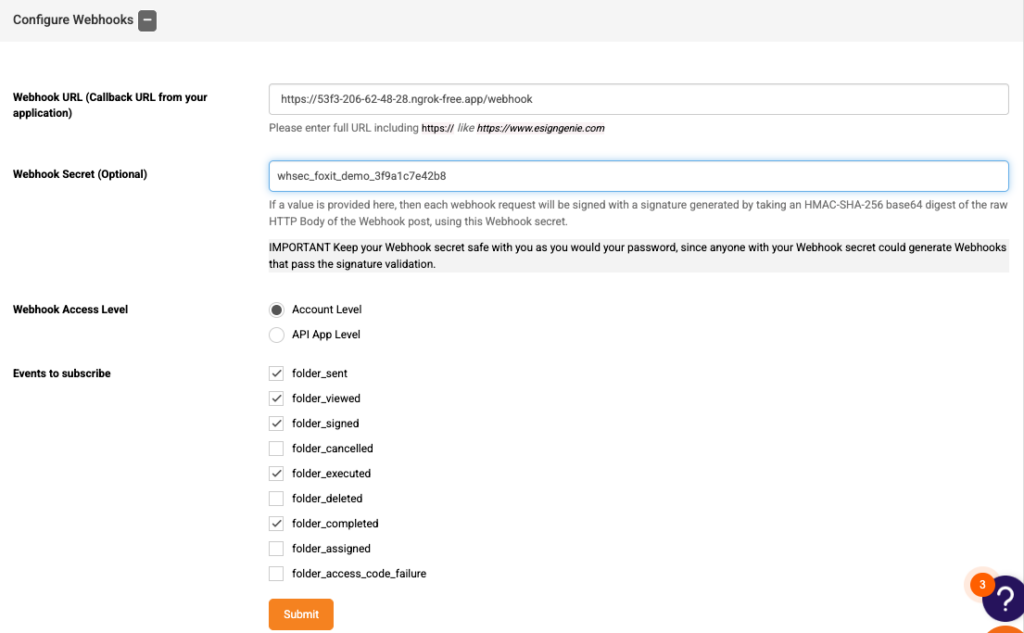
The owner-only webhook settings, where you paste the Power Automate callback URL and pick the events to receive.
If you cannot expose a public endpoint, poll instead. GET https://na1.foxitesign.foxit.com/api/folders/viewActivityHistory?folderId={id} returns the audit trail, with actions such as Created, Invitation Sent, Opened, Viewed, Signed, and Folder Executed. This endpoint is GET-only and only returns data once the folder has been shared or sent, so run it on a schedule from a separate flow.
Common Mistakes
Most failures in this pipeline come from a small set of recurring errors. Check these first when something does not work.
- Using one credential pair or one token for both APIs : Document Generation uses
client_idandclient_secretheaders onna1.fusion.foxit.com, while eSign uses a bearer token onna1.foxitesign.foxit.com. They are separate. - Sending the eSign PDF without
inputType: the base64 upload needsinputTypeset to"base64"alongside thebase64FileStringarray, or the API returnsfileUrls or base64FileString cannot be empty. - Omitting
processTextTags: withoutprocessTextTagsset totrue, the tags stay as inert text and the signer can finish without signing. - A tag party number with no matching party : if
${signfield:2:y}appears but thepartiesarray has no party 2, the send succeeds and that party’s fields vanish silently. - Missing a party email field : each party needs
emailId, notemail. The wrong key returnsemail id of party cannot be empty. - Archiving on
folder_completed: download onfolder_executedinstead, or you may pull a PDF before the digital signature is applied. - A stray space or smart quote in a tag : a literal space inside
${...}or a curly quote from Word autocorrect breaks tag recognition. Use straight quotes and underscores.
API Workflow Automation FAQ
Does this work with n8n or Zapier instead of Power Automate?
Yes. Any platform that can make HTTP requests and receive a webhook works, since the Foxit calls are identical. Only the orchestration layer changes.
Do I need a paid plan to test the Foxit side?
No. The free Developer plan gives 500 credits per year with instant activation and no credit card. The paid dependency here is the Power Automate premium license for the HTTP action.
Are Document Generation and eSign on the same credentials?
No. Each API has its own Client ID and Secret, so store two credential pairs and use each on its own host.
Can I skip generation and send an existing PDF to eSign?
Yes. The createfolder call accepts a base64 PDF directly, or a public file URL through fileUrls and fileNames, so the generation step is optional if you already have the document.
How do I add a second signer?
Add party-2 Text Tags to the template, such as ${signfield:2:y}, and a matching party-2 entry to the parties array. Keep the party numbers in the tags and the array aligned.
Next Step
The fastest way to confirm the pieces before building the flow is to run one call by hand. Create your free Foxit Developer account, pull your Document Generation and eSign Client IDs and Secrets from the APIs Dashboard, and run a single GenerateDocumentBase64 call against contract_signing.docx in a REST client. Once it returns a base64 PDF, you know the credentials and payload are right, and the rest of the Power Automate Foxit API integration is just wiring the same calls into actions. Create your free account to get started.
Build a CRM-Triggered Document Pipeline with Foxit APIs in n8n, with a Vercel Workflows Alternative
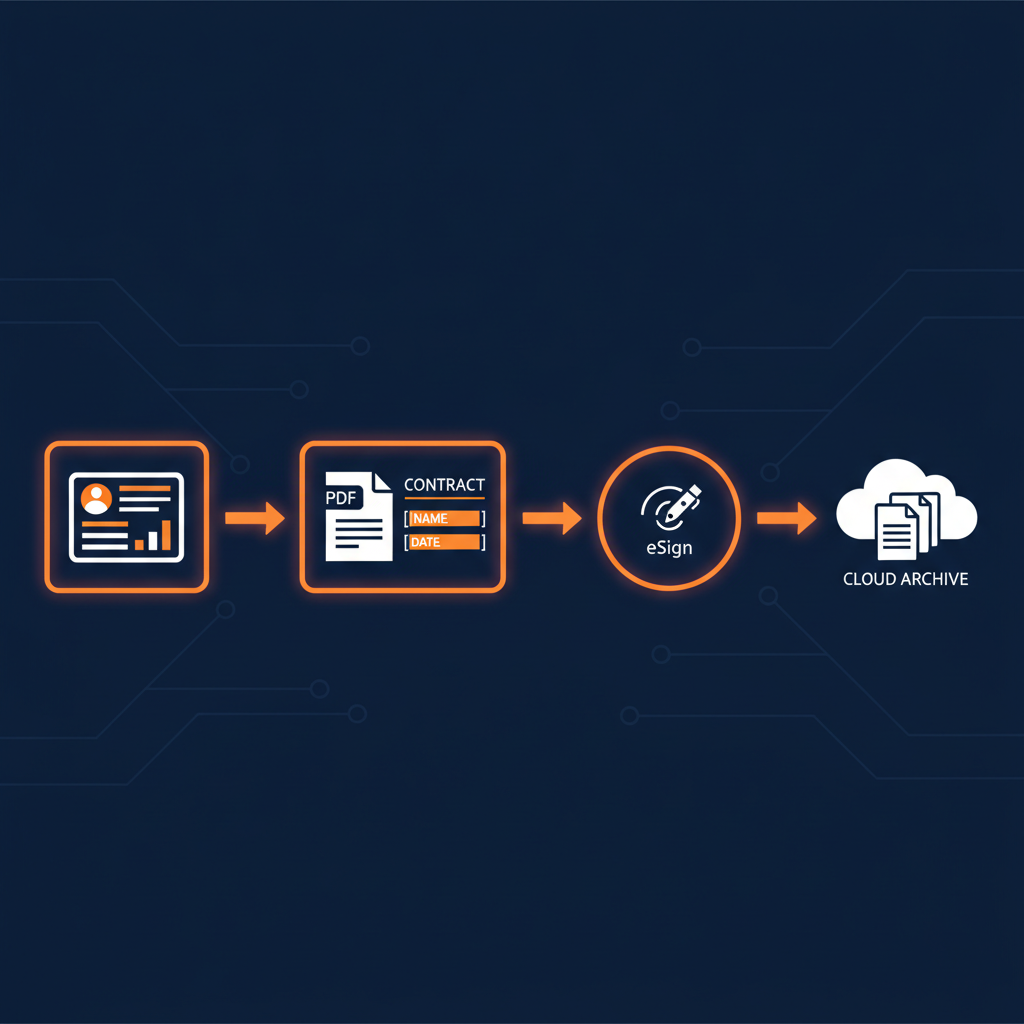
This tutorial shows how to wire a CRM webhook, the Foxit Document Generation API, and the Foxit eSign API into one durable pipeline, without manual copying of data between tools. You’ll build it twice: once visually in n8n, and once as a resumable serverless function in Vercel Workflows.
Most document automation tutorials stop at the happy path. Generate a PDF, send it for signature, done. What they skip is the plumbing, which is where a real pipeline lives or dies. How does a CRM event actually hand off to a document API? How do you pass a signed document downstream without a polling loop? What happens when one step fails halfway through and you do not want to re-run the steps that already succeeded?
If you have tried to stitch a multi-step document workflow across a CRM, a generator, and an eSign service, you know exactly where the seams are. The deal data lives in the CRM, the template lives somewhere else, the signature lives in a third system, and a person ends up copying state between them.
This tutorial closes those seams. A CRM deal-closed event fires a webhook, a workflow renders a contract from a Word template, routes it for signature, waits for completion, and archives the signed file, with no human in the loop. You will build it first in n8n, a source-available workflow tool, and then rebuild the same pipeline as a durable function with Vercel Workflows. Both use the Foxit Document Generation API and the Foxit eSign API with real endpoints and real request shapes.
Durability is the theme. A production pipeline must survive a step failure, retry without repeating completed work, and hold state across an asynchronous signing wait that can last minutes or days.
Architecture Overview: Two Ways to Build the Same Pipeline
The pipeline is four stages, and each hands its output directly to the next.
Trigger. A CRM webhook (a HubSpot deal-stage change in this example) delivers the deal data.
Generate. The workflow renders a contract PDF from a Word template through Document Generation, a synchronous REST call with no SDK to install.
Sign. The rendered PDF goes straight to the eSign API, which creates a signing folder and routes it to the signer.
Archive. When signing completes, the workflow downloads the executed PDF and writes it to storage.
In n8n, that maps to a Webhook node, an HTTP Request node for generation, an HTTP Request node for signing, a second Webhook node that waits for the eSign completion callback, and a final archive step.
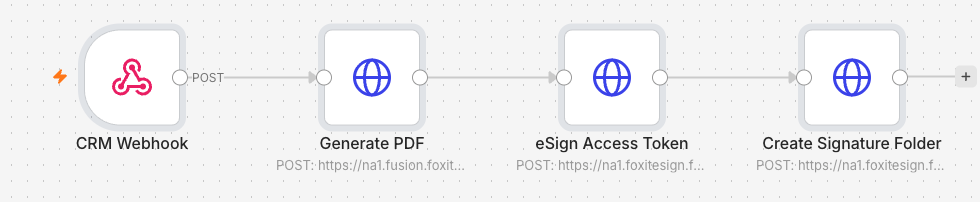
The core chain in the local n8n editor. Each stage is a plain HTTP Request node, and the base64 PDF from the generation node flows straight into the eSign create-folder node.
The same pipeline can be written as code with Vercel Workflows, where the whole flow is one durable function, each Foxit call is a retrying step, and the eSign wait is a hook that resumes when the completion webhook arrives. Reach for n8n when you want visual orchestration and fast prototyping, and for Vercel Workflows when you want code-native durability and already run on Vercel. Section 7 builds that version.
One detail shapes every call. The two APIs live on two hosts and authenticate differently. Document Generation runs on https://na1.fusion.foxit.com and takes client_id and client_secret request headers. eSign runs on https://na1.foxitesign.foxit.com and takes an OAuth2 bearer token obtained from /api/oauth2/access_token.
Step 1: Credentials and Template Prep
The whole build runs on free infrastructure. Run n8n as the self-hosted Community Edition in Docker, and use Foxit’s free Developer plan. There is no n8n Cloud plan and no paid Foxit tier involved.
Register a Foxit account at account.foxit.com/site/sign-up, verify your email, and activate the free Developer plan. From the APIs Dashboard, copy your Document Generation Client ID and Client Secret. The eSign API is provisioned separately, so once eSign is active on your account, retrieve its API Key and API Secret as a distinct pair. You end up with two credential sets, and they are not interchangeable.
Store the Document Generation pair once in n8n’s credential store rather than pasting keys into nodes. Because Foxit needs two custom headers, use the Custom Auth credential type, which is the same type Foxit’s published template uses. Create a credential with this JSON:
{
  "headers": {
    "client_id": "YOUR_FOXIT_CLIENT_ID",
    "client_secret": "YOUR_FOXIT_CLIENT_SECRET"
  }
}
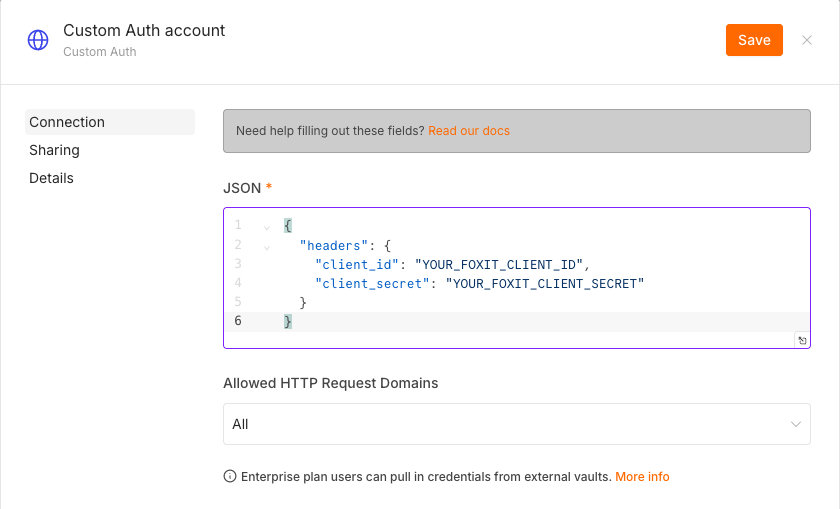
The Custom Auth credential holds both Foxit headers in one place, so your keys never appear in a node field or an exported workflow.
Now the template. Because the goal is a signing-ready contract, one Word file carries two families of tags. Document Generation merge tags use double braces for data, and eSign Text Tags use dollar-brace syntax for signature fields. Download the ready-to-use sample, contract_signing.docx. It carries {{clientName}}, {{dealValue \# "$#,##0.00"}}, {{contractDate \@ MM/dd/yyyy}}, a {{TableStart:lineItems}} / {{TableEnd:lineItems}} loop for line items, and the eSign Text Tags ${signfield:1:y} and ${datefield:1:y}. The Text Tag format is ${fieldtype:party:mandatory}, so ${signfield:1:y} is a required signature for party 1. Keep the raw file under about 3 MB, for the reason covered in Step 2.
Step 2: CRM Webhook to DocGen, Generating the Contract
Start the workflow with a Webhook node, which is how a CRM will call your pipeline when a deal closes. Set the method to POST and give it a path such as deal-closed. n8n gives the node a Test URL for building and a Production URL for live traffic.
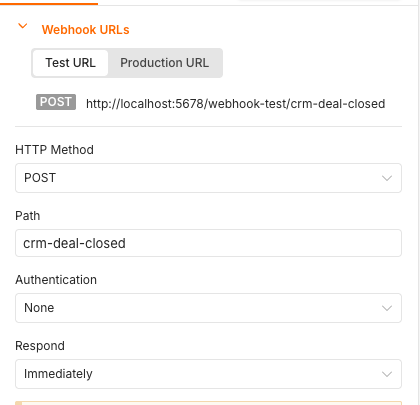
The Webhook node’s Test URL. Click “Listen for test event” to capture a sample request while building.
Because a local build has no real CRM pointed at it, fire the webhook yourself. Click Listen for test event, copy the Test URL, and send a sample deal payload with cURL:
curl -X POST "http://localhost:5678/webhook-test/deal-closed" \
  -H "Content-Type: application/json" \
  -d '{ "clientName": "Acme Robotics", "dealValue": 48500, "contractDate": "2026-07-02" }'
In this request, you POST a small JSON object standing in for the CRM’s deal-closed payload. The Webhook node captures it and its fields become available to later nodes as {{ $json.body.clientName }}. In production, register the node’s Production URL in your CRM’s webhook settings, and expose your local instance with a tunnel such as ngrok if you are testing before deploying.
Add an HTTP Request node for generation. Set the method to POST, the URL to https://na1.fusion.foxit.com/document-generation/api/GenerateDocumentBase64, attach the Custom Auth credential, turn on Send Body, choose JSON, and send:
{
  "base64FileString": "<base64-encoded contract_signing.docx>",
  "documentValues": {
    "clientName": "{{ $json.body.clientName }}",
    "dealValue": "{{ $json.body.dealValue }}",
    "contractDate": "{{ $json.body.contractDate }}",
    "lineItems": [
      { "description": "Platform license (annual)", "amount": "$36,000.00" },
      { "description": "Premium support", "amount": "$5,000.00" }
    ]
  },
  "outputFormat": "pdf"
}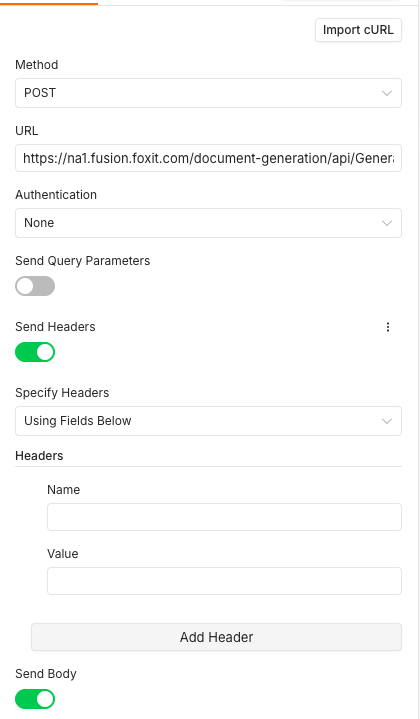
The HTTP Request config panel. Set the method and URL, attach the credential, and turn on Send Body for the JSON payload.
In this body, base64FileString is the template encoded as base64, documentValues is a flat object whose keys match the template tags exactly and whose values come from the webhook payload, and outputFormat is the lowercase "pdf". The keys must match the tag names character for character, because a mismatch does not raise an error. The call returns HTTP 200 and that field simply renders blank, so confirm names with POST /document-generation/api/AnalyzeDocumentBase64 if a field comes back empty. One more limit to plan for, since it surfaces as a bare HTTP 500 rather than a friendly message. Document Generation rejects a .docx payload larger than 4 MB after base64 encoding, which is roughly a 3 MB raw file, so compress images and drop embedded fonts if the template is heavy.
The endpoint is synchronous. The response carries message, fileExtension, and base64FileString, where the last holds the rendered PDF as base64. There is no job id and no polling, which keeps the graph linear. The generated contract has the data merged in and the Text Tags still present in the text, ready for signing.
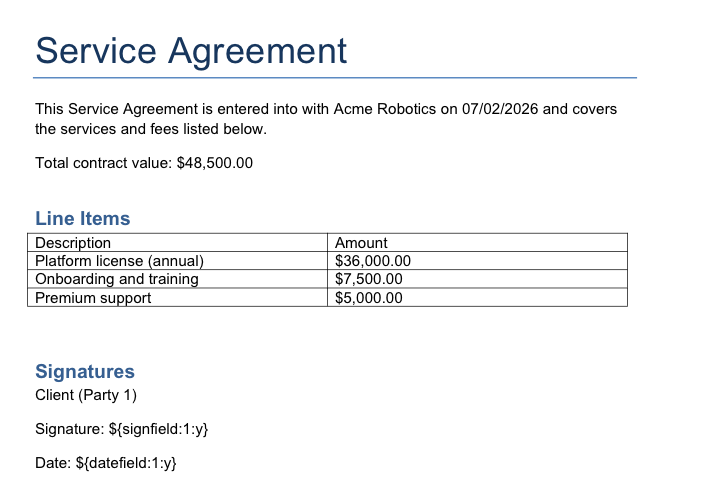
The generated PDF. The merge tags are filled and the ${signfield:1:y} and ${datefield:1:y} Text Tags survive into the output, where eSign will convert them into fields.
Step 3: Routing the PDF into eSign
The eSign leg starts by turning your eSign credentials into a bearer token. Add an HTTP Request node that POSTs to https://na1.foxitesign.foxit.com/api/oauth2/access_token, with the body sent as Form Urlencoded and four fields, grant_type set to client_credentials, client_id, client_secret, and scope set to read-write. The response is JSON with access_token, token_type (the string bearer), expires_in, and instance_url. This is a standard OAuth2 client-credentials grant defined in RFC 6749. Cache the token against expires_in and refresh before it lapses rather than minting one per run.
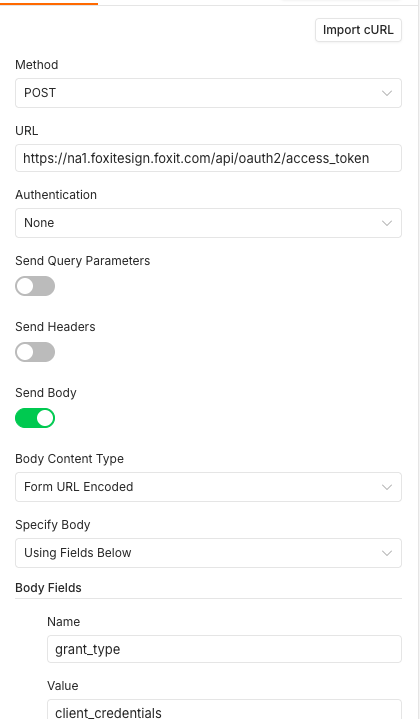
The token node uses a Form URL Encoded body with the four OAuth fields. Click Execute step to confirm it returns a token before wiring the rest.
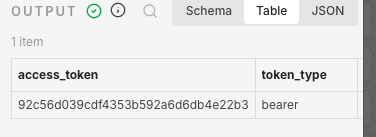
A successful token call. The green check and the returned access_token confirm the credentials and endpoint are correct.
Now add the send-for-signature node. POST to https://na1.foxitesign.foxit.com/api/folders/createfolder with an Authorization: Bearer <access_token> header and this body:
{
  "folderName": "Contract - {{ $('Webhook').item.json.body.clientName }}",
  "inputType": "base64",
  "base64FileString": ["{{ $('Generate PDF').item.json.base64FileString }}"],
  "fileNames": ["contract.pdf"],
  "processTextTags": true,
  "sendNow": true,
  "parties": [
    {
      "firstName": "Alex",
      "lastName": "Rivera",
      "emailId": "[email protected]",
      "permission": "FILL_FIELDS_AND_SIGN",
      "sequence": 1,
      "workflowSequence": 1
    }
  ]
}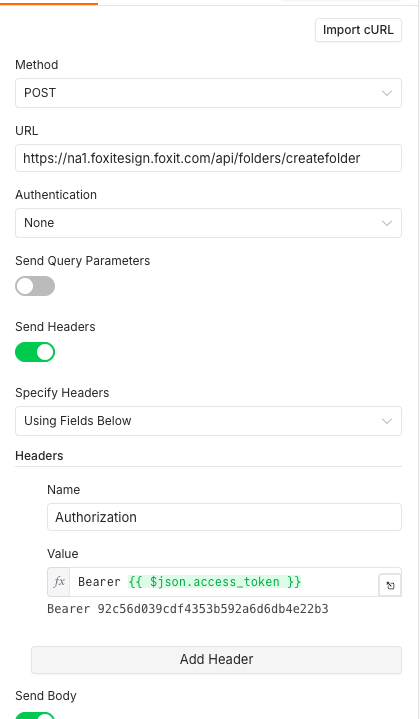
The create-folder node. The Authorization header value Bearer {{ $json.access_token }} pulls the token from the previous node.
In this call, inputType is "base64" and base64FileString is an array holding the PDF from Step 2, which is the direct handoff between the two APIs. processTextTags: true converts the embedded Text Tags into real fields, and sendNow: true dispatches the folder in the same request. The response nests the identifier at folder.folderId, which you keep for the completion step. One rule fails silently, so check it. Every party number used in a Text Tag must have a matching entry in parties, or a sendNow: true call returns success while dropping that party’s fields. If you prefer a review gate, set sendNow: false and dispatch later with POST /api/folders/sendDraftFolder.
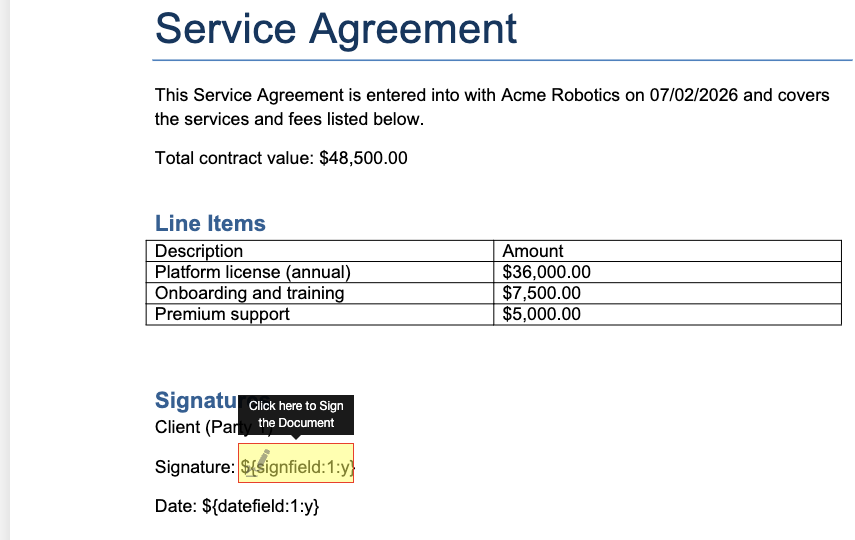
What the signer receives, from a real run of this exact pipeline. The ${signfield:1:y} tag in the template has become an interactive signature field, which confirms processTextTags did its job on the generated contract.
Step 4: eSign Completion Webhook and Archive
Register your callback URL in the eSign portal’s API settings page, under the Configure Webhooks section. This page is visible to the account owner once API access is active, so a non-owner login will not see it. Provide the HTTPS callback URL, a Webhook Secret, and the events you want delivered.
Archive at the right moment by understanding the lifecycle. A folder moves through DRAFT, then SHARED, then PARTIALLY SIGNED, then COMPLETED when all signatures are collected, then EXECUTED a few seconds later once the digital signature is applied. Hook folder_executed, not folder_completed, so the file you store is the finalized, digitally signed PDF.
Add a second Webhook node to receive the callback. Each callback POSTs a JSON body with event_name, event_date in Unix milliseconds, and data, where data.folder carries folderId, folderStatus, folderDocumentIds, and documentsList. Verify authenticity against the HMAC-SHA-256 digest Foxit computes over the raw request body with your Webhook Secret and appends to the callback URL as a signature query parameter. Compare against the raw body bytes, not a re-serialized payload.
On completion, download the executed document and archive it. A GET to https://na1.foxitesign.foxit.com/api/folders/download?folderId={id} with the bearer token returns the signed PDF as application/pdf. Route that binary to a storage node such as Google Drive, an S3 bucket, or an internal file-system node, then fire any downstream update.
Not every send completes, so handle the abandoned-signer path. If the completion webhook never fires, use an n8n Wait node with a timeout, or poll GET /api/folders/viewActivityHistory?folderId={id} (GET only, and it responds once the folder is shared) to read the audit trail, then branch to a follow-up rather than hanging.
The Vercel Workflows Alternative
If your stack already runs on Vercel, you can build the same pipeline as a durable function instead of a visual graph. Vercel Workflows is built on the open-source Workflow SDK. Scaffold a Next.js app, add the SDK, and wrap the config so the build compiles your workflow functions into durable routes:
npm create next-app@latest foxit-vercel-workflow
cd foxit-vercel-workflow
npm i workflow
// next.config.ts
import { withWorkflow } from "workflow/next";
import type { NextConfig } from "next";
const nextConfig: NextConfig = {};
export default withWorkflow(nextConfig);A CRM would kick off a run by POSTing to an API route, which starts the workflow with start() and returns immediately while the durable function runs in the background:
// app/api/trigger/route.ts
import { NextResponse } from "next/server";
import { start } from "workflow/api";
import { contractWorkflow, type Deal } from "@/workflows/contract";

export async function POST(req: Request) {
  const deal = (await req.json()) as Deal;
  await start(contractWorkflow, [deal]);
  return NextResponse.json({ started: true });
}
The orchestration function carries the 'use workflow' directive, which makes it resumable and able to survive deploys and crashes through deterministic replay. It generates the contract, sends it for signature, then awaits a hook keyed by the folderId until the signing completes:
// workflows/contract.ts
import { signatureHook } from "./hooks";

export async function contractWorkflow(deal: Deal) {
  "use workflow";

  const pdfBase64 = await generateContract(deal);
  const folderId = await sendForSignature(pdfBase64, deal);

  // Pause here, consuming no compute, until the eSign webhook resumes it.
  const completion = await signatureHook.create({ token: String(folderId) });

  const archivedBytes = await archiveSigned(folderId);
  return { folderId, event: completion.event_name, archivedBytes };
}
Each Foxit call becomes a step. A function with the 'use step' directive runs a unit of durable work and gets built-in retries on transient failures like network errors, so a flaky call is retried without re-running the rest of the pipeline.
// app/steps/generate-contract.ts
async function generateContract(deal: Deal) {
  'use step';

  const res = await fetch(
    'https://na1.fusion.foxit.com/document-generation/api/GenerateDocumentBase64',
    {
      method: 'POST',
      headers: {
        client_id: process.env.FOXIT_DOCGEN_CLIENT_ID!,
        client_secret: process.env.FOXIT_DOCGEN_CLIENT_SECRET!,
        'Content-Type': 'application/json',
      },
      body: JSON.stringify({
        base64FileString: TEMPLATE_B64,
        documentValues: deal,
        outputFormat: 'pdf',
      }),
    },
  );
  const { base64FileString } = await res.json();
  return base64FileString;
}
The eSign wait is a hook, not a poll. Define a hook, create it keyed by the folderId, and resume it from an API route when Foxit POSTs the completion webhook. The workflow pauses without consuming compute and resumes exactly where it left off.
// workflows/hooks.ts
import { defineHook } from "workflow";

export type FoxitCompletion = {
  event_name: string;
  data: { folder: { folderId: number; folderStatus: string } };
};

export const signatureHook = defineHook<FoxitCompletion>();
// app/api/foxit-webhook/route.ts
import { signatureHook } from "@/workflows/hooks";
export async function POST(req: Request) {
const payload = await req.json();
const folderId = payload?.data?.folder?.folderId;
// Resume only on the terminal event, so earlier lifecycle events
// (viewed, signed, completed) do not consume the single-use hook.
if (folderId && payload?.event_name === "folder_executed") {
await signatureHook.resume(String(folderId), payload);
}
return new Response("OK");
}In this code, the workflow calls two steps and then waits on signatureHook. When Foxit’s folder_executed webhook hits /api/foxit-webhook, the route calls hook.resume with the folderId as the key, which wakes the paused workflow and hands it the payload so it can archive the signed document. The event_name check matters, because the same account webhook also delivers folder_viewed, folder_signed, and folder_completed, and any of those would otherwise consume the single-use hook early. Use sleep() from the workflow package for a timeout fallback if the signer never acts. The credential and endpoint facts are identical to the n8n version, since only the orchestration layer changed. The Workflow Concepts page documents the directives, sleep, and hooks in full, and the full runnable project is in the demo repo.
Deployed to Vercel and triggered with a sample deal, the run shows up under Observability, where you can watch runs pause and resume in real time.
The Workflows runs list in the Vercel dashboard. A run stays Active while it is paused on the signing hook, then flips to Completed once the eSign webhook resumes it.
Opening a completed run shows the whole durable pipeline as a trace. The two Foxit steps run in seconds, the hook span (named by the folderId) accounts for the multi-minute wait while the document sat unsigned, and archiveSigned runs the instant the real folder_executed webhook resumes the workflow.
A completed run trace. generateContract (1.77s) and sendForSignature (1.09s) are the real Foxit calls, the 34624119 span is the hook paused for about three minutes until the document was signed, and archiveSigned (680ms) downloads the executed PDF once the webhook fires.
CRM-Triggered Document Pipeline FAQ
Does the Foxit Document Generation API support formats other than PDF?
Yes. Set outputFormat to "docx" to get a merged Word document back instead of a PDF. That’s useful for contracts that need further edits or approvals before going to eSign.
Can I use the eSign API without DocGen?
Yes. createfolder accepts a PDF from any source, such as a publicly accessible URL, multipart form data, or a base64 string you’ve encoded from an existing file. DocGen and eSign are independent APIs that pair well together because DocGen’s base64 output is exactly what createfolder’s inputType: “base64” mode expects, but neither requires the other.
What happens if a signer doesn’t sign within the expected window?
The folder stays in SHARED or PARTIALLY_SIGNED status indefinitely with no automatic expiry. You’re responsible for detecting stalled folders. In n8n, use a Wait node with a timeout. In Vercel Workflows, use sleep() inside a Promise.race. Both paths let you branch to a follow-up action rather than letting the workflow hang.
How do I handle multiple signers who must sign in order?
Add multiple objects to the parties array with sequential sequence values (1, 2, 3…). The eSign API dispatches to party 2 only after party 1 has signed. Make sure each Text Tag in your template references the correct party number (${signfield:2:y} for party 2’s signature field) and that parties includes a matching entry for every number you use.
How do I keep my eSign Bearer token fresh?
The token response includes expires_in in seconds. Cache the token with a timestamp, check before each call whether you’re within a safe margin of expiry (60 seconds is reasonable), and re-fetch from POST /api/oauth2/access_token when needed. Fetching a new token on every API call adds unnecessary latency and wastes credits.
Can this pipeline handle multiple documents in a single eSign envelope?
Yes. base64FileString is an array. Pass multiple base64-encoded PDFs alongside their corresponding fileNames, and all documents will be included in the same folder for the signer to complete in one session.
What is a CRM-triggered document pipeline and why does it matter?
A CRM-triggered document pipeline is an automated workflow that listens for a CRM event, such as a deal moving to “closed won” in HubSpot, and automatically generates, sends for signature, and archives a contract without human intervention. It matters because manual document handling after a deal closes introduces delays, missed steps, and no audit trail when something fails silently mid-process.
Test End-to-End and Harden for Production
Prove the pipeline by firing a sample deal at the n8n Webhook Test URL with the cURL command from Step 2. Confirm the Document Generation call returns a base64 PDF, the eSign folder is created with a folder.folderId, and the signing email reaches your test address. Running the middle by hand first means you catch a bad credential or a tag mismatch before any nodes downstream depend on it.
Harden the credentials next. Store client_id, client_secret, and the eSign keys as n8n credentials or Vercel environment variables, never as plaintext in node config, and add an n8n error workflow that alerts on any 4xx or 5xx from either Foxit API. Distinguish a 4xx (fix the payload) from a 5xx (retry with backoff).
Finally, size for credits. Each Document Generation call and each eSign send consumes credits, so read the Foxit API credits reference before going to production. The free Developer plan covers 500 credits per year, which is plenty to build and validate the whole pipeline.
Create a free Foxit developer account with no credit card required, grab your Client ID and Secret from the APIs Dashboard, and run your first Document Generation call against the live endpoint before wiring it into a workflow. Create your free account to get started.
Build a CRM-to-eSign Document Pipeline in n8n Using Foxit’s REST APIs
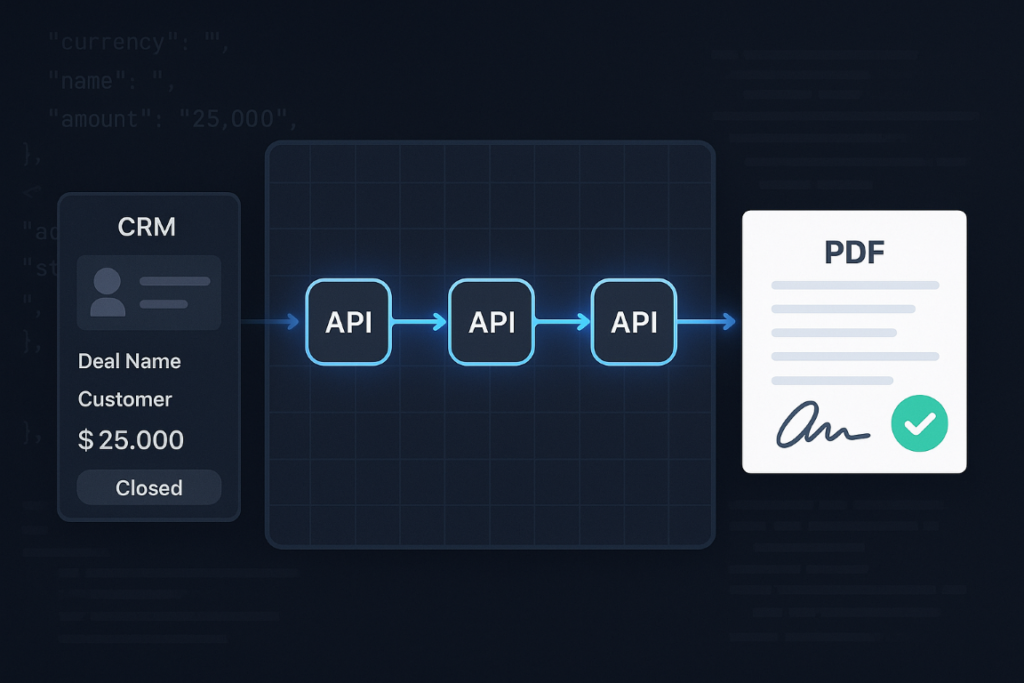
This tutorial shows how to wire the Foxit API n8n integration into a single automated chain. You’ll learn how to generate a PDF, send it for signature, and archive the signed copy without anyone touching a file.
A deal moves to closed-won in the CRM, and then a person takes over. Someone exports the deal fields, pastes them into a contract template, saves a PDF, uploads it to a signing tool, types in the counterparty’s email, and hits send. Days later they check whether it was signed, download the executed copy, and drop it into a shared drive so finance can find it. Every one of those steps is a place where data gets retyped, a wrong template gets attached, or a signature request stalls because nobody was watching.
The failure is structural, not human. The deal data lives in the CRM, the contract template lives in a content folder, the signature lives in a separate vendor, and the archive lives somewhere else again. Nothing connects them, so a person becomes the integration layer.
The target state removes that person from the loop. A CRM event fires, an automation runs a short chain of API calls, and a signed PDF lands in storage with no manual touch. This tutorial builds exactly that using n8n, a source-available workflow tool, as the orchestrator. You will build it step by step, and you do not need to be an n8n expert to follow along. The chain is a CRM webhook, then document generation, then send-for-signature, then an archive step, wired together with n8n’s HTTP Request node.
A Continuous Chain of REST Calls
The pipeline has three stages, and each is a REST call the previous stage feeds directly.
- Generate. A CRM webhook delivers deal data into n8n. The workflow merges that data into a Word template and renders a PDF through the Foxit Document Generation API, a cloud REST endpoint with no SDK to install.
- Sign. The rendered PDF goes straight to the Foxit eSign API, which creates a signing folder, routes it to the parties, and manages the signature lifecycle.
- Archive. When signing completes, the workflow downloads the executed PDF and writes it to storage, then updates the CRM record.
The data handoff between stages is what makes the chain clean. Document Generation returns the finished PDF as a base64 string in its JSON response, and that same base64 string is exactly what the eSign folder-create call accepts as its file payload. No temporary files, no disk writes, and no format juggling between the two calls. The eSign completion event then carries the folder reference the archive stage uses to pull the signed document.
One detail belongs up front, since it shapes every node. The two APIs live on two different hosts. Document Generation runs on https://na1.fusion.foxit.com, and eSign runs on https://na1.foxitesign.foxit.com. They also authenticate differently, which the next section covers. There is no dedicated Foxit node in n8n and none is needed, because both are well-formed REST endpoints that the HTTP Request node handles with custom headers and JSON bodies.
Run n8n Locally and Get Foxit Credentials
The whole tutorial runs on free, self-hosted infrastructure. There is no n8n Cloud plan to sign up for and no paid Foxit tier involved. You run n8n yourself in a container, and the only account you create is Foxit’s free Developer plan.
Install Docker
You need Docker to run n8n. On macOS or Windows, install Docker Desktop; on Linux, install Docker Engine. Both are covered on the Get Docker page. After installing, confirm it works by running docker --version in a terminal.
Start n8n and create your local account
Run the two commands below, taken from n8n’s Docker docs:
docker volume create n8n_data
docker run -it --rm --name n8n -p 5678:5678 \
  -v n8n_data:/home/node/.n8n \
  docker.n8n.io/n8nio/n8n
The n8n_data volume persists your workflows and credentials across restarts, since n8n stores them in a local SQLite database by default. The -p 5678:5678 flag maps the editor to a local port. Now do these steps in order:
- Open http://localhost:5678 in your browser.
- On first launch, n8n asks you to create an owner account. This is a local account for your own instance, not an n8n Cloud login, so use any email and password you like.
- You land on an empty workflow canvas. This is where you will build the pipeline.
Swap -it --rm for -d in the run command when you later want n8n running in the background.
Get your Foxit credentials
Register a Foxit account at account.foxit.com/site/sign-up, verify your email, and activate the free Developer plan. From the APIs Dashboard, copy your Document Generation Client ID and Client Secret. The eSign API is provisioned separately, so once eSign is active on your account, retrieve its Client ID and Client Secret as a distinct pair. You now have two credential sets, and they are not interchangeable.
They differ because the two APIs authenticate differently, and this is the single thing that trips up most first builds. Document Generation takes the credentials as two request headers, lowercase client_id and client_secret, on every call. eSign instead runs an OAuth2 exchange first, trading its credentials for a short-lived bearer token that you then send as an Authorization: Bearer <token> header.
Store the DocGen credentials once, reuse them everywhere
Rather than pasting your Client ID and Secret into every node, store them once in n8n’s credential store. Because Foxit needs two custom headers, use the Custom Auth credential type (the same type Foxit’s own published n8n template uses). In n8n, go to Credentials, click Create credential, search for Custom Auth, click Continue, and paste this JSON:
{
  "headers": {
    "client_id": "YOUR_FOXIT_CLIENT_ID",
    "client_secret": "YOUR_FOXIT_CLIENT_SECRET"
  }
}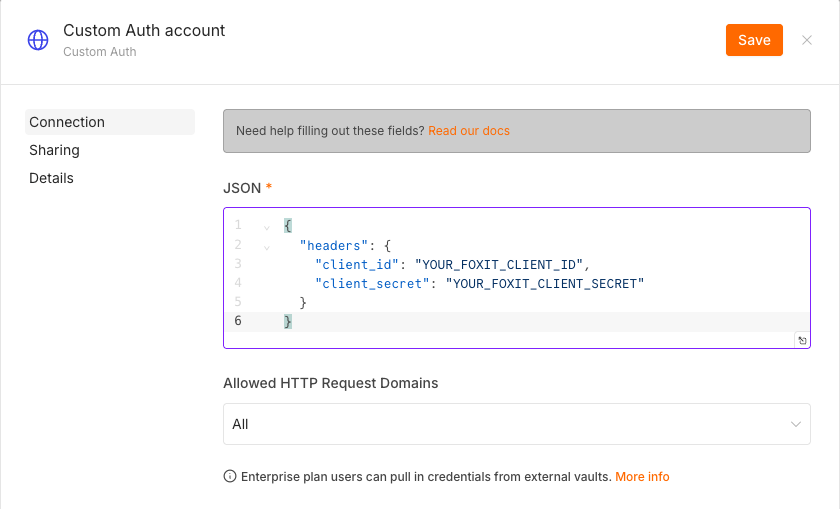
The Custom Auth credential holds both Foxit headers in one place. Any HTTP Request node can attach it, so your Client ID and Secret never appear in a node field or an exported workflow.
In this credential, the headers object lists the two headers Foxit expects, with your real Client ID and Secret as the values. Save it, and every Document Generation call in this tutorial can attach it instead of carrying the raw keys.
Import the Finished Workflow (Optional Shortcut)
If you would rather see the whole pipeline first and study it, import the finished version and then follow the step-by-step build below to understand each node. On any workflow canvas, open the ⋯ (Actions) menu in the top right and choose Import from URL….
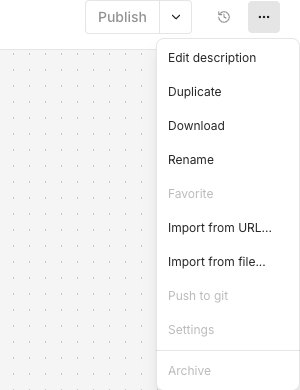
The Actions menu on the workflow canvas. “Import from URL…” pulls a workflow straight from a link, so there is nothing to download.
Paste the raw URL of the ready-made pipeline JSON and click Import:
https://github.com/lucienchemaly/foxit-demo-templates/raw/main/n8n/foxit-crm-to-esign-pipeline.json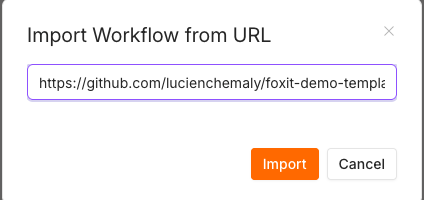
The Import from URL dialog. n8n fetches the JSON and renders the full node graph on the canvas, ready for you to attach your own credentials.
The imported graph arrives with placeholder credentials, so you still create the Custom Auth credential above and select it on the two Foxit nodes. Whether you import or build from scratch, the sections below explain exactly what each node does.
Step 1: Trigger the Workflow and Generate the PDF
Add the trigger and fire it with a test request
Start the workflow with a Webhook node, which is how a CRM will eventually call your pipeline when a deal closes. Click the + on the canvas, search for Webhook, and add it. Set HTTP Method to POST and Path to crm-deal-closed. n8n gives every Webhook node two addresses, a Test URL for building and a Production URL for live traffic.
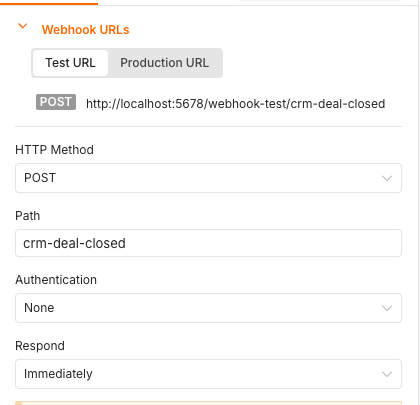
The Webhook node’s Test URL and “Listen for test event” button. Clicking Listen puts the node in a one-shot capture mode so you can send it a sample request while building.
Because you are working locally and do not have a real CRM pointed at your laptop yet, fire the webhook yourself. Click Listen for test event, copy the Test URL, and send it a sample deal payload with cURL:
curl -X POST "http://localhost:5678/webhook-test/crm-deal-closed" \
  -H "Content-Type: application/json" \
  -d '{
    "company_name": "Acme Robotics",
    "deal_id": "INV-2026-0042",
    "amount": "1875.50"
  }'
In this request, you POST a small JSON object that mimics what a CRM would send when a deal closes. The Webhook node captures it, and those three fields (company_name, deal_id, amount) become available to every downstream node as {{ $json.body.company_name }} and so on. When you later move to production, switch to the node’s Production URL and register it in your CRM’s webhook settings. To expose your local machine to the internet for that, run a tunnel such as ngrok (ngrok http 5678) and register the tunnel address.
Prepare the Word template
The template is an ordinary Word document with Foxit DocGen merge tags where the deal data should land. A tag is a field name in double braces, and you can add Word-style format switches for dates and currency. Download the ready-to-use sample so you do not have to author one, invoice_simple.docx. It carries {{ companyName }}, {{ invoiceNumber }}, {{ invoiceDate \@ MM/dd/yyyy }}, and {{ totalDue \# "$#,##0.00" }}. For repeating rows such as line items, DocGen supports a loop with {{TableStart:lineItems}} and {{TableEnd:lineItems}} markers placed in the same table row, shown in the companion invoice_table.docx. If you want to confirm a template’s tags before wiring it in, POST it once to https://na1.fusion.foxit.com/document-generation/api/AnalyzeDocumentBase64, which returns the full list of tags it detected. The Foxit DocGen quickstart walks through the request shape in more detail.
Add and configure the Generate PDF node
Click + to add an HTTP Request node after the Webhook, and configure it field by field.
- Method : set to
POST. - URL :
https://na1.fusion.foxit.com/document-generation/api/GenerateDocumentBase64 - Authentication : choose Generic Credential Type, then Custom Auth, and select the credential you created earlier.
- Send Body : turn this on, set the body type to JSON, and paste the payload below.
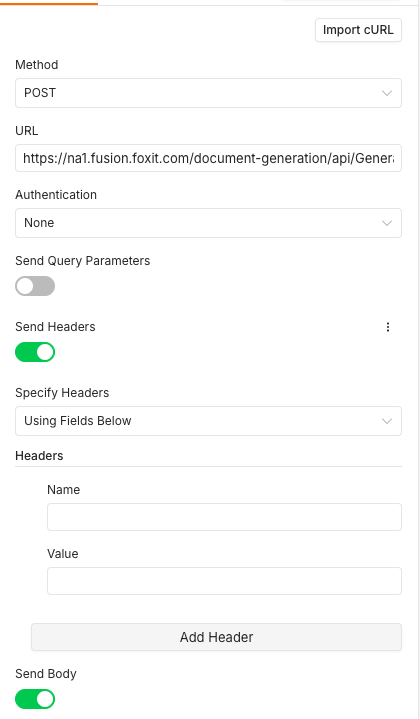
The HTTP Request node config panel. Every Foxit call in this tutorial is built here by setting the method and URL, attaching the credential, and toggling Send Body on for the JSON payload.
{
  "base64FileString": "<base64-encoded invoice_simple.docx>",
  "documentValues": {
    "companyName": "{{ $json.body.company_name }}",
    "invoiceNumber": "{{ $json.body.deal_id }}",
    "invoiceDate": "2026-07-01",
    "totalDue": "{{ $json.body.amount }}"
  },
  "outputFormat": "pdf"
}
In this body, base64FileString is the Word template encoded as base64, documentValues is a flat object whose keys match the template tags exactly and whose values are pulled from the webhook payload using n8n expressions, and outputFormat is the lowercase string "pdf". The keys in documentValues must match the tag names in the template character for character, since a mismatch renders that field empty rather than raising an error. To turn the template file into the base64 string, fetch it with an HTTP Request node set to return the file, then convert it in a Code node with items[0].binary.data.data, or paste a pre-encoded string while you are testing.
One limit is worth planning for. Document Generation rejects a .docx payload larger than 4 MB measured after base64 encoding, which is roughly a 3 MB raw file, and the rejection comes back as an HTTP 500 rather than a friendly validation message. If your template is heavy, compress its images through Word’s Picture Format pane, drop embedded fonts and OLE objects, and split an oversized template into parts you merge later.
The endpoint is synchronous, so there is no polling. The response is a JSON object with message, fileExtension, and base64FileString, where base64FileString holds the rendered PDF as base64. That value flows straight into Step 2.
Step 2: Exchange an eSign Token and Send for Signature
Get a bearer token
The eSign leg starts by turning your eSign credentials into a bearer token. Add another HTTP Request node and configure it:
- Method :
POST - URL :
https://na1.foxitesign.foxit.com/api/oauth2/access_token - Send Body : on, body type Form Urlencoded, with four fields,
grant_typeset toclient_credentials,client_idset to your eSign Client ID,client_secretset to your eSign Client Secret, andscopeset toread-write.
The response is JSON with access_token, token_type (the string bearer), expires_in, and instance_url. This is a standard OAuth2 client-credentials grant as defined in RFC 6749. The token is long-lived but not permanent, so in production cache it and refresh when expires_in is close to elapsing rather than minting a new one on every run.
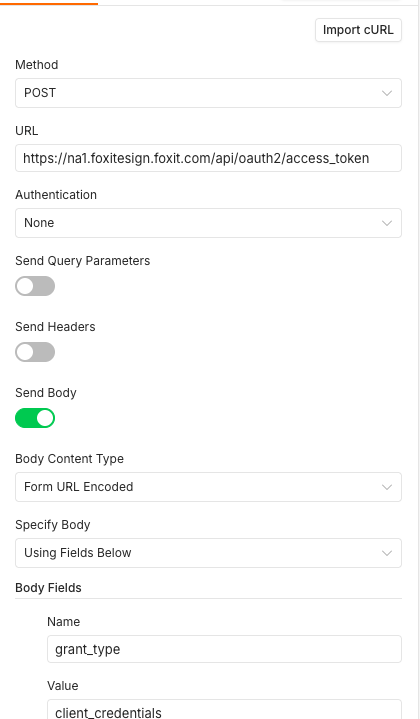
The token node uses a Form URL Encoded body with the four OAuth fields, not JSON. This is the one eSign call that sends the raw credentials rather than a bearer header.
Click Execute step on this node to confirm it works before wiring the rest. A successful run returns the token in the output panel.
A successful token call. The green check and the access_token / token_type values confirm the credentials and endpoint are correct before you build the next node.
Place signature fields with Text Tags
Signature placement is handled inside the document using Foxit eSign Text Tags, which you type into the Word template while authoring it. The syntax is ${fieldtype:party:mandatory}, so ${signfield:1:y} is a required signature for party 1 and ${datefield:2:n} is an optional date for party 2. If a tag needs to contain a space, replace it with an underscore, because a literal space breaks tag recognition. To keep the tags invisible in the finished document, set their text color to match the page background. On upload you set processTextTags: true, and Foxit converts each tag into a real signing field automatically, which removes any manual drag-and-drop field placement.
There is a party-mapping rule that fails silently, so check it before every send. Every party number referenced by a Text Tag must have a matching entry in the parties array of the create call. If a tag points at party 2 but your parties array only defines party 1, a sendNow: true create still returns success while quietly dropping party 2’s fields, so nobody is ever asked to sign them. Line up the token party numbers with the parties entries first.
Add the Create Signature Folder node
Add a third HTTP Request node for the send-for-signature call:
- Method :
POST - URL :
https://na1.foxitesign.foxit.com/api/folders/createfolder - Send Headers : on, add one header named
Authorizationwith the valueBearer {{ $json.access_token }}, which references the token from the previous node. - Send Body : on, body type JSON, with the payload below.
{
  "folderName": "Contract - {{ $('CRM Webhook').item.json.body.company_name }}",
  "inputType": "base64",
  "base64FileString": ["{{ $('Generate PDF').item.json.base64FileString }}"],
  "fileNames": ["contract.pdf"],
  "processTextTags": true,
  "sendNow": true,
  "parties": [
    {
      "firstName": "Alex",
      "lastName": "Rivera",
      "emailId": "[email protected]",
      "permission": "FILL_FIELDS_AND_SIGN",
      "sequence": 1,
      "workflowSequence": 1
    }
  ]
}
In this call, inputType is set to "base64" and base64FileString is an array holding the PDF that Step 1 produced, which is the direct handoff between the two APIs. The parties array lists each signer with their name, email, and order, processTextTags: true turns the embedded tags into fields, and sendNow: true dispatches the folder for signature in the same request. The response nests the identifier at folder.folderId, which you keep for status tracking and archival. Foxit’s API uses folder terminology throughout rather than envelope. If your process needs a review gate before anything is sent, set sendNow: false to create a draft, then dispatch it later with a POST /api/folders/sendDraftFolder call carrying the returned folderId.
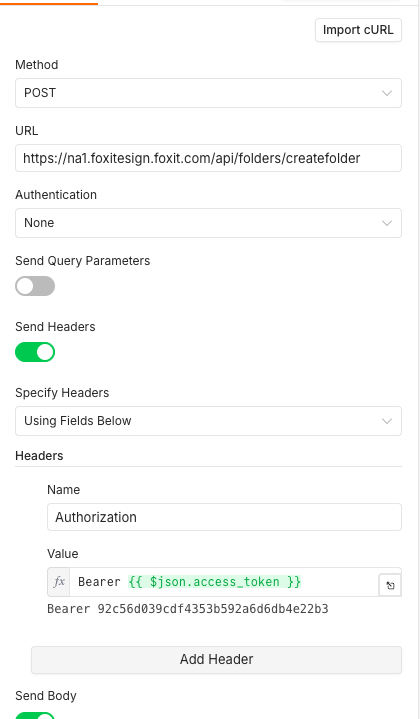
The create-folder node. The Authorization header value Bearer {{ $json.access_token }} pulls the token straight from the previous node, and the input panel on the left shows that token flowing in.
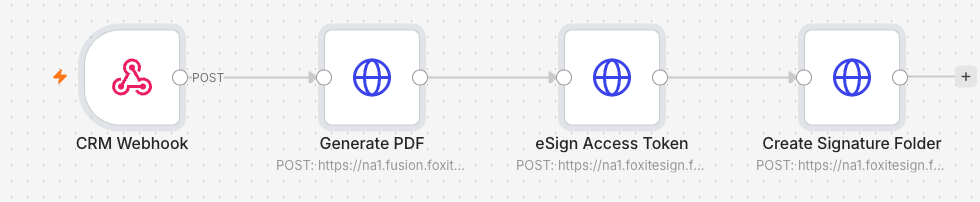
The finished chain in the local n8n editor. Each stage is a plain HTTP Request node, and the base64 PDF from the generation node flows directly into the eSign create-folder node.
Once the folder is sent, the signer receives the document with the Text Tags already converted into interactive fields routed to them.
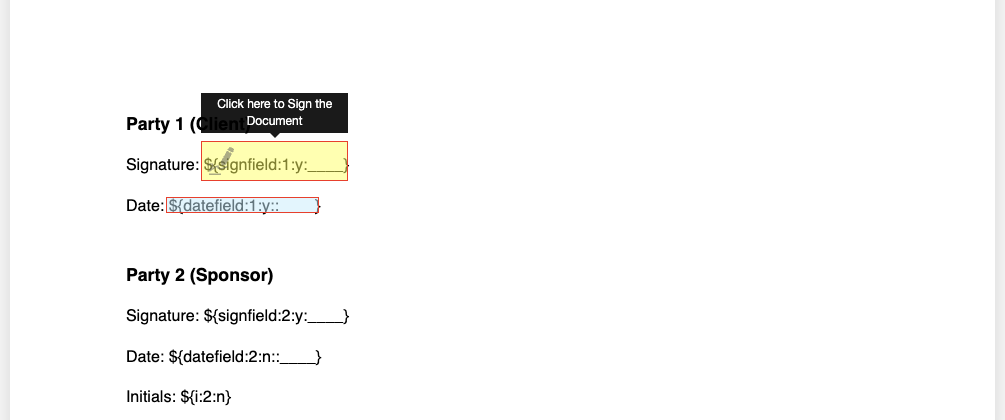
What the recipient sees after dispatch. This is the visible proof that processTextTags placed the fields correctly and routed them to the right party.
Step 3: Capture Signing Status and Archive the Document
With the folder sent, the workflow needs to know when it is signed so it can archive the result. The folder moves through a defined lifecycle, DRAFT, then SHARED, then PARTIALLY SIGNED, then COMPLETED, then EXECUTED, where the digital signature is applied to the PDF a few seconds after COMPLETED. Archive on the COMPLETED or EXECUTED event so you capture the finalized, digitally signed file.
Foxit eSign can push a webhook when the folder completes, configured in the eSign portal’s owner-only API and Webhooks settings, and you would receive it with a second n8n Webhook node. For a first local build, the simpler path is to poll. Add a Schedule Trigger node paired with an HTTP Request to https://na1.foxitesign.foxit.com/api/folders/viewActivityHistory?folderId={id}, which reads the folder’s audit trail (Created, Invitation Sent, Opened, Viewed, Signed, Folder Executed). This endpoint is GET-only and returns data only once the folder has been shared or sent, so it will not respond for a draft. Gate the next step with an IF node that checks whether the status has reached COMPLETED.
On completion, download the signed PDF through the eSign API and route the binary to a storage node, whether that is Google Drive, an S3 bucket, or an internal file-system node, then fire any downstream updates such as a Slack message or a CRM field write. Because not every send completes, add an error branch as well. If a party declines or the folder expires, route to a separate path that updates the CRM record to reflect the outcome and alerts the deal owner, so a human steps in only on the exceptions.
Common Mistakes and Troubleshooting
A few pitfalls account for most failed first runs.
- Wrong host. Document Generation is on
na1.fusion.foxit.com; eSign is onna1.foxitesign.foxit.com. Sending a DocGen body to the eSign host (or the reverse) returns an auth or not-found error. - Credential not attached. If a Foxit call comes back
401, the most common cause is an HTTP Request node with Authentication left on None. Attach the Custom Auth credential (DocGen) or add theAuthorization: Bearerheader (eSign). - Token expired or missing. The eSign bearer token is not permanent. If createfolder returns
401after the pipeline has been idle, re-run the token node so a freshaccess_tokenflows into the header. - Tag names do not match. A
documentValueskey that does not exactly match a{{ }}tag renders that field blank with no error. Cross-check the names, or runAnalyzeDocumentBase64to list the real tags. - Base64 payload too big. An HTTP 500 with a “cannot be larger than 4 MB” body means the encoded
.docxexceeded the cap. Slim the template per Step 1. - Party numbers do not line up. A Text Tag pointing at a party not present in the
partiesarray is silently dropped, so that signer is never asked to sign. Match token party numbers topartiesentries.
Foxit API n8n FAQ
Do I need a paid plan to test this pipeline?
The free Foxit Developer plan gives you 500 credits per year with instant activation and no credit card required. n8n runs as the source-available Community Edition in Docker with no license key. Both are fully functional for building and testing the complete pipeline described here.
Are the Document Generation and eSign credentials the same?
No. Each API uses its own Client ID and Secret. You will store two separate credential sets in n8n, one for the Document Generation header-based auth and one for the eSign OAuth2 token exchange. They come from separate sections of the Foxit APIs Dashboard.
What if my CRM does not support outbound webhooks?
Use an n8n Schedule node as your trigger. Add an HTTP Request node after it that polls your CRM’s REST API for deals matching your target stage criteria. HubSpot’s Deal Search API and Salesforce’s SOQL query endpoint both support this pattern. The rest of the workflow runs identically from that point forward.
Can I place signature fields without editing the Word template?
Yes. If you prefer not to embed Text Tags in the DOCX, omit processTextTags: true from your createfolder call and place fields manually using the Foxit eSign web editor after the document is uploaded. The manual approach works fine for low-volume workflows but does not scale as cleanly as tag-based automation when the template changes frequently.
What is the lifecycle of a signing folder in Foxit eSign?
A folder moves through five states in order:
- DRAFT : created but not sent
- SHARED : sent to all parties
- PARTIALLY SIGNED : at least one party has signed
- COMPLETED : all parties have signed
- EXECUTED : the digital signature stamp is applied
Your n8n archival step should trigger on COMPLETED or EXECUTED. If you archive on COMPLETED and need the final stamp, wait for the EXECUTED event instead.
How should I handle token expiry in the eSign OAuth2 flow?
The expires_in field in the token response tells you how long the bearer token is valid. For high-frequency workflows, add a Code node before the createfolder call that checks whether the stored token is still valid and re-requests it if not. You can also request a fresh token at the start of each pipeline execution. The client-credentials grant is stateless, so there is no session overhead to worry about.
How do I debug a merged PDF that returns with blank fields?
Run your template through the Analyze endpoint at POST https://na1.fusion.foxit.com/document-generation/api/AnalyzeDocumentBase64 before executing the full pipeline. It returns every tag the API detects, making it straightforward to catch case mismatches or typos. The merge API performs a case-sensitive lookup, so a template field named {{First_Name}} will not match a JSON key of first_name.
What to Build Next
The fastest way to prove the pipeline is to run the middle of it by hand first. Spin up the local n8n container, activate the free Foxit Developer plan, pull your Client ID and Secret from the APIs Dashboard, and fire the Document Generation POST against invoice_simple.docx from a REST client like Postman or cURL. Once that returns a base64 PDF, you know the hardest call works before any nodes are wired.
From there, two durable extensions are worth building. Save your signing setup as a reusable eSign template with POST /api/templates/createtemplate so future sends skip the field setup, and version the n8n workflow itself by exporting its JSON, so the whole chain can be redeployed or shared across the team.
Building Agentic Document Workflows: How LLM Agents Use PDF APIs to Convert, Extract, and Sign at Scale
This guide walks through building agentic document workflows by exposing Foxit’s PDF and eSign APIs as callable MCP tools, so any compatible agent host can run the full document lifecycle in one automated pipeline.
Agentic document workflows go beyond retrieval, since they convert, transform, merge, and sign documents without human intervention. This guide shows how to expose Foxit’s production PDF API as callable MCP tools so any LLM agent can execute the full document lifecycle (OCR, extraction, generation, and legally binding signatures) in a single automated pipeline.
Most LLM-powered applications have solved the retrieval problem. The harder part of agentic document workflows is action, the moment your agent needs to convert a scanned invoice to searchable text, merge a dozen contract pages into a package, and route it for a legally binding signature without a human in the loop.
RAG gets text into a context window, which is useful for reading. Once you need to produce, transform, or sign a document, you’ve moved into document operations territory. A plain text API won’t close that delta, and bolting together a dozen bespoke REST wrappers every time you need a new pipeline quickly becomes the bottleneck.
The Model Context Protocol (MCP) gives agents a standard way to discover and call tools. Document workflows have been missing a tool surface that exposes real PDF operations as callable MCP tools, backed by a production-ready API. This guide walks through exactly how to build that.
What You Need Before You Start
Five prerequisites are required to follow this guide. You need a Foxit developer account, the open-source MCP server, an MCP-compatible host, three environment variables, and a Python workspace for the signing example.
A Foxit developer account. Sign up at account.foxit.com/site/sign-up (no credit card required for the free Developer plan). The Foxit Developer Portal issues your Client ID and Client Secret, gives you access to the API Playground, and tracks usage in real time.
The open-source MCP server. Clone github.com/foxitsoftware/foxit-pdf-api-mcp-server. The repo ships two active implementations, a Python build (using FastMCP, Python 3.11+, and the uv package manager) and a TypeScript build (Node.js 18+, pnpm). The original stdio-python variant is deprecated, so use the current Python or TypeScript implementation.
An MCP-compatible host. You need somewhere to run the agent. Claude Desktop, Cursor, or VS Code with GitHub Copilot all work, and any MCP-compliant custom agent framework will also connect to the server.
A Python workspace for the signing example. The eSign walkthrough later in this guide runs a short Python script, so you need Python 3.8+ and the requests library. That walkthrough also uses a separate set of eSign credentials, which you set up in its own section rather than here. Scaffold an isolated workspace in one shot:
mkdir agentic-docs && cd agentic-docs
python3 -m venv .venv && source .venv/bin/activate
pip install requests
Three environment variables. Before launching your MCP host process, export these:
export FOXIT_CLOUD_API_HOST="https://na1.fusion.foxit.com/pdf-services"
export FOXIT_CLOUD_API_CLIENT_ID="your_client_id"
export FOXIT_CLOUD_API_CLIENT_SECRET="your_client_secret"
Never hardcode credentials in config files. The MCP server reads these at startup and uses them to authenticate every request to the PDF Services API.
What “Agentic” Actually Means for Document Workflows
An agentic document workflow executes operations on documents (converting formats, applying OCR, merging pages, routing for signature) rather than simply retrieving text from them. The tool surface required is fundamentally different from a RAG setup.
Retrieval-augmented generation pulls text from a document and injects it into a prompt. An agentic document workflow does something to a document, whether it converts a format, applies OCR to make a scanned image searchable, merges pages from multiple sources, or routes the result for signature.
In a tool-use architecture, the LLM doesn’t call the API directly. It picks the right operation from a catalog of tools based on the task, calls it with structured inputs, processes the result, and decides whether to continue the chain or hand off to the next step. If you’ve worked with web-search or code-execution tools in LangChain or AutoGen, the pattern is identical. The model reasons about which tool to invoke, not about how the underlying HTTP request works.
A REST API is an HTTP surface. An MCP tool is a named, typed function with an input schema, an output contract, and a description the model uses to decide when and whether to call it. MCP standardizes that interface so any compliant host can discover the full tool catalog, call individual operations, and chain results without custom adapter code.
A well-designed MCP server eliminates the bespoke integration layer. Without one, every document-heavy agent pipeline requires someone to write and maintain that plumbing from scratch.
Architecture Overview: Two Modes for Agent-Driven PDF Processing
The Foxit PDF API MCP Server wraps Foxit’s cloud PDF Services API as 30+ callable MCP tools, covering every stage of a document lifecycle. Foxit PDF Editor is the first PDF editor in the industry to act as an MCP Host, connecting outward to external MCP Servers and acting on open documents.
Those two facts define two distinct architectural modes.
Mode 1: Programmatic pipeline. Your MCP host (Claude Desktop, Cursor, VS Code with GitHub Copilot, or a custom agent) registers the Foxit PDF API MCP Server. The agent calls PDF tools directly, the server translates those calls into Foxit PDF Services REST requests, and structured results return to the agent. The agent never writes REST plumbing. This is the right model for automated pipelines running without a human in the loop.
Mode 2: In-app orchestration. Foxit PDF Editor acts as the MCP Host. Its embedded AI Assistant connects to external MCP Servers (Jira, Salesforce, Gmail, Notion, GitHub, Google Workspace) and acts on the open document. You could extract fields from a contract PDF and open a Jira ticket without leaving the editor. This is the right model when a knowledge worker needs AI assistance during document review.
Mode 1 is what the rest of this guide builds. Its data flow runs like this:
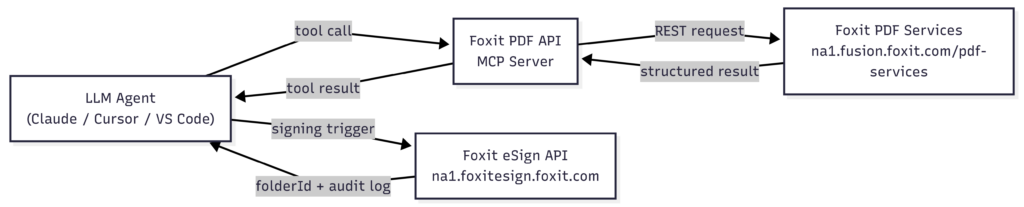
The agent calls tools, the MCP server handles the REST layer against PDF Services, and a prepared document hands off to eSign at the end of the chain.
One detail to understand before you build is that each successful Foxit PDF Services API call consumes one credit from your plan. Failed requests (4xx or 5xx) do not consume credits. The Developer Dashboard shows real-time usage, so you can see exactly what a pipeline costs per document before scaling it up.
Setting Up the Foxit MCP Server
The server exposes tools across six categories (document lifecycle, creation, conversion, manipulation, security, and forms) plus OCR and document compare.
The full tool catalog breaks down as follows:
- Document lifecycle : upload, download, delete
- Creation : Word, Excel, PowerPoint, HTML, URL, plain text, and image to PDF
- Conversion : PDF to Word, Excel, PowerPoint, HTML, plain text, and image
- Manipulation : merge, split, extract pages, compress, flatten, linearize, watermark, and page operations
- Security : add and remove passwords, set permissions
- Forms : export and import form data as JSON
OCR and document compare are also in the catalog. Signing lives in the eSign API covered in Section 6.
Mode 1: Programmatic Pipeline Setup
Clone the repo and pick your implementation. For the Python version with VS Code and GitHub Copilot, create or update your .vscode/mcp.json with the following:
{
  "servers": {
    "foxit-pdf": {
      "command": "uv",
      "args": [
        "--directory",
        "/absolute/path/to/foxit-pdf-api-mcp-server",
        "run",
        "foxit-pdf-api-mcp-server"
      ],
      "env": {
        "FOXIT_CLOUD_API_HOST": "${env:FOXIT_CLOUD_API_HOST}",
        "FOXIT_CLOUD_API_CLIENT_ID": "${env:FOXIT_CLOUD_API_CLIENT_ID}",
        "FOXIT_CLOUD_API_CLIENT_SECRET": "${env:FOXIT_CLOUD_API_CLIENT_SECRET}"
      }
    }
  }
}
VS Code launches the MCP server as a subprocess through uv, which runs the cloned Python build from its directory. The three ${env:...} references pull credentials from the shell environment instead of hardcoding them in the file, so replace /absolute/path/to/foxit-pdf-api-mcp-server with the path where you cloned the repo and restart VS Code to load the server. Claude Desktop uses the same shape under an mcpServers key and can run the published npm package directly with "command": "npx" and "args": ["-y", "@foxitsoftware/foxit-pdf-api-mcp-server"], so you do not have to clone anything for that host.
Mode 2: In-App Orchestration Setup
Open Foxit PDF Editor, click the AI Assistant tab in the Ribbon, and launch AI Chat to open the right-hand panel. In the bottom left of that panel, click MCP Tools, then click Add MCP Server to configure a new MCP service. Fill in the required fields and save. Once configured, the server appears in the MCP Tools list and its tools activate inside AI Chat.
In both modes, the server reads your Client ID and Client Secret from the environment variables set at startup. No additional gateway configuration is required.
Core Document Operations Agents Can Execute
With the server running, your agent has 30+ callable PDF operations available. Five categories do the heaviest lifting in production pipelines, namely conversion, OCR, structural extraction, merge/split, and document generation via DocGen.
Conversion. An agent receiving an uploaded DOCX triggers the Word-to-PDF creation tool before any downstream step. The output is a standards-compliant PDF that every subsequent operation (OCR, extraction, merge) can work with consistently, eliminating manual conversion and format ambiguity downstream.
OCR. When an agent ingests a scanned or image-only PDF, an OCR call should precede any extraction step. Calling the OCR tool makes the document searchable and text-extractable, which is required for invoice and contract pipelines where key fields sit inside scanned images. The agent calls OCR, waits for the result, and proceeds.
Structural extraction. After OCR, an agent extracts text, tables, and form-field data as structured JSON. Foxit’s structural extraction returns per-page content plus images, giving you a payload that routes cleanly into a BI tool or a second LLM step for analysis or classification. For the full response schema, refer to the Foxit MCP Server developer blog.
Merge and split. An agent assembling a contract package from multiple source documents calls the merge tool with an ordered list of PDFs. An agent pre-processing a large compliance document for parallel LLM analysis calls the split tool to divide it into per-section chunks. Both operations are synchronous and safe to retry on failure.
Document generation via DocGen. For dynamically generated contracts, invoices, or reports, the Foxit Document Generation API accepts a DOCX template with {{dynamic_tags}} and a JSON data payload from a CRM, database, or form response. It returns a finished PDF via POST /document-generation/api/GenerateDocumentBase64. A ready-to-use template lives in the Foxit demos repo if you want to test the call without authoring one. When you upload a DOCX template directly, the 4 MB post-base64 encoding cap applies, so slim templates down by stripping embedded fonts and large images before encoding. The agent supplies the JSON payload at runtime, so a single template can produce thousands of unique documents.
A representative end-to-end pipeline runs like this. An agent ingests a purchase order scan, calls OCR to make it searchable, extracts the structured fields as JSON, merges that data into a contract template via DocGen, and hands the finished PDF off to eSign. Every step is a tool call. The agent reasons about sequencing while the MCP server handles the REST layer.
Agent-Triggered Signing Workflows via the eSign API
Document signing uses a separate REST service, the Foxit eSign API, which has its own credentials and completes the pipeline in three calls. The agent exchanges its credentials for a token, creates a signing folder from the prepared PDF, and dispatches it to the signer.
The eSign API runs on its own host and issues its own Client ID and Client Secret from the eSign portal, separate from the PDF Services credentials the MCP server uses. Export the three eSign variables the script reads before running it:
export FOXIT_ESIGN_BASE_URL="https://na1.foxitesign.foxit.com"
export FOXIT_ESIGN_CLIENT_ID="your_esign_client_id"
export FOXIT_ESIGN_CLIENT_SECRET="your_esign_client_secret"
The folder can only be sent if the signer has a signature field, and the simplest way to place one is with Foxit eSign text tags embedded in the document. Download the ready-to-sign sample, agent_agreement.pdf, into your workspace as agreement.pdf. It already carries the tag that maps a signature field to the first party, so the folder is sendable as is. Then run:
import base64
import os
import requests

BASE_URL = os.environ["FOXIT_ESIGN_BASE_URL"]      # https://na1.foxitesign.foxit.com
CLIENT_ID = os.environ["FOXIT_ESIGN_CLIENT_ID"]
CLIENT_SECRET = os.environ["FOXIT_ESIGN_CLIENT_SECRET"]


def get_access_token():
    resp = requests.post(
        f"{BASE_URL}/api/oauth2/access_token",
        data={
            "client_id": CLIENT_ID,
            "client_secret": CLIENT_SECRET,
            "grant_type": "client_credentials",
            "scope": "read-write",
        },
        timeout=30,
    )
    resp.raise_for_status()
    return resp.json()["access_token"]


def route_for_signature(pdf_path, signer):
    token = get_access_token()
    headers = {"Authorization": f"Bearer {token}", "Content-Type": "application/json"}

    with open(pdf_path, "rb") as fh:
        encoded = base64.b64encode(fh.read()).decode()

    folder = requests.post(
        f"{BASE_URL}/api/folders/createfolder",
        headers=headers,
        json={
            "folderName": "Agent Service Agreement",
            "inputType": "base64",
            "base64FileString": [encoded],
            "fileNames": ["agreement.pdf"],
            "processTextTags": True,
            "sendNow": False,
            "parties": [
                {
                    "permission": "FILL_FIELDS_AND_SIGN",
                    "firstName": signer["first_name"],
                    "lastName": signer["last_name"],
                    "emailId": signer["email"],
                    "sequence": 1,
                }
            ],
        },
        timeout=60,
    )
    folder.raise_for_status()
    folder_id = folder.json()["folder"]["folderId"]

    sent = requests.post(
        f"{BASE_URL}/api/folders/sendDraftFolder",
        headers=headers,
        json={"folderId": folder_id},
        timeout=60,
    )
    sent.raise_for_status()
    return folder_id


if __name__ == "__main__":
    fid = route_for_signature(
        "agreement.pdf",
        {"first_name": "Jordan", "last_name": "Lee", "email": "[email protected]"},
    )
    print(f"Folder {fid} sent for signature")
In this code, you read the eSign credentials from the environment and exchange them for a bearer token at the access_token endpoint, where the request is form-encoded rather than JSON (sending JSON returns a 415). You then base64-encode the local PDF and post it to createfolder with inputType set to base64 so the API reads the base64FileString array, with processTextTags set to True so the document’s text tags become a real signature field, and with sendNow set to False so the folder is created as a draft instead of emailing anyone immediately. The parties array names the signer with FILL_FIELDS_AND_SIGN permission, you read the new id at folder.folderId, and you pass it to sendDraftFolder, which dispatches the draft to the signer. To confirm the result, call GET /api/folders/viewActivityHistory?folderId={id}, which returns the activity log once the folder has been shared (a draft returns logs of a non-shared folder can not be viewed). Foxit uses “folder” throughout the eSign API, never “envelope.”
Compliance is built into the API layer. The Foxit eSign API supports eIDAS, the ESIGN Act, UETA, HIPAA, and GDPR, covering the requirements for agents operating in legal, healthcare, and finance contexts. No separate compliance infrastructure is required.
Production Considerations: Compliance, Cost, and Error Handling
The Foxit PDF Services and eSign APIs are SOC 2 Type II certified, with HIPAA BAA support, GDPR compliance, and CCPA coverage built in. Three additional concerns (credit consumption, idempotency, and async polling) determine whether a pipeline runs reliably at scale.
Credit consumption. The free Developer plan includes 500 credits per year (annual reset, no rollover). The Startup plan is $1,750/year for 3,500 credits. The Business plan is $4,500/year for 150,000 credits. Each successful API call consumes one credit; 4xx and 5xx responses do not. A pipeline processing 50 documents per day burns through those allocations quickly. Monitor real-time usage in the Developer Dashboard before moving to production and size your plan accordingly.
Idempotency. Merge, flatten, and convert calls are safe to retry on failure. Signing-folder creation is not, so gate createfolder behind a state check so the agent doesn’t create duplicate folders and dispatch duplicate signing requests to the same signers.
Async operations. Translation and batch conversion operations are asynchronous, so they return a job ID immediately, and your agent should poll the job status endpoint roughly every three seconds until the status is COMPLETED or FAILED before proceeding to the next step in the chain. Handling these concerns at build time separates a working pipeline from one that generates support tickets.
Common Mistakes
- Dropping the
/api/prefix on eSign calls : Every eSign path lives under/api/, as in/api/folders/createfolder. Omitting it returns a 404 against a docs-style path that does not exist. - Sending the token request as JSON : The
access_tokenendpoint is form-encoded. A JSON body returns415 Unsupported Media Type, so pass the credentials as form data. - Forgetting
inputType: base64: When you send a base64 PDF without it,createfolderrejects the request withfileUrls or base64FileString cannot be empty. URL mode usesfileUrlsandfileNamesinstead. - Sending a signer with no signature field : A
FILL_FIELDS_AND_SIGNparty needs a field. If the document has no text tag like${s:1:______}and you skipprocessTextTags,sendDraftFolderreturnsPlease assign a signature field. Use underscores in the tag placeholder, since an empty placeholder does not create a field. - Expecting a signing tool in the MCP server : The 30+ MCP tools cover PDF operations, not signatures. Signing is the eSign API, a separate service with separate credentials.
Agentic Document Workflows FAQ
What is an agentic document workflow?
An agentic document workflow is an automated pipeline in which an LLM agent executes operations on documents (conversion, OCR, extraction, merging, generation, and signing) without human intervention. Unlike retrieval-augmented generation, which only reads documents, an agentic workflow produces and transforms them using callable tools exposed through a protocol like MCP.
How does the Model Context Protocol (MCP) work with PDF APIs?
MCP defines a standard interface for exposing named, typed functions, called tools, that an LLM agent can discover and invoke. A PDF API MCP server wraps REST endpoints as MCP tools with input schemas and output contracts. The agent selects the right tool based on task context, calls it with structured parameters, and processes the result, without writing any HTTP request logic.
What PDF operations does the Foxit MCP server expose?
The Foxit PDF API MCP Server exposes 30+ tools covering document lifecycle (upload, download, delete), creation (Word, Excel, PowerPoint, HTML, image to PDF), conversion (PDF to multiple formats), manipulation (merge, split, compress, OCR, watermark), security (password management), and forms (JSON import/export).
Does every API call consume a credit even if it fails?
No. Only successful Foxit PDF Services API calls consume credits. Requests that return 4xx or 5xx status codes do not count against your plan. The Developer Dashboard provides real-time usage tracking so you can measure pipeline cost per document before scaling.
How do I trigger document signing from an agent without human intervention?
After preparing a document, your agent calls the Foxit eSign API directly. It authenticates with client_credentials, POSTs to /api/folders/createfolder with the base64 PDF and a parties entry for the signer, then POSTs to /api/folders/sendDraftFolder with the returned folderId. The signing email workflow triggers automatically, and the agent can poll /api/folders/viewActivityHistory for the audit trail.
What compliance standards does the Foxit eSign API meet?
The Foxit eSign API supports eIDAS, the U.S. ESIGN Act, UETA, HIPAA, GDPR, and CCPA. The PDF Services API is SOC 2 Type II certified with HIPAA BAA support. No separate compliance wrappers are required for agents operating in legal, healthcare, or financial contexts.
What is the difference between Mode 1 and Mode 2 in the Foxit MCP architecture?
Mode 1 is a programmatic pipeline where an external LLM agent (Claude Desktop, Cursor, VS Code with GitHub Copilot, or a custom framework) registers the Foxit MCP Server and calls PDF tools automatically. Mode 2 is in-app orchestration where Foxit PDF Editor acts as the MCP Host, connecting to external services like Jira or Salesforce while a knowledge worker reviews the open document.
Why should signing-folder creation be gated behind a state check?
The /api/folders/createfolder endpoint is not idempotent. If an agent retries on failure without a state check, it will create duplicate folders and send duplicate signing requests to the same signers. Merge, flatten, and convert operations are safe to retry; folder creation requires the agent to verify no existing folder was created before calling the endpoint again.
Start Building: Free Developer Access in Minutes
The full pipeline in this guide is available to test today. Activate a free Foxit Developer plan to get your Client ID, Client Secret, access to the API Playground, and 500 credits for real requests. No credit card required.
Clone the open-source MCP server, export the three environment variables, and register the server in Claude Desktop, Cursor, or VS Code with GitHub Copilot. At that point, 30+ PDF tools are callable from your agent with no local SDK to install and no REST plumbing to write.
Once a document is prepared, extend the pipeline into legally binding signatures with the eSign API. The architecture in this guide covers the full document lifecycle from conversion and OCR through extraction, generation, merging, and signing, all in a single agentic document workflow.
Create your free developer account to clone the open-source MCP server and make 30+ PDF tools callable from your agent in minutes, no credit card required.