Create Custom Invoices with Word Templates and Foxit Document Generation
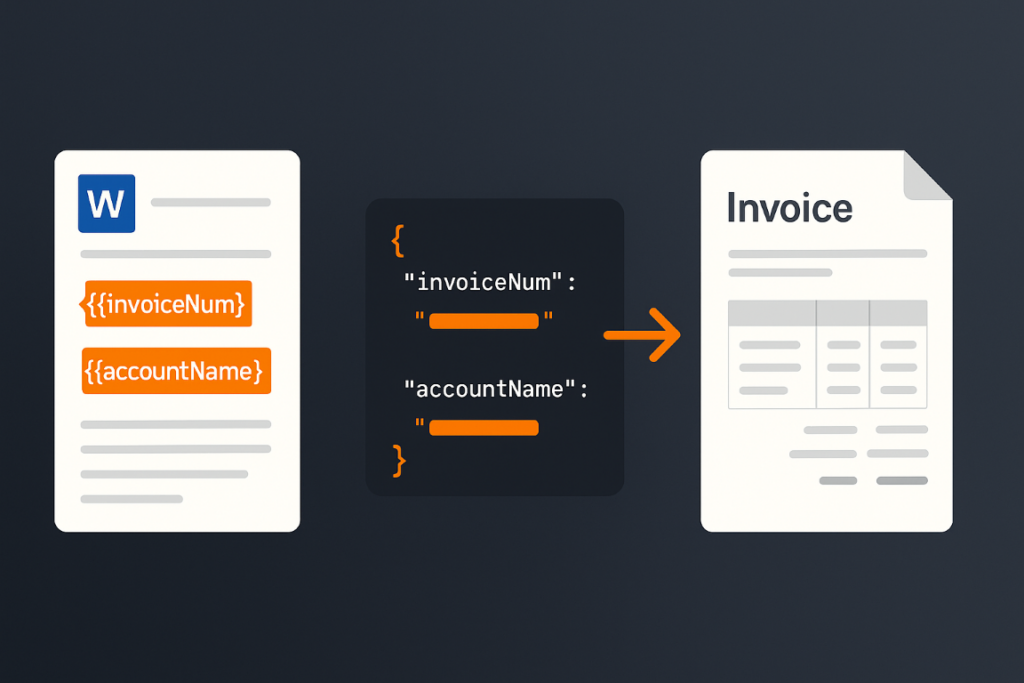
This tutorial shows how to design a Word invoice template with dynamic tokens and use Foxit’s Document Generation API and a short Python script to turn JSON data into polished, ready-to-send PDF invoices.


Embedded Signing with the Foxit eSign API: From Envelope Creation to In-App iFrame in One Session
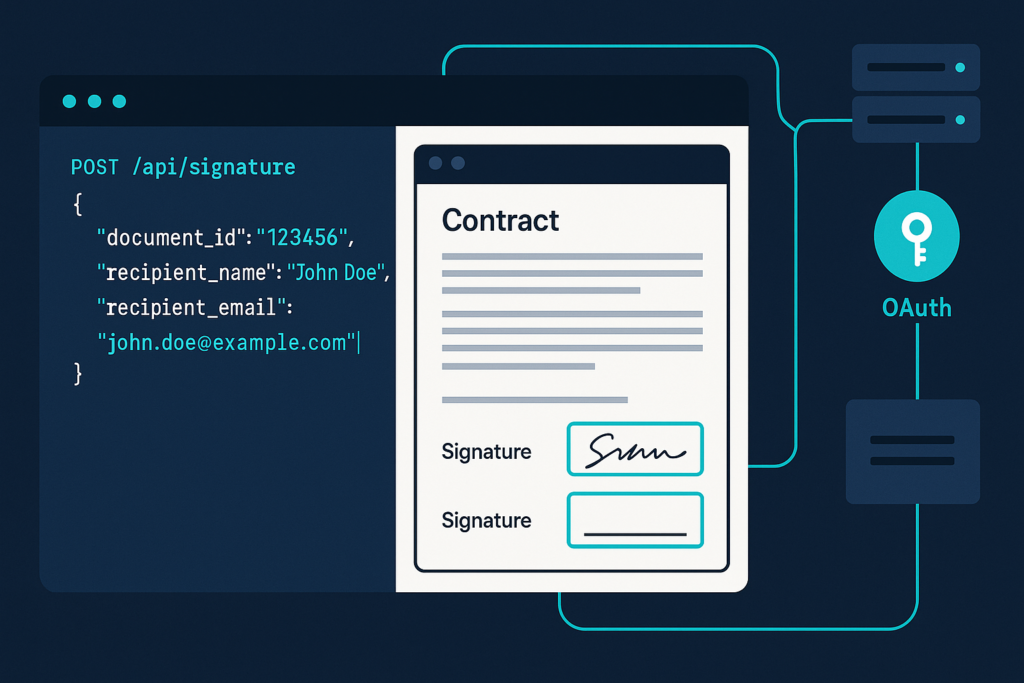
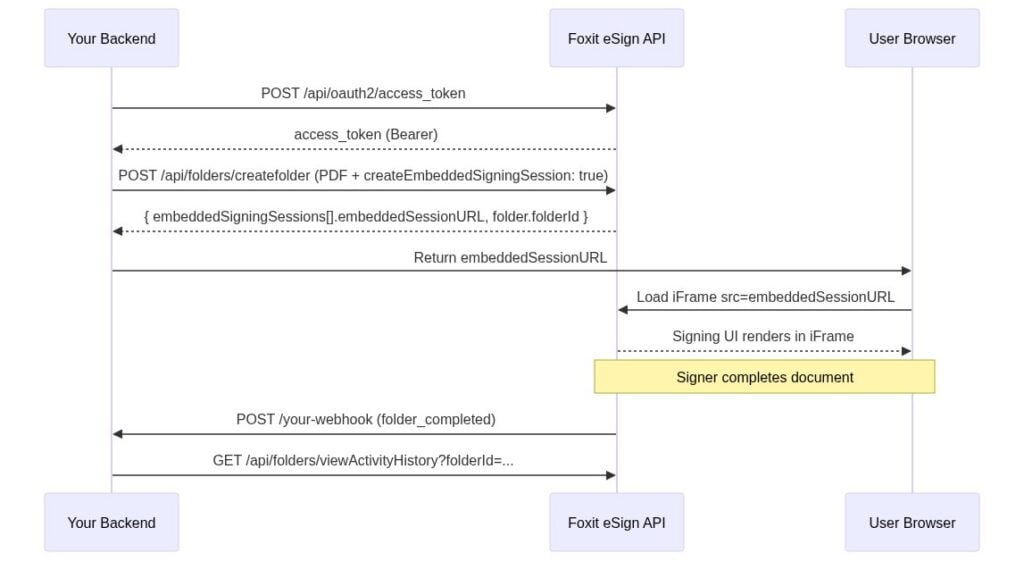
This guide walks through the Foxit eSign API end to end: authenticate, create a folder, generate an embedded session URL, and render the signing experience in an iFrame your users never leave.
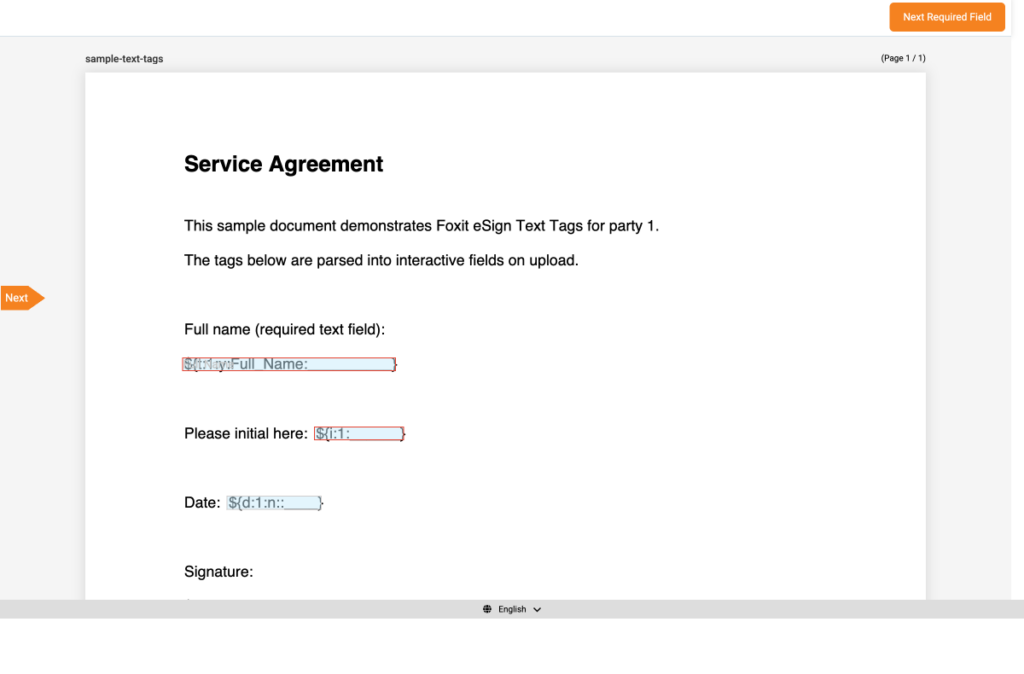
Automating Financial Document Workflows with Foxit APIs: Generate Statements, Embed eSign, and Extract Audit-Ready Data
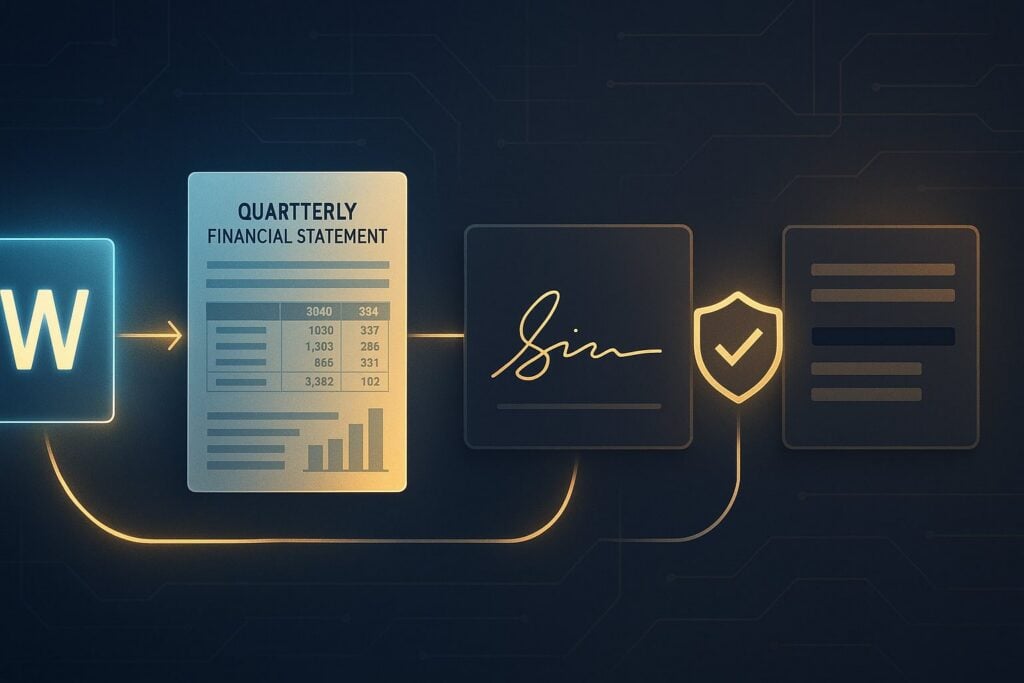
Learn how to automate financial services document workflows using Foxit APIs, covering quarterly statement generation, embedded eSign for account onboarding, and audit-ready PDF/A archiving with PII redaction.
1. Why Three-Vendor Document Pipelines Break Under Compliance Pressure
The fragmentation pattern is consistent across mid-market brokerages and fintechs, where one vendor generates documents, another handles signatures, and a third (or an internal script) handles data extraction for audit packages. Each seam creates a specific compliance problem.
When a client signs their account agreement in the eSign portal, that event lives in the eSign vendor’s audit log. The generated quarterly statement lives in your templating tool’s system. The trade confirmation data lives in your data warehouse. None of these systems talk to each other by default. If an examiner asks for a unified event trail (who generated the document, who signed it, when, and where the underlying data went), you’re assembling that answer manually from three separate exports. That’s a control gap, not just an inconvenience.
There’s also a maintenance cost. Every vendor boundary means a separate OAuth2 registration, separate webhook configuration, separate error-handling logic, and separate retry strategies. When the eSign vendor rotates their API endpoint or introduces a breaking schema change, your generation pipeline doesn’t know about it. The two systems are coupled only through your code, which means you absorb every upstream change.
The architectural alternative collapses those seams. A single REST API surface covers generation (na1.fusion.foxit.com), signing (na1.foxitesign.foxit.com), archiving, and redaction. OAuth2 scopes control access at each stage. Webhooks propagate state across systems so a signature event on an account agreement can trigger downstream archival automatically, with no polling job or cron script required.
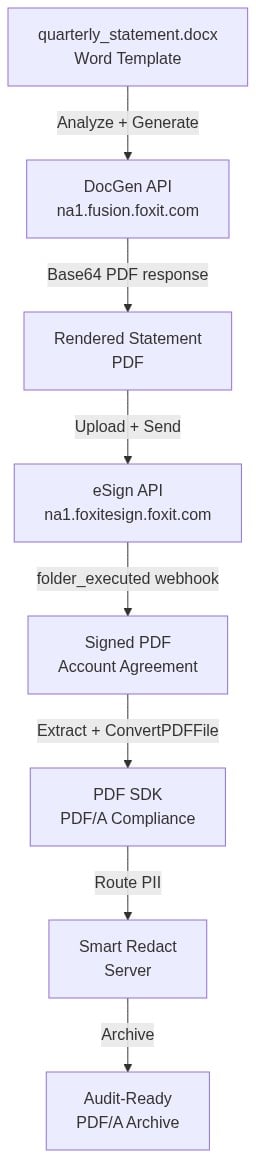
The rest of this article walks each stage of that pipeline with working code.
2. Auto-Generating Quarterly Statements with the DocGen API
Step 1: Validate Your Template with the AnalyzeDocumentBase64 Endpoint
Download the ready-to-use quarterly statement template here: quarterly_statement.docx. The template uses double-bracket text tags for flat client metadata ({{client_name}}, {{account_number}}, {{statement_period}}, {{portfolio_value}}) plus a {{TableStart:holdings}} / {{TableEnd:holdings}} loop for portfolio positions.
Before wiring up your data pipeline, call the AnalyzeDocumentBase64 endpoint to confirm the API can parse every tag. This catches naming mismatches before they produce silent blank fields in production.
DOCX to PDF via the Foxit PDF Services API: Python and cURL Walkthrough
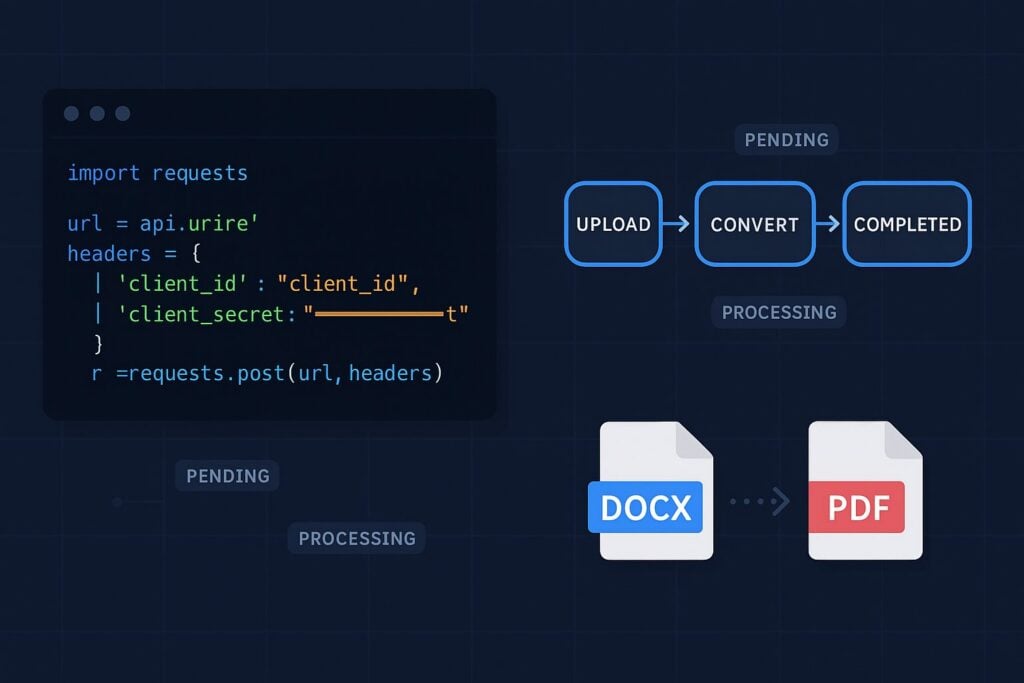
This walkthrough covers the full DOCX-to-PDF flow on the Foxit PDF Services API with runnable Python and cURL for each call.
The endpoint returns 202 Accepted, confirming the job is queued. It also accepts .doc, .rtf, .dot, .dotx, .docm, .dotm, and .wpd files through the same documentId input, so legacy Word formats work through the same pipeline.
Step 3: Polling the Task Status
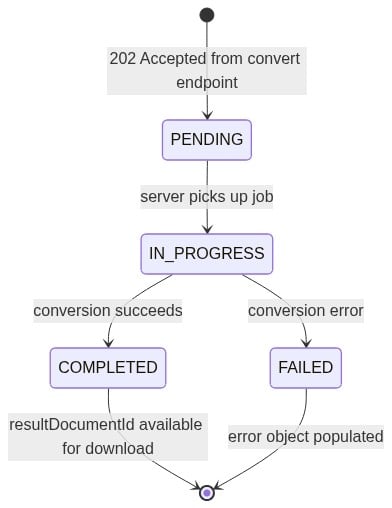
GET /pdf-services/api/tasks/{task-id} returns four fields you need to act on in your polling loop:
status: one ofPENDING,IN_PROGRESS,COMPLETED, orFAILEDprogress: int32, 0 to 100resultDocumentId: populated when status reachesCOMPLETEDerror: populated when status reachesFAILED
The task state machine advances in one direction: PENDING to IN_PROGRESS, then to either COMPLETED or FAILED.
Document Generation Explained: How the Template-to-API Pipeline Actually Works
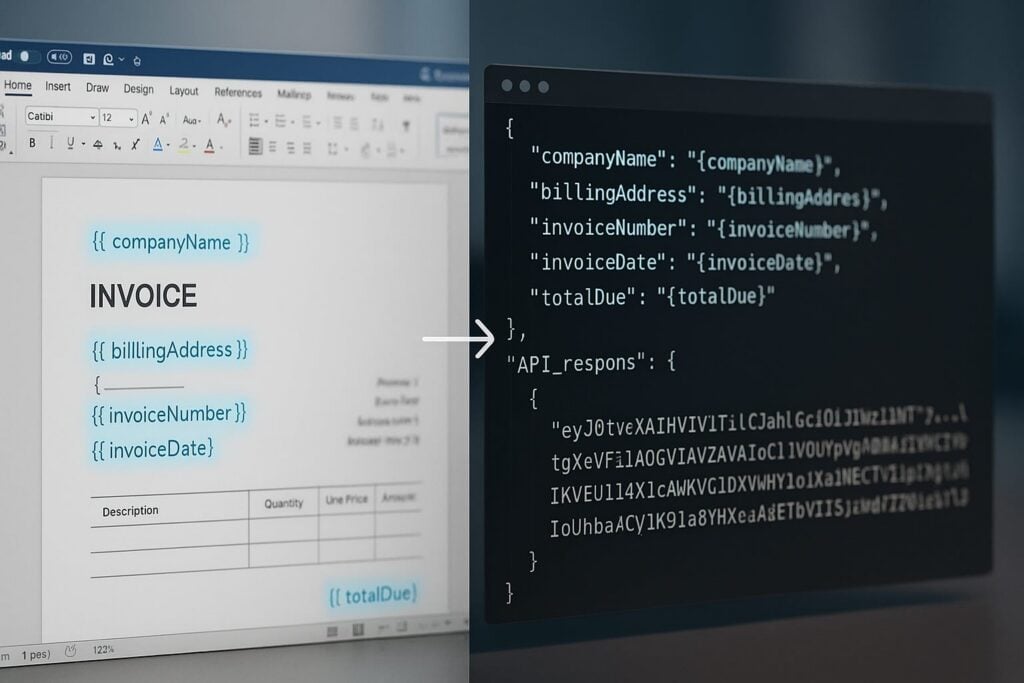
Manual document workflows break down fast as volume grows. This guide explains what document generation is, how template-driven APIs replace manual processes, and what the pipeline looks like from a Word template and JSON payload to a finished PDF.
The rendering engine walks the template, matches each token to the corresponding key in the payload, and writes the formatted value into the output. Template authors work entirely in Word, while the engine handles token resolution, format application, and output assembly.
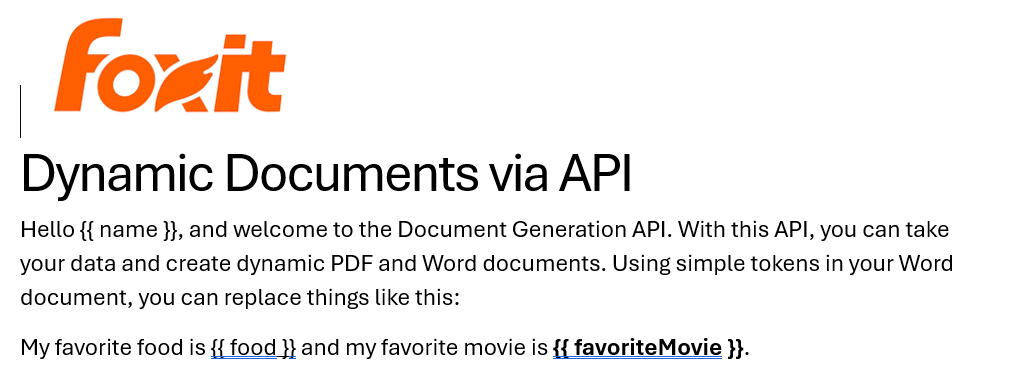
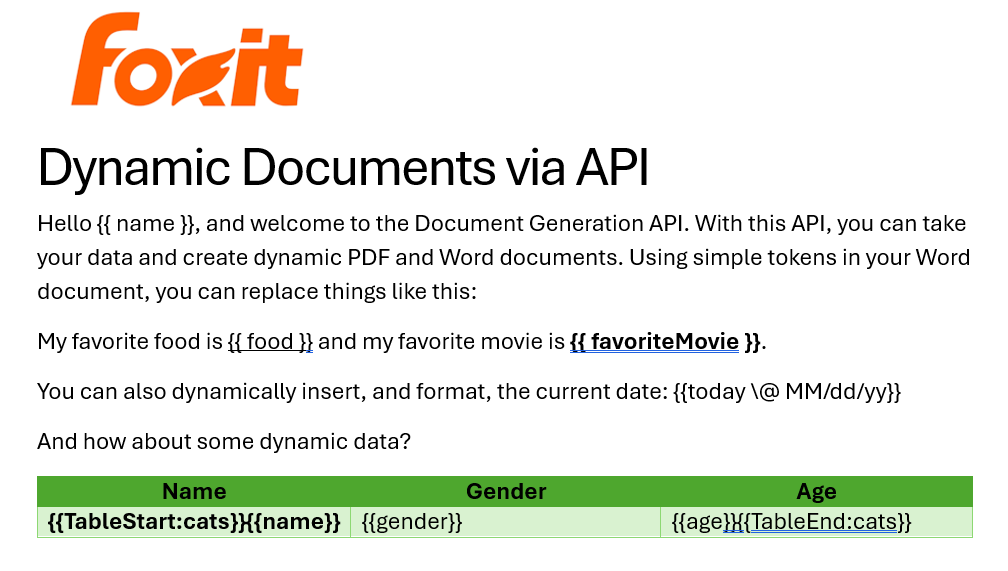
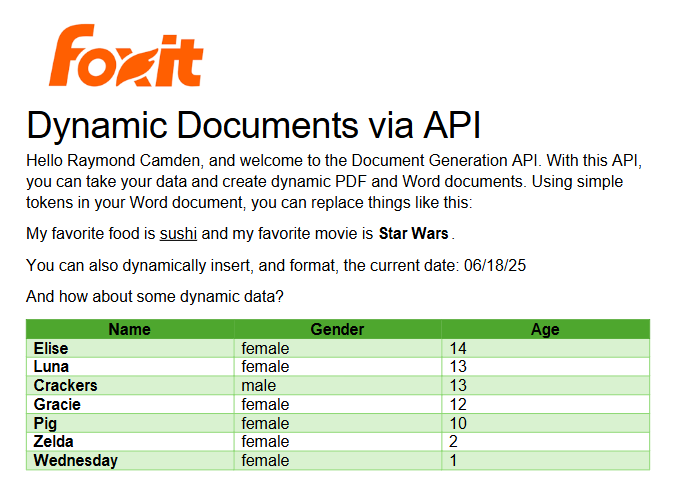
Repeating sections use loop delimiters to produce table rows that repeat for each element in a JSON array. Placing {{TableStart:lineItems}} before a table row and {{TableEnd:lineItems}} after it tells the engine to emit one row per object in the lineItems array. Both delimiters must sit in cells of the same Word table row. Inside that loop, {{ROW_NUMBER}} auto-increments across rows, and a footer row immediately below the loop can use {{=SUM(ABOVE) \# "$#,##0.00"}} to compute and format a column total, so a ten-line invoice produces a correctly numbered, fully summed table with no post-processing.
Conditional content uses Word’s native Field Code View (opened with ALT + F9) to write IF-field conditions that show or hide text blocks based on data values. A clause that should appear only when contractType equals "enterprise" lives inside a field condition, and the rendering engine evaluates it at generation time. There’s no separate scripting layer and no custom expression language to learn.
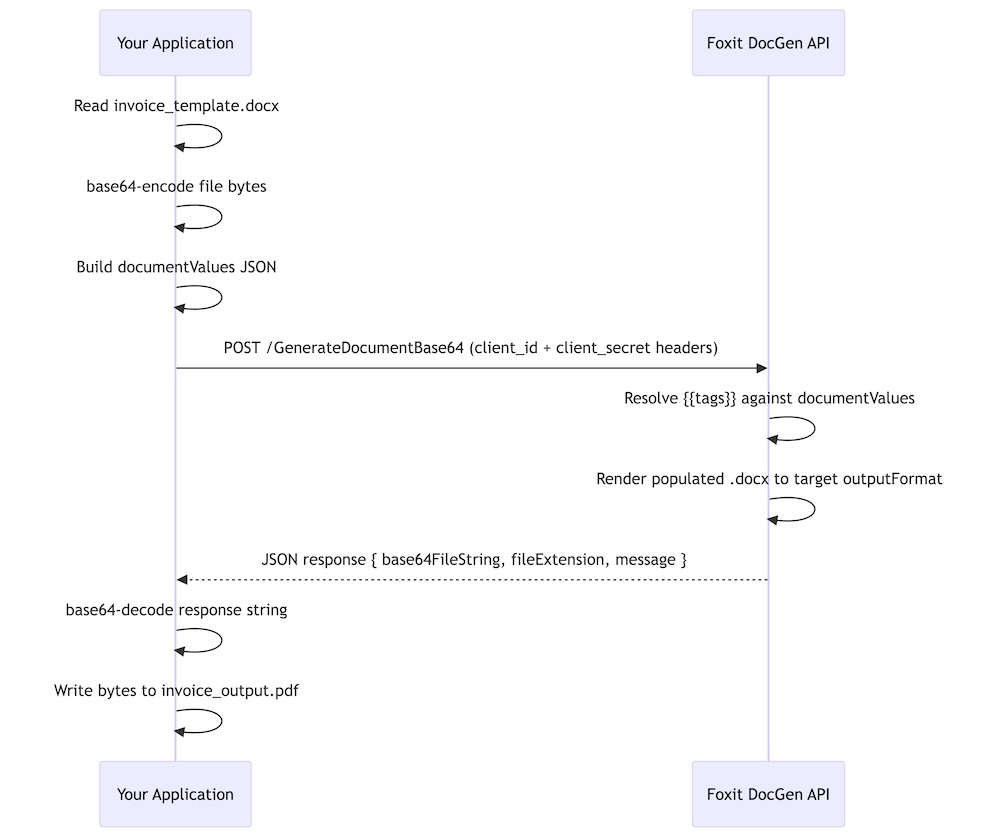
The three components converge at a single API endpoint: your base64-encoded DOCX template and JSON data payload go in together, and the generated document comes back in the same HTTP response.

The API Pipeline: From POST Request to Final Document
The Foxit DocGen API compresses the generation pipeline into a single synchronous call. You POST to one endpoint with your template and data, and you receive the generated document in the same HTTP response, with no separate template upload step, no job ID to poll, and no webhook to configure for individual document generation.
Before building a generation workflow, you can use the Analyze Document API to scan a DOCX template and return a list of all embedded tokens, which confirms the token-to-key mapping before you commit to a data schema. That’s a single POST to a separate endpoint on the same host, and it returns a structured list of placeholder names and their types.
For the generation call itself, the dev-tier endpoint is:
POST https://na1.fusion.foxit.com/document-generation/api/GenerateDocumentBase64
Authentication passes your client_id and client_secret as custom HTTP headers alongside Content-Type: application/json. You retrieve both credentials from the dashboard at account.foxit.com/site/sign-up after activating your free developer plan, with no OAuth exchange and no session setup required before your first call.
The request body takes three fields:
base64FileStringis your DOCX template, base64-encoded. Keep the source.docxunder 4 MB (the practical ceiling for a single request) since base64 encoding inflates the payload by roughly 33%. If a template runs large, embedded images are usually the cause, so compress them through Word’s Picture Format settings before exporting.documentValuesis the JSON object whose keys map to token names in the templateoutputFormatis the string"pdf"or"docx", lowercase and exact (the API returns HTTP 500 for any other value, including"PDF"or"DOCX")
For an invoice template with a lineItems array, the full curl command carries your base64-encoded DOCX, the matching data object, and your credentials in the request headers:
PDF Translation with Verifiable Quality: Build a Confidence-Scored Pipeline with Foxit API and Straker.ai
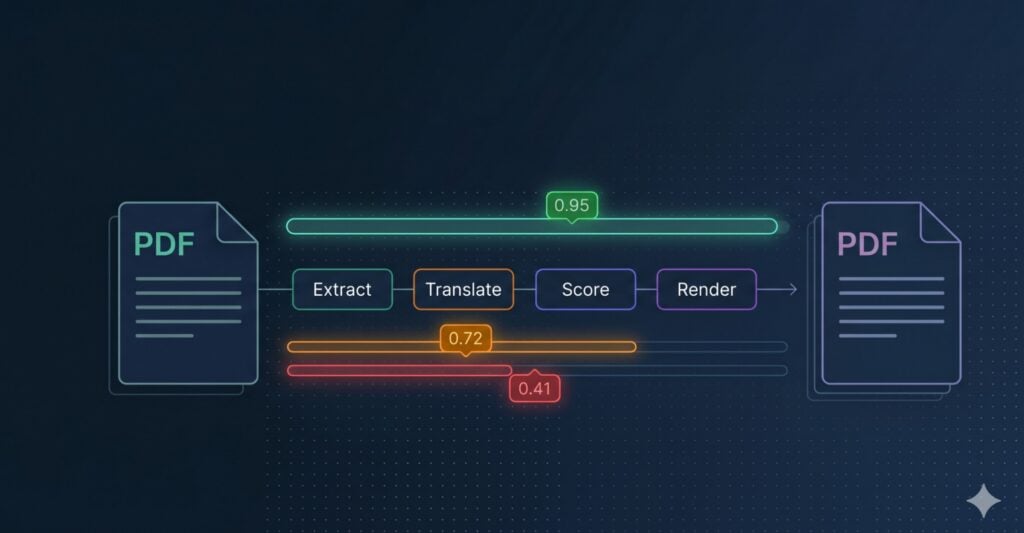
Most machine translation tools hand back a translated PDF with no signal about which parts to trust — a real problem for contracts, medical forms, and regulatory filings. This guide shows how to build a pipeline that scores every segment before the final render, using Foxit for structural extraction and layout-preserving rendering and Straker.ai for translation plus per-segment quality scoring.
Most machine translation tools give you a translated file and nothing else. They do not tell you which parts are correct and which parts are wrong. For a simple blog post, that is fine. For a contract, a medical form, or a legal notice, it is a real problem. A bad translation can sit in the final PDF for days before anyone notices, often only after the document has already been signed or sent.
Teams today are translating more documents, into more languages, and faster than ever. Legal, finance, healthcare, HR, and insurance teams all deal with PDFs where one wrong word can cause a lot of damage: a broken contract, a failed audit, or even a safety issue. Most translation tools were not built to catch these mistakes. They just move text from one language to another. When quality checks happen at all, they usually mean a person reading the final PDF line by line and hoping they spot the errors.
This article shows how to build a better setup. You will learn how to build a PDF translation pipeline that gives every segment a quality score before the final PDF is created. Instead of hoping the translation is right, the pipeline tells you which parts to trust, which parts to review, and which parts to send back to a human translator. All of this happens automatically on every run.
Architecture at a Glance
Before going deeper, it helps to see the full pipeline in one picture. The diagram below traces a source PDF through every stage: extract, translate, score, route, and render. Each box is a single responsibility handled by a single service, with the routing layer acting as the glue you control.

The pipeline has two external services:
- Foxit PDF Translation API handles anything PDF-specific. It pulls the structured text out of the source document with element IDs attached, then renders the final PDF back in the original layout (multi-column text, tables, font substitution, image positions) using the approved translations.
- Straker AI translates each source segment AND scores the translation in the same request. It returns the target text, a numeric score on a 0.0 to 1.0 scale, and a categorical label (
best,good,acceptable,bad) for every element ID. This step is pluggable, so you can swap Straker for DeepL, Google Cloud Translation, AWS Translate, or an in-house NMT if you already have a contract with one of them. The contract between this step and the rest of the pipeline is a flat dict of element IDs to translated text plus per-segment scores.
and one piece of code you own:
- Routing layer is your business logic. It reads the score, decides whether the segment auto-accepts, flags for human review, or escalates to a translator, and then hands the approved set to Foxit’s render call.
With the shape of the pipeline on the table, the rest of the article works through each piece in order, starting with why per-segment quality scoring is worth the integration effort in the first place.
The Quality Gap
You ship a translated PDF to a legal team. Three days later, compliance flags a clause in the German version. The term “indemnification” was rendered as “Entschädigung” (compensation) rather than “Freistellung” (hold harmless). Your MT pipeline returned a 200 status. Nobody’s alerting on that delta.
Raw machine translation output carries no quality signal by default. Every segment comes back translated, and your pipeline treats them identically regardless of whether the model was confident or guessing. For marketing copy that’s an acceptable tradeoff, but for a loan covenant, a clinical trial protocol, or a regulatory filing, a 95%-accurate translation can still be contractually or legally dangerous because the 5% failure may concentrate precisely in the high-stakes clauses.
A confidence score, in the translation QA context, is a per-segment numeric signal from a verification engine. It tells you how reliable each translated unit is on a scale your system can act on programmatically. High-confidence segments auto-accept, medium-confidence ones queue for post-edit review, and low-confidence segments escalate directly to a human translator before they ever reach the final document.
The compound problem for PDFs specifically is that most translation pipelines strip document structure before the MT engine even sees the text. The extraction step flattens multi-column layouts, collapses table cells, and drops font metadata. By the time you get a translated output, you’ve lost both layout fidelity and any quality signal. The rendered PDF looks wrong and you have no programmatic way to know which segments caused it.
Foxit’s PDF Translation Trial API extracts structured text from a source PDF with element IDs preserved, so the layout blueprint travels alongside the text through the entire workflow. You hand the source segments to Straker AI, which returns the translated text plus a per-segment numeric score and a quality label in a single call. (If you already run DeepL, Google Cloud Translation, AWS Translate, or an in-house NMT Engine, you can drop it in at this step without changing the rest of the pipeline.) Your routing logic decides which segments pass, which get flagged, and which escalate to human review. Foxit’s render endpoint then re-assembles the PDF in the original layout using the accepted translations, giving you a layout-preserved translated PDF with a documentable quality trail attached to every segment.
How the Pipeline Works
Foxit and Straker are two independent APIs that you wire together. Foxit owns PDF structure, extracting structured text keyed by element ID and re-rendering the final PDF in the original layout. Straker AI handles translation and per-segment quality scoring in a single request, returning the translated text alongside a numeric score and a quality label. You own the routing decision that sits between the scores and the render call.
The pipeline runs in seven steps:
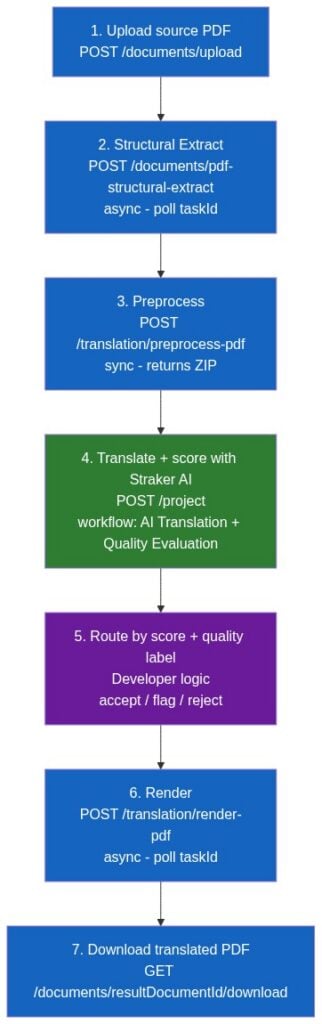
Foxit covers steps 1-3 and 6-7 (PDF structure and rendering). Straker AI covers step 4, producing translations and per-segment quality scores in one round-trip. Step 5 is your business logic.
The Foxit PDF Translation API defines steps 2, 3, and 6. The upload and download calls use the general PDF Services endpoints. Straker AI is a separate API at https://api-verify.straker.ai. You submit XLF 1.2 files containing source segments and Straker returns the translated target_text per segment plus a numeric score (0.0 to 1.0) and a quality label (best, good, acceptable, bad). Because Foxit’s ExtractedText.json is a flat { "elementId": "text" } map, and XLF trans-unit IDs round-trip through Straker’s external_id field unchanged, the element IDs Foxit emits are the same IDs that come back with translations and scores attached. That alignment is what makes programmatic routing possible.
One clarification for readers who’ve seen the Foxit-Straker partnership announcement: that partnership covers Foxit eSignature Services, enabling end users to translate and sign documents in the eSign product. That’s an end-user feature. The PDF Translation Trial API used here is a separate developer surface. Its OpenAPI spec (v2.2.0) contains zero Straker references, and the preprocess-pdf documentation explicitly instructs developers to “translate the text in ExtractedText.json using your preferred translation tool.” You wire the two APIs together manually. This tutorial uses Straker AI as the default translation engine because it produces translations and quality scores in the same call, but you can substitute DeepL, Google Cloud Translation, AWS Translate, or your own NMT at step 4 without changing the Foxit calls.
Credentials and Setup
Get your Foxit credentials at app.developer-api.foxit.com/pricing. The free Developer plan gives you 20 AI credits per month with no credit card and no sales call required. Once you’ve signed in, your Client ID and Client Secret appear in the developer dashboard. Every Foxit API call requires both in the request headers as client_id and client_secret (lowercase snake_case). Export them in your shell as FOXIT_CLIENT_ID and FOXIT_CLIENT_SECRET so the code below reads them from the environment rather than hard-coding secrets.
For Straker, sign up at straker.ai/ai-platform/verify for API access. Straker issues a UUID-style API token that you send as a bearer token on every call (Authorization: Bearer <your-token>). The API lives at https://api-verify.straker.ai and its full reference is published at api-verify.straker.ai/docs. Export your token as STRAKER_API_KEY for the code below. You can confirm the token works and check your balance with a quick GET /user/balance. Both services offer trial access, so you can build and test the full pipeline before any procurement conversation.
Before you finalize your language matrix, check both APIs for supported languages. Foxit’s render endpoint accepts 23 target language codes (en, zh, zh_tw, fr, de, es, it, pt, nl, ja, ko, th, vi, hi, ru, ar, tr, pl, sv, no, nb, da, and fi). Straker AI identifies languages by UUID rather than ISO code. You fetch the full list with GET /languages and look up the UUID for your target (for example, 917FF728-0725-A033-1278-33025F49CA40 is French (France), 917FF7D8-9107-0BF8-97EE-065C20F453DE is German). The intersection of the two sets determines your production language coverage.
If you already have a contract with DeepL, Google Cloud Translation, AWS Translate, or an in-house NMT service, you can swap that engine in at step 4. The pipeline contract upstream (Foxit element IDs mapped to source strings) and downstream (a dict of {element_id: {score, quality, target_text}} feeding the router) does not change. The code below uses Straker AI by default because the same API returns the translation and the quality signal in one call.
Building the PDF Translation Pipeline
The complete seven-step pipeline runs in Python using requests, json, zipfile, os, and the standard-library xml.etree.ElementTree for building XLF. The first snippet covers Foxit steps 1-3 (upload, structural extraction, and preprocessing).
Extract Anything from Any PDF: Inside Foxit’s Advanced Extraction Engine

Basic PDF extraction libraries break on scanned documents, complex tables, and form fields, leaving downstream pipelines starved of clean data. Foxit’s PDF Structural Extraction API combines OCR, layout recognition, and AI parsing to return all twelve PDF element types as structured JSON, ready for RAG, BI, and CRM workflows.
Your PDF extraction pipeline passes unit tests against the sample invoices you built it on. Then production arrives and you’re looking at 47% garbled output on the Q4 contract batch because half those documents are scanned TIFFs wrapped in a PDF envelope, and your extraction library has no concept of what an image-only page actually is.
The failure modes are specific. PyMuPDF’s get_text() returns empty strings on scanned PDFs because it reads content streams directly, and image-only pages carry no text stream. pdfplumber’s table detection merges rows when column widths span non-uniform grids, which is standard in any financial statement that mixes summary and line-item rows on the same page. Embedded images containing meaningful text (stamped signatures, engineering drawing annotations, letterhead logos) get silently dropped. The library extracts coordinates for the XObject reference but does nothing with the raster data inside. Form fields built on non-standard annotation types (AcroForms using widget annotations with custom action streams) lose their values entirely when you serialize to text.
The architectural distinction that creates this problem is the difference between content serialization and semantic extraction. A PDF converter reads a content stream and writes out whatever character sequences it finds in rendering order. An extraction engine understands the spatial relationships between those character sequences: that two columns of text at x=72 and x=320 are parallel body copy, that the row at y=210 belongs to the table starting at y=180, that the text block repeating on every page is a header carrying lower retrieval weight in a RAG index. Output that lacks spatial and semantic classification looks correct on screen but breaks every downstream consumer that depends on structure.
BI dashboards require numbers tied to the right row labels. AI ingestion pipelines require heading hierarchy to chunk accurately. CRMs require form field values extracted from AcroForm widget dictionaries, delivered with field names intact. The delta between what basic extraction libraries return and what those systems can actually consume is where document pipeline engineering hours accumulate.
How Foxit’s PDF Structural Extraction Engine Works Under the Hood
Foxit exposes this capability as the PDF Structural Extraction (Trial) endpoint inside the PDF Services API (POST /pdf-services/api/documents/pdf-structural-extract). Trial status means the schema is versioned at v1.0.7 and may evolve, but the contract is stable enough to build against today, and the endpoint runs against the production base URL at developer-api.foxit.com.
The engine runs three coordinated layers. The OCR layer operates on rasterized page content, recognizing characters from image-based PDFs and scanned documents across 200+ languages. The layout recognition layer applies spatial analysis to identify column boundaries, reading order, table cell boundaries, figure regions, and header/footer zones. The AI-based parsing layer classifies extracted objects semantically, resolving ambiguous blocks (a text run that spans two layout columns, or a figure caption that reads syntactically like a section heading) into typed elements.
All three layers run inside Foxit’s core PDF engine, which powers 700 million+ users across 20+ years of production deployments. That engine has native awareness of PDF internal structures: content streams, XObject dictionaries, AcroForm field trees, and annotation layers. The OCR layer operates on the same internal page representation the rendering engine uses, so it handles annotated PDFs where text overlaps image regions, and form fields where the visual display and stored value diverge.
The same Structural Extraction endpoint is also Step 1 of Foxit’s PDF Translation (Trial) workflow, which signals that the extraction output is structured enough to backbone a full rewrite-and-rerender pipeline.
NVIDIA’s July 2025 NeMo Retriever research on PDF extraction showed that specialized OCR-based pipelines outperform general-purpose vision-language models on retrieval recall and throughput for complex elements including tables, charts, and infographics. VLMs produce plausible-looking output on clean documents but degrade on exactly the edge cases (multi-column scans, mixed-content pages, annotated overlays) that a specialized pipeline handles systematically.
The Full Object Map: All 12 Extractable PDF Element Types
The Structural Extraction schema v1.0.7 defines twelve element types in the type enum: title, head, paragraph, table, image, headerFooter, form, hyperlink, footnote, sidebar, annotation, and formula.
The API exposes no per-object filter parameters. The only request body fields are documentId (required) and password (optional, for protected PDFs). The engine extracts the full element graph and returns everything in one asynchronous round-trip. You filter client-side on the returned JSON. The design is correct for the workload because partial extraction would require re-running layout recognition per request, costing more compute than transmitting the full element set in a single ZIP.
The result is a ZIP archive. At minimum it contains StructureInfo.json, whose top-level analyzeResult object holds version, pages, elements, and info. Documents that contain figures or tables also produce additional binary files (image renditions and table renditions) alongside the JSON, referenced from individual elements so the JSON payload stays manageable on large documents.
Each element in the document-wide flat elements array carries its own id, type, content, region (with page and an 8-point boundingBox polygon), and score confidence value. A table element adds its cell grid. A form element adds field data. An image element points to its binary file in the ZIP. Because title, head, and paragraph elements appear in document reading order in the elements array, they chunk cleanly on semantically correct boundaries, which is what a RAG index needs to return complete, coherent passages.
Each type maps directly to a downstream use case: table feeds financial reporting pipelines, form drives automated CRM data entry, image routes to computer vision workflows or document archives, annotation builds compliance audit trails, and head combined with paragraph elements in reading order feeds RAG ingestion.
API Walkthrough: The Four-Step Async PDF Extraction Flow
There’s no synchronous path. You upload, get a task ID, poll until completion, then download the result ZIP. Every request carries two headers: client_id and client_secret (lowercase snake_case, as specified in the API spec’s security schemes). Both come from the Developer Portal’s default application. Pass them as named HTTP headers on every request and do not use Authorization: Bearer.
The four-step sequence runs as follows:
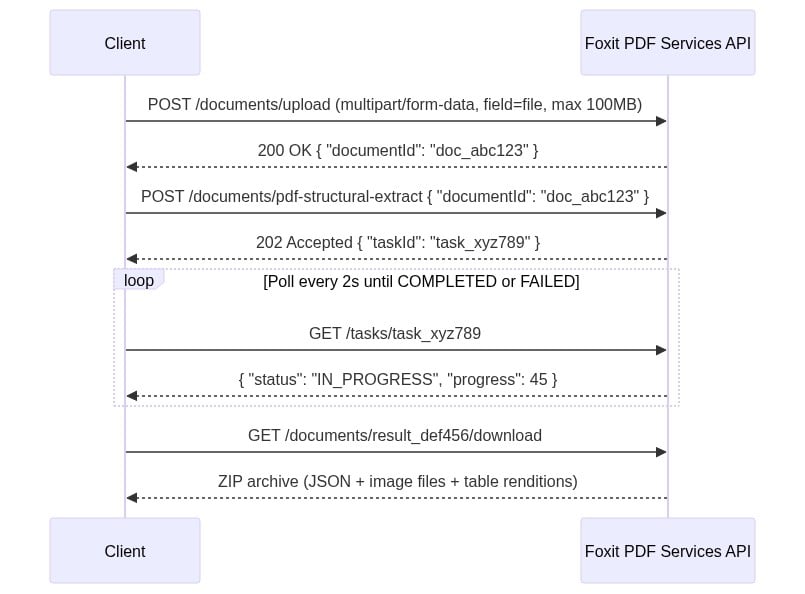
The four-step sequence diagram uses two headers on every request: client_id and client_secret. Create a free developer account at account.foxit.com/site/sign-up (no credit card required, no sales call). Once you’re in, the credentials live under the default application in the Developer Portal. Copy the Client ID and Client Secret pair and treat them like any other API secret. Pass them as named HTTP headers on every call (lowercase snake_case, not Authorization: Bearer).
Step 1: Upload the PDF to
POST /pdf-services/api/documents/uploadasmultipart/form-datawith the file under field namefile. The 100MB ceiling is enforced with a413and error codeMAX_UPLOAD_SIZE_EXCEEDED. The response body returns{ "documentId": "doc_abc123" }.Step 2: Starts extraction with
POST /pdf-services/api/documents/pdf-structural-extract, passing{ "documentId": "doc_abc123" }. Add a"password"field for protected PDFs. The response is202 Acceptedwith{ "taskId": "task_xyz789" }.Step 3: Polls
GET /pdf-services/api/tasks/{task-id}. TheTaskResponsecarriestaskId,status,progress(0-100 integer),resultDocumentId, and an optionalerrorobject. Thestatusenum values arePENDING,IN_PROGRESS,COMPLETED, andFAILED. Portal narrative copy occasionally uses “PROCESSING,” but the schema enum value isIN_PROGRESS. Match your code against the enum. Poll untilCOMPLETEDand captureresultDocumentId.Step 4: Downloads with
GET /pdf-services/api/documents/{resultDocumentId}/download, which streams the ZIP archive. The optionalfilenamequery parameter overrides the default filename.
The complete cURL sequence for all four steps:
Foxit MCP Server: Give AI Agents Direct Access to 30+ PDF Tools via Model Context Protocol
Learn how the Foxit MCP Server lets AI agents handle PDF conversion, OCR, merge, signing, and document workflows.
Building a document automation agent with raw REST calls means writing the same boilerplate every time: upload a file, poll for task completion, download the result, handle errors, and manage auth tokens across multiple endpoints. For PDF operations, that loop repeats for every conversion, OCR call, or merge operation in your pipeline. The Foxit PDF API MCP Server collapses those loops into 30+ directly callable tools, with the MCP Server handling upstream REST complexity internally.
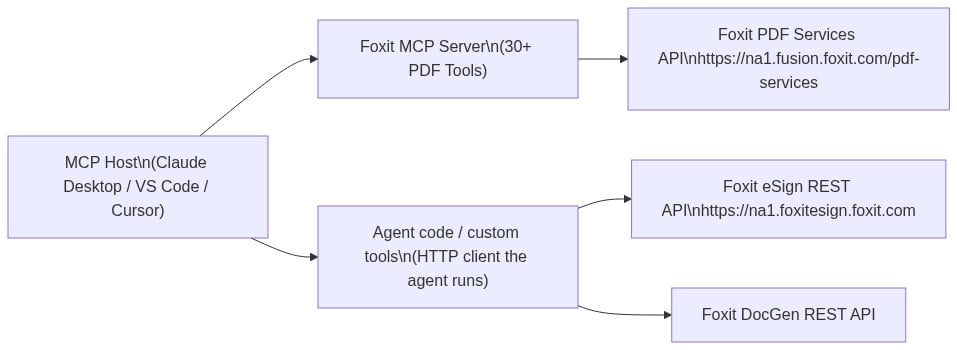
This guide covers how the server registers, what it exposes, how Foxit’s eSign and DocGen REST APIs extend the same agent session into signing and document generation workflows, and a concrete four-step workflow you can replicate against your own documents.
MCP Architecture in 90 Seconds
The MCP specification defines three roles. The Host is the LLM runtime (Claude Desktop, VS Code with GitHub Copilot, or Cursor) that manages the conversation and decides when to call tools. The Server is the capability provider, a process that advertises tools over the MCP protocol and executes them against some underlying service. Tools are the individual callable operations each server exposes, defined by a JSON schema the host uses to understand inputs and outputs.
Foxit occupies both sides of this architecture. Foxit PDF Editor ships as an MCP Host, the first PDF application to do so, connecting outward to external MCP servers like Gmail or Salesforce so its AI assistant can reach those services. The Foxit PDF API MCP Server works in the other direction, exposing Foxit’s cloud PDF Services API as 30+ tools for any MCP Host to call.
The MCP Server exposes PDF Services operations covering conversion between formats, content extraction, OCR, merge, split, compress, flatten, linearize, compare, watermark, form data import/export, security, and property inspection. Foxit’s eSign API and DocGen API are separate REST services that are not part of the MCP Server, so they are not exposed as MCP tools. A single agent workflow can still reach them, but through the agent’s own code-execution layer rather than through the MCP protocol, a distinction the eSign section explains in detail. The MCP tools handle PDF processing, while code the agent runs handles signing and template generation.
Prerequisites and Configuration
You need three things before registering the server:
- A Foxit developer account (free plan at developer-api.foxit.com, no credit card required) to obtain a
client_idandclient_secret - Python 3.11+ with the
uvpackage manager (or Node.js 18+ withpnpmfor the TypeScript version) - An MCP-compatible host such as Claude Desktop, VS Code, or Cursor
Clone the repo from github.com/foxitsoftware/foxit-pdf-api-mcp-server, then register it in your host’s MCP config. The walkthrough below uses Claude Desktop, but the same command, args, and env values work in any MCP host. In Claude Desktop, open Settings, select the Developer tab, and click Edit Config.
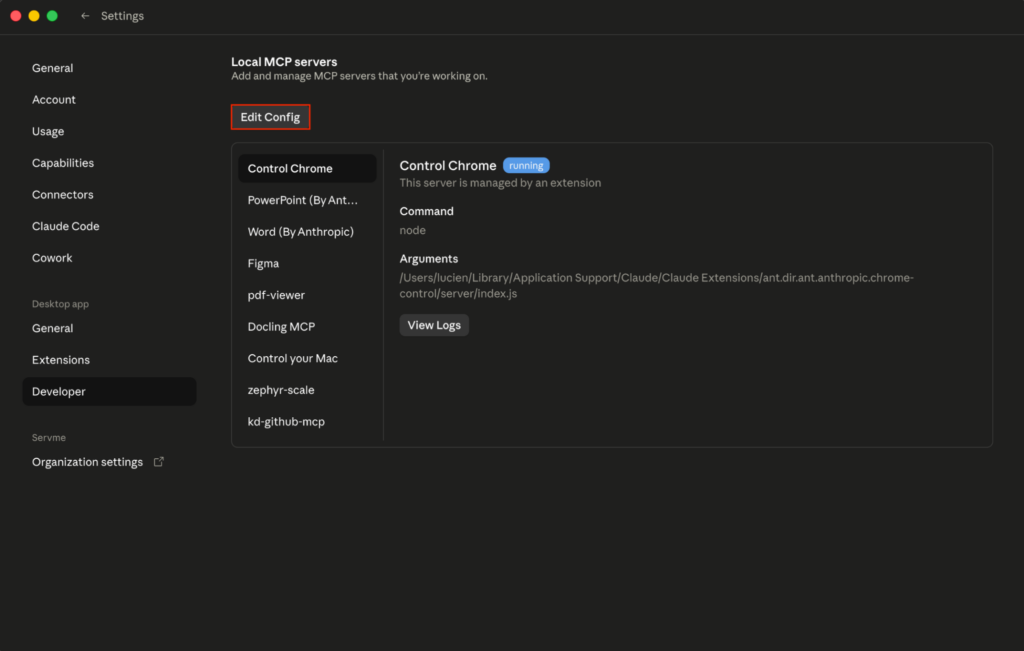
Then open claude_desktop_config.json with any text edito(stored at ~/Library/Application Support/Claude/ on macOS or %APPDATA%\Claude\ on Windows).
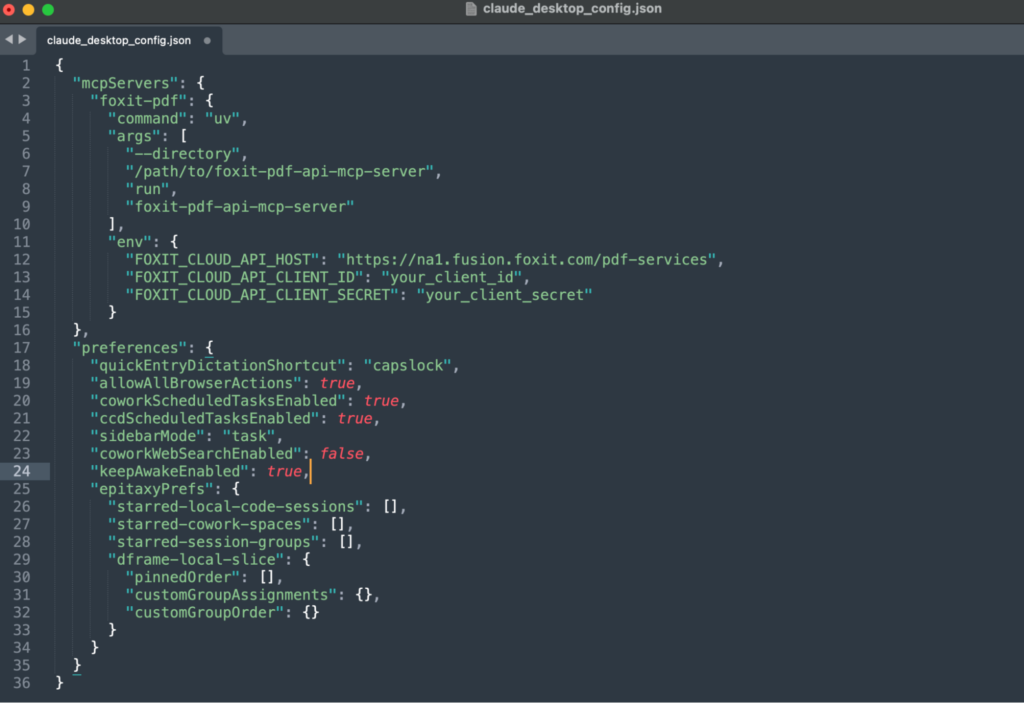
Add the Foxit server under the mcpServers key:
Set FOXIT_CLOUD_API_CLIENT_ID and FOXIT_CLOUD_API_CLIENT_SECRET as environment variables on your system before the host process launches. Passing credentials through prompt context is a security risk your production setup should address. The client_id and client_secret from your developer portal authenticate all MCP tool calls to the PDF Services API. Adding eSign to the same agent session requires its own OAuth2 token exchange (covered in the next section), keeping the two credential scopes isolated.
After saving, completely quit and reopen Claude Desktop so it loads the config and launches the server as a local subprocess over standard input and output, the transport the Foxit server uses.
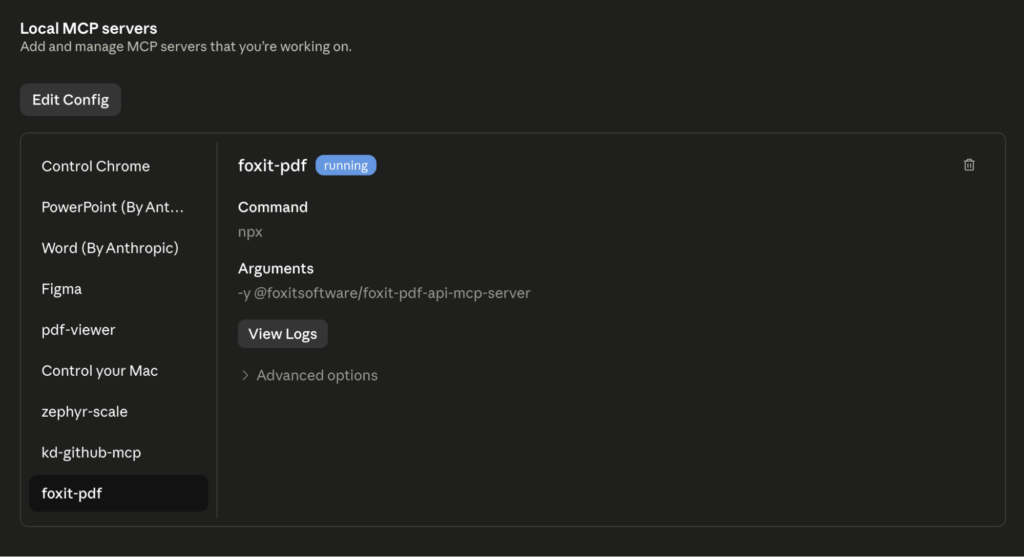
On restart, you should see the foxit MCP as Running in the local MCP servers in the developer tab. If you go the Customize tab then open the Connectors and click foxit-pdf to see the tools that the Foxit MCC has access to, you should see the 30+ tools registered.
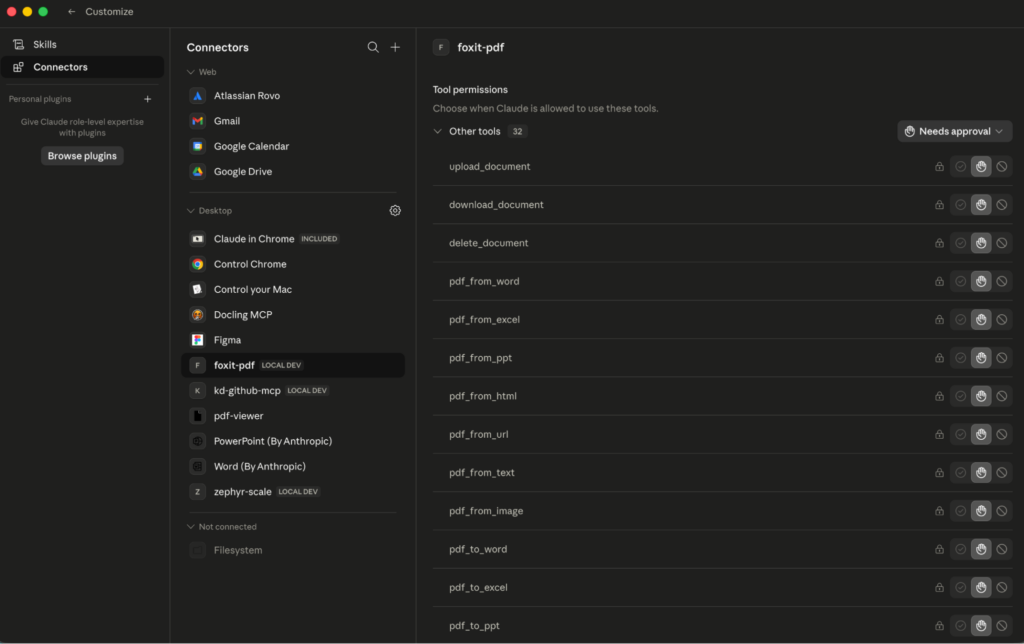
If the connector never appears, the server failed to launch, and Claude’s logs at
~/Library/Logs/Claude/mcp*.logusually point to the cause, commonly a missinguvbinary or a wrong--directorypath.
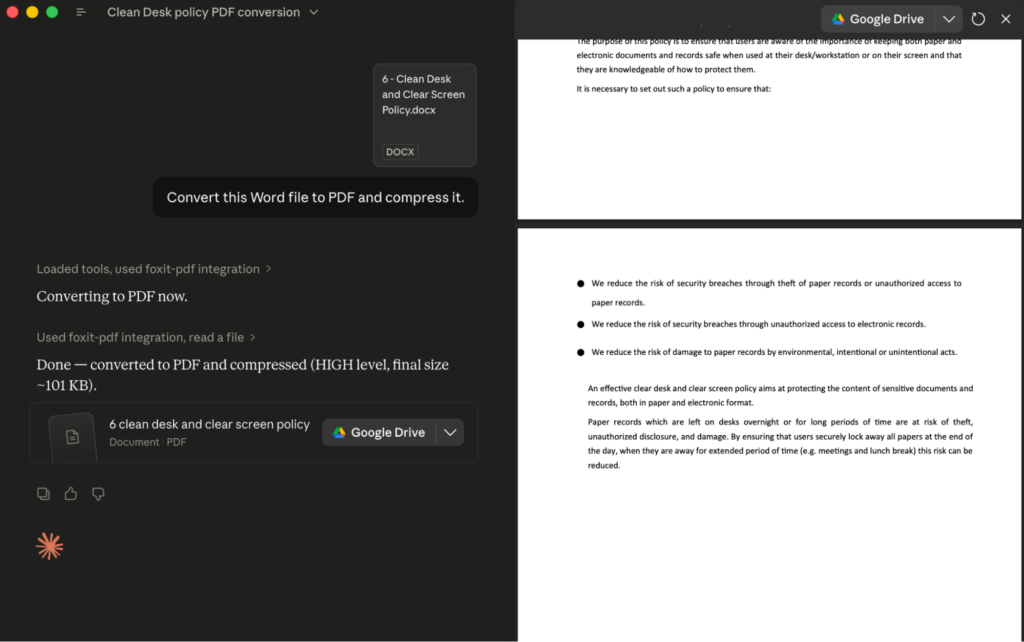
To call a tool, type a natural-language request such as “Convert this Word file to PDF and compress it.” The agent selects pdf_from_word and pdf_compress, and Claude Desktop shows an approval prompt with the exact tool name and arguments before each call runs; the tool’s JSON result then streams back into the conversation.
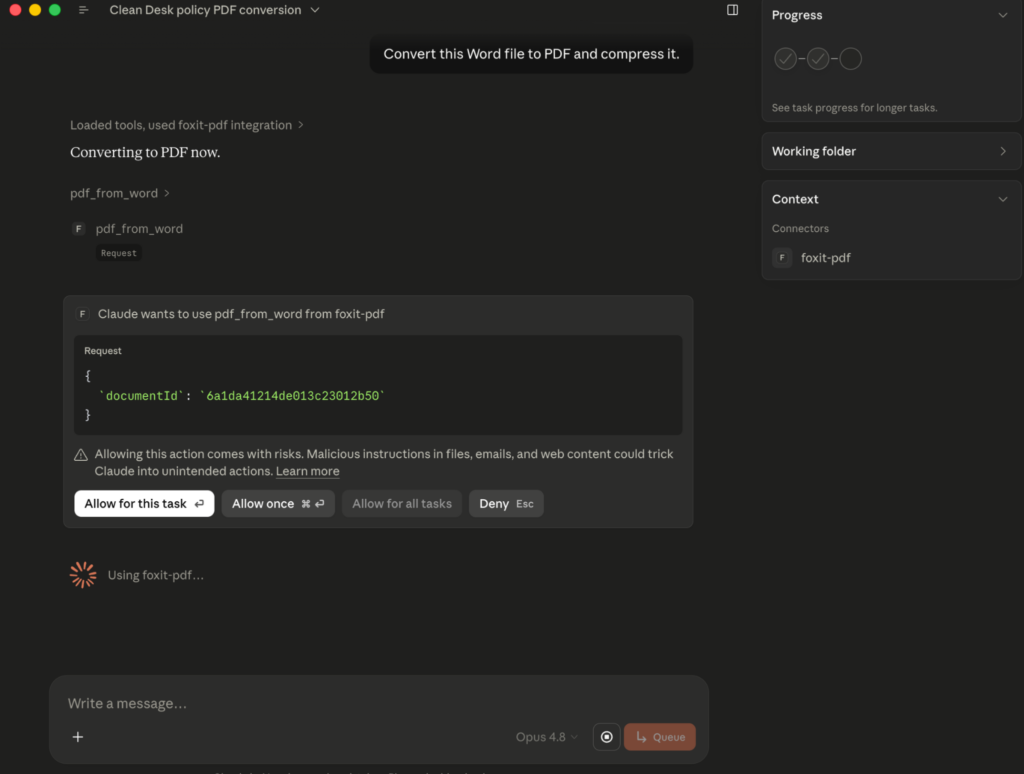
That per-call approval is your audit point, since it surfaces precisely which tool the agent chose and what it passed.
If you would rather run the server in VS Code, the equivalent entry goes in .vscode/mcp.json under a top-level servers key, with an added "type": "stdio" field so VS Code launches the server the same way:
Set sendNow to false to create a draft folder, then dispatch it with a separate call to /api/folders/sendDraftFolder. Alternatively, set sendNow to true to create and send in a single call. For files not accessible via URL, add "inputType": "base64" and pass the documents as a base64FileString array instead of fileUrls; omitting inputType makes the API reject the base64 payload as empty.
Foxit’s eSign API ships with HIPAA, eIDAS, ESIGN Act, UETA, 21 CFR Part 11, FERPA, and FINRA compliance built in. Audit trail records carry signer location, IP address, recipient identity, event timestamp, consent confirmation, security level, and complete folder history. For legal defensibility in regulated industries, capture and store these fields in your own data layer, because relying solely on Foxit’s folder history API for compliance record-keeping introduces a single point of failure in your audit chain.
End-to-End Workflow: AI Agent Automates a Sales Contract
Picture a sales ops agent that starts from a single natural language goal, “Generate a contract for Acme Corp, $48,000 ARR, and send it to [email protected] for signature.” Nothing about the tool sequence is hard-coded. The MCP Server advertises its PDF tools to the host on connection, so the agent can read the goal, recognize that it has a template to render and a document to route for signature, and decide which operations to call and in what order. The PDF steps run as MCP tool calls; the DocGen and eSign steps run from the agent’s code layer. The sequence below is one plausible run the agent might choose, not a fixed script you wire up in advance.
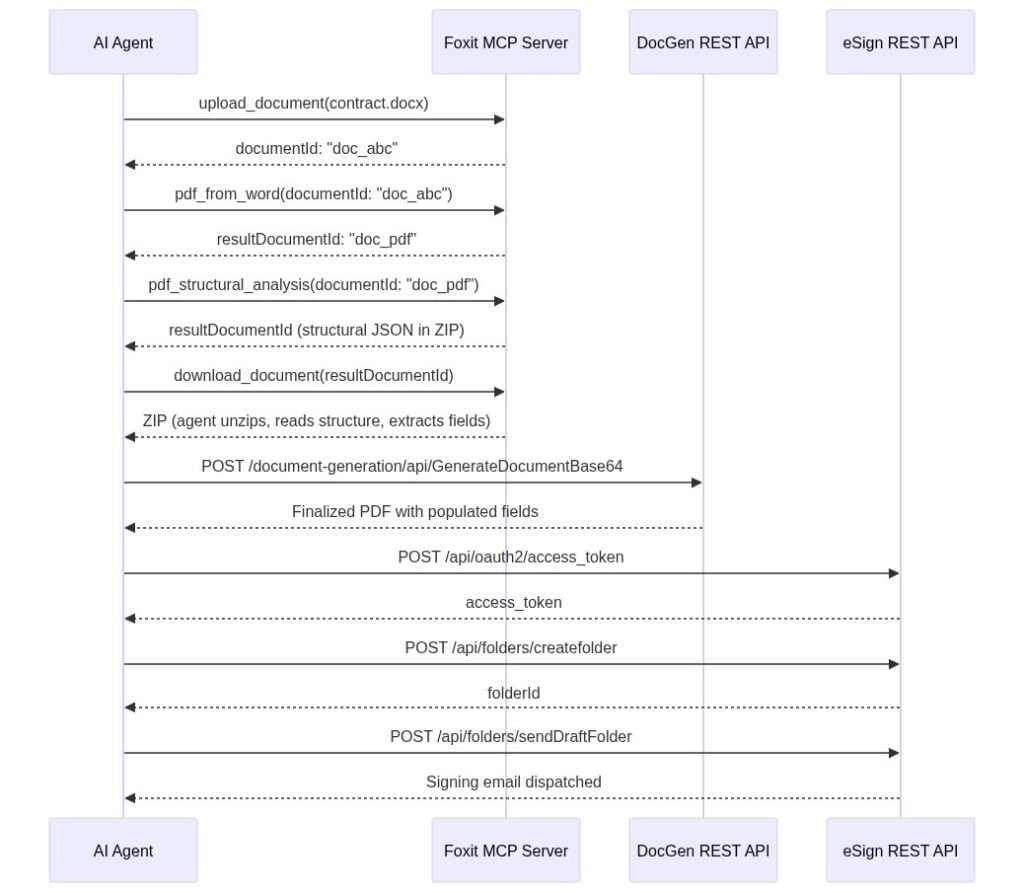
To get a PDF to work with, the agent first reaches for MCP tools. It calls upload_document with the DOCX contract template, receives documentId: "doc_abc", and calls pdf_from_word. The MCP Server handles the async conversion internally and returns resultDocumentId: "doc_pdf" once it completes.
Needing to know what is inside that PDF, the agent calls pdf_structural_analysis with documentId: "doc_pdf". The tool does not hand back named entities like “party” or “ARR.” It returns a resultDocumentId pointing to a ZIP archive, so the agent calls download_document to retrieve it, unzips it, and reads the structural JSON, which describes headings, paragraphs, and table cells with their positions. The agent’s LLM is what performs the semantic extraction: it reads the structural JSON and pulls “Acme Corp” out of a heading or a contract value out of a table cell, confirming the fields it needs are present. The tool hands back structure; the model turns that structure into meaning. If you want the API to return business entities directly rather than leaning on the model to interpret layout, that is the job of Foxit’s iDox.ai Document API, a separate service built for entity and PII extraction.
With the field values in hand, the agent generates the finished contract through the DocGen API, posting to /document-generation/api/GenerateDocumentBase64 with the values merged into the template via {{dynamic_tags}} syntax. DocGen is synchronous, so the call returns the finalized PDF in the response body, with Acme Corp’s name, the $48,000 ARR figure, and the correct dates populated. No polling step is involved.
Finally, the agent routes the document for signature. It authenticates against the eSign OAuth2 endpoint, uploads the DocGen output, creates a signing folder via /api/folders/createfolder with [email protected] as the signer, and dispatches it via /api/folders/sendDraftFolder.
What ties this together is that the model decides the order from the goal, not a script. The PDF steps resolve to MCP tool calls the host already knows about; the DocGen and eSign steps run through the agent’s code layer, since those APIs are not MCP tools. The agent chains the output of one step into the input of the next, and the only orchestration you maintain is whatever exposes that code layer to the model, ideally a set of custom tools rather than ad hoc scripting.
Production Considerations: Error Handling, Rate Limits, and Data Governance
When you call PDF Services through the MCP Server, async polling happens inside the server process. Your agent receives a final resultDocumentId only after the task completes. When you call the raw PDF Services REST API directly, every operation returns a taskId you poll manually. The pattern below applies exponential backoff with a ceiling of 10 seconds per interval and a 30-second total timeout:
Automate Dynamic PDF Generation with the Foxit DocGen API: Word Templates, JSON Data, and Real API Calls
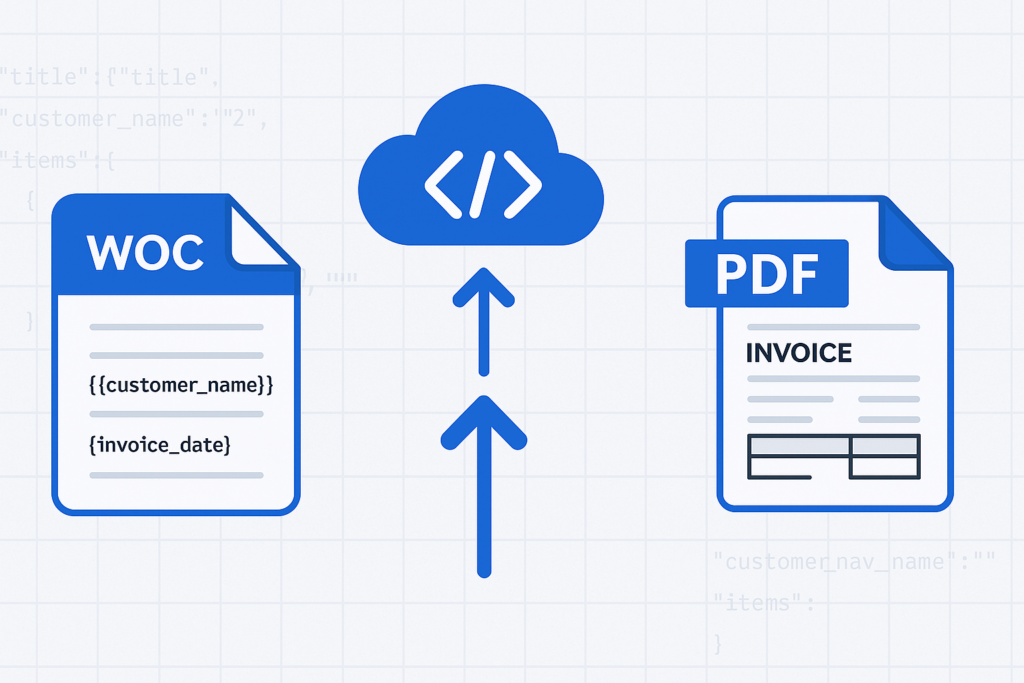
Skip the HTML-to-PDF headaches. Use Foxit’s DocGen API to turn Word templates and JSON data into clean, formatted PDFs with one API call.
Generate Dynamic PDFs from JSON using Foxit APIs

See how easy it is to generate PDFs from JSON using Foxit’s Document Generation API. With Word as your template engine, you can dynamically build invoices, offer letters, and agreements—no complex setup required. This tutorial walks through the full process in Python and highlights the flexibility of token-based document creation.