If you’ve tried to generate a contract or invoice from HTML, you’ve probably burned hours on page-break-inside: avoid declarations that Chrome renders one way and a headless browser renders another. Headers and footers require separate print-media queries, and by the time you’ve got a repeating table header working correctly across pages, you’ve invested a full day of engineering into CSS that exists solely to trick a browser into behaving like a printer.
HTML documents reflow content into a viewport while PDF documents have fixed page geometry. Forcing one model into the other produces predictable failure modes: footnotes that collide with page footers, tables that split at the worst possible row, custom fonts that substitute silently, and signature blocks that drift off-page on longer documents.
There’s a larger practical cost too. For most teams, the authoritative source for enterprise document templates is already a Word file. Your legal team owns the NDA in .docx format. Finance owns the invoice in .docx format. Every structural change flows through Word because that’s where the tracked changes, formatting history, and review process live. Maintaining a parallel HTML version of each template doubles your maintenance surface from day one.
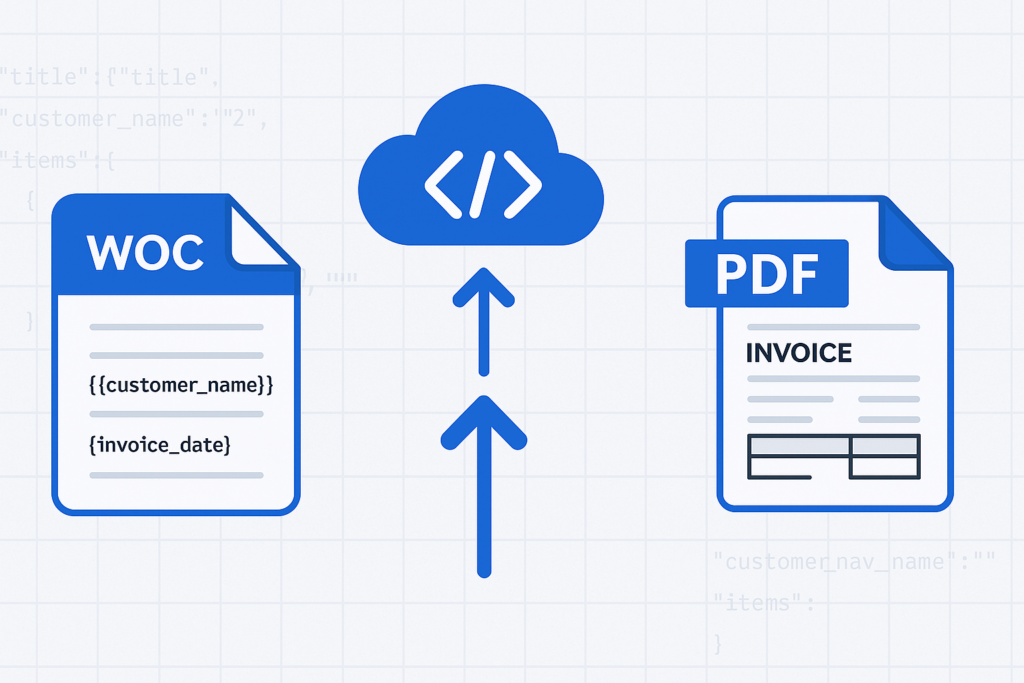
Foxit’s DocGen API eliminates that parallel entirely. You keep your templates as .docx files, embed data tags directly in Word, POST the base64-encoded template and a JSON payload to a single REST endpoint, and receive the rendered PDF (or DOCX) in the response body. You eliminate the browser rendering engine, the print-media CSS layer, and the overhead of a second template format.
How the Foxit DocGen API Works
The core model is a single synchronous POST to the GenerateDocumentBase64 endpoint at developer-api.foxit.com. Your request body carries three fields:
base64FileString: your .docx template, base64-encodeddocumentValues: a JSON object containing your merge dataoutputFormat: either"pdf"or"docx"
The API processes the template, resolves every tag against your data, and returns a JSON response containing base64FileString (the rendered document) and a message field confirming success or describing a failure. The exchange is fully synchronous, so you receive the finished document in the same HTTP response with no job ID to poll and no webhook to configure.
Authentication uses two HTTP headers: client_id and client_secret. Both come from the Foxit Developer Portal when you create an account. The free Developer plan provides 500 credits per year with no credit card required, and each GenerateDocumentBase64 call consumes exactly one credit. The Startup plan ($1,750/year) provides 3,500 credits. The Business plan ($4,500/year) covers 150,000 credits for production workloads. For context, Nutrient’s API starts at $75 for 1,000 credits, and Apryse requires a sales conversation before you can access pricing at all.
The complete call flow runs from template file to PDF on disk.
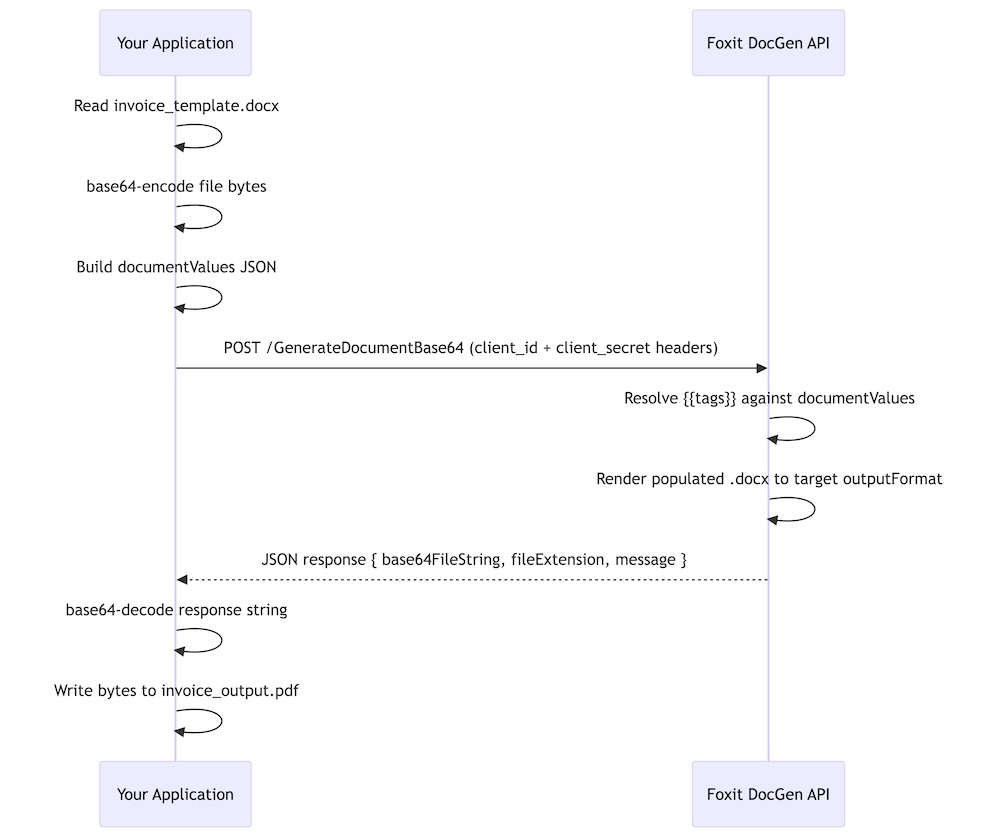
You can explore every endpoint in the live API playground at developer-api.foxit.com, and the portal includes a Postman collection you can import to run authenticated requests without writing a line of code first.
Build a Word Template with DocGen Tags
Open any .docx file in Microsoft Word and type your tags as plain text directly in the document. The DocGen API uses double-brace syntax: {{field_name}}. Tags go anywhere Word accepts text: headings, body paragraphs, table cells, headers, footers, or text boxes.
Scalar field tags resolve directly to the matching key from your documentValues JSON. A document header with {{customer_name}}, {{invoice_number}}, and {{invoice_date}} pulls those three values straight from the top-level keys of your payload.
For arrays, you wrap a single table row (the data row, not the header row) with {{TableStart:array_name}} and {{TableEnd:array_name}} markers. The wrapped row acts as a template row, and the API renders one output row per item in the JSON array. An invoice line-items table in Word looks like this:
| Description | Qty | Unit Price | Total |
|---|---|---|---|
{{TableStart:line_items}}{{description}} | {{qty}} | {{unit_price}} | {{total}}{{TableEnd:line_items}} |
Within the array row, ROW_NUMBER auto-increments with each rendered row. A SUM(ABOVE) field placed in the row directly below the {{TableEnd:line_items}} marker calculates a column total across all rendered data rows.
For nested JSON objects, use dot-notation in your tags. A shipping address block references {{shipping.street}}, {{shipping.city}}, and {{shipping.postal_code}}, mapping to properties nested inside a shipping object in your payload. The nesting can go multiple levels deep, so {{customer.address.city}} resolves against documentValues.customer.address.city.
For a working starting point, grab the downloadable invoice template from the foxit-demo-templates repo. The file is well under the 4 MB upload limit and demonstrates every pattern this article uses: scalar tags, {{TableStart:line_items}} / {{TableEnd:line_items}} with {{ROW_NUMBER}}, currency and date format switches, and subtotal / tax / total fields below the line-items table.
One sizing constraint applies while you build your own template. DocGen rejects uploads larger than 4 MB, so if you embed product photos, scanned letterhead, or full font subsets, compress the images before saving, drop embedded fonts where you can rely on system fonts, or split a large template into smaller per-section templates that you generate and merge separately.
Make Your First API Call: Generate a PDF from JSON
Run a quick pre-flight check before the first call to catch the issues that derail most clean-account run-throughs:
- Account created and
client_id/client_secretcopied from the Developer Portal API Keys section - Sample template saved locally as
invoice_template.docxin the directory you’ll run the script from - Template file size confirmed under 4 MB (
ls -lh invoice_template.docxon macOS or Linux, right-click → Properties on Windows)
With those in place, confirm your credentials work with a cURL call. The Foxit Developer Portal includes a Postman collection for this, but a quick cURL request against the API catches auth issues before any code runs:
curl -X POST "https://na1.fusion.foxit.com/document-generation/api/GenerateDocumentBase64" \
  -H "client_id: YOUR_CLIENT_ID" \
  -H "client_secret: YOUR_CLIENT_SECRET" \
  -H "Content-Type: application/json" \
  -d '{"base64FileString":"","documentValues":{},"outputFormat":"pdf"}'
A 401 here means invalid credentials. A 400 with a message about the template confirms your headers are accepted and you can proceed to the full call.
Save your .docx template as invoice_template.docx in the same directory as this script, then run the complete generation:
import requests
import base64

CLIENT_ID = "your_client_id"
CLIENT_SECRET = "your_client_secret"
API_URL = "https://na1.fusion.foxit.com/document-generation/api/GenerateDocumentBase64"

# Read and encode the template
with open("invoice_template.docx", "rb") as f:
    template_b64 = base64.b64encode(f.read()).decode("utf-8")

# Build the data payload
document_values = {
    "customer_name": "Acme Corporation",
    "invoice_number": "INV-2025-0042",
    "invoice_date": "07/15/2025",
    "due_date": "08/14/2025",
    "line_items": [
        {
            "description": "API Integration Consulting",
            "qty": 8,
            "unit_price": 195.00,
            "total": 1560.00
        },
        {
            "description": "Document Automation Setup",
            "qty": 1,
            "unit_price": 750.00,
            "total": 750.00
        }
    ],
    "subtotal": 2310.00,
    "tax_rate": 0.08,
    "tax_amount": 184.80,
    "total_due": 2494.80
}

# Construct the request body
payload = {
    "base64FileString": template_b64,
    "documentValues": document_values,
    "outputFormat": "pdf"
}

headers = {
    "client_id": CLIENT_ID,
    "client_secret": CLIENT_SECRET,
    "Content-Type": "application/json"
}

response = requests.post(API_URL, json=payload, headers=headers)

if response.status_code == 200:
    result = response.json()
    pdf_bytes = base64.b64decode(result["base64FileString"])
    if pdf_bytes[:5] != b"%PDF-":
        raise ValueError("Response did not contain a valid PDF")
    with open("invoice_output.pdf", "wb") as out:
        out.write(pdf_bytes)
    print("PDF written to invoice_output.pdf")
else:
    print(f"Error {response.status_code}: {response.json().get('message')}")
The success response is a JSON object with three keys: base64FileString (the rendered PDF, base64-encoded), fileExtension ("pdf"), and message ("PDF Document Generated Successfully"). Decoding and writing the bytes to disk gives you a complete, formatted PDF with every tag replaced by its corresponding data value. If you omit a key from documentValues, the API renders the corresponding tag as an empty string, producing a blank field in the output.
Advanced Data Scenarios: Arrays, Nested Objects, and Built-In Functions
The two-row invoice above works, but most production documents have more complex data shapes. Three patterns cover the majority of real-world cases.
For multi-row tables, the line_items array in the Python snippet above already shows the basic structure. To generate five rows, pass five objects in the array. The Word template row tagged with {{TableStart:line_items}} and {{TableEnd:line_items}} repeats exactly once per array item:
{
  "line_items": [
    {
      "description": "UX Design Review",
      "qty": 4,
      "unit_price": 150.0,
      "total": 600.0
    },
    {
      "description": "Backend API Development",
      "qty": 12,
      "unit_price": 185.0,
      "total": 2220.0
    },
    {
      "description": "Database Schema Migration",
      "qty": 3,
      "unit_price": 200.0,
      "total": 600.0
    },
    {
      "description": "QA Testing",
      "qty": 6,
      "unit_price": 95.0,
      "total": 570.0
    },
    {
      "description": "Deployment and Documentation",
      "qty": 2,
      "unit_price": 175.0,
      "total": 350.0
    }
  ]
}
The API generates exactly five table rows. Swap in 50 items and you get 50 rows, with page breaks handled by Word’s native pagination logic.
For nested objects, the DocGen API resolves dot-notation paths against the full depth of your JSON structure. A shipping confirmation template referencing {{customer.address.city}} works against this payload without any flattening on your end:
{
  "customer": {
    "name": "Sarah Chen",
    "email": "[email protected]",
    "address": {
      "street": "742 Evergreen Terrace",
      "city": "Portland",
      "state": "OR",
      "postal_code": "97201"
    }
  }
}
In the Word template, {{customer.name}}, {{customer.address.city}}, and {{customer.address.postal_code}} each resolve to the correct nested value. You can reference the same nested object from multiple locations in the template, and the API populates each instance independently.
For numeric and date formatting, the DocGen API respects Word’s native field switch syntax. Adding \# Currency to a tag formats a numeric value as a currency string, so {{unit_price \# Currency}} renders 195.00 as \$195.00. Date fields accept \@ "MM/dd/yyyy" to control output format, so {{invoice_date \@ "MM/dd/yyyy"}} formats an ISO date string to 07/15/2025. To auto-calculate a column total, place a SUM(ABOVE) field in the Word table row immediately below {{TableEnd:line_items}} and the API evaluates it against the rendered data rows.
Error Handling and Production Readiness
The DocGen API returns a focused set of HTTP status codes. A 200 confirms successful generation. A 401 means your client_id or client_secret headers are invalid, and the fix is to re-copy the credentials from the Developer Portal. A 400 covers three cases. The first is a malformed request body, for example a missing base64FileString or outputFormat. The second is structural issues with the template itself, such as a {{TableStart}} marker placed outside its table row. The third is an oversize template; DocGen rejects .docx uploads larger than 4 MB, and the fix is to compress embedded images, drop embedded fonts, or split the template before re-encoding. The message field in every non-200 response body gives you the specific reason, so log it rather than discarding the response object.
A production wrapper handles all three cases and adds exponential backoff for transient server errors:
import requests
import base64
import time

def generate_document(client_id, client_secret, template_path,
                      document_values, output_format="pdf"):
    API_URL = "https://na1.fusion.foxit.com/document-generation/api/GenerateDocumentBase64"

    with open(template_path, "rb") as f:
        template_b64 = base64.b64encode(f.read()).decode("utf-8")

    payload = {
        "base64FileString": template_b64,
        "documentValues": document_values,
        "outputFormat": output_format
    }
    headers = {
        "client_id": client_id,
        "client_secret": client_secret,
        "Content-Type": "application/json"
    }

    max_retries = 3
    for attempt in range(max_retries):
        try:
            response = requests.post(API_URL, json=payload,
                                     headers=headers, timeout=30)

            if response.status_code == 200:
                return base64.b64decode(response.json()["base64FileString"])

            if response.status_code == 401:
                raise ValueError("Authentication failed: re-check client_id and client_secret")

            if response.status_code == 400:
                msg = response.json().get("message", "Bad request")
                raise ValueError(f"Request error: {msg}")

            if response.status_code >= 500:
                if attempt < max_retries - 1:
                    wait = 2 ** attempt
                    print(f"Server error ({response.status_code}), retrying in {wait}s...")
                    time.sleep(wait)
                    continue
                raise RuntimeError(f"Server error after {max_retries} attempts")

        except requests.exceptions.Timeout:
            if attempt < max_retries - 1:
                time.sleep(2 ** attempt)
                continue
            raise

    raise RuntimeError("Max retries exceeded")
The wrapper raises immediately on 4xx responses because retrying a credential error or a malformed request produces the same result. Exponential backoff applies only to 5xx responses and timeouts, where the issue is transient.
Once generate_document() returns raw PDF bytes, routing them downstream takes three lines:
import boto3

s3 = boto3.client("s3")
pdf_bytes = generate_document(CLIENT_ID, CLIENT_SECRET, "invoice_template.docx", document_values)
s3.put_object(Bucket="my-documents-bucket", Key="invoices/INV-2025-0042.pdf", Body=pdf_bytes)
To attach the output to an email, pass pdf_bytes directly as the smtplib attachment payload. To collect a signature on the generated document, base64-encode the bytes and POST them to Foxit’s eSign API with the signer’s email address in the request body. The full eSign API reference is at docs.developer-api.foxit.com.
Common Mistakes
A short list of the issues that account for almost every failed first run.
- Smart-quote autocorrect on braces. Word’s AutoCorrect can convert the second
{of{{into a curly-quote glyph, which breaks tag parsing silently. Disable “Straight quotes with smart quotes” under AutoCorrect Options, or paste tags as plain text. - Token case sensitivity.
{{Customer_Name}}and{{customer_name}}are different keys. Match the casing in your JSON exactly. TableStartandTableEndmust sit in the same Word table row. Splitting them across two rows, or placing either marker outside the table, leaves the loop unrendered with no error.- Template over 4 MB. The API rejects oversize uploads with a 400. Compress embedded images, drop embedded fonts where system fonts will do, or split the template into smaller pieces.
- Missing payload key. The API renders an unmatched tag as an empty string rather than failing, so a 200 response does not guarantee every field is populated. Spot-check the rendered PDF as part of any pipeline test.
- Auth header typos. Headers are
client_idandclient_secretin snake_case.Client-Id,ClientId, orX-Client-Idall return 401.
Run the Full Invoice Example End-to-End Right Now
Create a free account directly at account.foxit.com/site/sign-up. This skips the pricing-page redirect you hit from the marketing site and drops you straight into the account form.
- Open account.foxit.com/site/sign-up and complete the form (no credit card required).
- After verification, sign in to the Developer Portal and the Developer plan (500 credits per year) is active by default.
- Open the API Keys section and copy your
client_idandclient_secret.
With credentials in hand, run the example end-to-end:
- Download
invoice_full.docxfrom the foxit-demo-templates repo and save it locally asinvoice_template.docxin your working directory. The file is well under the 4 MB upload limit and exercises every tag pattern this article covers. - Paste your credentials into the
CLIENT_IDandCLIENT_SECRETvariables in the Python script from the previous section. - Edit the
document_valuesdictionary with your own customer name, invoice number, and line items. - Run the script and open
invoice_output.pdf.
The free Developer plan’s 500 annual credits cover this tutorial dozens of times over before you spend anything. The full API reference at docs.developer-api.foxit.com covers every endpoint parameter, the complete tag specification, all supported output formats, and the full GenerateDocumentBase64 request and response schema.
Get started with a free account (no credit card required) and generate your first dynamic PDF in under 10 minutes.