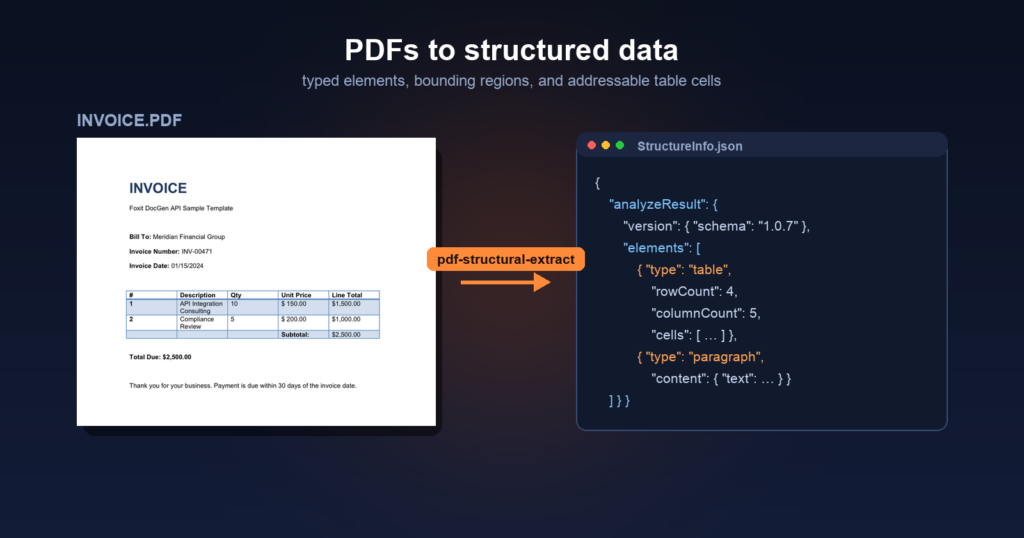
Pull text out of a multi-column invoice and you get a flat string with column headers mixed into values, row boundaries gone, and field labels indistinguishable from the data they describe. Foxit’s PDF Structural Extraction API returns typed JSON instead, where every element carries a type, its text, a bounding region, and, for tables, an addressable grid of cells.
This tutorial walks the four REST calls that get you there, uploading a PDF, starting the analysis, polling the task, and downloading the result. By the end you’ll have working Python code that turns an invoice into a dictionary your pipeline can address by key.
Raw text vs. structured extraction
What separates raw text extraction from structured extraction is the shape of the output, not the accuracy of the characters.
Take a vendor invoice with a line-item table covering description, quantity, and unit price. Text extraction returns something like "1 API Integration Consulting 10 $ 150.00 $1,500.00". The content is all there, but the row and column relationships are gone, so your parsing code has to reconstruct structure the PDF already encoded, and it has to do that differently for every layout you encounter.
Structured extraction preserves what raw text discards. The pdf-structural-extract endpoint returns each element with a type, a content object holding the text and its font styling, and a region giving the page number and bounding polygon. Tables come back as a cell grid with explicit rowIndex and columnIndex values, so a cell’s position is data rather than something you infer from coordinates.
Prerequisites
- Python 3.8+ with pip and a virtual environment via venv.
- The requests library for the HTTP calls.
- curl if you want to try the endpoints before writing code.
- A code editor, VS Code with the Python extension is a good default, though PyCharm or Sublime Text work equally well.
- A Foxit Developer account, free with no credit card, created at app.developer-api.foxit.com/sign-up. Activate the Developer plan (500 credits per year) and copy the Client ID and Client Secret from the APIs Dashboard.
- A sample PDF, so you do not have to build one. This tutorial uses invoice_table_test.pdf, a one-page invoice with a five-column line-item table.
Scaffold the workspace in one shot:
mkdir foxit-extract && cd foxit-extract
python3 -m venv .venv && source .venv/bin/activate
pip install requests
curl -L -o invoice.pdf https://github.com/lucienchemaly/foxit-demo-templates/raw/main/invoice_table_test.pdf
export FOXIT_CLIENT_ID="your_client_id"
export FOXIT_CLIENT_SECRET="your_client_secret"
Here is the invoice the rest of the tutorial extracts from.
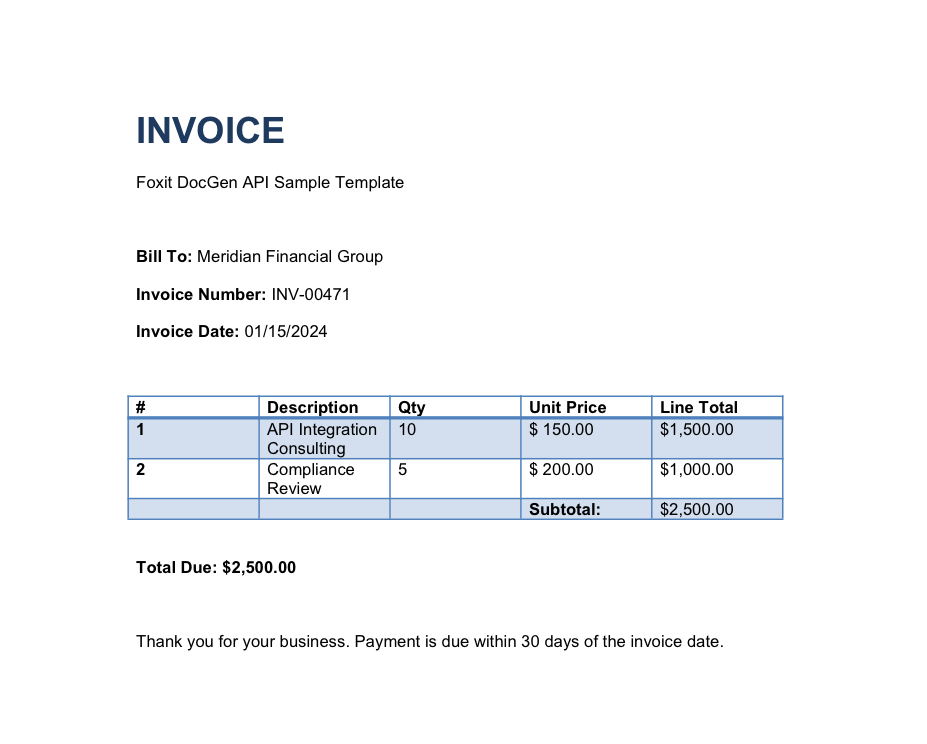
The source document. The five-column table and the labeled fields above it are what the extraction turns into addressable JSON.
Authentication
PDF Services authenticates with two named request headers on every call, client_id and client_secret, both lowercase with an underscore. There is no OAuth exchange and no bearer token, and wrapping the credentials in an Authorization: Bearer header returns a 400 instead. The base host for every endpoint in this tutorial is https://na1.fusion.foxit.com/pdf-services.
Keep the values in environment variables rather than in the file, so nothing secret travels with your code.
The four-call extraction flow
Structural extraction is an asynchronous job, so it runs in four steps.

The four calls and what each one hands to the next. The id you download with comes from the finished task, not the upload.
- Upload the PDF and receive a
documentId. - Start the analysis against that id and receive a
taskId. - Poll the task until its
statusreachesCOMPLETED, which also returns aresultDocumentId. - Download the result, a ZIP archive holding the structured JSON.
Step 1: Upload the document
Send the PDF as multipart/form-data to the upload endpoint, using the form field name file.
curl -X POST "https://na1.fusion.foxit.com/pdf-services/api/documents/upload" \
  -H "client_id: $FOXIT_CLIENT_ID" \
  -H "client_secret: $FOXIT_CLIENT_SECRET" \
  -F "[email protected]"
The -F flag is what makes curl send a multipart body, and the @ prefix tells it to read the file from disk rather than treat the value as a literal string. Uploads are capped at 100 MB, and an uploaded document is deleted after 24 hours, so treat the documentId as short-lived rather than a permanent handle.
A successful upload returns a single key:
{
  "documentId": "6a6c9834a820c33d30d222e5"
}
Step 2: Start the structural analysis
POST that id to the extraction endpoint with a JSON body.
curl -X POST "https://na1.fusion.foxit.com/pdf-services/api/documents/pdf-structural-extract" \
  -H "client_id: $FOXIT_CLIENT_ID" \
  -H "client_secret: $FOXIT_CLIENT_SECRET" \
  -H "Content-Type: application/json" \
  -d '{"documentId": "6a6c9834a820c33d30d222e5"}'
The call returns HTTP 202 with a taskId rather than the finished document, since analysis runs asynchronously. documentId is the only required field in the body, and a password-protected source PDF takes an optional password alongside it. Full request and response details live in the PDF Structural Extraction reference, which also carries the endpoint’s Trial designation, so pin the schema version you parse against rather than assuming it is stable.
{
  "taskId": "6a6c9835d24a2429666f61b6"
}
Step 3: Poll the task
Ask for the task by id until it finishes.
curl "https://na1.fusion.foxit.com/pdf-services/api/tasks/6a6c9835d24a2429666f61b6" \
  -H "client_id: $FOXIT_CLIENT_ID" \
  -H "client_secret: $FOXIT_CLIENT_SECRET"
The response carries the state, a percentage, and, once the work is done, the id of the result document:
{
  "taskId": "6a6c9835d24a2429666f61b6",
  "status": "COMPLETED",
  "progress": 100,
  "resultDocumentId": "6a6c98375e2cab6bb50e740b"
}
Task statuses are uppercase. The schema enum runs PENDING, IN_PROGRESS, COMPLETED, and FAILED, so a comparison against a lowercase "completed" never matches and your loop spins until it times out. Portal copy sometimes says “processing” in prose, but IN_PROGRESS is the value on the wire.
Step 4: Download the result
Fetch the finished artifact using the resultDocumentId from the poll, not the documentId from the upload. Confusing the two is the most common 4xx at this step.
curl -o extract.zip \
  "https://na1.fusion.foxit.com/pdf-services/api/documents/6a6c98375e2cab6bb50e740b/download" \
  -H "client_id: $FOXIT_CLIENT_ID" \
  -H "client_secret: $FOXIT_CLIENT_SECRET"
The response comes back as application/zip. Unzipping it gives you StructureInfo.json, the structured output, alongside a rendered PNG of each analyzed page (page_p0.pdf_0.png for a one-page file).
The whole flow in Python
Here is the complete script, reading credentials from the environment.
import os
import time
import zipfile
import json
import requests

BASE = "https://na1.fusion.foxit.com/pdf-services/api"
HEADERS = {
    "client_id": os.environ["FOXIT_CLIENT_ID"],
    "client_secret": os.environ["FOXIT_CLIENT_SECRET"],
}


def upload(path):
    with open(path, "rb") as fh:
        r = requests.post(f"{BASE}/documents/upload", headers=HEADERS, files={"file": fh})
    r.raise_for_status()
    return r.json()["documentId"]


def start_extract(document_id):
    r = requests.post(
        f"{BASE}/documents/pdf-structural-extract",
        headers={**HEADERS, "Content-Type": "application/json"},
        json={"documentId": document_id},
    )
    r.raise_for_status()
    return r.json()["taskId"]


def wait_for_task(task_id, interval=3, timeout=180):
    deadline = time.time() + timeout
    while time.time() < deadline:
        r = requests.get(f"{BASE}/tasks/{task_id}", headers=HEADERS)
        r.raise_for_status()
        body = r.json()
        if body["status"] == "COMPLETED":
            return body["resultDocumentId"]
        if body["status"] == "FAILED":
            raise RuntimeError(f"Extraction failed: {body.get('error')}")
        time.sleep(interval)
    raise TimeoutError(f"Task {task_id} unfinished after {timeout}s")


def download_zip(result_id, out="extract.zip"):
    r = requests.get(f"{BASE}/documents/{result_id}/download", headers=HEADERS)
    r.raise_for_status()
    with open(out, "wb") as fh:
        fh.write(r.content)
    return out


document_id = upload("invoice.pdf")
result_id = wait_for_task(start_extract(document_id))
archive = download_zip(result_id)

with zipfile.ZipFile(archive) as z:
    structure = json.loads(z.read("StructureInfo.json"))

analyze = structure["analyzeResult"]
print("schema", analyze["version"]["schema"], "pages", len(analyze["pages"]))
In this code, you upload the invoice and keep the returned documentId, hand that id to the extraction endpoint to get a taskId, then poll the task on a fixed interval until it reports COMPLETED and yields a resultDocumentId. The download call writes the ZIP to disk, and rather than unpacking it to a folder you read StructureInfo.json straight out of the archive. The top-level key is analyzeResult, which is where the schema version, the page list, and the element array all live.
A three-second interval with a 180-second ceiling is comfortable for single-page documents. Back off rather than tightening the loop if you process long files, since polling every second only burns request budget without finishing the job sooner.
Reading the structured JSON
analyzeResult holds four things worth knowing about, an info block of document metadata, a version block, the pages array, and the elements array that carries the content.
{
  "analyzeResult": {
    "version": {
      "schema": "1.0.7",
      "software": "FoxitPDFAnalyzer",
      "model": "idp-analysis"
    },
    "pages": [
      { "pageNumber": 1, "size": {}, "state": {} }
    ],
    "elements": [
      {
        "type": "title",
        "content": {
          "text": "INVOICE",
          "style": { "fontFamilyName": "Arial", "fontSize": 24.0 }
        },
        "region": {
          "page": 1,
          "boundingBox": [90, 71, 189, 71, 189, 99, 90, 99]
        },
        "score": 0.88,
        "id": "title1"
      }
    ]
  }
}
Each element follows the same shape. The type classifies it, and extracting this invoice returns title, head, paragraph, and table. The schema defines a wider set, adding image, headerFooter, form, hyperlink, footnote, sidebar, annotation, and formula, so branch on the types your documents actually produce rather than assuming only four exist. The text and its font styling sit under content, so you read content.text rather than a top-level text key. The region gives the one-based page plus a boundingBox, and that box is an eight-number polygon listing four corner pairs in order, not a four-number rectangle. Every element also carries a confidence score and a stable id such as title1 or paragraph2, and paragraphs additionally carry a paragraphOrder for reading sequence.
Tables are the interesting case. Rather than a headers array and a two-dimensional rows array, a table exposes a cell list under content.body:
{
  "type": "table",
  "content": {
    "body": {
      "rowCount": 4,
      "columnCount": 5,
      "cells": [
        {
          "paragraph": { "type": "paragraph", "content": { "text": "Description" } },
          "rowSpan": 1,
          "columnSpan": 1,
          "rowIndex": 0,
          "columnIndex": 1
        }
      ]
    }
  }
}
Each cell states its own rowIndex and columnIndex along with rowSpan and columnSpan, and its text lives at paragraph.content.text. That is more verbose than a plain grid, but it means merged cells stay describable and you never have to infer column membership from x-coordinates.
Turning the cell list into rows
Since the API hands you cells rather than rows, build the grid yourself once and work with it afterwards.
def table_to_grid(table):
    body = table["content"]["body"]
    grid = [["" for _ in range(body["columnCount"])] for _ in range(body["rowCount"])]
    for cell in body["cells"]:
        text = cell.get("paragraph", {}).get("content", {}).get("text", "")
        grid[cell["rowIndex"]][cell["columnIndex"]] = text.replace("\r\n", " ")
    return grid


tables = [e for e in analyze["elements"] if e["type"] == "table"]
header, *data_rows = table_to_grid(tables[0])

line_items = [dict(zip(header, row)) for row in data_rows]
text_blocks = {
    e["id"]: e["content"].get("text", "")
    for e in analyze["elements"]
    if e["type"] in ("title", "head", "paragraph")
}

print(header)
for item in line_items:
    print(item)
The code above allocates an empty grid from rowCount and columnCount, then drops each cell’s text into its stated position, which sidesteps any assumption about cell ordering in the array. Cell text can contain literal \r\n where a label wraps inside its column, so the replace call flattens that to a space before it reaches your data layer. Splitting the first row off as the header lets you zip each remaining row into a dictionary keyed by column name, and the same comprehension pattern collects the title, heading, and paragraph text by element id.
Running it against the sample invoice prints the real extraction:
['#', 'Description', 'Qty', 'Unit Price', 'Line Total']
{'#': '1', 'Description': 'API Integration Consulting', 'Qty': '10', 'Unit Price': '$ 150.00', 'Line Total': '$1,500.00'}
{'#': '2', 'Description': 'Compliance Review', 'Qty': '5', 'Unit Price': '$ 200.00', 'Line Total': '$1,000.00'}
{'#': '', 'Description': '', 'Qty': '', 'Unit Price': 'Subtotal:', 'Line Total': '$2,500.00'}
Two things in that output are worth designing around. The unit price arrives as the string "$ 150.00", so currency parsing is still your job, and the final row is a subtotal rather than a line item, which is a reminder that the analyzer reports table geometry rather than business meaning. Filter trailing rows on an empty # or Description before you treat them as products. If you want to inspect a full result without running the calls yourself, the StructureInfo_sample.json from this exact run is available to read.
Feeding the output into an agent or downstream workflow
Once the table is a list of dictionaries and the labeled text is keyed by id, the payload is already agent-ready.
agent_context = {
    "document": {"schema": analyze["version"]["schema"], "pages": len(analyze["pages"])},
    "text_blocks": text_blocks,
    "line_items": line_items,
}
Because every element also carries a region, you can layer spatial checks on top, such as confirming a table sits below a particular heading by comparing the y values in their bounding polygons before you trust the association. Foxit also publishes an MCP server for PDF Services, so the same operations are reachable from an agent that speaks the Model Context Protocol rather than raw HTTP.
Common mistakes
- PascalCase auth headers : the keys are lowercase
client_idandclient_secret.ClientIdandClientSecretdo not authenticate, and neither does anAuthorization: Bearerheader, which returns a 400. - Comparing status to a lowercase string : task statuses are uppercase, so test against
COMPLETEDandFAILED. - Downloading with the upload id : the download path takes the
resultDocumentIdfrom the completed task, not thedocumentIdfrom the upload. - Reading
elementsfrom the root : the array is nested underanalyzeResult, sostructure["analyzeResult"]["elements"]is the path. - Expecting
bboxor a rows array : positions arrive asregion.boundingBoxwith eight numbers, and tables arrive ascontent.body.cellswith index fields rather than a headers plus rows pair. - Treating the ZIP as the JSON : the download is an archive, and the structured output is the
StructureInfo.jsonentry inside it. - Reusing a stale
documentId: uploads are removed after 24 hours, and the cap on an upload is 100 MB. - Polling every second : that exhausts request budget without speeding anything up. A few seconds between checks is enough.
PDF data extraction FAQ
What element types does the structural extraction return?
Extracting this invoice produces title, head, paragraph, and table elements. Every element carries type, content, region, score, and id, with tables adding a cell grid under content.body.
How is this different from raw text extraction for tables?
Raw text collapses a table into one string and loses row and column boundaries. Structural extraction reports rowCount, columnCount, and a cell list where each cell states its own rowIndex and columnIndex, so position is data rather than inference.
Is the extraction synchronous?
No. The extract call returns HTTP 202 with a taskId, and you poll GET /pdf-services/api/tasks/{taskId} until the status reaches COMPLETED, which is when resultDocumentId appears.
What does the download actually contain?
A ZIP archive holding StructureInfo.json plus a rendered PNG per analyzed page. The JSON is the structured output and the PNG is useful for visual spot checks.
What schema version does the output use?
The sample run reports analyzeResult.version.schema of 1.0.7, produced by FoxitPDFAnalyzer with the idp-analysis model. Read the version from the payload rather than hardcoding it, since it can move.
Does a failed task tell me why?
The task object surfaces the failure state in status as FAILED, so branch on that and log the whole task body when it happens.
Can I extract several documents at once?
Each upload and each task is independent, so run them concurrently and keep one taskId per document. The upload cap is 100 MB per file.
Get started with Foxit’s PDF Structural Extraction API
The pattern is four calls. Upload the PDF for a documentId, start pdf-structural-extract for a taskId, poll until COMPLETED for a resultDocumentId, then download the ZIP and read StructureInfo.json. From there analyzeResult.elements gives you typed titles, headings, paragraphs, and a table cell grid you can turn into dictionaries in a few lines.
Create a free developer account (no credit card) at account.foxit.com/site/sign-up, grab your Client ID and Secret from the APIs Dashboard, and run the script above against invoice_table_test.pdf to see the structured output for yourself.